Open-source RightAI Tools Directory
  • Discover AI
  • Submit
  • Startup
  • Blog
Open-source RightAI Tools Directory
Discover the best AI tools of 2025 with the RightAI Tools Directory!

Friend Links

AI Anime GeneratorToolsApp AI

Support

Tap4
Privacy policyTerms & ConditionsContact Us
Loading...
loading...

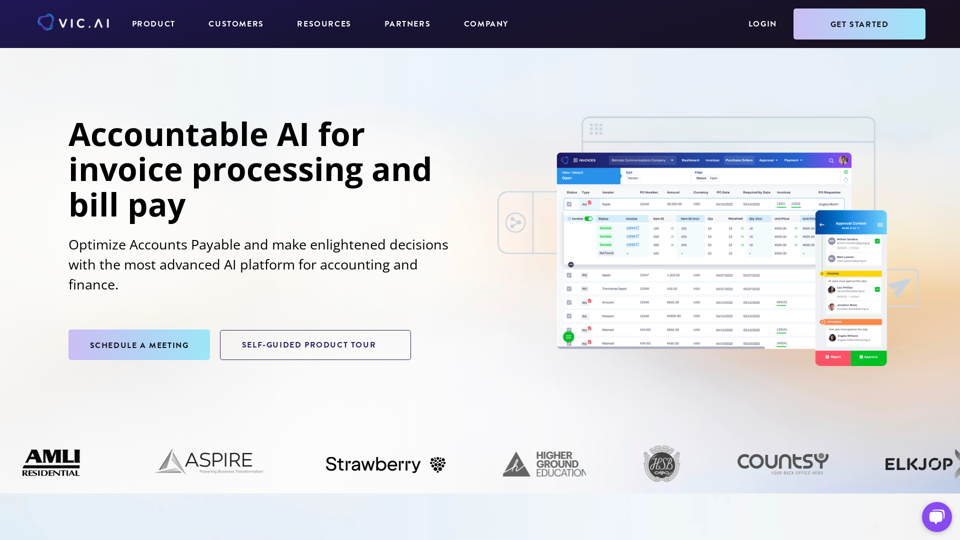
Accounting AI software for faster invoice processing

Transform invoice processing and enhance PO matching with Vic.ai's autonomous accounting solutions. Our platform offers robust AI capabilities, ensuring accuracy and speed in your financial operations and elevating your accounts payable process.
Visit Website
Accounting AI software for faster invoice processing
Visit Website

Introduction

Vic.ai is an advanced AI-powered platform designed for accounting and finance departments. It offers autonomous solutions for invoice processing, purchase order matching, approval workflows, payments, and analytics. By leveraging artificial intelligence, Vic.ai optimizes accounts payable processes and enhances decision-making capabilities for businesses, providing significant improvements in efficiency, accuracy, and return on investment.

Feature

Autonomous Invoice Processing

Vic.ai utilizes AI to analyze and process invoices autonomously, reducing manual work and increasing productivity by 355%.

AI-driven PO Matching

The system automatically matches invoices with purchase orders, identifying discrepancies with increased accuracy and speed.

Intelligent Approval Flows

Invoices are intelligently routed to the appropriate approvers without human intervention, streamlining the process and reducing delays.

AI-powered B2B Payments

The platform facilitates AI-powered payments, potentially uncovering early payment discounts and reducing fraud risks.

Real-time Analytics and Insights

Provides real-time insights on invoice processing, team performance, and business trends, improving decision-making and forecasting capabilities.

ERP Integration

Seamlessly connects with leading ERP systems through an open API, offering flexibility and scalability for various environments and use cases.

Efficiency Metrics

  • 5x faster invoice processing
  • 85% no-touch rate by month
  • 6-month average payback period
  • Over 60,000 hours saved for customers in the first year

FAQ

Is Vic.ai compatible with my ERP system?

Vic.ai is designed to integrate with all leading ERP systems and accounting solutions. It offers an open API that is flexible and scalable to handle various environments and use cases.

How does Vic.ai improve invoice processing speed?

By using AI to autonomously process invoices, Vic.ai can handle tasks much faster than manual methods, leading to a 5x increase in processing speed.

What is the "no-touch rate" and why is it important?

The no-touch rate refers to the percentage of invoices that can be processed without human intervention. Vic.ai achieves an 85% no-touch rate, significantly reducing manual work and potential errors.

Can Vic.ai help with fraud prevention in payments?

Yes, Vic.ai's AI-powered payment system is designed to reduce the risk of fraud while also identifying opportunities for early payment discounts.

How does Vic.ai handle approval workflows?

The platform uses AI to automatically route invoices to the correct approvers, streamlining the process and reducing delays in invoice approvals.

Latest Traffic Insights

  • Monthly Visits

    79.80 K

  • Bounce Rate

    40.33%

  • Pages Per Visit

    2.65

  • Time on Site(s)

    103.16

  • Global Rank

    409145

  • Country Rank

    United States 146109

Recent Visits

Traffic Sources

  • Social Media:
    5.24%
  • Paid Referrals:
    0.99%
  • Email:
    0.09%
  • Referrals:
    7.49%
  • Search Engines:
    36.66%
  • Direct:
    49.50%
More Data

Related Websites

Copilot for Microsoft 365 – Microsoft Adoption

Copilot for Microsoft 365 is a powerful AI assistant that helps you work smarter and faster across Microsoft 365 apps and services. It combines the power of large language models (LLMs) with your organization's data in the Microsoft Graph and Microsoft 365 apps to turn your words into the most powerful productivity tool on the planet.

Copilot is designed to help you:

β€’ Unleash creativity
β€’ Unlock productivity
β€’ Uplevel skills

Copilot is built on Microsoft's comprehensive approach to security, compliance, and privacy. Copilot in Microsoft 365 apps and services:

β€’ Does not use your data to train the underlying LLM
β€’ Does not replace human ingenuity and judgment
β€’ Is designed to keep humans in the loop

Copilot is currently available in Word, Excel, PowerPoint, Outlook, Teams, and more.

Getting Started with Copilot

To get started with Copilot, follow these steps:

1. Check availability: Ensure your organization has access to Copilot.
2. Learn the basics: Familiarize yourself with Copilot's capabilities and how to use it effectively.
3. Explore use cases: Discover how Copilot can help you in your specific role and tasks.
4. Practice and refine: Use Copilot regularly and refine your prompts for better results.
5. Share and collaborate: Collaborate with colleagues using Copilot and share best practices.

Best Practices for Using Copilot

1. Be specific in your prompts
2. Provide context for better results
3. Review and edit Copilot's output
4. Use Copilot as a starting point, not a final product
5. Experiment with different approaches
6. Stay informed about new features and updates

Copilot in Different Microsoft 365 Apps

β€’ Word: Draft, edit, summarize, and rewrite content
β€’ Excel: Analyze data, create formulas, and generate insights
β€’ PowerPoint: Create presentations, design slides, and generate content
β€’ Outlook: Compose emails, summarize threads, and manage your inbox
β€’ Teams: Summarize meetings, generate action items, and create meeting notes

Responsible AI and Copilot

Microsoft is committed to developing AI systems responsibly. When using Copilot, keep in mind:

β€’ AI-generated content may contain biases or inaccuracies
β€’ Always review and verify Copilot's output
β€’ Use your judgment and expertise alongside Copilot's suggestions
β€’ Be aware of your organization's policies regarding AI use

Conclusion

Copilot for Microsoft 365 is a powerful tool that can significantly enhance your productivity and creativity. By understanding its capabilities, following best practices, and using it responsibly, you can make the most of this AI assistant in your daily work.
View Detail

Copilot for Microsoft 365 – Microsoft Adoption Copilot for Microsoft 365 is a powerful AI assistant that helps you work smarter and faster across Microsoft 365 apps and services. It combines the power of large language models (LLMs) with your organization's data in the Microsoft Graph and Microsoft 365 apps to turn your words into the most powerful productivity tool on the planet. Copilot is designed to help you: β€’ Unleash creativity β€’ Unlock productivity β€’ Uplevel skills Copilot is built on Microsoft's comprehensive approach to security, compliance, and privacy. Copilot in Microsoft 365 apps and services: β€’ Does not use your data to train the underlying LLM β€’ Does not replace human ingenuity and judgment β€’ Is designed to keep humans in the loop Copilot is currently available in Word, Excel, PowerPoint, Outlook, Teams, and more. Getting Started with Copilot To get started with Copilot, follow these steps: 1. Check availability: Ensure your organization has access to Copilot. 2. Learn the basics: Familiarize yourself with Copilot's capabilities and how to use it effectively. 3. Explore use cases: Discover how Copilot can help you in your specific role and tasks. 4. Practice and refine: Use Copilot regularly and refine your prompts for better results. 5. Share and collaborate: Collaborate with colleagues using Copilot and share best practices. Best Practices for Using Copilot 1. Be specific in your prompts 2. Provide context for better results 3. Review and edit Copilot's output 4. Use Copilot as a starting point, not a final product 5. Experiment with different approaches 6. Stay informed about new features and updates Copilot in Different Microsoft 365 Apps β€’ Word: Draft, edit, summarize, and rewrite content β€’ Excel: Analyze data, create formulas, and generate insights β€’ PowerPoint: Create presentations, design slides, and generate content β€’ Outlook: Compose emails, summarize threads, and manage your inbox β€’ Teams: Summarize meetings, generate action items, and create meeting notes Responsible AI and Copilot Microsoft is committed to developing AI systems responsibly. When using Copilot, keep in mind: β€’ AI-generated content may contain biases or inaccuracies β€’ Always review and verify Copilot's output β€’ Use your judgment and expertise alongside Copilot's suggestions β€’ Be aware of your organization's policies regarding AI use Conclusion Copilot for Microsoft 365 is a powerful tool that can significantly enhance your productivity and creativity. By understanding its capabilities, following best practices, and using it responsibly, you can make the most of this AI assistant in your daily work.

Copilot for Microsoft 365 – Microsoft Adoption Copilot for Microsoft 365 is a powerful AI assistant that helps you work smarter and faster across Microsoft 365 apps and services. It combines the power of large language models (LLMs) with your organization's data in the Microsoft Graph and Microsoft 365 apps to turn your words into the most powerful productivity tool on the planet. Copilot is designed to help you: β€’ Unleash creativity β€’ Unlock productivity β€’ Uplevel skills Copilot is built on Microsoft's comprehensive approach to security, compliance, and privacy. Copilot in Microsoft 365 apps and services: β€’ Does not use your data to train the underlying LLM β€’ Does not replace human ingenuity and judgment β€’ Is designed to keep humans in the loop Copilot is currently available in Word, Excel, PowerPoint, Outlook, Teams, and more. Getting Started with Copilot To get started with Copilot, follow these steps: 1. Check availability: Ensure your organization has access to Copilot. 2. Learn the basics: Familiarize yourself with Copilot's capabilities and how to use it effectively. 3. Explore use cases: Discover how Copilot can help you in your specific role and tasks. 4. Practice and refine: Use Copilot regularly and refine your prompts for better results. 5. Share and collaborate: Collaborate with colleagues using Copilot and share best practices. Best Practices for Using Copilot 1. Be specific in your prompts 2. Provide context for better results 3. Review and edit Copilot's output 4. Use Copilot as a starting point, not a final product 5. Experiment with different approaches 6. Stay informed about new features and updates Copilot in Different Microsoft 365 Apps β€’ Word: Draft, edit, summarize, and rewrite content β€’ Excel: Analyze data, create formulas, and generate insights β€’ PowerPoint: Create presentations, design slides, and generate content β€’ Outlook: Compose emails, summarize threads, and manage your inbox β€’ Teams: Summarize meetings, generate action items, and create meeting notes Responsible AI and Copilot Microsoft is committed to developing AI systems responsibly. When using Copilot, keep in mind: β€’ AI-generated content may contain biases or inaccuracies β€’ Always review and verify Copilot's output β€’ Use your judgment and expertise alongside Copilot's suggestions β€’ Be aware of your organization's policies regarding AI use Conclusion Copilot for Microsoft 365 is a powerful tool that can significantly enhance your productivity and creativity. By understanding its capabilities, following best practices, and using it responsibly, you can make the most of this AI assistant in your daily work.

Microsoft Copilot combines the power of large language models (LLMs) with your organization's data to turn your words into one of the most powerful productivity tools on the planet.

608.60 K
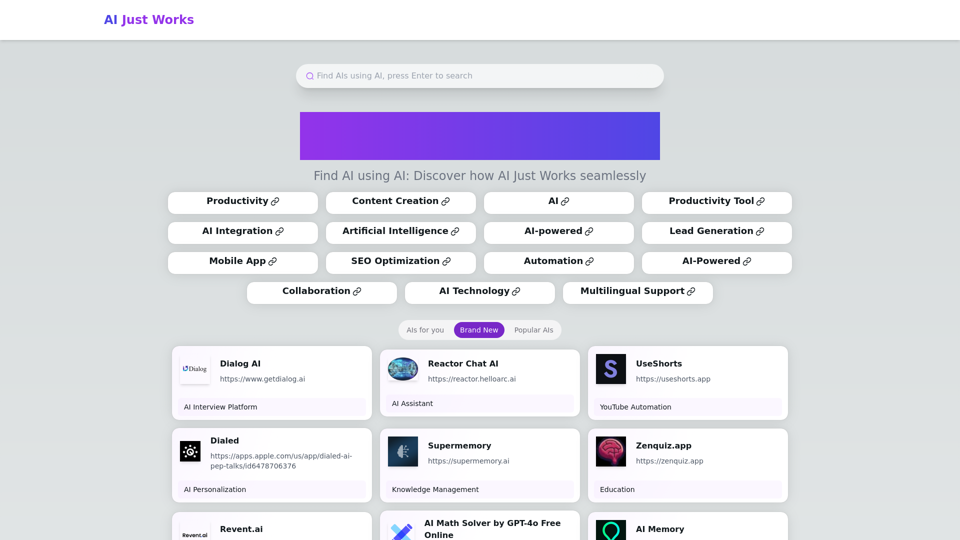
AI Just Works β€”β€” discover AIs using AI
View Detail

AI Just Works β€”β€” discover AIs using AI

AI Just Works β€”β€” discover AIs using AI

AI Just Works: Discover the Best AI Tools for Your Needs, designed to find AI solutions for your business.

0
Filo - AI Email Client & To-Do
View Detail

Filo - AI Email Client & To-Do

Filo - AI Email Client & To-Do

Turn overwhelming emails into clear summaries, quick replies, and AI-generated to-dos in one second.

6.31 K
Scottie - AI-Powered Daily News Summaries
View Detail

Scottie - AI-Powered Daily News Summaries

Scottie - AI-Powered Daily News Summaries

Get personalized daily news briefs powered by AI. Transform your news experience with Scottie's intelligent summaries.

0
Resumeguru.pro
View Detail

Resumeguru.pro

Resumeguru.pro

Resumeguru.pro is an advanced AI-powered resume optimization tool designed to transform and enhance job seekers' resumes. By leveraging cutting-edge artificial intelligence technology, it automates the entire process of creating a highly effective and hirable resume, including editing, formatting, and optimization. This innovative platform aims to help users stand out in the competitive job market by tailoring their resumes to perfection.

0
Adaptive Planning EPM Software | Workday US
View Detail

Adaptive Planning EPM Software | Workday US

Adaptive Planning EPM Software | Workday US

Drive enterprise-wide business planning with Workday Adaptive Planning Cloud. Our EPM platform helps organizations plan smarter, report faster, and analyze better.

511.80 K
QuickMail AI - Your Personal Email Assistant
View Detail

QuickMail AI - Your Personal Email Assistant

QuickMail AI - Your Personal Email Assistant

QuickMail AI is a personal email assistant that leverages AI-powered technology to help users craft professional emails in seconds.

0
ClearAI
View Detail

ClearAI

ClearAI

Explore PDFs with AI-Powered chat

0