Open-source RightAI Tools Directory
  • Discover AI
  • Submit
  • Startup
  • Blog
Open-source RightAI Tools Directory
Discover the best AI tools of 2025 with the RightAI Tools Directory!

Friend Links

AI Anime GeneratorToolsApp AI

Support

Tap4
Privacy policyTerms & ConditionsContact Us
Loading...
loading...

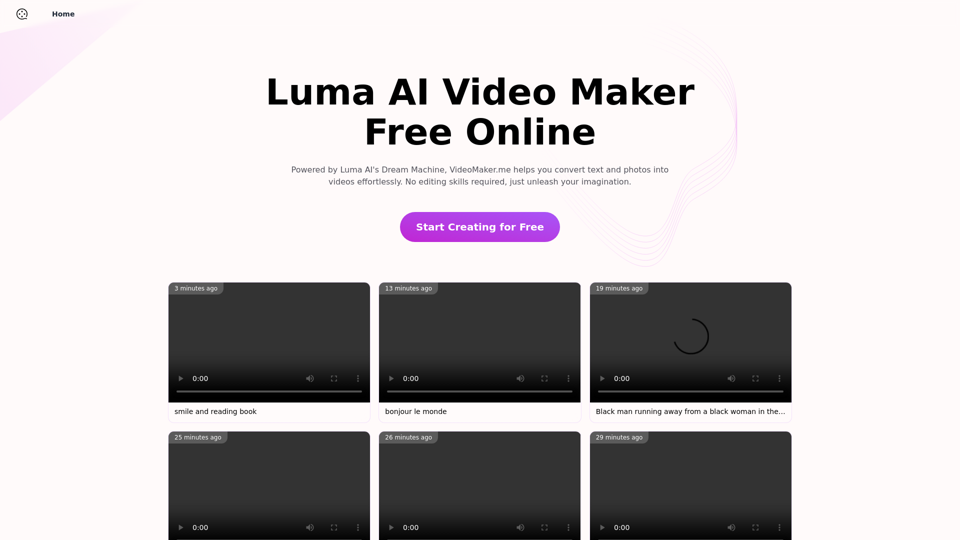
Luma AI Video Generator Free Online - Convert Text and Photos to Video at VideoMaker.me

Discover the power of Luma AI's Dream Machine, an advanced video generator that transforms text and images into high-quality, dynamic videos. Ideal for creators, marketers, and innovators, videomaker.me brings your visual ideas to life with stunning realism and versatility.
Visit Website
Luma AI Video Generator Free Online - Convert Text and Photos to Video at VideoMaker.me
Visit Website

Introduction

VideoMaker.me is an AI-powered platform that revolutionizes video creation. It offers text-to-video and image-to-video capabilities, making high-quality video production accessible to everyone. With free online tools and a user-friendly interface, it eliminates the need for advanced editing skills. The platform incorporates Luma AI's Dream Machine, an innovative AI video generator known for producing dynamic, realistic videos from text and image inputs.

Feature

Accessibility and Scalability

  • Free and publicly accessible online video maker
  • Highly scalable with more GPUs for improved performance

Versatile Video Creation

  • Supports both text-to-video and image-to-video conversion
  • Produces dynamic, action-packed videos with realistic motion

User-Friendly Interface

  • Simple and intuitive design for easy navigation
  • Extensive library of templates and materials

Multi-language Support

  • Accessible to users globally with multiple language options

Data Security

  • Prioritizes user data protection and content safety

AI-Powered Video Generation

  • Text-to-video: Creates videos from textual descriptions
  • Image-to-video: Generates video sequences from static images

Customization Options

  • Personalization tools for adding transitions, music, and effects
  • Variety of use cases: Animation, Birthday, YouTube, Corporate Training, and Presentation videos

FAQ

How does the text-to-video feature work?

The text-to-video AI model generates video content based on textual descriptions provided by the user. It interprets the text and creates corresponding visual elements to form a cohesive video.

What are some tips for creating effective video prompts?

For text-to-video:

  • Be specific in your descriptions
  • Include context for better understanding
  • Use action verbs to convey motion
  • Describe characters and objects in detail
  • Specify scene composition

For image-to-video:

  • Use high-quality images as input
  • Describe desired actions clearly
  • Specify background and environment details
  • Detail movements for dynamic results
  • Suggest additional elements to enhance the video

Are there any editing skills required to use VideoMaker.me?

No, VideoMaker.me is designed to be user-friendly and doesn't require advanced editing skills. The AI-powered tools and intuitive interface make it easy for anyone to create professional-looking videos.

Can I use VideoMaker.me for commercial purposes?

While the platform offers free tools, it's best to check the specific terms of service regarding commercial use. Many AI video generators allow personal and commercial use, but it's important to verify the licensing terms for your intended purpose.

Latest Traffic Insights

  • Monthly Visits

    397.91 K

  • Bounce Rate

    41.60%

  • Pages Per Visit

    2.78

  • Time on Site(s)

    94.49

  • Global Rank

    114266

  • Country Rank

    Indonesia 29438

Recent Visits

Traffic Sources

  • Social Media:
    4.04%
  • Paid Referrals:
    0.72%
  • Email:
    0.09%
  • Referrals:
    10.23%
  • Search Engines:
    54.67%
  • Direct:
    30.21%
More Data

Related Websites

Image Splitter: Free Online Instagram Grid Maker
View Detail

Image Splitter: Free Online Instagram Grid Maker

Image Splitter: Free Online Instagram Grid Maker

Create stunning Instagram grids with our free online image splitter. Easily divide your images into multiple squares to enhance your feed. Perfect for creating eye-catching layouts and boosting your social media presence!

0
AI-Mask - In-browser inference
View Detail

AI-Mask - In-browser inference

AI-Mask - In-browser inference

Bring local inference to web apps!

193.90 M
Batch Save ChatGPT to Notion

This is a guide on how to save multiple ChatGPT responses to Notion in a batch. 

Tools You'll Need:

* ChatGPT: An AI chatbot that can generate text.
* Notion: A note-taking and project management tool.
* Python: A programming language.
* Requests Library: A Python library for making HTTP requests.

Steps:

1. Get Your Notion API Token:
   - Go to your Notion workspace settings.
   - Navigate to the "Integrations" tab.
   - Click "Create new integration" and choose "API Token".
   - Copy your API token.

2. Install Python Libraries:
   - Open your terminal or command prompt.
   - Type `pip install requests` and press Enter.

3. Write Python Script:
   - Create a new Python file (e.g., `save_chatgpt_to_notion.py`).
   - Paste the following code into the file, replacing `YOUR_NOTION_API_TOKEN` with your actual token:

```python
import requests

def save_chatgpt_response_to_notion(response, page_id, token):
  """Saves a ChatGPT response to a Notion page."""
  url = f"https://api.notion.com/v1/pages/{page_id}/children"
  headers = {"Authorization": f"Bearer {token}"}
  data = {
    "parent": {
      "page_id": page_id
    },
    "properties": {
      "title": {
        "title": [
          {
            "text": {
              "content": "ChatGPT Response"
            }
          }
        ]
      },
      "content": {
        "rich_text": [
          {
            "text": {
              "content": response
            }
          }
        ]
      }
    }
  }
  response = requests.post(url, headers=headers, json=data)
  print(response.status_code)

Example usage
page_id = "YOUR_NOTION_PAGE_ID"
token = "YOUR_NOTION_API_TOKEN"

Get ChatGPT responses (replace with your actual ChatGPT interaction)
chatgpt_responses = [
  "This is the first ChatGPT response.",
  "This is the second ChatGPT response.",
  "This is the third ChatGPT response."
]

Save each response to Notion
for response in chatgpt_responses:
  save_chatgpt_response_to_notion(response, page_id, token)
```

4. Run the Script:
   - In your terminal, navigate to the directory where you saved the Python file.
   - Type `python save_chatgpt_to_notion.py` and press Enter.

5. Check Notion:
   - Open your Notion workspace and go to the page specified by `page_id`.
   - You should see your ChatGPT responses saved as separate blocks.
View Detail

Batch Save ChatGPT to Notion This is a guide on how to save multiple ChatGPT responses to Notion in a batch. Tools You'll Need: * ChatGPT: An AI chatbot that can generate text. * Notion: A note-taking and project management tool. * Python: A programming language. * Requests Library: A Python library for making HTTP requests. Steps: 1. Get Your Notion API Token: - Go to your Notion workspace settings. - Navigate to the "Integrations" tab. - Click "Create new integration" and choose "API Token". - Copy your API token. 2. Install Python Libraries: - Open your terminal or command prompt. - Type `pip install requests` and press Enter. 3. Write Python Script: - Create a new Python file (e.g., `save_chatgpt_to_notion.py`). - Paste the following code into the file, replacing `YOUR_NOTION_API_TOKEN` with your actual token: ```python import requests def save_chatgpt_response_to_notion(response, page_id, token): """Saves a ChatGPT response to a Notion page.""" url = f"https://api.notion.com/v1/pages/{page_id}/children" headers = {"Authorization": f"Bearer {token}"} data = { "parent": { "page_id": page_id }, "properties": { "title": { "title": [ { "text": { "content": "ChatGPT Response" } } ] }, "content": { "rich_text": [ { "text": { "content": response } } ] } } } response = requests.post(url, headers=headers, json=data) print(response.status_code) Example usage page_id = "YOUR_NOTION_PAGE_ID" token = "YOUR_NOTION_API_TOKEN" Get ChatGPT responses (replace with your actual ChatGPT interaction) chatgpt_responses = [ "This is the first ChatGPT response.", "This is the second ChatGPT response.", "This is the third ChatGPT response." ] Save each response to Notion for response in chatgpt_responses: save_chatgpt_response_to_notion(response, page_id, token) ``` 4. Run the Script: - In your terminal, navigate to the directory where you saved the Python file. - Type `python save_chatgpt_to_notion.py` and press Enter. 5. Check Notion: - Open your Notion workspace and go to the page specified by `page_id`. - You should see your ChatGPT responses saved as separate blocks.

Batch Save ChatGPT to Notion This is a guide on how to save multiple ChatGPT responses to Notion in a batch. Tools You'll Need: * ChatGPT: An AI chatbot that can generate text. * Notion: A note-taking and project management tool. * Python: A programming language. * Requests Library: A Python library for making HTTP requests. Steps: 1. Get Your Notion API Token: - Go to your Notion workspace settings. - Navigate to the "Integrations" tab. - Click "Create new integration" and choose "API Token". - Copy your API token. 2. Install Python Libraries: - Open your terminal or command prompt. - Type `pip install requests` and press Enter. 3. Write Python Script: - Create a new Python file (e.g., `save_chatgpt_to_notion.py`). - Paste the following code into the file, replacing `YOUR_NOTION_API_TOKEN` with your actual token: ```python import requests def save_chatgpt_response_to_notion(response, page_id, token): """Saves a ChatGPT response to a Notion page.""" url = f"https://api.notion.com/v1/pages/{page_id}/children" headers = {"Authorization": f"Bearer {token}"} data = { "parent": { "page_id": page_id }, "properties": { "title": { "title": [ { "text": { "content": "ChatGPT Response" } } ] }, "content": { "rich_text": [ { "text": { "content": response } } ] } } } response = requests.post(url, headers=headers, json=data) print(response.status_code) Example usage page_id = "YOUR_NOTION_PAGE_ID" token = "YOUR_NOTION_API_TOKEN" Get ChatGPT responses (replace with your actual ChatGPT interaction) chatgpt_responses = [ "This is the first ChatGPT response.", "This is the second ChatGPT response.", "This is the third ChatGPT response." ] Save each response to Notion for response in chatgpt_responses: save_chatgpt_response_to_notion(response, page_id, token) ``` 4. Run the Script: - In your terminal, navigate to the directory where you saved the Python file. - Type `python save_chatgpt_to_notion.py` and press Enter. 5. Check Notion: - Open your Notion workspace and go to the page specified by `page_id`. - You should see your ChatGPT responses saved as separate blocks.

Save ChatGPT Conversations to Notion with One Click Export your ChatGPT conversations directly to Notion with a single click.

193.90 M
Flux-1
View Detail

Flux-1

Flux-1

FLUX.1 is a new open-source image generation model developed by Black Forest Labs

12.83 K
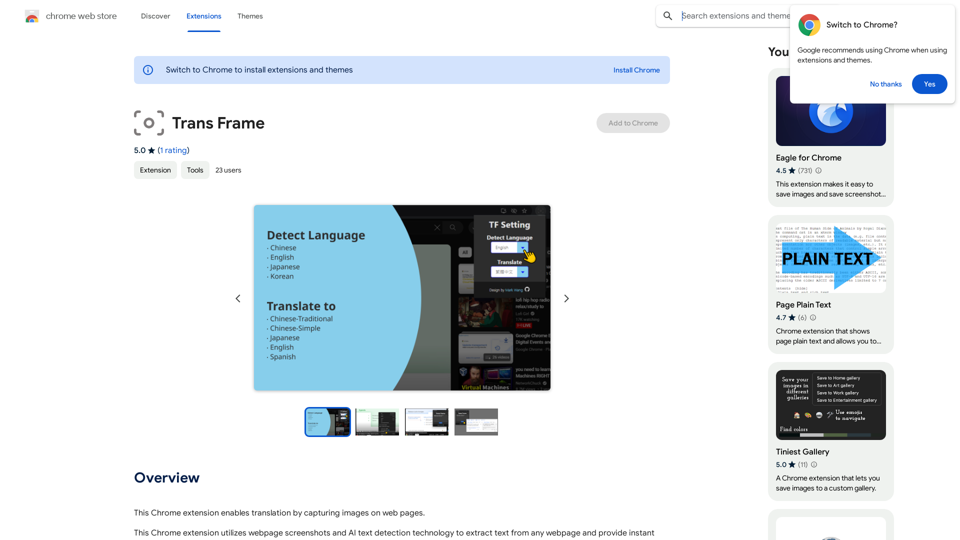
Translate Frame
View Detail

Translate Frame

Translate Frame

This Chrome extension lets you translate text by taking pictures of it on web pages.

193.90 M
Nova Headshot
View Detail

Nova Headshot

Nova Headshot

AI Headshot Generator

752
Vidviz GPT: AI for YouTube 

Vidviz GPT is an AI-powered tool designed to help you create amazing YouTube videos.
View Detail

Vidviz GPT: AI for YouTube Vidviz GPT is an AI-powered tool designed to help you create amazing YouTube videos.

Vidviz GPT: AI for YouTube Vidviz GPT is an AI-powered tool designed to help you create amazing YouTube videos.

Vidviz GPT: ChatGPT for YouTube. Chat, Summarize, Question Videos Seamlessly. Extract Visual Information and Empower Your Learning.

193.90 M
ilikeimg - AI-Powered Image Tools | Free Online Photo Editor
View Detail

ilikeimg - AI-Powered Image Tools | Free Online Photo Editor

ilikeimg - AI-Powered Image Tools | Free Online Photo Editor

Free online tools to convert, crop, compress, resize, and enhance your images. No registration required for basic features.

0