Open-source RightAI Tools Directory
  • Discover AI
  • Submit
  • Startup
  • Blog
Open-source RightAI Tools Directory
Discover the best AI tools of 2025 with the RightAI Tools Directory!

Friend Links

AI Anime GeneratorToolsApp AI

Support

Tap4
Privacy policyTerms & ConditionsContact Us
Loading...
loading...

AiAssistWorks - AI for Google Sheets™ - GPT- Claude - Gemini - Llama, Mistral, OpenRouter, Groq.
Visit Website
AiAssistWorks - AI for Google Sheets™ - GPT- Claude - Gemini - Llama, Mistral, OpenRouter, Groq.
Visit Website

Introduction

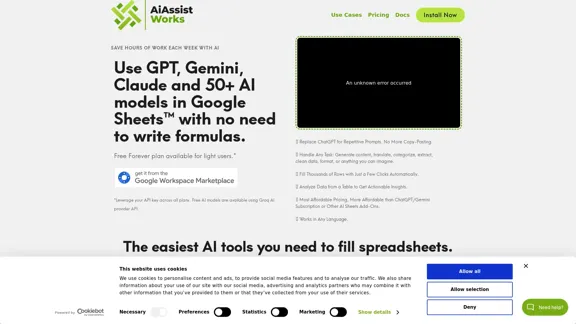
AiAssistWorks is a powerful AI-driven tool designed to integrate seamlessly with Google Sheets™, offering users access to advanced AI models like GPT, Claude, Gemini, Llama, Mistral, OpenRouter, and Groq. This innovative add-on simplifies complex tasks, allowing users to leverage AI capabilities without the need for complex formulas or extensive technical knowledge.

Feature

  1. Multiple AI Model Integration

    • Access to 50+ AI models including GPT-4, Claude, Gemini, LLaMa, and Mixtral
    • Flexibility to use preferred AI providers
  2. User-Friendly Interface

    • Simple point-and-click operation
    • No need for complex formulas like =GPT()
  3. Automated Data Processing

    • Fill thousands of rows automatically
    • Perform tasks like content generation, translation, categorization, and data cleaning
  4. Data Analysis

    • Analyze tables to extract actionable insights
    • Utilize AI to identify patterns and crucial information
  5. Prompt Management

    • Save and reuse prompts for repetitive tasks
    • Streamline workflow for recurring operations
  6. Language Support

    • Works in multiple languages
    • Enhances global usability
  7. Customizable Plans

    • Free forever plan for light users
    • Paid plans for unlimited results and priority access to new features
  8. BYOK (Bring Your Own Key) Model

    • Use personal API keys for better pricing and flexibility
    • Transparent usage tracking through AI provider dashboards

How to Use?

  1. Start with the free plan to explore basic features and functionality.

  2. When ready to scale, consider upgrading to a paid plan for unlimited results.

  3. Obtain API keys from preferred AI providers to leverage the BYOK model for cost-effectiveness.

  4. Utilize the 'Save & Re-Use Prompt' feature for frequently performed tasks to save time.

  5. Experiment with different AI models to find the best fit for specific tasks.

  6. Use the 'Analyze Table' feature to quickly gain insights from large datasets.

  7. Keep your Google account secure to protect your API keys and stored prompts.

FAQ

How does AiAssistWorks differ from other AI tools for Google Sheets?

AiAssistWorks stands out with its user-friendly interface, affordable pricing, comprehensive list of AI models, and generous limits on the free plan. It simplifies complex AI tasks without requiring users to write formulas.

Is my data secure when using AiAssistWorks?

AiAssistWorks prioritizes data security. API keys are stored encrypted in your Google account, and the add-on doesn't store your API key, prompts, results, or Google Sheet content on their servers. However, users should ensure their Google account is secure as anyone with access can use the add-on and API key credits.

Can I use my own API keys with AiAssistWorks?

Yes, AiAssistWorks operates on a BYOK (Bring Your Own Key) model. This allows users to use their personal API keys from various AI providers, offering better pricing and flexibility in choosing AI models.

What are the limitations of the free plan?

The free plan, called the Lite Plan, currently allows up to 300 results per month. One cell result counts as 1 result, while one analysis counts as 5 results. This limit may change in the future.

Price

  • Lite Plan: Free forever (with usage limits)
  • Plus Plan: Pricing varies based on monthly or yearly subscription, with AI usage costs added separately
The price is for reference only, please refer to the latest official data for actual information.

Evaluation

  1. AiAssistWorks offers a comprehensive solution for integrating AI capabilities into Google Sheets, making it accessible to users with varying levels of technical expertise. The wide range of supported AI models and the BYOK approach provide flexibility and potential cost savings.

  2. The user-friendly interface and elimination of complex formulas lower the entry barrier for AI utilization in spreadsheets, potentially increasing productivity for many users.

  3. The free plan with a generous limit of 300 results per month allows users to thoroughly test the tool before committing to a paid plan, which is a positive aspect for user adoption.

  4. While the tool offers many advantages, users should be aware of the responsibility of managing their own API keys and ensuring the security of their Google account to protect sensitive information.

  5. The pricing model, combining a base fee with AI usage costs, may require users to carefully monitor their usage to manage expenses effectively. However, this approach also allows for more transparent and potentially cost-effective AI utilization.

  6. Future improvements could include more detailed documentation on optimizing prompts for different AI models and expanded features for collaborative work within Google Sheets.

Related Websites
Zero
View Detail

Zero

Zero

Experience email the way you want with 0 - the first open-source email app that prioritizes your privacy and safety.

49.87 K
MyLens
View Detail

MyLens

MyLens

Discover the intersections of history with our AI-powered timelines. Dive deep into the narratives of the past and see where two unique histories meet. Create, explore, and connect stories seamlessly.

193.06 K
Copilot for Microsoft 365 – Microsoft Adoption

Copilot for Microsoft 365 is a powerful AI assistant that helps you work smarter and faster across Microsoft 365 apps and services. It combines the power of large language models (LLMs) with your organization's data in the Microsoft Graph and Microsoft 365 apps to turn your words into the most powerful productivity tool on the planet.

Copilot is designed to help you:

• Unleash creativity
• Unlock productivity
• Uplevel skills

Copilot is built on Microsoft's comprehensive approach to security, compliance, and privacy. Copilot in Microsoft 365 apps and services:

• Does not use your data to train the underlying LLM
• Does not replace human ingenuity and judgment
• Is designed to keep humans in the loop

Copilot is currently available in Word, Excel, PowerPoint, Outlook, Teams, and more.

Getting Started with Copilot

To get started with Copilot, follow these steps:

1. Check availability: Ensure your organization has access to Copilot.
2. Learn the basics: Familiarize yourself with Copilot's capabilities and how to use it effectively.
3. Explore use cases: Discover how Copilot can help you in your specific role and tasks.
4. Practice and refine: Use Copilot regularly and refine your prompts for better results.
5. Share and collaborate: Collaborate with colleagues using Copilot and share best practices.

Best Practices for Using Copilot

1. Be specific in your prompts
2. Provide context for better results
3. Review and edit Copilot's output
4. Use Copilot as a starting point, not a final product
5. Experiment with different approaches
6. Stay informed about new features and updates

Copilot in Different Microsoft 365 Apps

• Word: Draft, edit, summarize, and rewrite content
• Excel: Analyze data, create formulas, and generate insights
• PowerPoint: Create presentations, design slides, and generate content
• Outlook: Compose emails, summarize threads, and manage your inbox
• Teams: Summarize meetings, generate action items, and create meeting notes

Responsible AI and Copilot

Microsoft is committed to developing AI systems responsibly. When using Copilot, keep in mind:

• AI-generated content may contain biases or inaccuracies
• Always review and verify Copilot's output
• Use your judgment and expertise alongside Copilot's suggestions
• Be aware of your organization's policies regarding AI use

Conclusion

Copilot for Microsoft 365 is a powerful tool that can significantly enhance your productivity and creativity. By understanding its capabilities, following best practices, and using it responsibly, you can make the most of this AI assistant in your daily work.
View Detail

Copilot for Microsoft 365 – Microsoft Adoption Copilot for Microsoft 365 is a powerful AI assistant that helps you work smarter and faster across Microsoft 365 apps and services. It combines the power of large language models (LLMs) with your organization's data in the Microsoft Graph and Microsoft 365 apps to turn your words into the most powerful productivity tool on the planet. Copilot is designed to help you: • Unleash creativity • Unlock productivity • Uplevel skills Copilot is built on Microsoft's comprehensive approach to security, compliance, and privacy. Copilot in Microsoft 365 apps and services: • Does not use your data to train the underlying LLM • Does not replace human ingenuity and judgment • Is designed to keep humans in the loop Copilot is currently available in Word, Excel, PowerPoint, Outlook, Teams, and more. Getting Started with Copilot To get started with Copilot, follow these steps: 1. Check availability: Ensure your organization has access to Copilot. 2. Learn the basics: Familiarize yourself with Copilot's capabilities and how to use it effectively. 3. Explore use cases: Discover how Copilot can help you in your specific role and tasks. 4. Practice and refine: Use Copilot regularly and refine your prompts for better results. 5. Share and collaborate: Collaborate with colleagues using Copilot and share best practices. Best Practices for Using Copilot 1. Be specific in your prompts 2. Provide context for better results 3. Review and edit Copilot's output 4. Use Copilot as a starting point, not a final product 5. Experiment with different approaches 6. Stay informed about new features and updates Copilot in Different Microsoft 365 Apps • Word: Draft, edit, summarize, and rewrite content • Excel: Analyze data, create formulas, and generate insights • PowerPoint: Create presentations, design slides, and generate content • Outlook: Compose emails, summarize threads, and manage your inbox • Teams: Summarize meetings, generate action items, and create meeting notes Responsible AI and Copilot Microsoft is committed to developing AI systems responsibly. When using Copilot, keep in mind: • AI-generated content may contain biases or inaccuracies • Always review and verify Copilot's output • Use your judgment and expertise alongside Copilot's suggestions • Be aware of your organization's policies regarding AI use Conclusion Copilot for Microsoft 365 is a powerful tool that can significantly enhance your productivity and creativity. By understanding its capabilities, following best practices, and using it responsibly, you can make the most of this AI assistant in your daily work.

Copilot for Microsoft 365 – Microsoft Adoption Copilot for Microsoft 365 is a powerful AI assistant that helps you work smarter and faster across Microsoft 365 apps and services. It combines the power of large language models (LLMs) with your organization's data in the Microsoft Graph and Microsoft 365 apps to turn your words into the most powerful productivity tool on the planet. Copilot is designed to help you: • Unleash creativity • Unlock productivity • Uplevel skills Copilot is built on Microsoft's comprehensive approach to security, compliance, and privacy. Copilot in Microsoft 365 apps and services: • Does not use your data to train the underlying LLM • Does not replace human ingenuity and judgment • Is designed to keep humans in the loop Copilot is currently available in Word, Excel, PowerPoint, Outlook, Teams, and more. Getting Started with Copilot To get started with Copilot, follow these steps: 1. Check availability: Ensure your organization has access to Copilot. 2. Learn the basics: Familiarize yourself with Copilot's capabilities and how to use it effectively. 3. Explore use cases: Discover how Copilot can help you in your specific role and tasks. 4. Practice and refine: Use Copilot regularly and refine your prompts for better results. 5. Share and collaborate: Collaborate with colleagues using Copilot and share best practices. Best Practices for Using Copilot 1. Be specific in your prompts 2. Provide context for better results 3. Review and edit Copilot's output 4. Use Copilot as a starting point, not a final product 5. Experiment with different approaches 6. Stay informed about new features and updates Copilot in Different Microsoft 365 Apps • Word: Draft, edit, summarize, and rewrite content • Excel: Analyze data, create formulas, and generate insights • PowerPoint: Create presentations, design slides, and generate content • Outlook: Compose emails, summarize threads, and manage your inbox • Teams: Summarize meetings, generate action items, and create meeting notes Responsible AI and Copilot Microsoft is committed to developing AI systems responsibly. When using Copilot, keep in mind: • AI-generated content may contain biases or inaccuracies • Always review and verify Copilot's output • Use your judgment and expertise alongside Copilot's suggestions • Be aware of your organization's policies regarding AI use Conclusion Copilot for Microsoft 365 is a powerful tool that can significantly enhance your productivity and creativity. By understanding its capabilities, following best practices, and using it responsibly, you can make the most of this AI assistant in your daily work.

Microsoft Copilot combines the power of large language models (LLMs) with your organization's data to turn your words into one of the most powerful productivity tools on the planet.

608.60 K
UCG - Chrome Web Store
View Detail

UCG - Chrome Web Store

UCG - Chrome Web Store

ChatGPT without leaving the tab or visible chat!

193.90 M
The AI Cloud for Banks, Insurers and Financial Services
View Detail

The AI Cloud for Banks, Insurers and Financial Services

The AI Cloud for Banks, Insurers and Financial Services

Arya.ai is the 'AI Cloud' for Banks, Insurers and Financial Services to expedite the adoption of AI that is responsible, accurate and auditable.

108.58 K
Tomat.AI - Data Analysis with AI
View Detail

Tomat.AI - Data Analysis with AI

Tomat.AI - Data Analysis with AI

Load CSV and analyze it in a visual step-by-step interface. Cleanup, extract, summarize, or make sentiment analysis with your personal AI agent.

5.64 K
AI Posts Generator - Robopost AI

Generate high-quality content in minutes with Robopost AI, the ultimate AI posts generator.
View Detail

AI Posts Generator - Robopost AI Generate high-quality content in minutes with Robopost AI, the ultimate AI posts generator.

AI Posts Generator - Robopost AI Generate high-quality content in minutes with Robopost AI, the ultimate AI posts generator.

Generate engaging and compelling social media posts with Robopost AI. Our AI-powered tool helps you create content that resonates with your audience.

73.03 K
Ninja AI | An All-In-One AI Agent for Unlimited Productivity
View Detail

Ninja AI | An All-In-One AI Agent for Unlimited Productivity

Ninja AI | An All-In-One AI Agent for Unlimited Productivity

Accomplish more every day with the best AI tools for research, writing, coding, image generation, file analysis, and more. Try Ninja for free today.

740.62 K