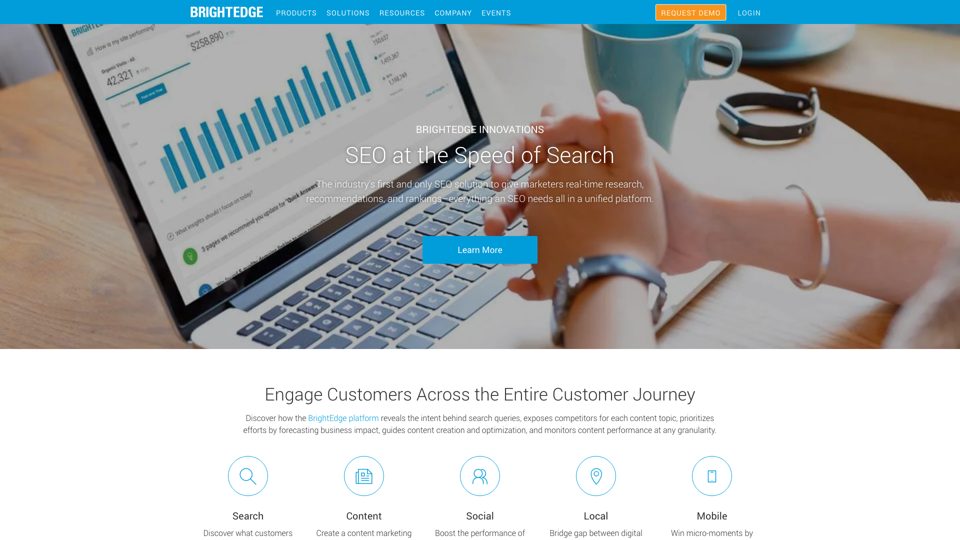
BrightEdge is an enterprise-level SEO platform and content marketing solution designed to optimize online presence and engage customers throughout their journey. It offers a comprehensive suite of tools to improve search engine rankings, content strategy, and overall digital marketing performance for businesses.
BrightEdge - Enterprise SEO Platform | Content Marketing Solution
BrightEdge is the premier SEO solution and content performance marketing platform, assisting over 1,700 clients in increasing their organic traffic. Headquartered in San Mateo, CA, BrightEdge has offices in New York, Seattle, Chicago, Cleveland, Tokyo, Sydney, and London. Get in touch with us for an SEO demonstration today.
Introduction
Feature
Real-time SEO Insights
BrightEdge provides up-to-the-minute SEO data and analysis, allowing marketers to make informed decisions quickly.
Content Optimization
The platform offers tools to develop and refine content strategies that perform well and engage users effectively.
Keyword Research and Tracking
BrightEdge helps identify and monitor valuable keywords to improve search rankings and visibility.
Competitor Analysis
Users can track and analyze competitor performance to gain strategic advantages in their market.
AI-powered Recommendations
The platform leverages artificial intelligence to provide actionable insights and recommendations for SEO improvement.
Local SEO Management
BrightEdge offers tools to manage and optimize local SEO strategies, bridging the gap between digital and physical locations.
Mobile Optimization
The platform focuses on mobile consumers, helping businesses win micro-moments and improve mobile performance.
Key Features Table
| Feature | Description |
|---|---|
| DataCube | Provides web-wide content intelligence |
| ContentIQ | Analyzes website structure and content |
| StoryBuilder | Creates custom dashboards and reports |
| Insights | Offers AI-driven recommendations |
| HyperLocal | Manages local SEO strategies |
| Instant | Delivers real-time SEO data |
FAQ
Who uses BrightEdge?
BrightEdge is used by various professionals, including:
- SEO specialists
- Digital marketers
- Content and demand generation marketers
- CMOs and executives
What types of businesses use BrightEdge?
BrightEdge serves a wide range of industries, including:
- 8 out of 10 top online retailers
- 7 out of 10 top hotel groups
- 8 out of 10 top tech companies
- 57% of Fortune 100 companies
Does BrightEdge offer a free trial?
BrightEdge does not advertise a free trial on their website. However, they do offer personalized demos for interested businesses.
How does BrightEdge differ from other SEO platforms?
BrightEdge distinguishes itself by offering:
- Enterprise-level capabilities
- AI-driven insights and recommendations
- Comprehensive content marketing features
- Real-time SEO data and analysis
- Integration of SEO with other digital marketing aspects
Related Websites
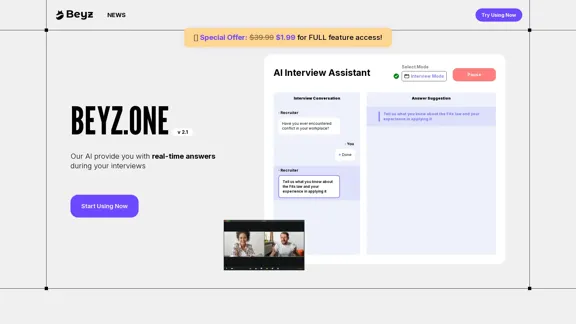
Beyz AI listens to interviewer questions and delivers concise, accurate answers tailored to your background in real-time, boosting your interview success.
0
BrightEdge - Enterprise SEO Platform | Content Marketing Solution
BrightEdge - Enterprise SEO Platform | Content Marketing SolutionBrightEdge is the premier SEO solution and content performance marketing platform, assisting over 1,700 clients in increasing their organic traffic. Headquartered in San Mateo, CA, BrightEdge has offices in New York, Seattle, Chicago, Cleveland, Tokyo, Sydney, and London. Get in touch with us for an SEO demonstration today.
167.78 K


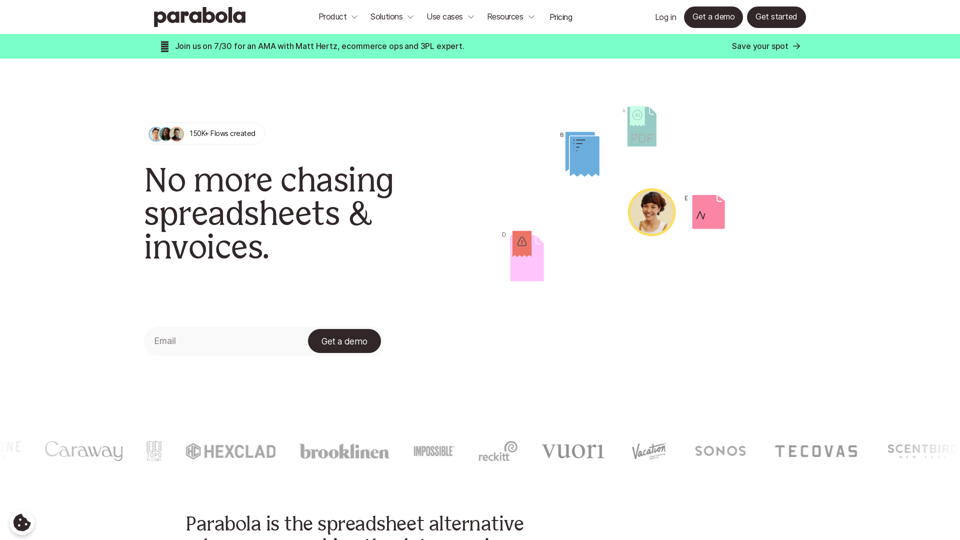
Parabola is the spreadsheet alternative that allows you to integrate data from across your company and create automated workflows.
87.60 K
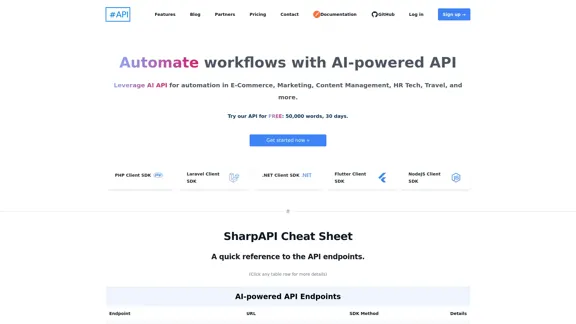
SharpAPI - Automate with AI-powered API, AI automation for: E-Commerce, Marketing, Content Management, HR Tech, Travel -
SharpAPI - Automate with AI-powered API, AI automation for: E-Commerce, Marketing, Content Management, HR Tech, Travel -Leverage AI API to streamline workflow in E-Commerce, Marketing, Content Management, HR Tech, Travel, and more.
2.92 K
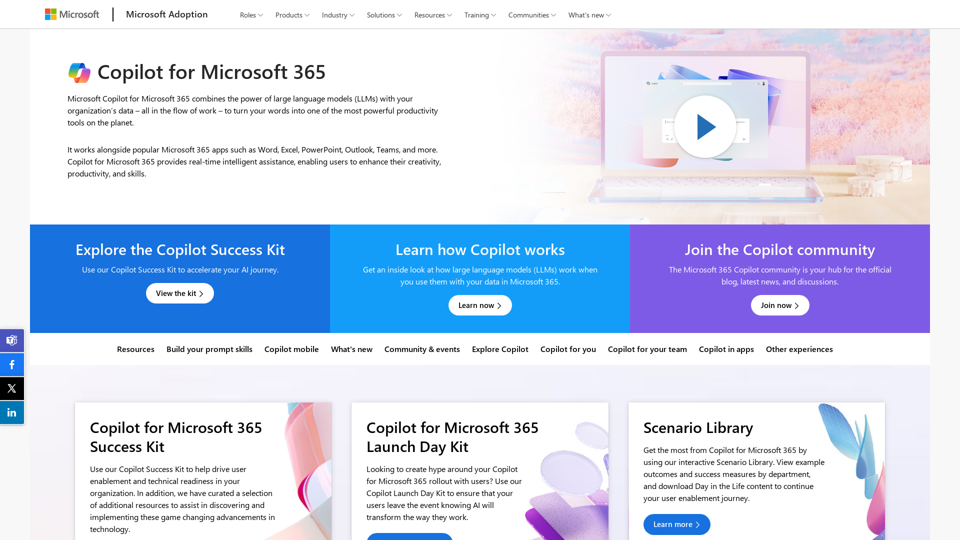
Copilot for Microsoft 365 – Microsoft Adoption Copilot for Microsoft 365 is a powerful AI assistant that helps you work smarter and faster across Microsoft 365 apps and services. It combines the power of large language models (LLMs) with your organization's data in the Microsoft Graph and Microsoft 365 apps to turn your words into the most powerful productivity tool on the planet. Copilot is designed to help you: • Unleash creativity • Unlock productivity • Uplevel skills Copilot is built on Microsoft's comprehensive approach to security, compliance, and privacy. Copilot in Microsoft 365 apps and services: • Does not use your data to train the underlying LLM • Does not replace human ingenuity and judgment • Is designed to keep humans in the loop Copilot is currently available in Word, Excel, PowerPoint, Outlook, Teams, and more. Getting Started with Copilot To get started with Copilot, follow these steps: 1. Check availability: Ensure your organization has access to Copilot. 2. Learn the basics: Familiarize yourself with Copilot's capabilities and how to use it effectively. 3. Explore use cases: Discover how Copilot can help you in your specific role and tasks. 4. Practice and refine: Use Copilot regularly and refine your prompts for better results. 5. Share and collaborate: Collaborate with colleagues using Copilot and share best practices. Best Practices for Using Copilot 1. Be specific in your prompts 2. Provide context for better results 3. Review and edit Copilot's output 4. Use Copilot as a starting point, not a final product 5. Experiment with different approaches 6. Stay informed about new features and updates Copilot in Different Microsoft 365 Apps • Word: Draft, edit, summarize, and rewrite content • Excel: Analyze data, create formulas, and generate insights • PowerPoint: Create presentations, design slides, and generate content • Outlook: Compose emails, summarize threads, and manage your inbox • Teams: Summarize meetings, generate action items, and create meeting notes Responsible AI and Copilot Microsoft is committed to developing AI systems responsibly. When using Copilot, keep in mind: • AI-generated content may contain biases or inaccuracies • Always review and verify Copilot's output • Use your judgment and expertise alongside Copilot's suggestions • Be aware of your organization's policies regarding AI use Conclusion Copilot for Microsoft 365 is a powerful tool that can significantly enhance your productivity and creativity. By understanding its capabilities, following best practices, and using it responsibly, you can make the most of this AI assistant in your daily work.
Copilot for Microsoft 365 – Microsoft Adoption Copilot for Microsoft 365 is a powerful AI assistant that helps you work smarter and faster across Microsoft 365 apps and services. It combines the power of large language models (LLMs) with your organization's data in the Microsoft Graph and Microsoft 365 apps to turn your words into the most powerful productivity tool on the planet. Copilot is designed to help you: • Unleash creativity • Unlock productivity • Uplevel skills Copilot is built on Microsoft's comprehensive approach to security, compliance, and privacy. Copilot in Microsoft 365 apps and services: • Does not use your data to train the underlying LLM • Does not replace human ingenuity and judgment • Is designed to keep humans in the loop Copilot is currently available in Word, Excel, PowerPoint, Outlook, Teams, and more. Getting Started with Copilot To get started with Copilot, follow these steps: 1. Check availability: Ensure your organization has access to Copilot. 2. Learn the basics: Familiarize yourself with Copilot's capabilities and how to use it effectively. 3. Explore use cases: Discover how Copilot can help you in your specific role and tasks. 4. Practice and refine: Use Copilot regularly and refine your prompts for better results. 5. Share and collaborate: Collaborate with colleagues using Copilot and share best practices. Best Practices for Using Copilot 1. Be specific in your prompts 2. Provide context for better results 3. Review and edit Copilot's output 4. Use Copilot as a starting point, not a final product 5. Experiment with different approaches 6. Stay informed about new features and updates Copilot in Different Microsoft 365 Apps • Word: Draft, edit, summarize, and rewrite content • Excel: Analyze data, create formulas, and generate insights • PowerPoint: Create presentations, design slides, and generate content • Outlook: Compose emails, summarize threads, and manage your inbox • Teams: Summarize meetings, generate action items, and create meeting notes Responsible AI and Copilot Microsoft is committed to developing AI systems responsibly. When using Copilot, keep in mind: • AI-generated content may contain biases or inaccuracies • Always review and verify Copilot's output • Use your judgment and expertise alongside Copilot's suggestions • Be aware of your organization's policies regarding AI use Conclusion Copilot for Microsoft 365 is a powerful tool that can significantly enhance your productivity and creativity. By understanding its capabilities, following best practices, and using it responsibly, you can make the most of this AI assistant in your daily work.Microsoft Copilot combines the power of large language models (LLMs) with your organization's data to turn your words into one of the most powerful productivity tools on the planet.
608.60 K
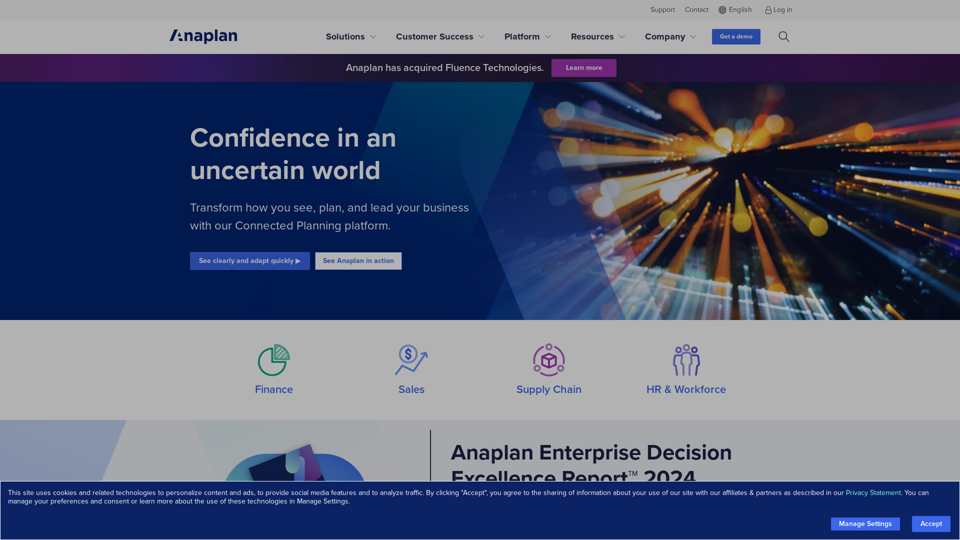
Drive Business Performance With Planning Software | Anaplan
Drive Business Performance With Planning Software | AnaplanSee, plan, and lead financial, supply chain, and sales strategies that drive business performance using the Anaplan connected planning platform.
1.03 M