LinkBoost is an AI-powered Chrome extension designed to enhance your LinkedIn engagement. It utilizes ChatGPT technology to generate authentic and friendly comments, helping users increase their reach and visibility on the platform. The tool offers customization options for tone and prompts, ensuring that your interactions remain genuine and aligned with your personal brand.
Linkboost - LinkedIn with AI-powered Chat GPT
Easily Skyrocket Your LinkedIn Reach with the Power of AI - ChatGPT
Let's face it, standing out on LinkedIn can be tough.
But what if you could leverage the incredible power of AI to supercharge your profile and connections?
That's where ChatGPT comes in.
This revolutionary AI tool can help you:
* Craft compelling content: Say goodbye to writer's block! ChatGPT can help you generate engaging posts, articles, and even personalized messages that resonate with your audience.
* Optimize your profile: Make sure your LinkedIn profile shines! ChatGPT can suggest improvements to your headline, summary, and experience descriptions, helping you attract more views and connections.
* Automate your outreach: Spend less time manually sending messages and more time building relationships. ChatGPT can help you draft personalized connection requests and follow-up messages that get results.
* Unlock valuable insights: Gain a deeper understanding of your network and industry trends. ChatGPT can analyze your connections and content performance, providing actionable insights to improve your strategy.
Ready to take your LinkedIn game to the next level?
ChatGPT is your secret weapon.
Introduction
Feature
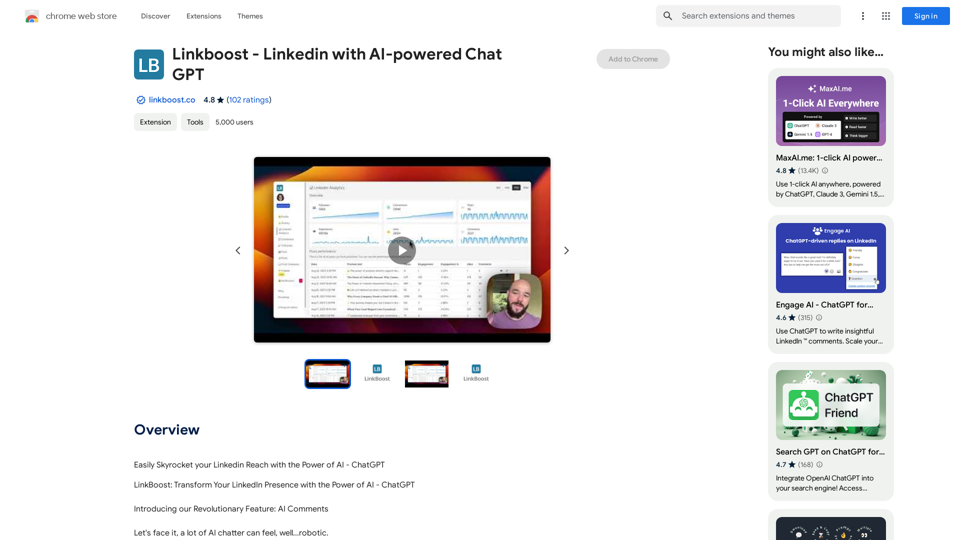
ChatGPT-Powered Comment Generation
LinkBoost leverages advanced OpenAI models to craft engaging and relevant comments, enhancing your LinkedIn interactions.
Tone Customization
Adjust the tone of your comments to create a more diverse and rich interactive experience on LinkedIn.
Custom Prompts Setup
Personalize your communication style by customizing and editing prompts, ensuring your comments remain unique and genuine.
Seamless LinkedIn Integration
The extension operates smoothly within the LinkedIn post comment field, providing optimal user convenience.
Community Networking
Connect with like-minded LinkedIn users who share similar interests and content preferences within the LinkBoost platform.
Automated Engagement
LinkBoost's system ensures automatic interactions from people in your network, boosting your post engagement.
Performance Monitoring
Track your progress through easy-to-understand reports and timelines, including metrics such as engagements, views, connections, comments, and likes.
FAQ
Is LinkBoost safe to use?
Yes, LinkBoost is 100% safe and delivers instant results that users will appreciate.
Can I customize the tone of my comments?
Yes, LinkBoost allows you to adjust the tone of your comments for a richer and more diverse interactive experience.
How does LinkBoost work?
LinkBoost utilizes advanced OpenAI models to generate engaging and relevant comments. It operates seamlessly within the LinkedIn post comment field for optimal user convenience.
How can I get started with LinkBoost?
To begin using LinkBoost, follow these steps:
- Download and install the LinkBoost extension on your Chrome browser.
- Join a community within the platform that aligns with your interests.
- Start sharing content and watch as interactions increase automatically.
- Monitor your progress using the provided reports and timelines.
What are some tips for using LinkBoost effectively?
- Use LinkBoost to transform yourself from a passive LinkedIn user to an influential figure.
- Customize your prompts to better reflect your unique communication style and brand voice.
- Regularly monitor your progress and adjust your strategy based on the performance metrics provided.
Related Websites
Maximize the Effectiveness of Your GPT Engine Prompts 1. Be Clear and Specific: * Instead of: "Write about dogs." * Try: "Write a 500-word essay about the history and characteristics of Golden Retrievers." 2. Provide Context: * Instead of: "Summarize this article." * Try: "Summarize the main arguments presented in this article about the impact of social media on teenagers." 3. Set the Tone and Style: * Instead of: "Write a story." * Try: "Write a humorous short story about a cat who thinks it's a dog." 4. Define the Desired Format: * Instead of: "Create a poem." * Try: "Write a rhyming sonnet about the beauty of a sunset." 5. Use Examples: * Instead of: "Generate some creative writing ideas." * Try: "Generate some creative writing ideas similar to the style of Edgar Allan Poe." 6. Break Down Complex Tasks: * Instead of: "Write a business plan." * Try: * "Outline the key components of a business plan for a new coffee shop." * "Write a section of the business plan focusing on the target market." 7. Refine Your Prompts: * Experiment with different wording: See what yields the best results. * Iterate on your prompts: Build upon previous responses to get closer to your desired outcome. By following these tips, you can craft more effective prompts that will help you get the most out of your GPT engine.
193.90 M
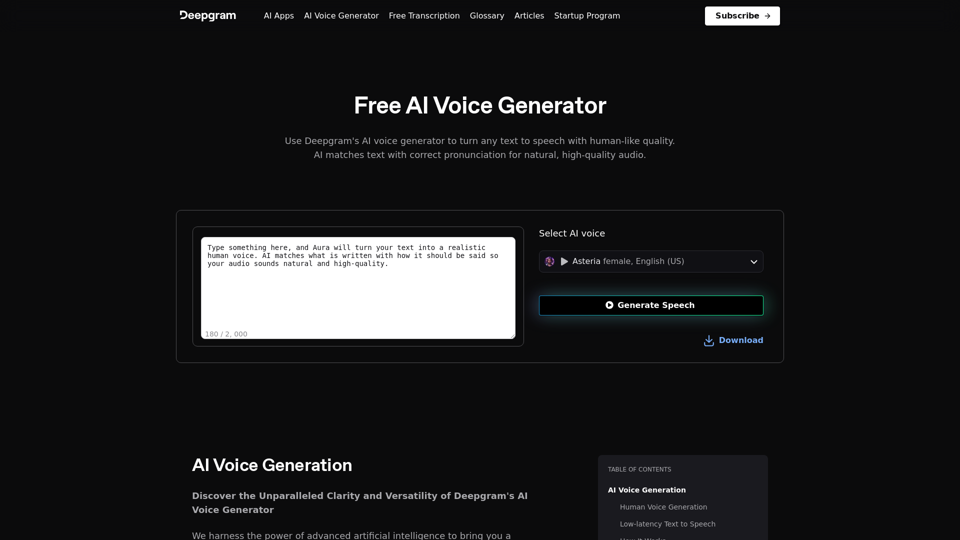
AI Voice Generator & Text to Speech | Deepgram Transform written text into natural-sounding speech with our AI voice generator and text-to-speech technology.
AI Voice Generator & Text to Speech | Deepgram Transform written text into natural-sounding speech with our AI voice generator and text-to-speech technology.Unlock the potential of Deepgram's AI Voice Generator. Experience natural-sounding text to speech for all your projects.
835.16 K
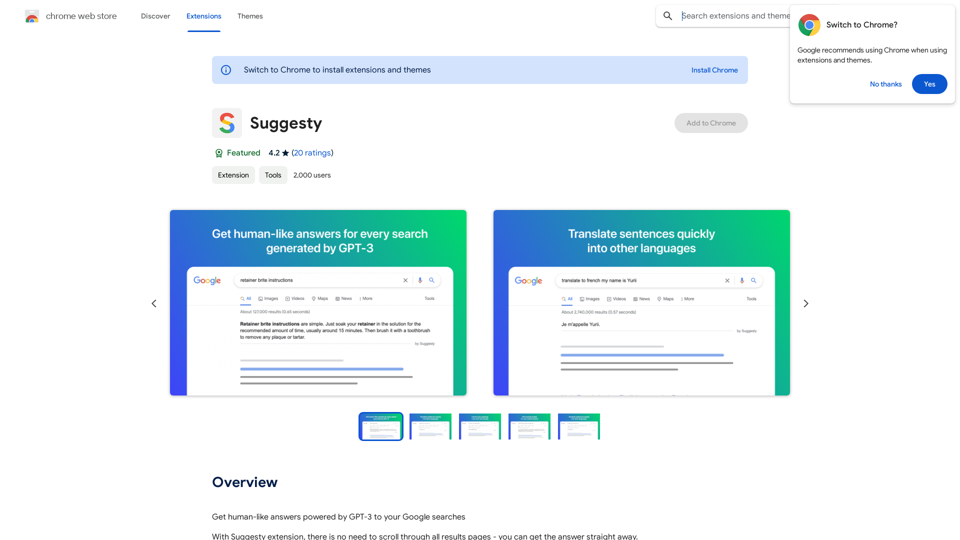
Suggesty Suggesty is a cutting-edge AI-powered tool designed to assist users in generating high-quality content quickly and efficiently.
Suggesty Suggesty is a cutting-edge AI-powered tool designed to assist users in generating high-quality content quickly and efficiently.Get human-like answers powered by GPT-3 to your Google searches
193.90 M
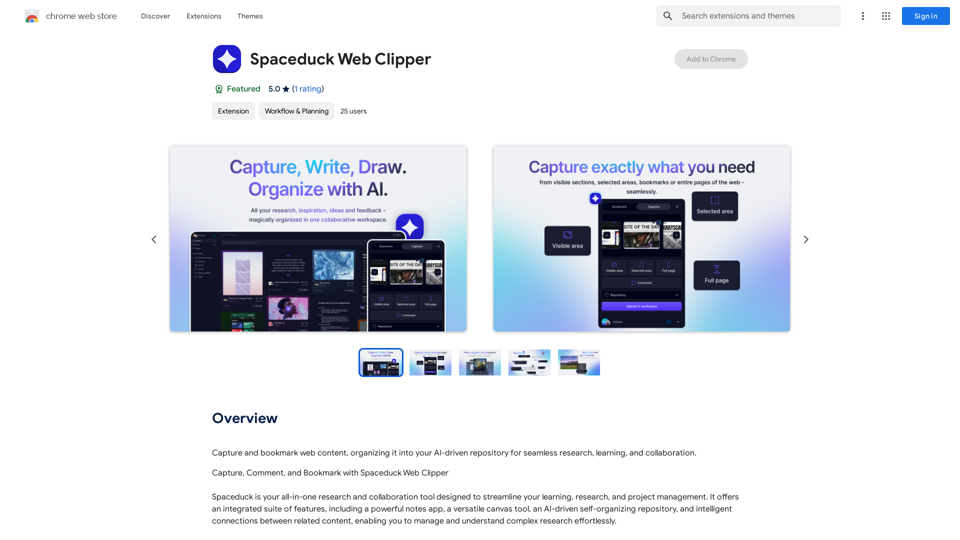
Save and mark web pages, putting them into your smart, AI-powered collection for easy research, learning, and working together.
193.90 M
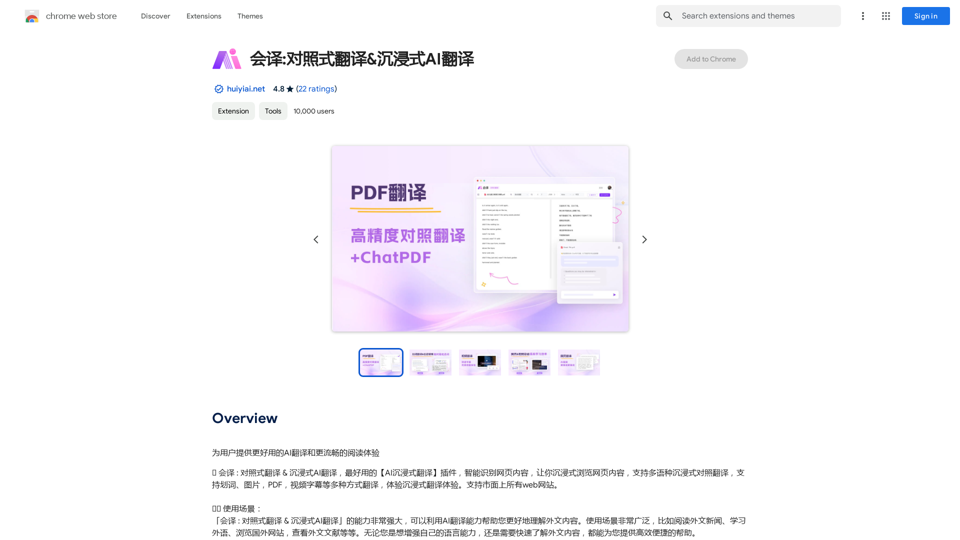
Translation Methods: Comparative Translation & Immersive AI Translation
Translation Methods: Comparative Translation & Immersive AI TranslationProvide users with better AI translation and a more fluent reading experience.
193.90 M
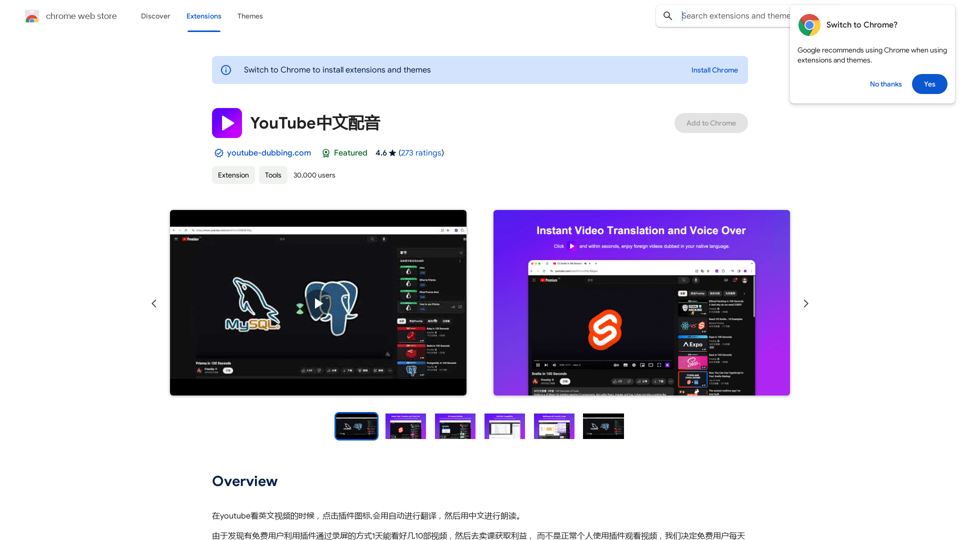
When watching English videos on YouTube, click the plugin icon, and it will automatically translate and then read aloud in Chinese.
193.90 M