Open-source RightAI Tools Directory
  • Discover AI
  • Submit
  • Startup
  • Blog
Open-source RightAI Tools Directory
Discover the best AI tools of 2025 with the RightAI Tools Directory!

Friend Links

AI Anime GeneratorToolsApp AI

Support

Tap4
Privacy policyTerms & ConditionsContact Us
Loading...
loading...

Lymia Discover

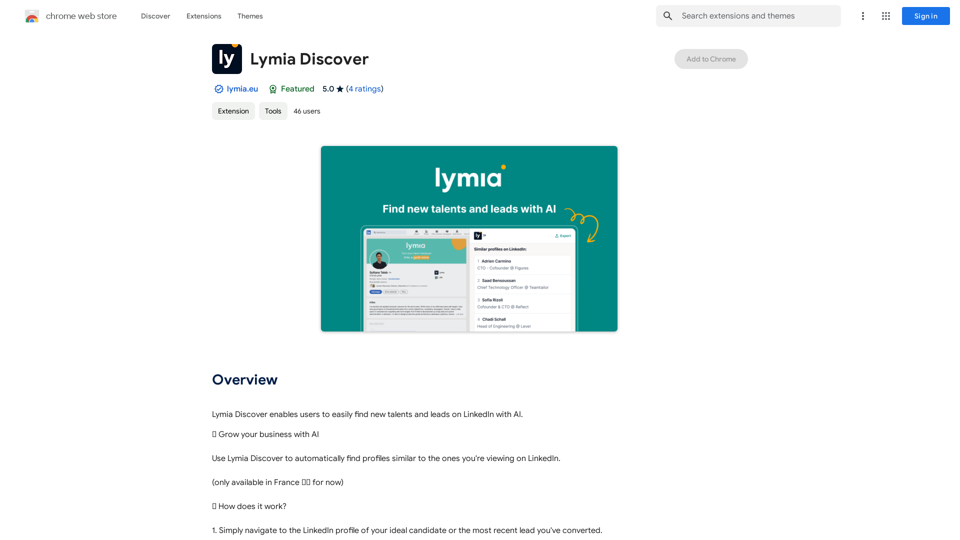
Lymia Discover helps users easily find new talents and leads on LinkedIn using artificial intelligence.
Visit Website
Lymia Discover
Visit Website

Introduction

Lymia Discover is a Chrome extension that leverages AI technology to help users find new talents and leads on LinkedIn. This powerful tool streamlines the process of growing your business by automatically identifying profiles similar to those you're currently viewing on LinkedIn. It offers AI-powered recommendations, effortless discovery, and business growth opportunities, all within a free and user-friendly platform.

Feature

AI-powered Recommendations

Lymia Discover utilizes advanced artificial intelligence to provide precise and relevant suggestions tailored to your specific needs. This feature significantly enhances your ability to find the right people for your business, making your networking and recruitment efforts more effective.

Effortless Discovery

The extension simplifies the process of finding suitable candidates or leads. By eliminating the hassle typically associated with manual searches, Lymia Discover enhances your networking and recruitment strategies, saving you time and effort.

Business Growth Facilitator

Lymia Discover acts as a catalyst for business expansion. It makes the process of growing your professional network and uncovering new opportunities simpler and more efficient than traditional methods.

Simple User Interface

Using Lymia Discover is straightforward:

  1. Navigate to a LinkedIn profile that represents your ideal candidate or recent successful lead.
  2. Open the Lymia Discover extension.
  3. Instantly view a list of the most similar profiles on LinkedIn.

Free to Use

As a free Chrome extension, Lymia Discover offers its powerful features without any cost, allowing users to start benefiting from its capabilities immediately.

FAQ

Is Lymia Discover free to use?

Yes, Lymia Discover is a free Chrome extension. Users can start using it immediately without any cost.

How does Lymia Discover function?

Lymia Discover employs AI technology to identify and suggest LinkedIn profiles that are similar to the ones you are currently viewing. This automated process simplifies talent and lead discovery.

Is my data secure when using Lymia Discover?

Yes, Lymia Discover is committed to data protection. The extension adheres to all necessary security protocols to ensure the safety of user information.

What are some helpful tips for using Lymia Discover?

  • Utilize Lymia Discover to find new talents and leads on LinkedIn efficiently.
  • Take advantage of the AI-powered recommendations to identify the most suitable individuals for your business needs.
  • Use the tool to expand your professional network and uncover new opportunities that might otherwise be difficult to find manually.

Related Websites
Aksharakuppy TextMagic
View Detail

Aksharakuppy TextMagic

Aksharakuppy TextMagic

Aksharakuppy TextMagic is a versatile tool that enriches text, generates content, and facilitates translations into Malayalam.

193.90 M
AI Voice Over for YouTube 

This is a guide to using AI voice over for your YouTube videos. 

Why Use AI Voice Over?

* Cost-Effective: AI voice over is much cheaper than hiring a professional voice actor.
* Time-Saving: You can generate voice over quickly and easily, without needing to schedule recording sessions.
* Variety of Voices: Choose from a wide range of AI voices, including male, female, and even robotic voices.
* Accessibility: Make your videos accessible to viewers who are deaf or hard of hearing by adding captions generated by AI.

How to Use AI Voice Over

1. Choose a Platform: There are many different platforms that offer AI voice over services, such as:
    * Google Cloud Text-to-Speech
    * Amazon Polly
    * Microsoft Azure Text to Speech
    * Murf.ai
    * NaturalReader
2. Write Your Script:  Write a clear and concise script for your video.
3. Upload Your Script:  Upload your script to the chosen platform.
4. Select a Voice: Choose the voice that best suits your video.
5. Adjust Settings:  Adjust settings such as speed, pitch, and volume.
6. Generate Voice Over:  Click the "Generate" button to create your voice over.
7. Download and Edit: Download the generated voice over file and edit it as needed.
8. Add to Your Video:  Add the voice over to your YouTube video.

Tips for Using AI Voice Over

* Use Natural Language:  Write your script as if you were speaking naturally.
* Vary Your Tone:  Use different tones of voice to keep your viewers engaged.
* Add Pauses:  Include pauses in your script to allow viewers to process information.
* Proofread Carefully:  Always proofread your script before generating the voice over.
* Experiment:  Try different voices, settings, and styles to find what works best for you.
View Detail

AI Voice Over for YouTube This is a guide to using AI voice over for your YouTube videos. Why Use AI Voice Over? * Cost-Effective: AI voice over is much cheaper than hiring a professional voice actor. * Time-Saving: You can generate voice over quickly and easily, without needing to schedule recording sessions. * Variety of Voices: Choose from a wide range of AI voices, including male, female, and even robotic voices. * Accessibility: Make your videos accessible to viewers who are deaf or hard of hearing by adding captions generated by AI. How to Use AI Voice Over 1. Choose a Platform: There are many different platforms that offer AI voice over services, such as: * Google Cloud Text-to-Speech * Amazon Polly * Microsoft Azure Text to Speech * Murf.ai * NaturalReader 2. Write Your Script: Write a clear and concise script for your video. 3. Upload Your Script: Upload your script to the chosen platform. 4. Select a Voice: Choose the voice that best suits your video. 5. Adjust Settings: Adjust settings such as speed, pitch, and volume. 6. Generate Voice Over: Click the "Generate" button to create your voice over. 7. Download and Edit: Download the generated voice over file and edit it as needed. 8. Add to Your Video: Add the voice over to your YouTube video. Tips for Using AI Voice Over * Use Natural Language: Write your script as if you were speaking naturally. * Vary Your Tone: Use different tones of voice to keep your viewers engaged. * Add Pauses: Include pauses in your script to allow viewers to process information. * Proofread Carefully: Always proofread your script before generating the voice over. * Experiment: Try different voices, settings, and styles to find what works best for you.

AI Voice Over for YouTube This is a guide to using AI voice over for your YouTube videos. Why Use AI Voice Over? * Cost-Effective: AI voice over is much cheaper than hiring a professional voice actor. * Time-Saving: You can generate voice over quickly and easily, without needing to schedule recording sessions. * Variety of Voices: Choose from a wide range of AI voices, including male, female, and even robotic voices. * Accessibility: Make your videos accessible to viewers who are deaf or hard of hearing by adding captions generated by AI. How to Use AI Voice Over 1. Choose a Platform: There are many different platforms that offer AI voice over services, such as: * Google Cloud Text-to-Speech * Amazon Polly * Microsoft Azure Text to Speech * Murf.ai * NaturalReader 2. Write Your Script: Write a clear and concise script for your video. 3. Upload Your Script: Upload your script to the chosen platform. 4. Select a Voice: Choose the voice that best suits your video. 5. Adjust Settings: Adjust settings such as speed, pitch, and volume. 6. Generate Voice Over: Click the "Generate" button to create your voice over. 7. Download and Edit: Download the generated voice over file and edit it as needed. 8. Add to Your Video: Add the voice over to your YouTube video. Tips for Using AI Voice Over * Use Natural Language: Write your script as if you were speaking naturally. * Vary Your Tone: Use different tones of voice to keep your viewers engaged. * Add Pauses: Include pauses in your script to allow viewers to process information. * Proofread Carefully: Always proofread your script before generating the voice over. * Experiment: Try different voices, settings, and styles to find what works best for you.

Watch foreign language YouTube videos in your own language.

193.90 M
Re:GPT β€” AI-Powered Email Assistant
View Detail

Re:GPT β€” AI-Powered Email Assistant

Re:GPT β€” AI-Powered Email Assistant

OpenAI ChatGPT integration for Gmail & Outlook β€” Automatically fill in email replies and harness the power of GPT to compose high-quality emails at a faster pace.

193.90 M
ChatGPT Email
View Detail

ChatGPT Email

ChatGPT Email

Unleash the power of ChatGPT-Mail, simplify your email writing, and elevate your communication.

193.90 M
Wizard Writer
View Detail

Wizard Writer

Wizard Writer

Wizard Writer is an AI-powered platform that gives you access to many different AI tools for a variety of uses, such as writing text and creating content.

0
Thrive as a Freelancer
View Detail

Thrive as a Freelancer

Thrive as a Freelancer

Your all-in-one solution for maximizing efficiency and income

0
Plainly - Automate video creation
View Detail

Plainly - Automate video creation

Plainly - Automate video creation

Plainly is a simple-to-use video automation software. Create automated video creation workflows and generate 1000s of videos in clicks

81.82 K
Octane AI | Intelligent Quizzes That Boost Sales for Shopify Stores
View Detail

Octane AI | Intelligent Quizzes That Boost Sales for Shopify Stores

Octane AI | Intelligent Quizzes That Boost Sales for Shopify Stores

You can't afford to have leaks in your customer journey. Plug the leak with product quizzes that sell like crazy. No coding required (unless you want to!).

136.30 K