Open-source RightAI Tools Directory
  • Discover AI
  • Submit
  • Startup
  • Blog
Open-source RightAI Tools Directory
Discover the best AI tools of 2025 with the RightAI Tools Directory!

Friend Links

AI Anime GeneratorToolsApp AI

Support

Tap4
Privacy policyTerms & ConditionsContact Us
Loading...
loading...

TLDR.AI

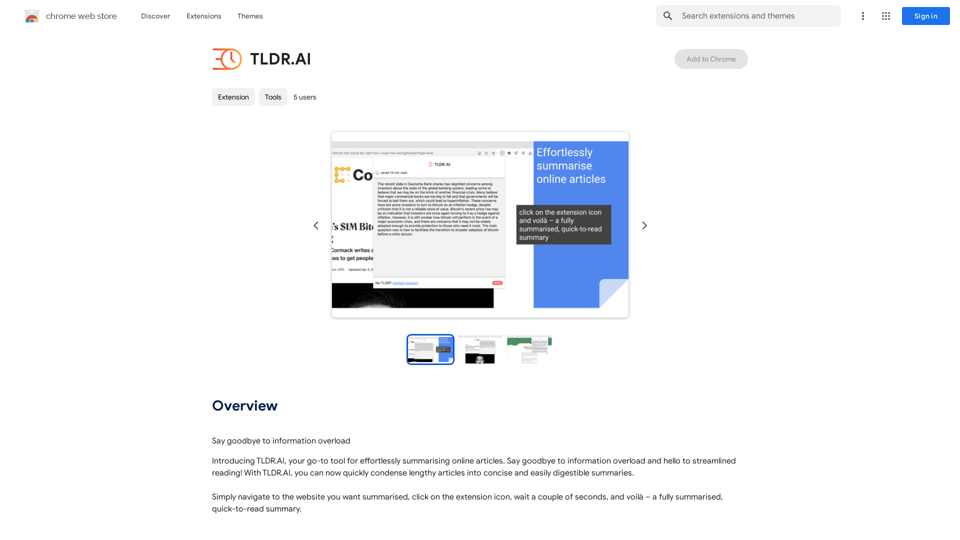
Say goodbye to information overload
Visit Website
TLDR.AI
Visit Website

Introduction

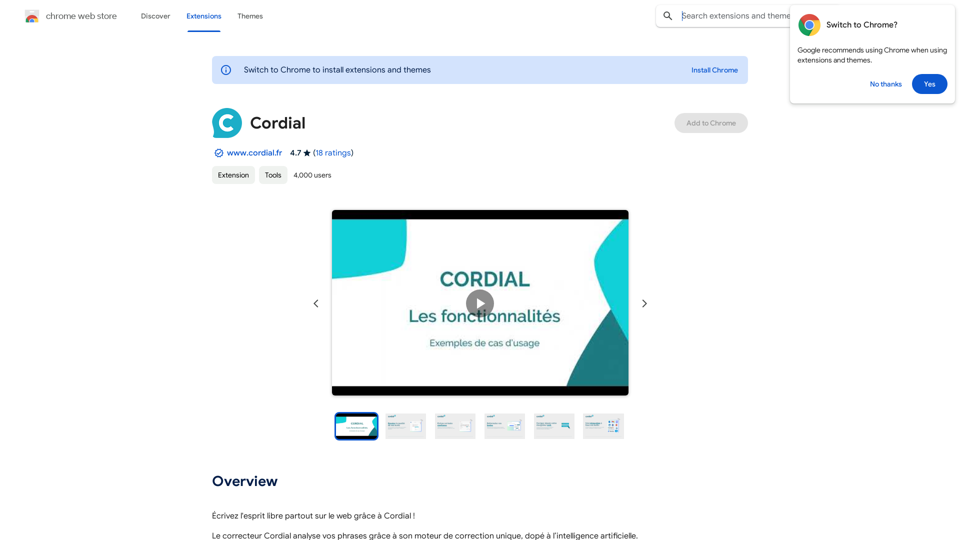
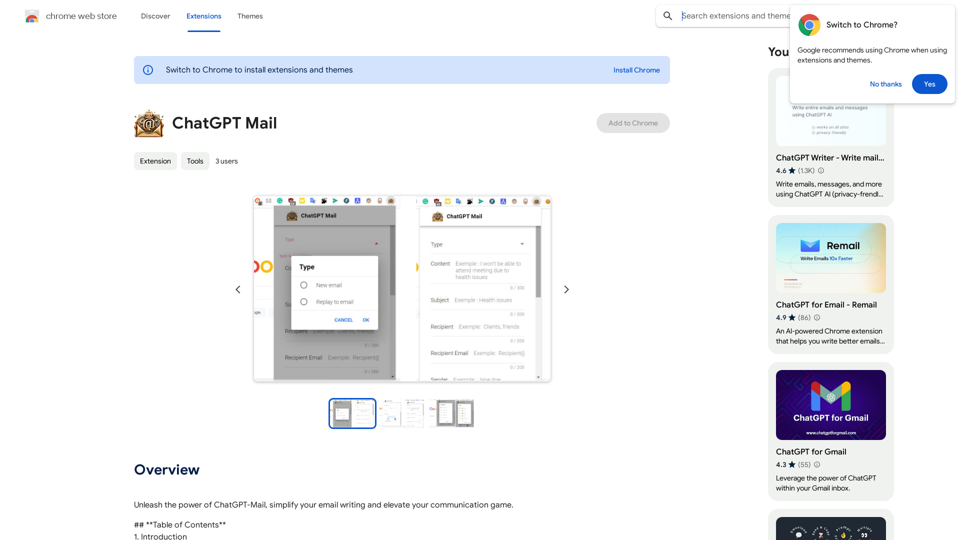
TLDR.AI is an AI-powered platform designed to combat information overload by providing effortless summarization of online articles. This Chrome extension allows users to quickly condense lengthy articles into concise, easily digestible summaries, streamlining the reading process and saving valuable time.

Feature

Effortless Summarization

TLDR.AI simplifies the process of summarizing online articles, requiring just a few clicks to generate concise summaries.

Accurate AI-Driven Summaries

Utilizing advanced AI technology, TLDR.AI produces precise and concise article summaries, ensuring users receive the most crucial information.

User-Friendly Interface

The platform boasts an intuitive interface, making it accessible for users of all technical levels to summarize articles effortlessly.

Free to Use

TLDR.AI is available as a free Chrome extension, with no subscription fees or hidden costs, allowing unlimited usage.

Cross-Device Compatibility

Users can install and use TLDR.AI across multiple devices, ensuring consistent access to summarization capabilities.

Data Privacy

TLDR.AI prioritizes user data protection, ensuring that personal information is not sold to third parties or used for unrelated purposes.

FAQ

How do I use TLDR.AI?

  1. Install the TLDR.AI extension in your Chrome browser
  2. Navigate to the article you want to summarize
  3. Click the TLDR.AI icon in your browser toolbar
  4. Wait a few seconds for the AI to generate a concise summary

Is TLDR.AI free to use?

Yes, TLDR.AI is a completely free extension with no subscription fees or hidden costs.

How accurate are the summaries generated by TLDR.AI?

TLDR.AI utilizes advanced AI technology to provide accurate and concise summaries of articles, ensuring high-quality results.

Related Websites
AIDEA
View Detail

AIDEA

AIDEA

Interfacing with AI This document explores the various ways humans interact with artificial intelligence (AI). Types of Interfaces * Text-based Interfaces: These interfaces allow users to communicate with AI systems through written language. * Examples include chatbots, command-line interfaces, and search engines. * Voice-based Interfaces: Users interact with AI using spoken words. * Examples include virtual assistants like Siri, Alexa, and Google Assistant. * Graphical User Interfaces (GUIs): These interfaces use visual elements like icons, buttons, and menus to enable interaction with AI. * Examples include AI-powered image editing software and virtual reality experiences. * Gesture-based Interfaces: Users control AI systems through physical movements. * Examples include motion-controlled gaming and sign language recognition. Challenges of AI Interfacing * Natural Language Understanding (NLU): AI systems struggle to fully understand the nuances of human language. * Contextual Awareness: AI often lacks the ability to understand the broader context of a conversation or interaction. * Personalization: Creating AI interfaces that are tailored to individual user preferences and needs can be complex. * Ethical Considerations: * Bias in AI algorithms can lead to unfair or discriminatory outcomes. * Privacy concerns arise when AI systems collect and process personal data. Future of AI Interfacing * More Natural and Intuitive Interactions: Advancements in NLU and machine learning will lead to AI systems that can understand and respond to human input more naturally. * Multi-modal Interfaces: Future interfaces will likely combine multiple input methods (e.g., text, voice, gesture) for a richer and more immersive experience. * Personalized AI Assistants: AI assistants will become increasingly personalized, anticipating user needs and providing customized support. * Ethical AI Development: * Researchers and developers will continue to work on mitigating bias and ensuring responsible use of AI.

193.90 M
Reviewer Recommender
View Detail

Reviewer Recommender

Reviewer Recommender

Reviewer Recommender

193.90 M
nbnm8
View Detail

nbnm8

nbnm8

Checks if nbn is available at your address, so you don't have to.

193.90 M
Shramko Video Describer
View Detail

Shramko Video Describer

Shramko Video Describer

Analyzes video content and generates descriptions, titles, and keywords using advanced machine learning algorithms.

193.90 M
Typogram
View Detail

Typogram

Typogram

Use Typogram to generate text, translate languages, and write code on any website.

193.90 M
AI Voice Over for YouTube 

This is a guide to using AI voice over for your YouTube videos. 

Why Use AI Voice Over?

* Cost-Effective: AI voice over is much cheaper than hiring a professional voice actor.
* Time-Saving: You can generate voice over quickly and easily, without needing to schedule recording sessions.
* Variety of Voices: Choose from a wide range of AI voices, including male, female, and even robotic voices.
* Accessibility: Make your videos accessible to viewers who are deaf or hard of hearing by adding captions generated by AI.

How to Use AI Voice Over

1. Choose a Platform: There are many different platforms that offer AI voice over services, such as:
    * Google Cloud Text-to-Speech
    * Amazon Polly
    * Microsoft Azure Text to Speech
    * Murf.ai
    * NaturalReader
2. Write Your Script:  Write a clear and concise script for your video.
3. Upload Your Script:  Upload your script to the chosen platform.
4. Select a Voice: Choose the voice that best suits your video.
5. Adjust Settings:  Adjust settings such as speed, pitch, and volume.
6. Generate Voice Over:  Click the "Generate" button to create your voice over.
7. Download and Edit: Download the generated voice over file and edit it as needed.
8. Add to Your Video:  Add the voice over to your YouTube video.

Tips for Using AI Voice Over

* Use Natural Language:  Write your script as if you were speaking naturally.
* Vary Your Tone:  Use different tones of voice to keep your viewers engaged.
* Add Pauses:  Include pauses in your script to allow viewers to process information.
* Proofread Carefully:  Always proofread your script before generating the voice over.
* Experiment:  Try different voices, settings, and styles to find what works best for you.
View Detail

AI Voice Over for YouTube This is a guide to using AI voice over for your YouTube videos. Why Use AI Voice Over? * Cost-Effective: AI voice over is much cheaper than hiring a professional voice actor. * Time-Saving: You can generate voice over quickly and easily, without needing to schedule recording sessions. * Variety of Voices: Choose from a wide range of AI voices, including male, female, and even robotic voices. * Accessibility: Make your videos accessible to viewers who are deaf or hard of hearing by adding captions generated by AI. How to Use AI Voice Over 1. Choose a Platform: There are many different platforms that offer AI voice over services, such as: * Google Cloud Text-to-Speech * Amazon Polly * Microsoft Azure Text to Speech * Murf.ai * NaturalReader 2. Write Your Script: Write a clear and concise script for your video. 3. Upload Your Script: Upload your script to the chosen platform. 4. Select a Voice: Choose the voice that best suits your video. 5. Adjust Settings: Adjust settings such as speed, pitch, and volume. 6. Generate Voice Over: Click the "Generate" button to create your voice over. 7. Download and Edit: Download the generated voice over file and edit it as needed. 8. Add to Your Video: Add the voice over to your YouTube video. Tips for Using AI Voice Over * Use Natural Language: Write your script as if you were speaking naturally. * Vary Your Tone: Use different tones of voice to keep your viewers engaged. * Add Pauses: Include pauses in your script to allow viewers to process information. * Proofread Carefully: Always proofread your script before generating the voice over. * Experiment: Try different voices, settings, and styles to find what works best for you.

AI Voice Over for YouTube This is a guide to using AI voice over for your YouTube videos. Why Use AI Voice Over? * Cost-Effective: AI voice over is much cheaper than hiring a professional voice actor. * Time-Saving: You can generate voice over quickly and easily, without needing to schedule recording sessions. * Variety of Voices: Choose from a wide range of AI voices, including male, female, and even robotic voices. * Accessibility: Make your videos accessible to viewers who are deaf or hard of hearing by adding captions generated by AI. How to Use AI Voice Over 1. Choose a Platform: There are many different platforms that offer AI voice over services, such as: * Google Cloud Text-to-Speech * Amazon Polly * Microsoft Azure Text to Speech * Murf.ai * NaturalReader 2. Write Your Script: Write a clear and concise script for your video. 3. Upload Your Script: Upload your script to the chosen platform. 4. Select a Voice: Choose the voice that best suits your video. 5. Adjust Settings: Adjust settings such as speed, pitch, and volume. 6. Generate Voice Over: Click the "Generate" button to create your voice over. 7. Download and Edit: Download the generated voice over file and edit it as needed. 8. Add to Your Video: Add the voice over to your YouTube video. Tips for Using AI Voice Over * Use Natural Language: Write your script as if you were speaking naturally. * Vary Your Tone: Use different tones of voice to keep your viewers engaged. * Add Pauses: Include pauses in your script to allow viewers to process information. * Proofread Carefully: Always proofread your script before generating the voice over. * Experiment: Try different voices, settings, and styles to find what works best for you.

Watch foreign language YouTube videos in your own language.

193.90 M
Alchemy for ChatGPT

Introduction

Alchemy is a powerful framework for building and deploying large language models (LLMs) like ChatGPT. It provides a comprehensive set of tools and resources to streamline the entire LLM development lifecycle, from training to deployment and monitoring.

Key Features

* Modular Design: Alchemy is built with a modular architecture, allowing developers to easily customize and extend its functionality.

* Fine-Tuning Capabilities: Alchemy offers robust fine-tuning capabilities, enabling users to adapt pre-trained LLMs to specific tasks and domains.

* Deployment Flexibility: Alchemy supports deployment across various platforms, including cloud, on-premise, and edge devices.

* Monitoring and Evaluation: Alchemy provides tools for monitoring LLM performance and evaluating their effectiveness.

Benefits

* Accelerated Development: Alchemy's modularity and pre-built components significantly reduce development time and effort.

* Improved Accuracy: Fine-tuning capabilities allow for higher accuracy and performance on specific tasks.

* Scalability and Reliability: Alchemy's deployment flexibility ensures scalability and reliability for diverse applications.

* Cost-Effectiveness: Alchemy's efficient resource utilization and streamlined workflows contribute to cost savings.

Use Cases

Alchemy can be used in a wide range of applications, including:

* Chatbots and Conversational AI:

* Text Generation and Summarization:

* Code Generation and Debugging:

* Data Analysis and Insights:

* Personalized Learning and Education:

Conclusion

Alchemy is a powerful and versatile framework that empowers developers to build, deploy, and manage LLMs effectively. Its comprehensive features, benefits, and diverse use cases make it an ideal choice for organizations looking to leverage the transformative potential of LLMs.
View Detail

Alchemy for ChatGPT Introduction Alchemy is a powerful framework for building and deploying large language models (LLMs) like ChatGPT. It provides a comprehensive set of tools and resources to streamline the entire LLM development lifecycle, from training to deployment and monitoring. Key Features * Modular Design: Alchemy is built with a modular architecture, allowing developers to easily customize and extend its functionality. * Fine-Tuning Capabilities: Alchemy offers robust fine-tuning capabilities, enabling users to adapt pre-trained LLMs to specific tasks and domains. * Deployment Flexibility: Alchemy supports deployment across various platforms, including cloud, on-premise, and edge devices. * Monitoring and Evaluation: Alchemy provides tools for monitoring LLM performance and evaluating their effectiveness. Benefits * Accelerated Development: Alchemy's modularity and pre-built components significantly reduce development time and effort. * Improved Accuracy: Fine-tuning capabilities allow for higher accuracy and performance on specific tasks. * Scalability and Reliability: Alchemy's deployment flexibility ensures scalability and reliability for diverse applications. * Cost-Effectiveness: Alchemy's efficient resource utilization and streamlined workflows contribute to cost savings. Use Cases Alchemy can be used in a wide range of applications, including: * Chatbots and Conversational AI: * Text Generation and Summarization: * Code Generation and Debugging: * Data Analysis and Insights: * Personalized Learning and Education: Conclusion Alchemy is a powerful and versatile framework that empowers developers to build, deploy, and manage LLMs effectively. Its comprehensive features, benefits, and diverse use cases make it an ideal choice for organizations looking to leverage the transformative potential of LLMs.

Alchemy for ChatGPT Introduction Alchemy is a powerful framework for building and deploying large language models (LLMs) like ChatGPT. It provides a comprehensive set of tools and resources to streamline the entire LLM development lifecycle, from training to deployment and monitoring. Key Features * Modular Design: Alchemy is built with a modular architecture, allowing developers to easily customize and extend its functionality. * Fine-Tuning Capabilities: Alchemy offers robust fine-tuning capabilities, enabling users to adapt pre-trained LLMs to specific tasks and domains. * Deployment Flexibility: Alchemy supports deployment across various platforms, including cloud, on-premise, and edge devices. * Monitoring and Evaluation: Alchemy provides tools for monitoring LLM performance and evaluating their effectiveness. Benefits * Accelerated Development: Alchemy's modularity and pre-built components significantly reduce development time and effort. * Improved Accuracy: Fine-tuning capabilities allow for higher accuracy and performance on specific tasks. * Scalability and Reliability: Alchemy's deployment flexibility ensures scalability and reliability for diverse applications. * Cost-Effectiveness: Alchemy's efficient resource utilization and streamlined workflows contribute to cost savings. Use Cases Alchemy can be used in a wide range of applications, including: * Chatbots and Conversational AI: * Text Generation and Summarization: * Code Generation and Debugging: * Data Analysis and Insights: * Personalized Learning and Education: Conclusion Alchemy is a powerful and versatile framework that empowers developers to build, deploy, and manage LLMs effectively. Its comprehensive features, benefits, and diverse use cases make it an ideal choice for organizations looking to leverage the transformative potential of LLMs.

Unlock the full capabilities of ChatGPT.

193.90 M
Meet2text - AI-Powered Meeting Minutes Generation
View Detail

Meet2text - AI-Powered Meeting Minutes Generation

Meet2text - AI-Powered Meeting Minutes Generation

Manage Google Meet Conversation and Comment Content, AI-Powered Meeting Minutes in One Go

193.90 M