Open-source RightAI Tools Directory
  • Discover AI
  • Submit
  • Startup
  • Blog
Open-source RightAI Tools Directory
Discover the best AI tools of 2025 with the RightAI Tools Directory!

Friend Links

AI Anime GeneratorToolsApp AI

Support

Tap4
Privacy policyTerms & ConditionsContact Us
Loading...
loading...

TruthGPT for Google™

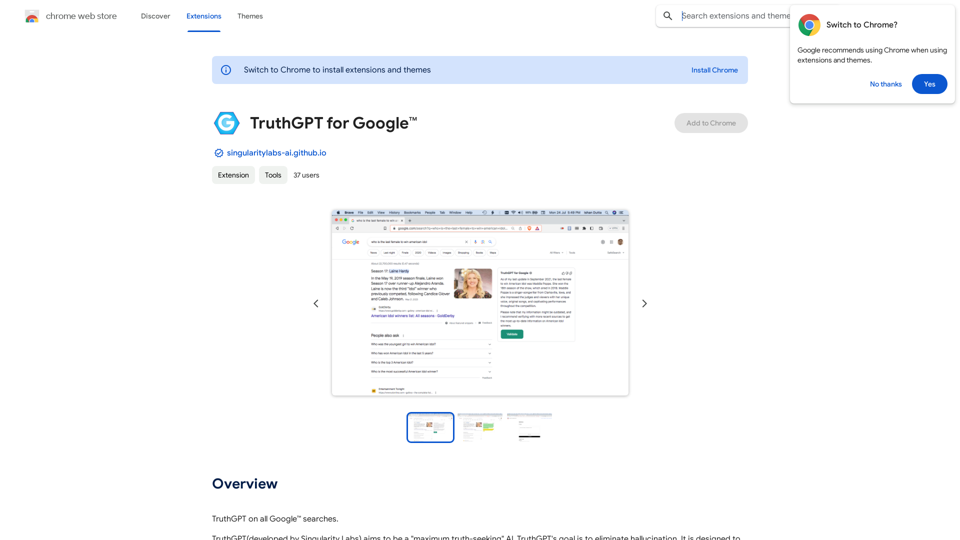
TruthGPT for all Google™ searches.
Visit Website
TruthGPT for Google™
Visit Website

Introduction

TruthGPT for Google is an innovative AI chatbot extension designed to combat misinformation and enhance the accuracy of search results. By integrating with Google search and leveraging multiple AI models, it aims to provide users with reliable, fact-checked information. This tool serves as a counterbalance to existing chatbots that have faced criticism for potentially spreading false information or harmful content.

Feature

AI-Powered Information Verification

TruthGPT for Google combines the capabilities of ChatGPT and Google's Bard chatbot to generate and validate information, ensuring a higher degree of accuracy in search results.

Seamless Google Integration

The extension automatically triggers queries to ChatGPT when users perform Google searches, enhancing the search experience with AI-generated insights.

Color-Coded Accuracy Indicators

Results are presented with an intuitive color-coding system:

  • RED: False information
  • YELLOW: Potentially true or false
  • GREEN: Verified true information

Free Access

TruthGPT for Google is freely available to all users, with no requirement for a ChatGPT Plus subscription.

User-Friendly Interface

The extension can be easily pinned for quick access, allowing users to seamlessly incorporate AI-powered fact-checking into their regular search routines.

Open Communication Channel

Users can provide feedback or request new features directly through the GitHub issues page, fostering continuous improvement and user engagement.

FAQ

Is TruthGPT for Google an official Google product?

No, TruthGPT for Google is an unofficial extension developed and maintained independently from Google.

How does TruthGPT for Google handle user data?

While TruthGPT for Google processes user activity and website content for its core functionality, it does not sell user data to third parties or use it for unrelated purposes.

What sets TruthGPT for Google apart from other AI chatbots?

TruthGPT for Google distinguishes itself by focusing on eliminating hallucinations and prioritizing accurate information. It uses a unique approach of cross-referencing information between multiple AI models to enhance reliability.

Related Websites
Converting JPG Images to Text

Converting a JPG image to text is a process known as Optical Character Recognition (OCR). This technology enables you to extract text from images, scanned documents, and photos. Here's how to do it:

Method 1: Online OCR Tools

You can use online OCR tools to convert JPG images to text. Here are the steps:

1. Upload your JPG image: Go to an online OCR tool website, such as Online OCR Tools or OCR.space, and upload your JPG image.
2. Select the language: Choose the language of the text in your image.
3. Click on "Convert": The tool will convert the image to text.
4. Download the text: You can download the extracted text as a Word document, PDF, or plain text file.

Method 2: Google Drive

You can also use Google Drive to convert JPG images to text. Here's how:

1. Upload your JPG image: Upload your JPG image to Google Drive.
2. Right-click on the image: Right-click on the uploaded image and select "Open with" > "Google Docs".
3. The image will be converted: Google Docs will automatically convert the image to text.
4. Edit and download: You can edit the extracted text and download it as a Word document or PDF.

Method 3: Adobe Acrobat

If you have Adobe Acrobat installed on your computer, you can use it to convert JPG images to text. Here's how:

1. Open Adobe Acrobat: Open Adobe Acrobat on your computer.
2. Create a new document: Create a new document and click on "Tools" > "Recognize Text".
3. Select the image: Select the JPG image you want to convert.
4. Click on "Recognize": Adobe Acrobat will convert the image to text.
5. Edit and save: You can edit the extracted text and save it as a Word document or PDF.

These are the three methods to convert JPG images to text. Choose the method that works best for you!
View Detail

Converting JPG Images to Text Converting a JPG image to text is a process known as Optical Character Recognition (OCR). This technology enables you to extract text from images, scanned documents, and photos. Here's how to do it: Method 1: Online OCR Tools You can use online OCR tools to convert JPG images to text. Here are the steps: 1. Upload your JPG image: Go to an online OCR tool website, such as Online OCR Tools or OCR.space, and upload your JPG image. 2. Select the language: Choose the language of the text in your image. 3. Click on "Convert": The tool will convert the image to text. 4. Download the text: You can download the extracted text as a Word document, PDF, or plain text file. Method 2: Google Drive You can also use Google Drive to convert JPG images to text. Here's how: 1. Upload your JPG image: Upload your JPG image to Google Drive. 2. Right-click on the image: Right-click on the uploaded image and select "Open with" > "Google Docs". 3. The image will be converted: Google Docs will automatically convert the image to text. 4. Edit and download: You can edit the extracted text and download it as a Word document or PDF. Method 3: Adobe Acrobat If you have Adobe Acrobat installed on your computer, you can use it to convert JPG images to text. Here's how: 1. Open Adobe Acrobat: Open Adobe Acrobat on your computer. 2. Create a new document: Create a new document and click on "Tools" > "Recognize Text". 3. Select the image: Select the JPG image you want to convert. 4. Click on "Recognize": Adobe Acrobat will convert the image to text. 5. Edit and save: You can edit the extracted text and save it as a Word document or PDF. These are the three methods to convert JPG images to text. Choose the method that works best for you!

Converting JPG Images to Text Converting a JPG image to text is a process known as Optical Character Recognition (OCR). This technology enables you to extract text from images, scanned documents, and photos. Here's how to do it: Method 1: Online OCR Tools You can use online OCR tools to convert JPG images to text. Here are the steps: 1. Upload your JPG image: Go to an online OCR tool website, such as Online OCR Tools or OCR.space, and upload your JPG image. 2. Select the language: Choose the language of the text in your image. 3. Click on "Convert": The tool will convert the image to text. 4. Download the text: You can download the extracted text as a Word document, PDF, or plain text file. Method 2: Google Drive You can also use Google Drive to convert JPG images to text. Here's how: 1. Upload your JPG image: Upload your JPG image to Google Drive. 2. Right-click on the image: Right-click on the uploaded image and select "Open with" > "Google Docs". 3. The image will be converted: Google Docs will automatically convert the image to text. 4. Edit and download: You can edit the extracted text and download it as a Word document or PDF. Method 3: Adobe Acrobat If you have Adobe Acrobat installed on your computer, you can use it to convert JPG images to text. Here's how: 1. Open Adobe Acrobat: Open Adobe Acrobat on your computer. 2. Create a new document: Create a new document and click on "Tools" > "Recognize Text". 3. Select the image: Select the JPG image you want to convert. 4. Click on "Recognize": Adobe Acrobat will convert the image to text. 5. Edit and save: You can edit the extracted text and save it as a Word document or PDF. These are the three methods to convert JPG images to text. Choose the method that works best for you!

It is an online tool that uses Optical Character Recognition (OCR) to make it possible to extract text from images in JPG format.

193.90 M
AI Paragraph Generator – Quickly generate paragraphs on any topic with our state-of-the-art AI Paragraph Generator
View Detail

AI Paragraph Generator – Quickly generate paragraphs on any topic with our state-of-the-art AI Paragraph Generator

AI Paragraph Generator – Quickly generate paragraphs on any topic with our state-of-the-art AI Paragraph Generator

AI Paragraph Generator – Quickly generate paragraphs on any topic with our state-of-the-art AI Paragraph Generator

0
Ai5 - The AI Art Newsletter
View Detail

Ai5 - The AI Art Newsletter

Ai5 - The AI Art Newsletter

Ai5 is your go-to twice-weekly email outlining the most important events happening in generative AI. Stay informed, get smarter, and be entertained with Ai5.

0
Make a similarity service
View Detail

Make a similarity service

Make a similarity service

Comparing Similarity for nb.no Book and Image Search Results Let's explore how to measure the similarity between: * Book search results from nb.no (the Norwegian National Library) * Image search results from various sources This comparison can be valuable for understanding: * How well visual representations match textual descriptions. * Potential for using images to enhance book discovery. * Developing new search functionalities that combine text and image data. We can use various techniques to assess similarity, including: * Textual Similarity: Analyzing the keywords, topics, and overall content of book descriptions and image captions. * Visual Similarity: Comparing the visual features of images using algorithms like convolutional neural networks (CNNs). * Hybrid Approaches: Combining textual and visual similarity measures for a more comprehensive evaluation. By comparing similarity scores across different methods, we can gain insights into the strengths and weaknesses of each approach and identify the most effective way to connect books and images.

193.90 M
ChatGPT Sidebar by cloudHQ 

This is a powerful tool that brings the capabilities of ChatGPT directly into your workflow. 

Key Features:

* Seamless Integration:  Effortlessly access ChatGPT within your favorite applications like Gmail, Slack, and Notion. 
* Contextual Understanding:  ChatGPT remembers past interactions, providing relevant and coherent responses within the context of your current task.
* Boost Productivity:  Automate repetitive tasks, generate creative content, and get instant answers to your questions, all without leaving your workspace.
* Enhanced Collaboration:  Share ChatGPT-powered insights and ideas with your team, fostering more productive and efficient collaboration.

Benefits:

* Save Time and Effort:  Streamline your workflow and focus on high-value tasks.
* Unlock Creativity:  Overcome writer's block and generate innovative ideas.
* Improve Communication:  Craft clear, concise, and engaging messages.
* Make Informed Decisions:  Access reliable information and insights to support your decision-making process.


Get Started Today:

Visit our website to learn more and start using ChatGPT Sidebar by cloudHQ.
View Detail

ChatGPT Sidebar by cloudHQ This is a powerful tool that brings the capabilities of ChatGPT directly into your workflow. Key Features: * Seamless Integration: Effortlessly access ChatGPT within your favorite applications like Gmail, Slack, and Notion. * Contextual Understanding: ChatGPT remembers past interactions, providing relevant and coherent responses within the context of your current task. * Boost Productivity: Automate repetitive tasks, generate creative content, and get instant answers to your questions, all without leaving your workspace. * Enhanced Collaboration: Share ChatGPT-powered insights and ideas with your team, fostering more productive and efficient collaboration. Benefits: * Save Time and Effort: Streamline your workflow and focus on high-value tasks. * Unlock Creativity: Overcome writer's block and generate innovative ideas. * Improve Communication: Craft clear, concise, and engaging messages. * Make Informed Decisions: Access reliable information and insights to support your decision-making process. Get Started Today: Visit our website to learn more and start using ChatGPT Sidebar by cloudHQ.

ChatGPT Sidebar by cloudHQ This is a powerful tool that brings the capabilities of ChatGPT directly into your workflow. Key Features: * Seamless Integration: Effortlessly access ChatGPT within your favorite applications like Gmail, Slack, and Notion. * Contextual Understanding: ChatGPT remembers past interactions, providing relevant and coherent responses within the context of your current task. * Boost Productivity: Automate repetitive tasks, generate creative content, and get instant answers to your questions, all without leaving your workspace. * Enhanced Collaboration: Share ChatGPT-powered insights and ideas with your team, fostering more productive and efficient collaboration. Benefits: * Save Time and Effort: Streamline your workflow and focus on high-value tasks. * Unlock Creativity: Overcome writer's block and generate innovative ideas. * Improve Communication: Craft clear, concise, and engaging messages. * Make Informed Decisions: Access reliable information and insights to support your decision-making process. Get Started Today: Visit our website to learn more and start using ChatGPT Sidebar by cloudHQ.

ChatGPT sidebar as your AI assistant on any page

193.90 M
Cốc Cốc Search
View Detail

Cốc Cốc Search

Cốc Cốc Search

Install Cốc Cốc Search today and experience the search engine designed for Vietnamese people!

193.90 M
Face Swap - AI Face Swapper
View Detail

Face Swap - AI Face Swapper

Face Swap - AI Face Swapper

Upload photos or videos to swap the face. Switch any face on photo and video. Generate magic AI face swap photos and videos.

193.90 M
Here is the English translation:

📖 AI Story Generator (free, unlimited, no sign-up)
View Detail

Here is the English translation: 📖 AI Story Generator (free, unlimited, no sign-up)

Here is the English translation: 📖 AI Story Generator (free, unlimited, no sign-up)

Completely free & unlimited AI story generator/writer based on a prompt. No sign-up or login.

17.40 M