Open-source RightAI Tools Directory
  • Discover AI
  • Submit
  • Startup
  • Blog
Open-source RightAI Tools Directory
Discover the best AI tools of 2025 with the RightAI Tools Directory!

Friend Links

AI Anime GeneratorToolsApp AI

Support

Tap4
Privacy policyTerms & ConditionsContact Us
Loading...
loading...

PicTranslate - Translate Any Image Text

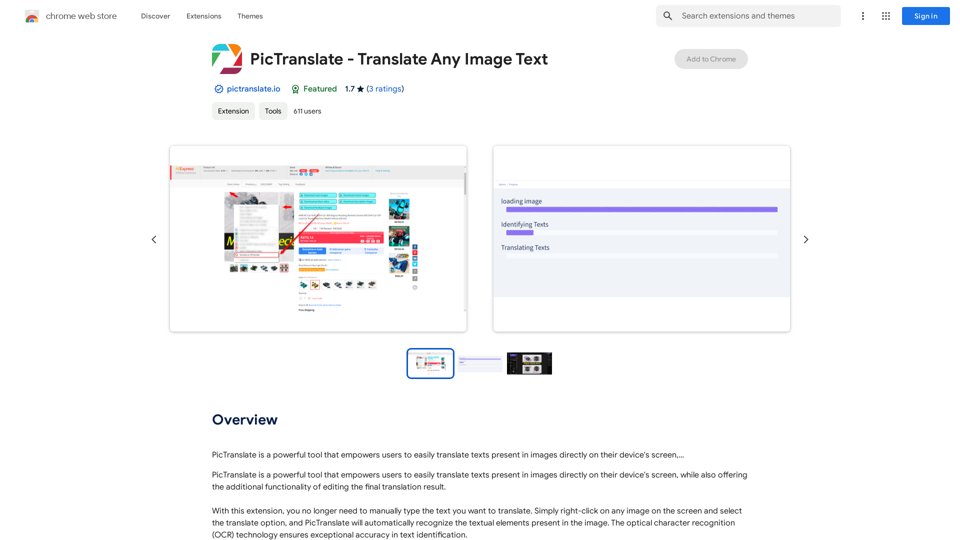
PicTranslate is a powerful tool that empowers users to easily translate texts present in images directly on their device's screen,…
Visit Website
PicTranslate - Translate Any Image Text
Visit Website

Introduction

PicTranslate is a powerful tool that enables users to translate text within images directly on their device's screen. It combines optical character recognition (OCR) technology with translation capabilities, allowing users to easily translate text from images without manual typing. The tool also offers editing features for refining translations and works across various applications and websites.

Feature

On-screen Image Translation

PicTranslate allows users to translate text from screen images quickly and efficiently. Simply right-click on any image and select the translate option to initiate the process.

Optical Character Recognition (OCR)

The tool employs accurate and reliable OCR technology to identify text within images, ensuring high-quality text recognition.

Automatic Translation

After recognizing the text, PicTranslate provides an initial automatic translation, streamlining the translation process.

Customized Editing

Users can make adjustments, corrections, and improvements to the translated text, ensuring accuracy and context-appropriate translations.

Automatic Saving

Changes made to translations are automatically saved, allowing users to access previous versions of their work.

Universal Compatibility

PicTranslate works across various applications and online sites, providing a versatile translation solution.

Free and Paid Options

The tool offers a free version with limited features and a paid subscription with additional benefits and extended access.

FAQ

Is PicTranslate free to use?

Yes, PicTranslate offers a free version with limited features. Subscribing to the platform grants additional benefits and extended access beyond the free usage limits.

How accurate is PicTranslate's OCR technology?

PicTranslate's OCR technology is highly accurate and reliable, ensuring exceptional text identification in images.

Can I edit the translated text?

Yes, PicTranslate offers a customized editing feature, allowing you to make adjustments, corrections, and improvements to the translated text.

Is my data safe with PicTranslate?

Yes, PicTranslate handles your data with care and ensures that it is not being sold to third parties, outside of the approved use cases.

Latest Traffic Insights

  • Monthly Visits

    193.90 M

  • Bounce Rate

    56.27%

  • Pages Per Visit

    2.71

  • Time on Site(s)

    115.91

  • Global Rank

    -

  • Country Rank

    -

Recent Visits

Traffic Sources

  • Social Media:
    0.48%
  • Paid Referrals:
    0.55%
  • Email:
    0.15%
  • Referrals:
    12.81%
  • Search Engines:
    16.21%
  • Direct:
    69.81%
More Data

Related Websites

ChatGPT + Google, Bing, Yahoo
View Detail

ChatGPT + Google, Bing, Yahoo

ChatGPT + Google, Bing, Yahoo

Combine the power of OpenAI's ChatGPT with major search engines.

193.90 M
LunaNotes - Take notes on YouTube
View Detail

LunaNotes - Take notes on YouTube

LunaNotes - Take notes on YouTube

The Simplest Way to Take Notes on YouTube Videos!

193.90 M
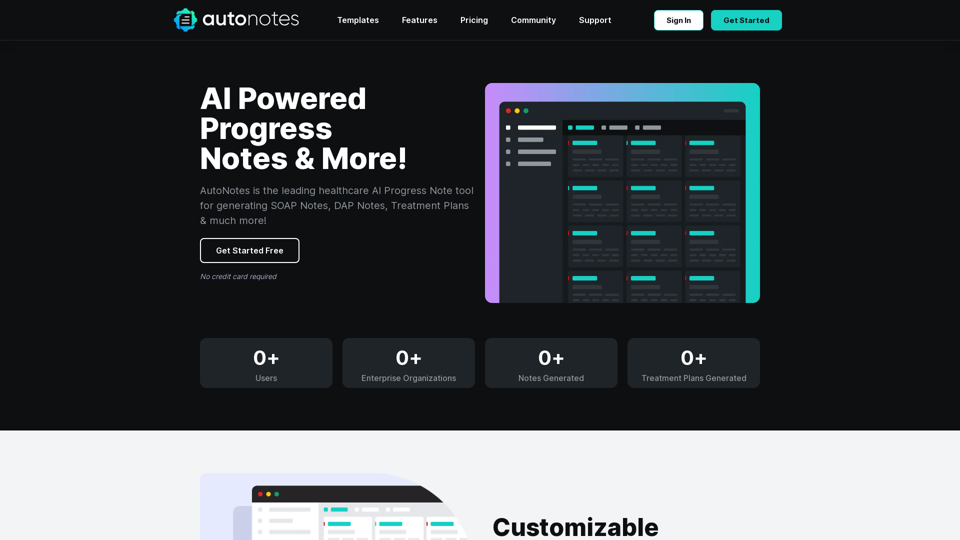
Orchid: AI Clinical Notes
View Detail

Orchid: AI Clinical Notes

Orchid: AI Clinical Notes

Automatically create clinical notes and generate AI-powered progress notes in any electronic health record (EHR) system.

193.90 M
Reliv
View Detail

Reliv

Reliv

Automate QA Tests in Just 5 Minutes

0
BlockDefend AI
View Detail

BlockDefend AI

BlockDefend AI

Protect yourself from phishing websites and analyze contracts, tokens, NFTs, approvals, and airdrops with BlockDefend AI.

193.90 M
HotBot: Smarter Answers. AI Made Easy. Ask Your Question Now.
View Detail

HotBot: Smarter Answers. AI Made Easy. Ask Your Question Now.

HotBot: Smarter Answers. AI Made Easy. Ask Your Question Now.

HotBot is AI made simple. We made searching the web better in 1996, and now we're making AI easier in 2024. Just type in your question and receive your answer, all powered by ChatGPT 4. HotBot is totally free to use and no sign-up is required.

708.64 K
Get ChatGPT for Free with Google

You can now access ChatGPT, a powerful language model, for free with Google. Here's how:

Method 1: Google Colab

* Open Google Colab ([colab.research.google.com](http://colab.research.google.com))
* Create a new notebook
* Install the `transformers` library by running `!pip install transformers`
* Import the `transformers` library and load the ChatGPT model using `from transformers import AutoModelForCausalLM, AutoTokenizer; model = AutoModelForCausalLM.from_pretrained('chatgpt'); tokenizer = AutoTokenizer.from_pretrained('chatgpt')`
* Use the model to generate text using `input_text = "Your input here"; inputs = tokenizer.encode_plus(input_text, return_tensors='pt', max_length=1024, padding='max_length', truncation=True); output = model(inputs['input_ids'], attention_mask=inputs['attention_mask']); print(tokenizer.decode(output.logits[0], skip_special_tokens=True))`

Method 2: Google Apps Script

* Open Google Apps Script ([script.google.com](http://script.google.com))
* Create a new project
* Install the `transformers` library by running `npm install transformers`
* Import the `transformers` library and load the ChatGPT model using `const { AutoModelForCausalLM, AutoTokenizer } = require('transformers'); const model = new AutoModelForCausalLM('chatgpt'); const tokenizer = new AutoTokenizer('chatgpt');`
* Use the model to generate text using `const inputText = "Your input here"; const inputs = tokenizer.encodePlus(inputText, { return_tensors: 'pt', max_length: 1024, padding: 'max_length', truncation: true }); const output = model(inputs.inputIds, inputs.attentionMask); console.log(tokenizer.decode(output.logits[0], { skipSpecialTokens: true }));`

Note: These methods require some technical knowledge and may have limitations compared to the original ChatGPT model.
View Detail

Get ChatGPT for Free with Google You can now access ChatGPT, a powerful language model, for free with Google. Here's how: Method 1: Google Colab * Open Google Colab ([colab.research.google.com](http://colab.research.google.com)) * Create a new notebook * Install the `transformers` library by running `!pip install transformers` * Import the `transformers` library and load the ChatGPT model using `from transformers import AutoModelForCausalLM, AutoTokenizer; model = AutoModelForCausalLM.from_pretrained('chatgpt'); tokenizer = AutoTokenizer.from_pretrained('chatgpt')` * Use the model to generate text using `input_text = "Your input here"; inputs = tokenizer.encode_plus(input_text, return_tensors='pt', max_length=1024, padding='max_length', truncation=True); output = model(inputs['input_ids'], attention_mask=inputs['attention_mask']); print(tokenizer.decode(output.logits[0], skip_special_tokens=True))` Method 2: Google Apps Script * Open Google Apps Script ([script.google.com](http://script.google.com)) * Create a new project * Install the `transformers` library by running `npm install transformers` * Import the `transformers` library and load the ChatGPT model using `const { AutoModelForCausalLM, AutoTokenizer } = require('transformers'); const model = new AutoModelForCausalLM('chatgpt'); const tokenizer = new AutoTokenizer('chatgpt');` * Use the model to generate text using `const inputText = "Your input here"; const inputs = tokenizer.encodePlus(inputText, { return_tensors: 'pt', max_length: 1024, padding: 'max_length', truncation: true }); const output = model(inputs.inputIds, inputs.attentionMask); console.log(tokenizer.decode(output.logits[0], { skipSpecialTokens: true }));` Note: These methods require some technical knowledge and may have limitations compared to the original ChatGPT model.

Get ChatGPT for Free with Google You can now access ChatGPT, a powerful language model, for free with Google. Here's how: Method 1: Google Colab * Open Google Colab ([colab.research.google.com](http://colab.research.google.com)) * Create a new notebook * Install the `transformers` library by running `!pip install transformers` * Import the `transformers` library and load the ChatGPT model using `from transformers import AutoModelForCausalLM, AutoTokenizer; model = AutoModelForCausalLM.from_pretrained('chatgpt'); tokenizer = AutoTokenizer.from_pretrained('chatgpt')` * Use the model to generate text using `input_text = "Your input here"; inputs = tokenizer.encode_plus(input_text, return_tensors='pt', max_length=1024, padding='max_length', truncation=True); output = model(inputs['input_ids'], attention_mask=inputs['attention_mask']); print(tokenizer.decode(output.logits[0], skip_special_tokens=True))` Method 2: Google Apps Script * Open Google Apps Script ([script.google.com](http://script.google.com)) * Create a new project * Install the `transformers` library by running `npm install transformers` * Import the `transformers` library and load the ChatGPT model using `const { AutoModelForCausalLM, AutoTokenizer } = require('transformers'); const model = new AutoModelForCausalLM('chatgpt'); const tokenizer = new AutoTokenizer('chatgpt');` * Use the model to generate text using `const inputText = "Your input here"; const inputs = tokenizer.encodePlus(inputText, { return_tensors: 'pt', max_length: 1024, padding: 'max_length', truncation: true }); const output = model(inputs.inputIds, inputs.attentionMask); console.log(tokenizer.decode(output.logits[0], { skipSpecialTokens: true }));` Note: These methods require some technical knowledge and may have limitations compared to the original ChatGPT model.

How to Add ChatGPT to All Google Searches ===================================================== Step 1: Create a Custom Search Engine -------------------------------------- * Go to the [Google Custom Search Engine](https://cse.google.com/) website and sign in with your Google account. * Click on the "New Search Engine" button. * Fill in the required information, such as the name and description of your search engine. * Click on the "Create" button. Step 2: Add ChatGPT to the Search Engine ----------------------------------------- * In the "Setup" tab, click on the "Add" button next to "Sites to search". * Enter the following URL: `https://chat.openai.com/` * Click on the "Add" button. Step 3: Configure the Search Engine -------------------------------------- * In the "Setup" tab, click on the "Edit" button next to "Search engine keywords". * Add the following keywords: `ChatGPT` * Click on the "Save" button. Step 4: Get the Search Engine Code ------------------------------------- * In the "Setup" tab, click on the "Get code" button. * Copy the HTML code provided. Step 5: Add the Search Engine to Your Browser ------------------------------------------------ * Open your browser and go to the "Settings" or "Options" page. * Look for the "Search engine" or "Default search engine" option. * Click on the "Add" or "Manage search engines" button. * Paste the HTML code you copied earlier. * Click on the "Add" or "Save" button. You're Done! =============== Now, whenever you search on Google, ChatGPT will be included in the search results. You can also use the custom search engine URL provided by Google to search directly.

193.90 M
Hello Seller
View Detail

Hello Seller

Hello Seller

Earn more with OpenInfoSeller. Find SPP for your products and maximize your profits with the OiSeller extension...

193.90 M