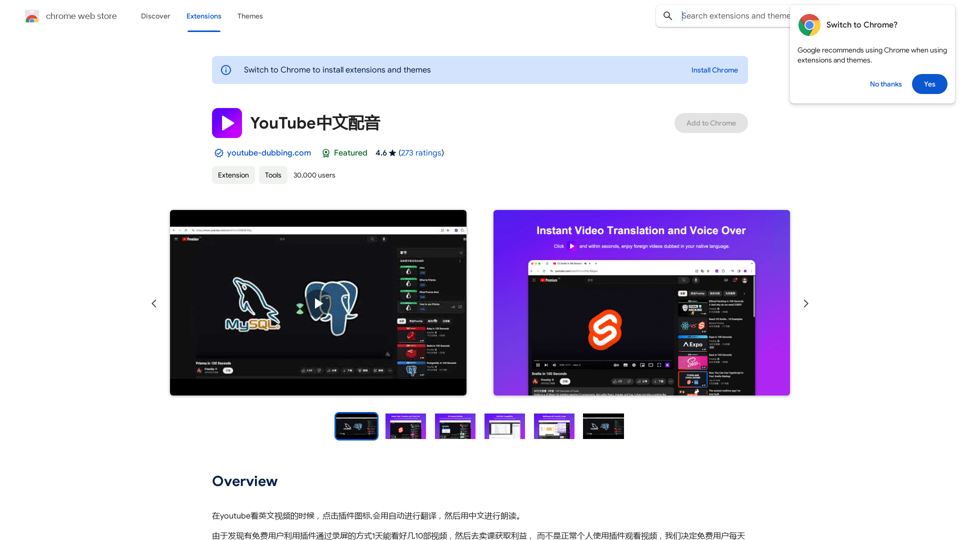
YouTube Dubbing is a browser extension that enhances the YouTube viewing experience by providing automatic translation and reading aloud of English videos in Chinese. This AI-powered tool offers seamless subtitle translation, making it easier for non-English speakers to enjoy a wide range of content on YouTube.
YouTube Chinese Dubbing
When watching English videos on YouTube, click the plugin icon, and it will automatically translate and then read aloud in Chinese.
Introduction
Feature
Automatic Subtitle Translation
YouTube Dubbing automatically translates English subtitles into Chinese, allowing users to understand the content without language barriers.
Text-to-Speech Functionality
The extension includes a read-aloud feature that converts translated subtitles into spoken Chinese, providing an immersive viewing experience.
Multi-Browser Compatibility
YouTube Dubbing supports multiple browsers, including:
- Chrome
- Firefox
- Safari
Cross-Platform Support
The extension is available on various devices:
- PC
- Android
- iOS
Multi-Language Support
While primarily focused on English to Chinese translation, YouTube Dubbing also supports:
- Japanese
- Korean
Customizable Interface
Users can personalize their experience by:
- Adjusting font size and style
- Switching between different voices and languages
Easy Installation and Usage
- Install from Chrome Web Store
- Play an English YouTube video
- Click YouTube Dubbing icon
- Select target language
- Customize font settings
- Activate read-aloud feature
Free to Use
YouTube Dubbing is a free extension with no subscription fees or hidden costs.
FAQ
Is YouTube Dubbing free to use?
Yes, YouTube Dubbing is a free browser extension with no subscription fees or hidden costs.
What languages does YouTube Dubbing support?
The extension primarily focuses on English to Chinese translation but also supports Japanese and Korean.
Can I use YouTube Dubbing on multiple devices?
Yes, YouTube Dubbing is compatible with PC, Android, and iOS devices.
How can I customize the subtitle appearance?
You can adjust the font size and style by clicking the three dots next to the YouTube Dubbing icon.
Is it possible to change the voice or language for the read-aloud feature?
Yes, you can switch between different voices and languages using the "Voice" or "Language" dropdown menus.
Latest Traffic Insights
Monthly Visits
193.90 M
Bounce Rate
56.27%
Pages Per Visit
2.71
Time on Site(s)
115.91
Global Rank
-
Country Rank
-
Recent Visits
Traffic Sources
- Social Media:0.48%
- Paid Referrals:0.55%
- Email:0.15%
- Referrals:12.81%
- Search Engines:16.21%
- Direct:69.81%
Related Websites
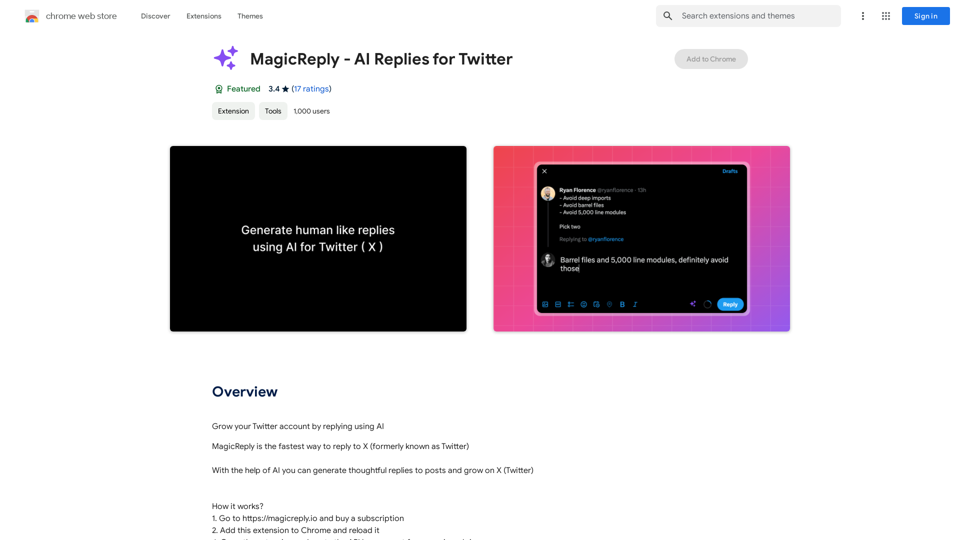
Grow Your Twitter Account by Replying Using AI Are you tired of manually responding to tweets and struggling to grow your Twitter account? Do you want to increase your online presence and engage with your audience more efficiently? Look no further! This article will show you how to grow your Twitter account by replying using AI. What is AI-powered Twitter reply? AI-powered Twitter reply is a technology that uses artificial intelligence to automatically respond to tweets. This innovative tool analyzes the content of incoming tweets and generates a relevant response based on the context. With AI-powered Twitter reply, you can save time and effort while increasing your online engagement. Benefits of using AI-powered Twitter reply 1. Increased efficiency Manually responding to tweets can be time-consuming, especially if you have a large following. AI-powered Twitter reply automates the process, allowing you to focus on other important tasks. 2. Improved engagement AI-powered Twitter reply helps you respond to tweets quickly, which increases the chances of starting a conversation and building relationships with your followers. 3. Personalized responses AI-powered Twitter reply can be customized to fit your brand's voice and tone, ensuring that your responses are personalized and consistent. 4. Scalability As your Twitter account grows, AI-powered Twitter reply can handle a large volume of tweets, ensuring that you never miss a response. How to use AI-powered Twitter reply 1. Choose an AI-powered Twitter reply tool There are several AI-powered Twitter reply tools available, such as [Tool 1], [Tool 2], and [Tool 3]. Research and choose the one that best fits your needs. 2. Set up your AI-powered Twitter reply Once you've chosen a tool, set it up by connecting your Twitter account and customizing your responses. 3. Monitor and adjust Monitor your AI-powered Twitter reply's performance and adjust the settings as needed to ensure that your responses are relevant and engaging. Conclusion Growing your Twitter account requires consistent engagement and timely responses. AI-powered Twitter reply is a game-changer that can help you achieve this goal. By automating your responses, you can increase efficiency, improve engagement, and personalize your interactions. Try AI-powered Twitter reply today and watch your Twitter account thrive!
193.90 M
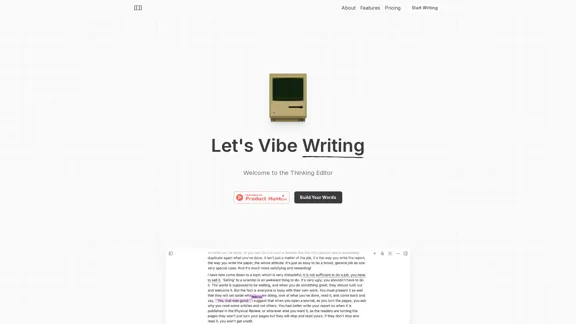
The most powerful AI text editor. Coherent editing. Customized styling. Collaborate seamlessly.
1.36 K
Ai5 is your go-to twice-weekly email outlining the most important events happening in generative AI. Stay informed, get smarter, and be entertained with Ai5.
0
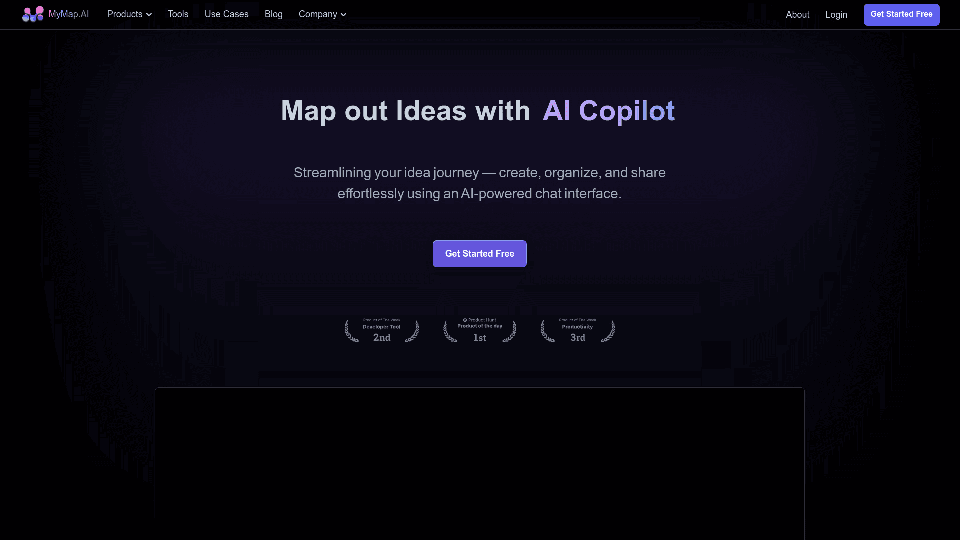
MyMap transforms your textual concepts into visual representations such as mind maps and presentations through a straightforward chat interface. It's perfect for students, educators, and professionals, requiring no design expertise. This tool saves you time by enabling effortless, collaborative visual creation.
1.04 M
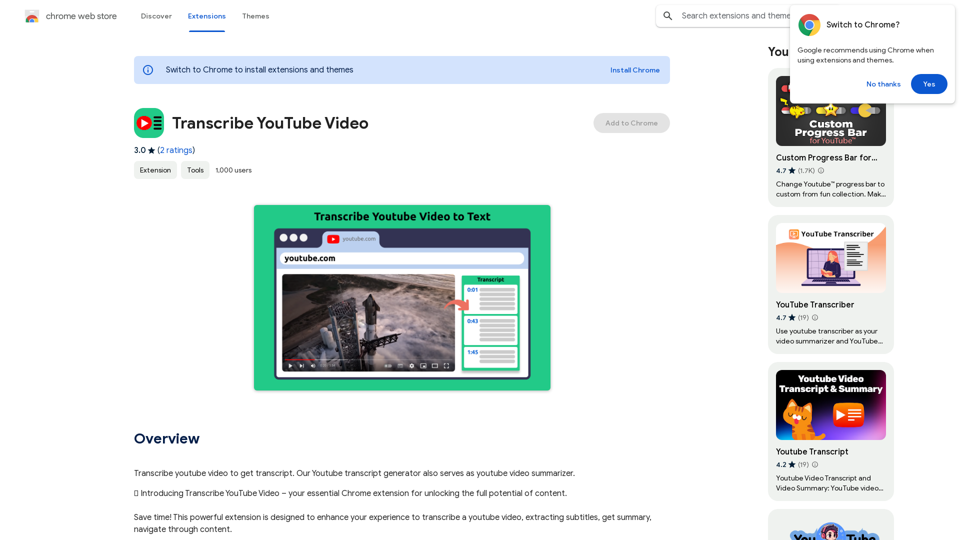
Please provide me with the YouTube video link so I can transcribe it for you.
Please provide me with the YouTube video link so I can transcribe it for you.Transcribe a YouTube video to get a transcript. Our YouTube transcript generator also acts as a YouTube video summarizer.
193.90 M
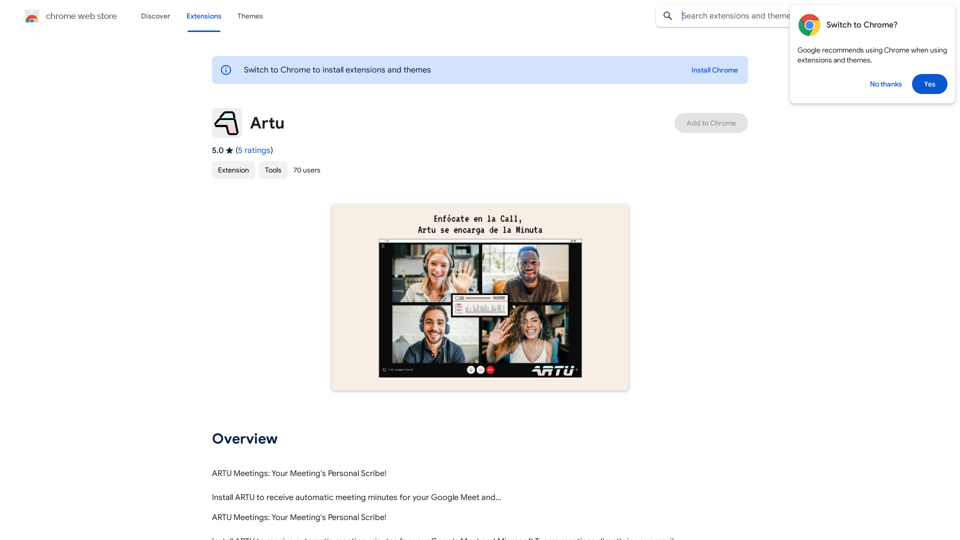
ARTU Meetings: Your Meeting's Personal Scribe! Install ARTU to receive automatic meeting minutes for your Google Meet and...
193.90 M