Open-source RightAI Tools Directory
  • Discover AI
  • Submit
  • Startup
  • Blog
Open-source RightAI Tools Directory
Discover the best AI tools of 2025 with the RightAI Tools Directory!

Friend Links

AI Anime GeneratorToolsApp AI

Support

Tap4
Privacy policyTerms & ConditionsContact Us
Loading...
loading...

Z list

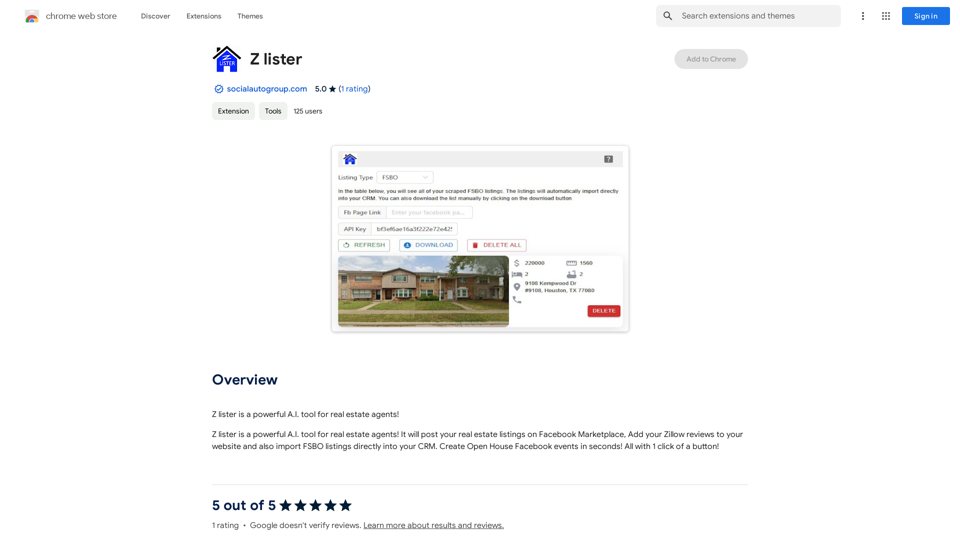
Z lister is a powerful AI tool for real estate agents!
Visit Website
Z list
Visit Website

Introduction

Z Lister is an innovative AI-powered tool designed specifically for real estate agents. It aims to enhance their workflow efficiency and boost their online visibility. The platform offers a range of features including seamless integration with Facebook Marketplace for listing posts, incorporation of Zillow reviews into agents' websites, and the ability to import For Sale By Owner (FSBO) listings directly into Customer Relationship Management (CRM) systems.

Feature

Facebook Marketplace Integration

Z Lister enables real estate agents to post their property listings on Facebook Marketplace effortlessly with a single click, expanding their reach to potential buyers.

Zillow Review Integration

Agents can easily showcase their expertise by adding their Zillow reviews to their websites, building trust and credibility with prospective clients.

FSBO Listing Import

The tool allows for direct import of FSBO listings into the agent's CRM, saving valuable time and streamlining the process of managing potential leads.

One-Click Open House Events

Z Lister simplifies the creation of Open House Facebook events, allowing agents to promote their listings quickly and efficiently.

User-Friendly Interface

Designed with simplicity in mind, Z Lister is accessible even to those without extensive technical knowledge, making it easy for all real estate agents to leverage its features.

Flexible Pricing Plans

Z Lister offers a range of pricing options to accommodate different needs and budgets, from individual agents to larger teams.

FAQ

Is Z Lister suitable for all real estate agents?

Z Lister is designed to be user-friendly and beneficial for real estate agents at all levels of technical expertise. Its features can help both individual agents and teams improve their online presence and streamline their workflow.

What are the main benefits of using Z Lister?

The main benefits include:

  1. Increased online visibility through Facebook Marketplace integration
  2. Enhanced credibility by showcasing Zillow reviews on personal websites
  3. Time-saving FSBO listing imports into CRM systems
  4. Efficient creation of Open House Facebook events

Does Z Lister offer a free plan?

Yes, Z Lister provides a free plan along with paid options for solo agents and teams, allowing users to choose the plan that best fits their needs and budget.

How can Z Lister help in attracting more leads?

Z Lister helps attract more leads by:

  • Expanding reach through Facebook Marketplace listings
  • Building trust with potential clients by displaying Zillow reviews
  • Streamlining the process of managing FSBO listings
  • Facilitating easy promotion of Open House events on Facebook

Related Websites
Leexi - Google Meet recording
View Detail

Leexi - Google Meet recording

Leexi - Google Meet recording

Never forget to record your Google Meet video conferences again and find them in the Leexi app in one click.

193.90 M
HiveHubAI - Social Media Analytics and Insights
View Detail

HiveHubAI - Social Media Analytics and Insights

HiveHubAI - Social Media Analytics and Insights

Discover HiveHubAI, your go-to AI-driven social media analytics platform. Elevate your digital influence with real-time Instagram and Facebook analytics, personalized AI insights, and strategic content optimization. Join our early access to transform your social media strategy!

740
AutoMOT - Quick Access to MOT History
View Detail

AutoMOT - Quick Access to MOT History

AutoMOT - Quick Access to MOT History

This extension saves you time by automatically loading information about a vehicle's MOT history on autotrader.co.uk.

193.90 M
Hints Playbook AI

This playbook provides guidance on how to effectively use hints to improve the performance of AI models.

Understanding Hints

Hints are additional pieces of information provided to an AI model to guide its output. They can take various forms, such as:

* Textual prompts: Direct instructions or suggestions.
* Examples: Demonstrating the desired output format or style.
* Constraints: Specifying limitations or boundaries for the response.

Types of Hints

* Zero-shot: Hints are provided without any examples.
* Few-shot: A small number of examples are given to illustrate the desired output.
* Fine-tuning: Hints are incorporated into the training data to adjust the model's behavior.

Best Practices for Using Hints

* Be specific: Clearly articulate what you want the AI to do.
* Provide context: Give the model enough background information to understand the task.
* Use examples: Demonstrate the desired output format or style.
* Iterate and refine: Experiment with different types and formats of hints to find what works best.
* Evaluate results: Assess the quality of the AI's output and adjust hints accordingly.
View Detail

Hints Playbook AI This playbook provides guidance on how to effectively use hints to improve the performance of AI models. Understanding Hints Hints are additional pieces of information provided to an AI model to guide its output. They can take various forms, such as: * Textual prompts: Direct instructions or suggestions. * Examples: Demonstrating the desired output format or style. * Constraints: Specifying limitations or boundaries for the response. Types of Hints * Zero-shot: Hints are provided without any examples. * Few-shot: A small number of examples are given to illustrate the desired output. * Fine-tuning: Hints are incorporated into the training data to adjust the model's behavior. Best Practices for Using Hints * Be specific: Clearly articulate what you want the AI to do. * Provide context: Give the model enough background information to understand the task. * Use examples: Demonstrate the desired output format or style. * Iterate and refine: Experiment with different types and formats of hints to find what works best. * Evaluate results: Assess the quality of the AI's output and adjust hints accordingly.

Hints Playbook AI This playbook provides guidance on how to effectively use hints to improve the performance of AI models. Understanding Hints Hints are additional pieces of information provided to an AI model to guide its output. They can take various forms, such as: * Textual prompts: Direct instructions or suggestions. * Examples: Demonstrating the desired output format or style. * Constraints: Specifying limitations or boundaries for the response. Types of Hints * Zero-shot: Hints are provided without any examples. * Few-shot: A small number of examples are given to illustrate the desired output. * Fine-tuning: Hints are incorporated into the training data to adjust the model's behavior. Best Practices for Using Hints * Be specific: Clearly articulate what you want the AI to do. * Provide context: Give the model enough background information to understand the task. * Use examples: Demonstrate the desired output format or style. * Iterate and refine: Experiment with different types and formats of hints to find what works best. * Evaluate results: Assess the quality of the AI's output and adjust hints accordingly.

Hints automatically updates CRM fields from video calls. Keep your CRM up-to-date.

193.90 M
Mercury: Degiro Portfolio Tracking, Visualizations & AI Metrics
View Detail

Mercury: Degiro Portfolio Tracking, Visualizations & AI Metrics

Mercury: Degiro Portfolio Tracking, Visualizations & AI Metrics

Track and visualize your Degiro portfolio performance with AI, featuring an amazing dark theme and a focus on privacy.

193.90 M
Essence - Read Smarter
View Detail

Essence - Read Smarter

Essence - Read Smarter

Brilliant summaries in a single click. Well written AI summaries in both text and audio. Summarize articles in any language.

193.90 M
Mindie - Your AI Second Brain
View Detail

Mindie - Your AI Second Brain

Mindie - Your AI Second Brain

Talk to anything on the web, like YouTube videos, PDFs, or blogs - almost anything!

193.90 M
Open ChatGPT in a New Tab

You can open ChatGPT in a new tab by following these steps:

#Method 1: Using the Browser's Context Menu

1. Right-click on the ChatGPT link or button.
2. Select "Open in new tab" or "Open link in new tab" from the context menu.

#Method 2: Using the Keyboard Shortcut

1. Press `Ctrl + Click` (Windows/Linux) or `Cmd + Click` (Mac) on the ChatGPT link or button.

#Method 3: Using the Browser's Toolbar

1. Click on the ChatGPT link or button while holding down the `Ctrl` key (Windows/Linux) or `Cmd` key (Mac).
2. Release the key after the new tab is opened.

By following these methods, you can easily open ChatGPT in a new tab and start chatting without leaving your current page.
View Detail

Open ChatGPT in a New Tab You can open ChatGPT in a new tab by following these steps: #Method 1: Using the Browser's Context Menu 1. Right-click on the ChatGPT link or button. 2. Select "Open in new tab" or "Open link in new tab" from the context menu. #Method 2: Using the Keyboard Shortcut 1. Press `Ctrl + Click` (Windows/Linux) or `Cmd + Click` (Mac) on the ChatGPT link or button. #Method 3: Using the Browser's Toolbar 1. Click on the ChatGPT link or button while holding down the `Ctrl` key (Windows/Linux) or `Cmd` key (Mac). 2. Release the key after the new tab is opened. By following these methods, you can easily open ChatGPT in a new tab and start chatting without leaving your current page.

Open ChatGPT in a New Tab You can open ChatGPT in a new tab by following these steps: #Method 1: Using the Browser's Context Menu 1. Right-click on the ChatGPT link or button. 2. Select "Open in new tab" or "Open link in new tab" from the context menu. #Method 2: Using the Keyboard Shortcut 1. Press `Ctrl + Click` (Windows/Linux) or `Cmd + Click` (Mac) on the ChatGPT link or button. #Method 3: Using the Browser's Toolbar 1. Click on the ChatGPT link or button while holding down the `Ctrl` key (Windows/Linux) or `Cmd` key (Mac). 2. Release the key after the new tab is opened. By following these methods, you can easily open ChatGPT in a new tab and start chatting without leaving your current page.

New Tab with Quick ChatGPT Access

193.90 M