Open-source RightAI Tools Directory
  • Discover AI
  • Submit
  • Startup
  • Blog
Open-source RightAI Tools Directory
Discover the best AI tools of 2025 with the RightAI Tools Directory!

Friend Links

AI Anime GeneratorToolsApp AI

Support

Tap4
Privacy policyTerms & ConditionsContact Us
Loading...
loading...

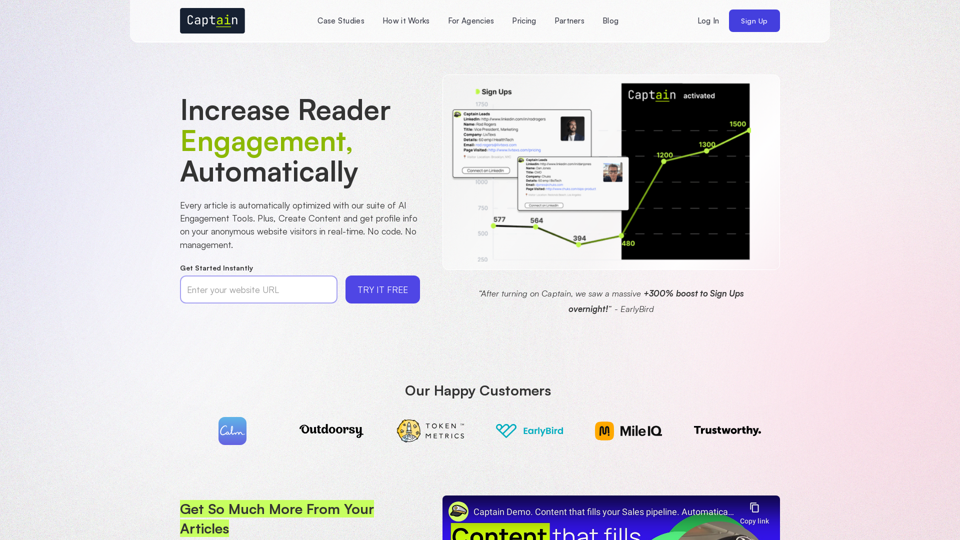
Automate Your Content Strategy and Lead Generation with Captain

Captain's AI-powered platform automatically creates and optimizes data-driven content that generates awareness, engagement, and leads.
Visit Website
Automate Your Content Strategy and Lead Generation with Captain
Visit Website

Introduction

Captain is an AI-powered platform designed to revolutionize content strategy and lead generation for businesses. It offers a comprehensive suite of tools that automate and optimize various aspects of digital marketing, including content creation, reader engagement, and visitor identification. The platform is user-friendly, requiring no coding skills, and aims to streamline marketing efforts while maximizing results.

Feature

Automated Content Optimization

  • Implements contextual CTAs to improve conversion rates
  • Creates lead magnets for effective email capture
  • Generates conversational podcasts for each article
  • Produces audio testimonials to build trust
  • Suggests related content to increase user engagement

AI-Driven Content Creation

  • Develops AI-generated content calendars
  • Produces various content types: articles, social posts, infographics, newsletters, and podcasts
  • Automates research and incorporates expert commentary

Conversion Rate Optimization (CRO)

  • Automatically inserts a suite of tools into articles
  • Designed to boost engagement and conversion rates

Visitor Identification

  • Identifies anonymous website visitors in real-time (US only)
  • Provides LinkedIn connection opportunities for sales teams

Insights and Analytics

  • Analyzes resonating topics and audience pain points
  • Continuously optimizes content strategy based on user engagement data

Easy Integration and Usage

  1. Sign up on the Captain website
  2. Choose a suitable pricing plan
  3. Integrate Captain's tools on your website (no coding required)
  4. Let Captain analyze your audience and create a content calendar
  5. Use the platform to generate various types of content
  6. Allow AI to automatically optimize articles for engagement
  7. Monitor insights and visitor data through Captain's dashboard

Flexible Pricing Options

PlanRegular PriceDiscounted PriceKey Features
Automated CRO Tools$99/mo$69/mo30 optimized articles/mo, Automated podcast, Lead magnets, Contextual CTAs
CRO Tools Plus Content Creation$279/mo$195/mo100 optimized articles/mo, 12 content campaigns/mo, Advanced research
Leads, Plus CRO Tools & Create$529/mo$370/mo200 optimized articles/mo, Unlimited content creation, 200 Lead IDs/mo

FAQ

Is coding knowledge required to use Captain?

No, Captain is designed to be user-friendly and does not require any coding skills.

Can Captain identify visitors outside the United States?

Currently, the visitor identification feature is limited to US visitors only.

How does Captain generate content?

Captain utilizes AI technology to create content based on your industry, audience preferences, and trending topics.

Are there limitations on the number of articles I can optimize?

The number of articles you can optimize depends on your chosen plan, ranging from 30 to 200+ per month.

Can Captain be integrated with existing marketing tools?

Captain can send leads to Slack and its own platform. For other integrations, it's recommended to consult their support team for specific compatibility information.

Latest Traffic Insights

  • Monthly Visits

    23

  • Bounce Rate

    50.19%

  • Pages Per Visit

    1.01

  • Time on Site(s)

    0.00

  • Global Rank

    14389219

  • Country Rank

    -

Recent Visits

Traffic Sources

  • Social Media:
    9.55%
  • Paid Referrals:
    1.14%
  • Email:
    0.19%
  • Referrals:
    12.66%
  • Search Engines:
    33.65%
  • Direct:
    41.99%
More Data

Related Websites

Copilot for Microsoft 365 – Microsoft Adoption

Copilot for Microsoft 365 is a powerful AI assistant that helps you work smarter and faster across Microsoft 365 apps and services. It combines the power of large language models (LLMs) with your organization's data in the Microsoft Graph and Microsoft 365 apps to turn your words into the most powerful productivity tool on the planet.

Copilot is designed to help you:

β€’ Unleash creativity
β€’ Unlock productivity
β€’ Uplevel skills

Copilot is built on Microsoft's comprehensive approach to security, compliance, and privacy. Copilot in Microsoft 365 apps and services:

β€’ Does not use your data to train the underlying LLM
β€’ Does not replace human ingenuity and judgment
β€’ Is designed to keep humans in the loop

Copilot is currently available in Word, Excel, PowerPoint, Outlook, Teams, and more.

Getting Started with Copilot

To get started with Copilot, follow these steps:

1. Check availability: Ensure your organization has access to Copilot.
2. Learn the basics: Familiarize yourself with Copilot's capabilities and how to use it effectively.
3. Explore use cases: Discover how Copilot can help you in your specific role and tasks.
4. Practice and refine: Use Copilot regularly and refine your prompts for better results.
5. Share and collaborate: Collaborate with colleagues using Copilot and share best practices.

Best Practices for Using Copilot

1. Be specific in your prompts
2. Provide context for better results
3. Review and edit Copilot's output
4. Use Copilot as a starting point, not a final product
5. Experiment with different approaches
6. Stay informed about new features and updates

Copilot in Different Microsoft 365 Apps

β€’ Word: Draft, edit, summarize, and rewrite content
β€’ Excel: Analyze data, create formulas, and generate insights
β€’ PowerPoint: Create presentations, design slides, and generate content
β€’ Outlook: Compose emails, summarize threads, and manage your inbox
β€’ Teams: Summarize meetings, generate action items, and create meeting notes

Responsible AI and Copilot

Microsoft is committed to developing AI systems responsibly. When using Copilot, keep in mind:

β€’ AI-generated content may contain biases or inaccuracies
β€’ Always review and verify Copilot's output
β€’ Use your judgment and expertise alongside Copilot's suggestions
β€’ Be aware of your organization's policies regarding AI use

Conclusion

Copilot for Microsoft 365 is a powerful tool that can significantly enhance your productivity and creativity. By understanding its capabilities, following best practices, and using it responsibly, you can make the most of this AI assistant in your daily work.
View Detail

Copilot for Microsoft 365 – Microsoft Adoption Copilot for Microsoft 365 is a powerful AI assistant that helps you work smarter and faster across Microsoft 365 apps and services. It combines the power of large language models (LLMs) with your organization's data in the Microsoft Graph and Microsoft 365 apps to turn your words into the most powerful productivity tool on the planet. Copilot is designed to help you: β€’ Unleash creativity β€’ Unlock productivity β€’ Uplevel skills Copilot is built on Microsoft's comprehensive approach to security, compliance, and privacy. Copilot in Microsoft 365 apps and services: β€’ Does not use your data to train the underlying LLM β€’ Does not replace human ingenuity and judgment β€’ Is designed to keep humans in the loop Copilot is currently available in Word, Excel, PowerPoint, Outlook, Teams, and more. Getting Started with Copilot To get started with Copilot, follow these steps: 1. Check availability: Ensure your organization has access to Copilot. 2. Learn the basics: Familiarize yourself with Copilot's capabilities and how to use it effectively. 3. Explore use cases: Discover how Copilot can help you in your specific role and tasks. 4. Practice and refine: Use Copilot regularly and refine your prompts for better results. 5. Share and collaborate: Collaborate with colleagues using Copilot and share best practices. Best Practices for Using Copilot 1. Be specific in your prompts 2. Provide context for better results 3. Review and edit Copilot's output 4. Use Copilot as a starting point, not a final product 5. Experiment with different approaches 6. Stay informed about new features and updates Copilot in Different Microsoft 365 Apps β€’ Word: Draft, edit, summarize, and rewrite content β€’ Excel: Analyze data, create formulas, and generate insights β€’ PowerPoint: Create presentations, design slides, and generate content β€’ Outlook: Compose emails, summarize threads, and manage your inbox β€’ Teams: Summarize meetings, generate action items, and create meeting notes Responsible AI and Copilot Microsoft is committed to developing AI systems responsibly. When using Copilot, keep in mind: β€’ AI-generated content may contain biases or inaccuracies β€’ Always review and verify Copilot's output β€’ Use your judgment and expertise alongside Copilot's suggestions β€’ Be aware of your organization's policies regarding AI use Conclusion Copilot for Microsoft 365 is a powerful tool that can significantly enhance your productivity and creativity. By understanding its capabilities, following best practices, and using it responsibly, you can make the most of this AI assistant in your daily work.

Copilot for Microsoft 365 – Microsoft Adoption Copilot for Microsoft 365 is a powerful AI assistant that helps you work smarter and faster across Microsoft 365 apps and services. It combines the power of large language models (LLMs) with your organization's data in the Microsoft Graph and Microsoft 365 apps to turn your words into the most powerful productivity tool on the planet. Copilot is designed to help you: β€’ Unleash creativity β€’ Unlock productivity β€’ Uplevel skills Copilot is built on Microsoft's comprehensive approach to security, compliance, and privacy. Copilot in Microsoft 365 apps and services: β€’ Does not use your data to train the underlying LLM β€’ Does not replace human ingenuity and judgment β€’ Is designed to keep humans in the loop Copilot is currently available in Word, Excel, PowerPoint, Outlook, Teams, and more. Getting Started with Copilot To get started with Copilot, follow these steps: 1. Check availability: Ensure your organization has access to Copilot. 2. Learn the basics: Familiarize yourself with Copilot's capabilities and how to use it effectively. 3. Explore use cases: Discover how Copilot can help you in your specific role and tasks. 4. Practice and refine: Use Copilot regularly and refine your prompts for better results. 5. Share and collaborate: Collaborate with colleagues using Copilot and share best practices. Best Practices for Using Copilot 1. Be specific in your prompts 2. Provide context for better results 3. Review and edit Copilot's output 4. Use Copilot as a starting point, not a final product 5. Experiment with different approaches 6. Stay informed about new features and updates Copilot in Different Microsoft 365 Apps β€’ Word: Draft, edit, summarize, and rewrite content β€’ Excel: Analyze data, create formulas, and generate insights β€’ PowerPoint: Create presentations, design slides, and generate content β€’ Outlook: Compose emails, summarize threads, and manage your inbox β€’ Teams: Summarize meetings, generate action items, and create meeting notes Responsible AI and Copilot Microsoft is committed to developing AI systems responsibly. When using Copilot, keep in mind: β€’ AI-generated content may contain biases or inaccuracies β€’ Always review and verify Copilot's output β€’ Use your judgment and expertise alongside Copilot's suggestions β€’ Be aware of your organization's policies regarding AI use Conclusion Copilot for Microsoft 365 is a powerful tool that can significantly enhance your productivity and creativity. By understanding its capabilities, following best practices, and using it responsibly, you can make the most of this AI assistant in your daily work.

Microsoft Copilot combines the power of large language models (LLMs) with your organization's data to turn your words into one of the most powerful productivity tools on the planet.

608.60 K
Feta - Better stand-ups, retros, syncs and more
View Detail

Feta - Better stand-ups, retros, syncs and more

Feta - Better stand-ups, retros, syncs and more

Feta helps product and engineering teams capture meeting context, automate post-meeting tasks, and focus only on high-impact work.

0
AI for Email Security & Sustainability | mxHERO Inc.
View Detail

AI for Email Security & Sustainability | mxHERO Inc.

AI for Email Security & Sustainability | mxHERO Inc.

mxHERO AI combines the power of LLM AI with your email in a single dashboard. It offers robust email security, governance, and environmental sustainability features.

20.76 K
ChatPRD | An AI Copilot for Product Work
View Detail

ChatPRD | An AI Copilot for Product Work

ChatPRD | An AI Copilot for Product Work

An on-demand Chief Product Officer who creates and enhances your Product Requirements Documents (PRDs), while mentoring you to become a top-tier Product Manager.

162.60 K
Machine Learning Contract Search, Review and Analysis Software | Kira Systems
View Detail

Machine Learning Contract Search, Review and Analysis Software | Kira Systems

Machine Learning Contract Search, Review and Analysis Software | Kira Systems

Gain insight into contract databases, speed up and enhance the precision of contract examination, reduce the risk of mistakes, secure new clients, and enhance the value you deliver to your customers.

431
Parafact - Verify Any Text with AI
View Detail

Parafact - Verify Any Text with AI

Parafact - Verify Any Text with AI

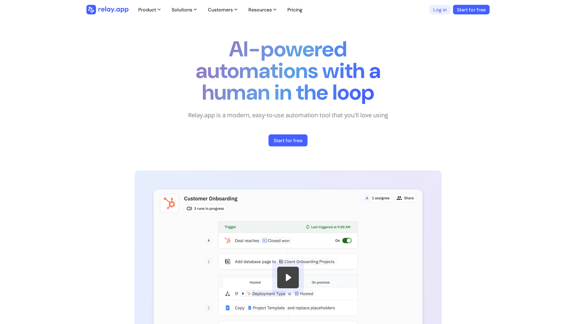
Fact-check any human or AI-written text. You copy and paste, we fact-check your text in real-time using reliable sources. All with one click.

0
Integrity β€” Notes, Canvases, and AI all in one workspace
View Detail

Integrity β€” Notes, Canvases, and AI all in one workspace

Integrity β€” Notes, Canvases, and AI all in one workspace

Stop jumping between Notion, Miro, and ChatGPT. Integrity unifies structure, visual thinking, and AI so you can turn ideas into results faster.

0
Crossword Solver AI - Get Instant Help for Any Puzzle
View Detail

Crossword Solver AI - Get Instant Help for Any Puzzle

Crossword Solver AI - Get Instant Help for Any Puzzle

Get instant crossword help with our AI-powered solver. Enter your clue and letter count to find accurate answers quickly for any puzzle, cryptic or standard.

7.02 K