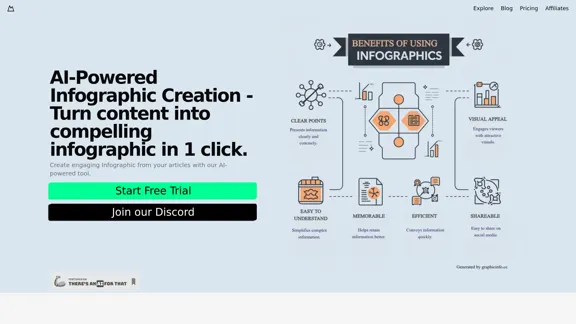
AI Infographic Generator is a powerful SaaS tool designed to transform written content into visually appealing infographics with just one click. This AI-powered platform aims to help users create engaging, professional-quality infographics quickly and easily, making it an ideal solution for content creators, marketers, and businesses looking to enhance their visual communication strategies.
AI Infographic Generator
Discover our AI-powered Infographic maker, infographic generator online
,infographics,infographic of infographics, infographic, infographic examples,piktochart, text to infographic,infographic of infographics
Introduction
Feature
-
One-Click Infographic Creation
- Instantly generate compelling infographics from articles
- Professional-quality results in seconds
- Streamlined process for efficient content transformation
-
AI-Powered Content Generation
- Automatically creates high-quality content for various platforms
- Suitable for websites, social media, and other digital channels
- Enhances engagement and visual appeal of information
-
Customization and Editing
- Fine-tune generated infographics with precision
- Edit text and images within the infographic
- Align the final product with your specific vision and brand
-
Versatility
- Suitable for a wide range of industries and content types
- Adaptable to different styles and themes
- Enhances the visual appeal of various types of information
-
User-Friendly Interface
- Intuitive design for easy navigation
- Accessible to users with varying levels of design experience
- Streamlined workflow for efficient infographic creation
FAQ
What is AI Infographic Generator?
AI Infographic Generator is a SaaS tool that uses artificial intelligence to convert written content into visually appealing infographics with a single click.
How does the AI Infographic Generator work?
The tool uses AI algorithms to analyze your content and automatically generate an infographic based on the key points and data in your article. Users can then edit and customize the generated infographic to suit their needs.
Can I customize the infographics created by the AI?
Yes, the tool offers editing capabilities that allow you to fine-tune every detail of your infographic, including text and images, to align with your vision and brand.
What types of content can I create infographics for?
The AI Infographic Generator is versatile and can create infographics for various types of content, including website articles, social media posts, reports, and more.
Do I need design skills to use this tool?
No, the tool is designed to be user-friendly and accessible to individuals with varying levels of design experience. The AI does most of the work in creating the initial infographic, which you can then easily customize.
Evaluation
-
The AI Infographic Generator offers a promising solution for quickly creating visually appealing infographics, which can significantly enhance content engagement and information retention.
-
The one-click generation feature is particularly impressive, potentially saving users considerable time and effort in the design process.
-
The ability to edit and customize the generated infographics is a crucial feature, allowing users to maintain brand consistency and make necessary adjustments.
-
While the tool seems user-friendly, there may be a learning curve for users to fully utilize all features and create truly unique infographics that stand out.
-
The AI-powered content generation feature is intriguing, but users should be cautious and review the generated content to ensure accuracy and relevance to their specific needs.
-
It would be beneficial to see examples of the infographics produced by this tool to better assess the quality and versatility of the output.
-
The tool's effectiveness may vary depending on the complexity and nature of the input content, and users might need to experiment to achieve optimal results.
-
Integration with other content management systems or design tools could further enhance the utility of this platform for professional users.
Related Websites
RevenueEngine.ai | Helping Creators Monetize Content Quickly & Easily - Access Thousands of Affiliate Programs In One Place
193.90 M
AI Art Generator | AI Image Generator - Jasper Art
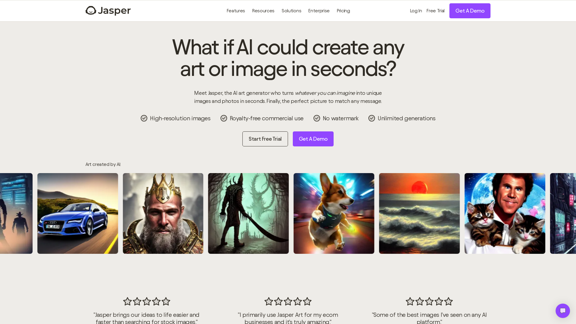
AI Art Generator | AI Image Generator - Jasper ArtJasper Art is a new AI art generator that transforms your text prompt into stunning art and lifelike AI-generated images within seconds. Your AI artist produces the ideal picture to complement your message.
939.36 K
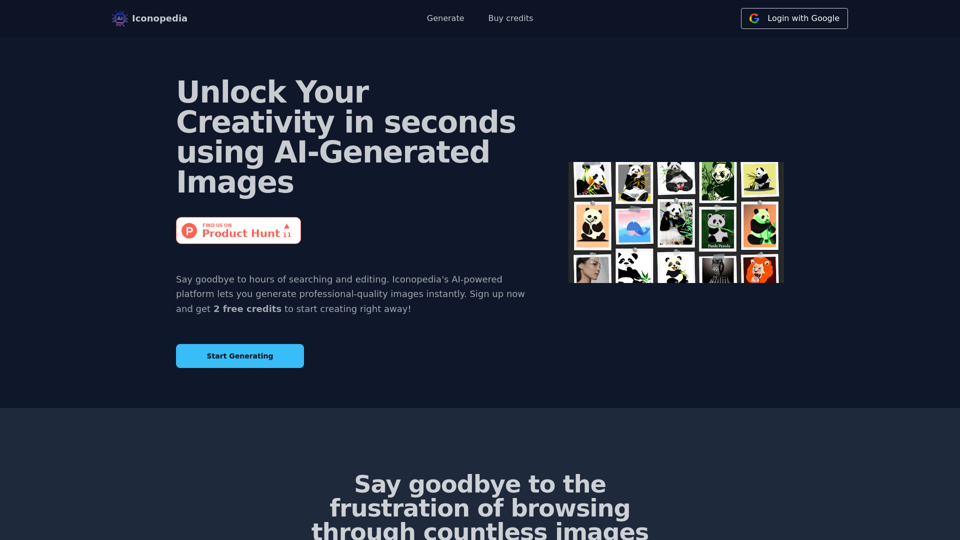
Generate Stunning Images with AI Let's explore the world of AI-powered image generation and unleash your creativity! What is AI Image Generation? AI image generation uses artificial intelligence algorithms to create images from text descriptions, known as "prompts." How Does it Work? These powerful models, trained on massive datasets of images and text, learn the relationships between words and visual concepts. When you provide a prompt, the AI interprets it and generates a corresponding image. Benefits of AI Image Generation: * Effortless Creativity: Bring your ideas to life without needing artistic skills. * Endless Possibilities: Explore unique concepts and styles with ease. * Rapid Prototyping: Quickly visualize designs and concepts. * Personalized Content: Create custom images tailored to your needs. Popular AI Image Generators: * DALL-E 2: Known for its photorealistic and imaginative results. * Midjourney: Creates artistic and dreamlike images. * Stable Diffusion: Open-source and highly customizable. * Craiyon (formerly DALL-E mini): A free and accessible option. Tips for Generating Stunning Images: * Be Specific: Provide clear and detailed prompts. * Use Descriptive Language: Include adjectives, nouns, and verbs to guide the AI. * Experiment with Styles: Explore different artistic styles and aesthetics. * Iterate and Refine: Adjust your prompts and settings to achieve your desired outcome. Let your imagination run wild and discover the incredible potential of AI image generation!
0
PhotoRater - AI-powered photo rating app for any occasion.
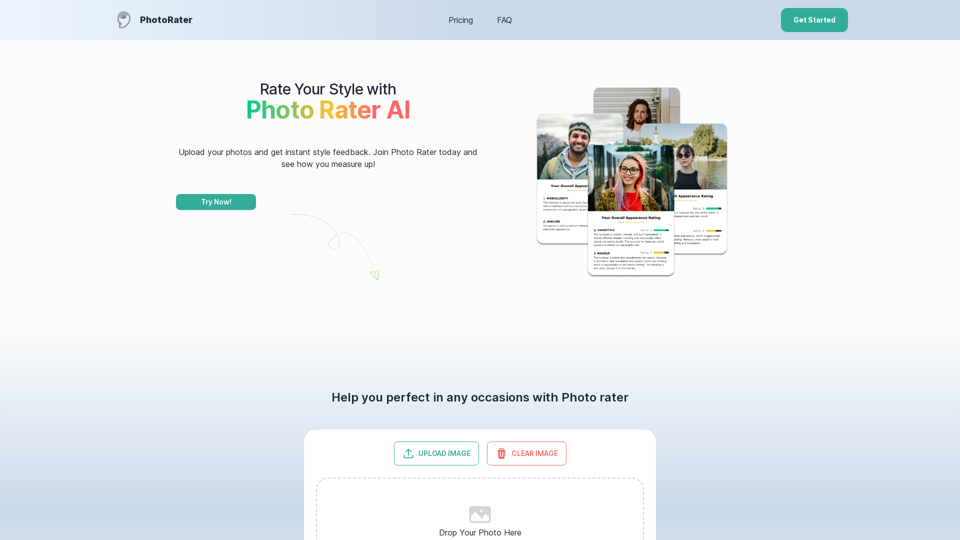
PhotoRater - AI-powered photo rating app for any occasion.Discover the secret to looking your best on any occasion with PhotoRater, the ultimate AI photo rater. Whether you need an image rater for fashion advice or a photo rating AI to boost your social media presence, PhotoRater has you covered.
15.79 K
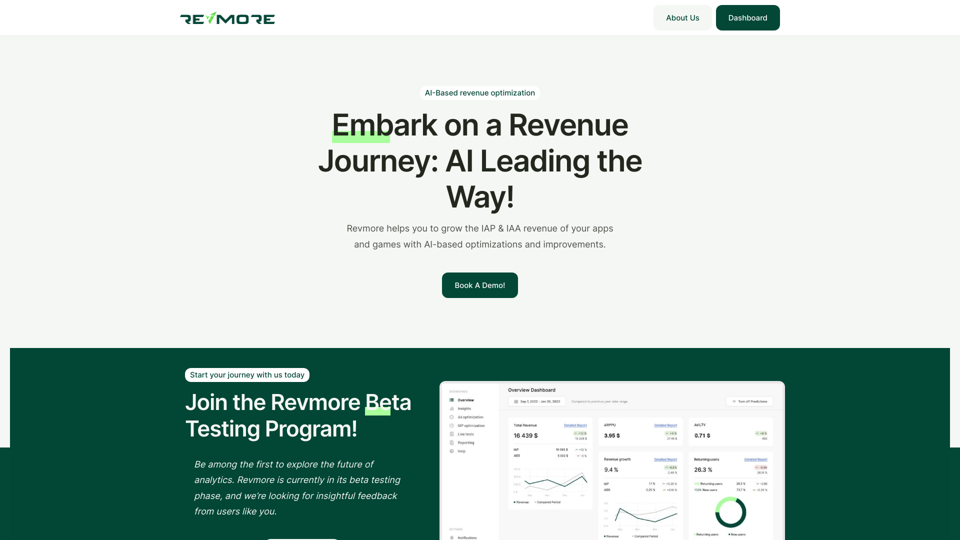
AI-Based Revenue Optimization Embark on a Revenue Journey: AI Leading the Way! Revmore helps you to grow the in-app purchase (IAP) and in-app advertising (IAA) revenue of your apps and games with AI-based optimizations and improvements. Book A Demo! Elevate your revenue with our AI magic. Explore our diverse optimization solutions, meticulously crafted to meet unique demands. In-app Purchase (IAP)
0