Open-source RightAI Tools Directory
  • Discover AI
  • Submit
  • Startup
  • Blog
Open-source RightAI Tools Directory
Discover the best AI tools of 2025 with the RightAI Tools Directory!

Friend Links

AI Anime GeneratorToolsApp AI

Support

Tap4
Privacy policyTerms & ConditionsContact Us
Loading...
loading...

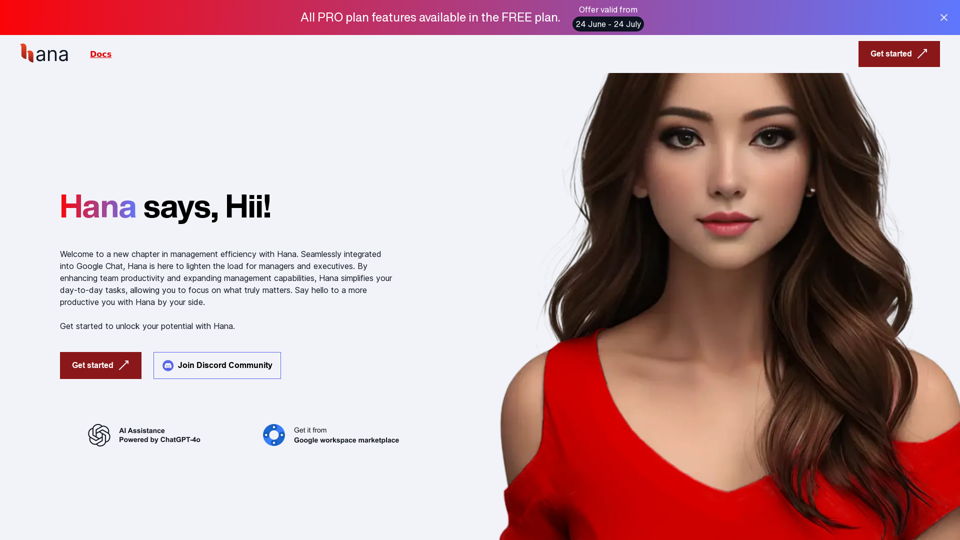
Hana: Your AI-Powered Google Chat Assistant

Created by Hanabi Technology
Visit Website
Hana: Your AI-Powered Google Chat Assistant
Visit Website

Introduction

Hana is an AI-powered virtual assistant designed to enhance productivity and streamline workflows. It integrates seamlessly with Google Chat and other Google ecosystem products, offering real-time AI natural language interpretation based on a vast knowledge base. Hana functions as an integral team member, providing advanced features such as image understanding, custom memory recall, and a personalized control dashboard.

Feature

Seamless Google Chat Integration

Hana integrates with Google Chat groups, acting as an intelligent teammate by:

  • Mentioning and interacting with team members
  • Contributing to conversations
  • Driving projects forward

Advanced Image Understanding

Hana offers multiple image understanding capabilities:

  • Diagnosing errors from screenshots
  • Providing insights from visual data
  • Enhancing efficient problem-solving

Comprehensive Google Ecosystem Integration

Hana works seamlessly with Google products:

  • Existing integration with Google Docs and Google Calendar
  • More integrations planned for v2 release
  • Acts as a central hub for productivity within the Google ecosystem

Custom Memory Recall

Hana remembers important information:

  • Recalls custom info on demand
  • Ensures team access to right information at the right time
  • Tailored to specific needs

Personalized Control Dashboard

Users can manage their Hana experience through a custom dashboard:

  • Adjust settings
  • Review report messages
  • Manage interactions with Hana

Pricing Plans

PlanPriceFeatures
FREE$0Up to 3 users, 2 groups, 50 interactions/user/month, 10-min chat history
BASIC$7/month/userUp to 50 users, 10 groups, 100 interactions/user/month, 15-min chat history
PRO$15/month/userUnlimited users, groups, and interactions, 20-min chat history

FAQ

How does Hanabi Technologies handle data privacy?

Hanabi Technologies prioritizes data privacy, especially concerning the use of OpenAI APIs. Specific details about their privacy measures are not provided in the given content.

Can Hana read and analyze documents or URLs?

The content doesn't explicitly mention this capability, but given Hana's advanced features, it's possible. You may need to check with Hanabi Technologies for confirmation.

Is there a trial period for using Hana?

The content doesn't mention a trial period. It's best to contact Hanabi Technologies directly for this information.

What AI model does Hana use?

Hana is powered by OpenAI GPT-4o, as mentioned in the pricing plans.

Can Hana assist with specific tasks like coding or creating content?

While not explicitly stated, Hana's advanced AI capabilities suggest it could potentially assist with various tasks. Specific capabilities should be confirmed with Hanabi Technologies.

Can Hana efficiently talk in Google Chat groups?

Yes, Hana is designed to integrate seamlessly with Google Chat groups, acting as an intelligent teammate in conversations.

Can Hana be integrated into existing workflows?

Yes, Hana is designed to work with Google ecosystem products and can be integrated into existing workflows, especially those using Google tools.

Latest Traffic Insights

  • Monthly Visits

    0

  • Bounce Rate

    0.00%

  • Pages Per Visit

    0.00

  • Time on Site(s)

    0.00

  • Global Rank

    -

  • Country Rank

    -

Recent Visits

Traffic Sources

  • Social Media:
    0.00%
  • Paid Referrals:
    0.00%
  • Email:
    0.00%
  • Referrals:
    0.00%
  • Search Engines:
    0.00%
  • Direct:
    0.00%
More Data

Related Websites

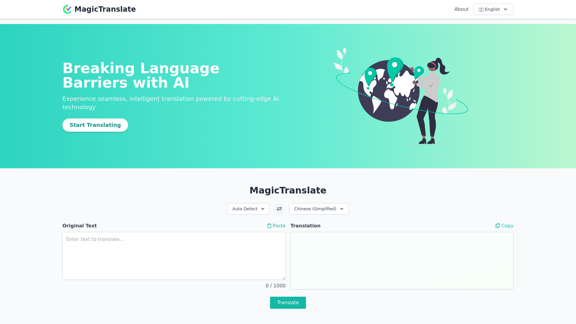
Converting JPG Images to Text

Converting a JPG image to text is a process known as Optical Character Recognition (OCR). This technology enables you to extract text from images, scanned documents, and photos. Here's how to do it:

Method 1: Online OCR Tools

You can use online OCR tools to convert JPG images to text. Here are the steps:

1. Upload your JPG image: Go to an online OCR tool website, such as Online OCR Tools or OCR.space, and upload your JPG image.
2. Select the language: Choose the language of the text in your image.
3. Click on "Convert": The tool will convert the image to text.
4. Download the text: You can download the extracted text as a Word document, PDF, or plain text file.

Method 2: Google Drive

You can also use Google Drive to convert JPG images to text. Here's how:

1. Upload your JPG image: Upload your JPG image to Google Drive.
2. Right-click on the image: Right-click on the uploaded image and select "Open with" > "Google Docs".
3. The image will be converted: Google Docs will automatically convert the image to text.
4. Edit and download: You can edit the extracted text and download it as a Word document or PDF.

Method 3: Adobe Acrobat

If you have Adobe Acrobat installed on your computer, you can use it to convert JPG images to text. Here's how:

1. Open Adobe Acrobat: Open Adobe Acrobat on your computer.
2. Create a new document: Create a new document and click on "Tools" > "Recognize Text".
3. Select the image: Select the JPG image you want to convert.
4. Click on "Recognize": Adobe Acrobat will convert the image to text.
5. Edit and save: You can edit the extracted text and save it as a Word document or PDF.

These are the three methods to convert JPG images to text. Choose the method that works best for you!
View Detail

Converting JPG Images to Text Converting a JPG image to text is a process known as Optical Character Recognition (OCR). This technology enables you to extract text from images, scanned documents, and photos. Here's how to do it: Method 1: Online OCR Tools You can use online OCR tools to convert JPG images to text. Here are the steps: 1. Upload your JPG image: Go to an online OCR tool website, such as Online OCR Tools or OCR.space, and upload your JPG image. 2. Select the language: Choose the language of the text in your image. 3. Click on "Convert": The tool will convert the image to text. 4. Download the text: You can download the extracted text as a Word document, PDF, or plain text file. Method 2: Google Drive You can also use Google Drive to convert JPG images to text. Here's how: 1. Upload your JPG image: Upload your JPG image to Google Drive. 2. Right-click on the image: Right-click on the uploaded image and select "Open with" > "Google Docs". 3. The image will be converted: Google Docs will automatically convert the image to text. 4. Edit and download: You can edit the extracted text and download it as a Word document or PDF. Method 3: Adobe Acrobat If you have Adobe Acrobat installed on your computer, you can use it to convert JPG images to text. Here's how: 1. Open Adobe Acrobat: Open Adobe Acrobat on your computer. 2. Create a new document: Create a new document and click on "Tools" > "Recognize Text". 3. Select the image: Select the JPG image you want to convert. 4. Click on "Recognize": Adobe Acrobat will convert the image to text. 5. Edit and save: You can edit the extracted text and save it as a Word document or PDF. These are the three methods to convert JPG images to text. Choose the method that works best for you!

Converting JPG Images to Text Converting a JPG image to text is a process known as Optical Character Recognition (OCR). This technology enables you to extract text from images, scanned documents, and photos. Here's how to do it: Method 1: Online OCR Tools You can use online OCR tools to convert JPG images to text. Here are the steps: 1. Upload your JPG image: Go to an online OCR tool website, such as Online OCR Tools or OCR.space, and upload your JPG image. 2. Select the language: Choose the language of the text in your image. 3. Click on "Convert": The tool will convert the image to text. 4. Download the text: You can download the extracted text as a Word document, PDF, or plain text file. Method 2: Google Drive You can also use Google Drive to convert JPG images to text. Here's how: 1. Upload your JPG image: Upload your JPG image to Google Drive. 2. Right-click on the image: Right-click on the uploaded image and select "Open with" > "Google Docs". 3. The image will be converted: Google Docs will automatically convert the image to text. 4. Edit and download: You can edit the extracted text and download it as a Word document or PDF. Method 3: Adobe Acrobat If you have Adobe Acrobat installed on your computer, you can use it to convert JPG images to text. Here's how: 1. Open Adobe Acrobat: Open Adobe Acrobat on your computer. 2. Create a new document: Create a new document and click on "Tools" > "Recognize Text". 3. Select the image: Select the JPG image you want to convert. 4. Click on "Recognize": Adobe Acrobat will convert the image to text. 5. Edit and save: You can edit the extracted text and save it as a Word document or PDF. These are the three methods to convert JPG images to text. Choose the method that works best for you!

It is an online tool that uses Optical Character Recognition (OCR) to make it possible to extract text from images in JPG format.

193.90 M
Ask.Medical on the App Store
View Detail

Ask.Medical on the App Store

Ask.Medical on the App Store

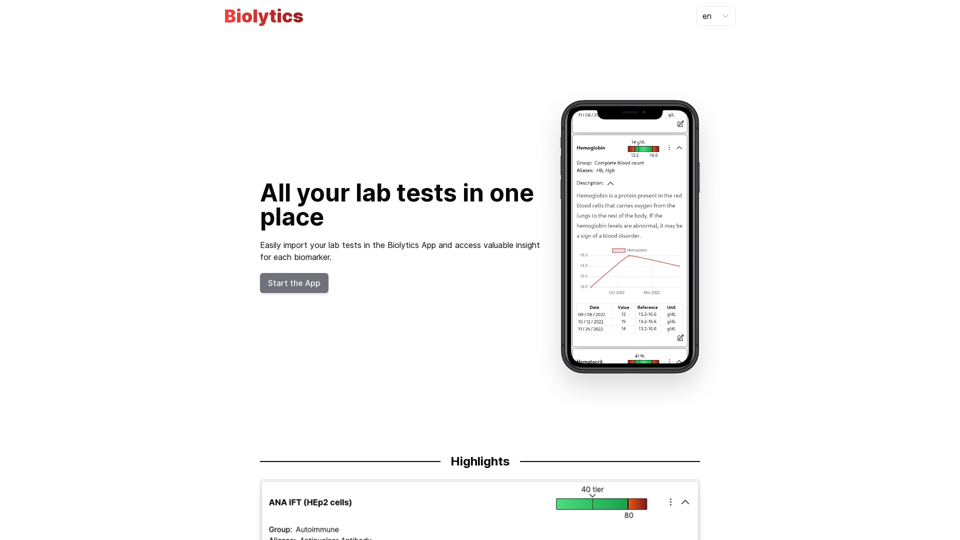
Introducing Ask.Medical, your AI-powered health assistant. Ask.Medical is a game-changer for doctors, patients, and society. Receive health recommendations and personalized guidance from a trusted and knowledgeable ally.

124.77 M
Monica - Your ChatGPT AI Assistant for Anywhere
View Detail

Monica - Your ChatGPT AI Assistant for Anywhere

Monica - Your ChatGPT AI Assistant for Anywhere

Monica integrates leading AI models (GPT-4, Claude 3, Gemini) for one-click chat, search, writing, coding and more. Try it on Chrome, Edge, or our APP.

9.55 M
Natural Advanced Search for GitHub
View Detail

Natural Advanced Search for GitHub

Natural Advanced Search for GitHub

Searching GitHub Like a Pro: Using Natural Language

193.90 M
Please provide me with the text you'd like me to summarize and translate. I'm ready! 😊
View Detail

Please provide me with the text you'd like me to summarize and translate. I'm ready! 😊

Please provide me with the text you'd like me to summarize and translate. I'm ready! 😊

I can help you with that! Just paste the web page URL here, and I'll use Claude's powerful abilities to: * Summarize the main points of the page in clear, concise language. * Translate the entire page into English for you. Let me know if you have a page you'd like me to work on!

193.90 M
AI Voice Generator & Text to Speech | Deepgram

Transform written text into natural-sounding speech with our AI voice generator and text-to-speech technology.
View Detail

AI Voice Generator & Text to Speech | Deepgram Transform written text into natural-sounding speech with our AI voice generator and text-to-speech technology.

AI Voice Generator & Text to Speech | Deepgram Transform written text into natural-sounding speech with our AI voice generator and text-to-speech technology.

Unlock the potential of Deepgram's AI Voice Generator. Experience natural-sounding text to speech for all your projects.

835.16 K
moyuNote
View Detail

moyuNote

moyuNote

An all-in-one tool for organizing, collecting, and managing information. Build your structured knowledge base from fragmented information.

193.90 M
Fabric - Your assistant for all your files and cloud storage.
View Detail

Fabric - Your assistant for all your files and cloud storage.

Fabric - Your assistant for all your files and cloud storage.

🍱 All your things in one place. πŸ‘‹ Work together on anything.

193.90 M