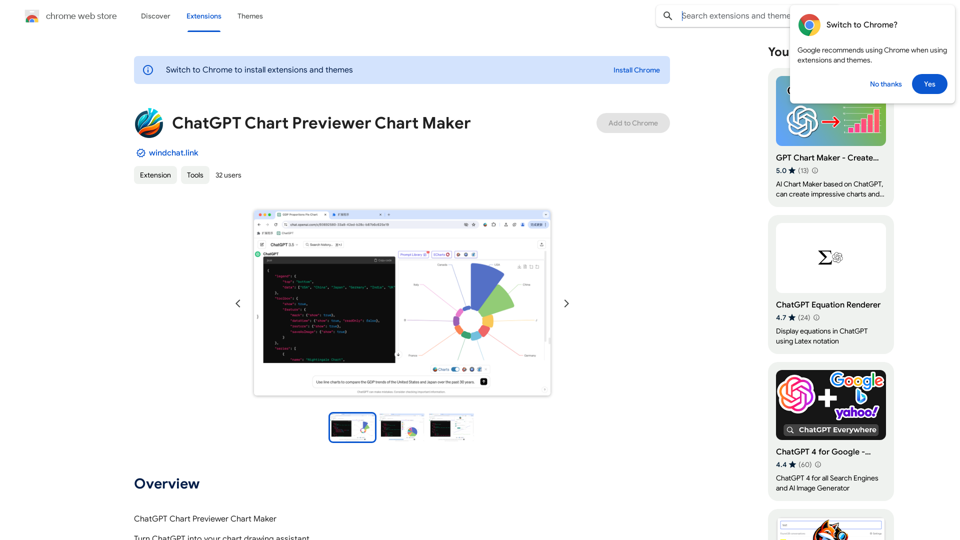
The Japanese Name Generator is a versatile tool designed to create authentic Japanese names for various purposes. It offers a range of generators, including random names, gender-specific names, last names, and even town and city names. This tool respects traditional Japanese naming conventions and cultural diversity, making it ideal for writers, game developers, and anyone seeking genuine Japanese names.
Japanese Name Generator
Discover unique Japanese names with our Japanese name generator, offering AI-generated suggestions that respect traditional naming conventions and cultural diversity.
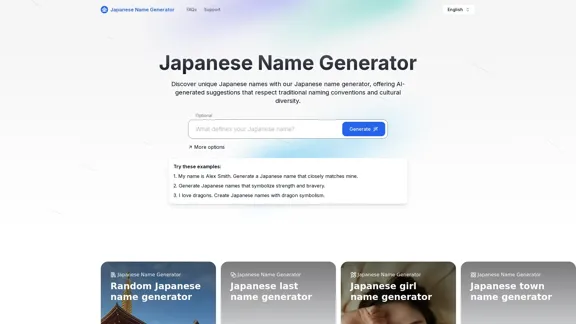
Introduction
Feature
-
Multiple Generator Types
- Random Japanese Name Generator
- Japanese Girl Name Generator
- Japanese Last Name Generator
- Japanese Town Name Generator
- Japanese City Name Generator
-
Customization Options
- Gender selection
- Theme-based generation
- Number of results customization
-
Cultural Authenticity
- Names rooted in Japanese traditions
- Meaningful name generation (not random syllables)
- Reflects cultural significance
-
Name Meaning Insights
- Provides explanations for generated names
- Offers deeper understanding of Japanese naming conventions
-
User-Friendly Interface
- Easy-to-use design
- Quick name generation with default settings
- Advanced options for specific requirements
-
Multilingual Support
- Available in multiple languages including English, German, Spanish, French, Italian, Portuguese, Russian, Chinese, Japanese, and Korean
How to Use?
- Explore different generator types to find the perfect name for your project.
- Use the customization options to tailor names to your specific needs.
- Read the name meanings to choose names that align with your character's personality or story theme.
- Try generating multiple names to find the one that best fits your requirements.
- Combine generated last names with first names for full character names.
- Use the town and city name generators for world-building in your stories or games.
FAQ
Is the Japanese Name Generator free to use?
Yes, the Japanese Name Generator is completely free to use with no hidden fees or login required.
Can I use the generated names in my commercial projects?
Yes, all names generated are royalty-free and can be used in any project without restrictions.
How does the Japanese Name Generator ensure authenticity?
The generator focuses on creating names that are commonly used in Japan and rooted in cultural significance, rather than simply combining random syllables.
Can I generate names for specific genders?
Yes, the tool offers gender-specific generators, such as the Japanese Girl Name Generator, allowing you to create names tailored to male or female characters.
Is the Japanese Name Generator suitable for naming real children?
While primarily designed for creative projects, the generator can provide inspiration for naming newborns. However, it's advisable to consult additional resources and consider cultural implications when choosing a name for a child.
Evaluation
-
The Japanese Name Generator offers a comprehensive suite of tools for creating authentic Japanese names, which is particularly valuable for writers, game developers, and creative professionals seeking cultural accuracy in their work.
-
The inclusion of multiple generator types (random, gender-specific, last names, town names, and city names) provides versatility and caters to a wide range of naming needs.
-
The tool's focus on cultural authenticity and provision of name meanings adds educational value, helping users understand Japanese naming conventions and cultural significance.
-
The user-friendly interface and customization options make it accessible to both casual users and those requiring more specific name generation.
-
The multilingual support enhances its global accessibility, making it useful for a diverse user base.
-
While the tool is excellent for creative projects, users should be cautious when using it for naming real individuals, as cultural and personal factors should be considered beyond what the generator provides.
-
The royalty-free nature of the generated names is a significant advantage, allowing unrestricted use in various projects.
-
To further improve, the tool could potentially offer more advanced features such as historical period-specific names or region-specific name generation within Japan.
Related Websites
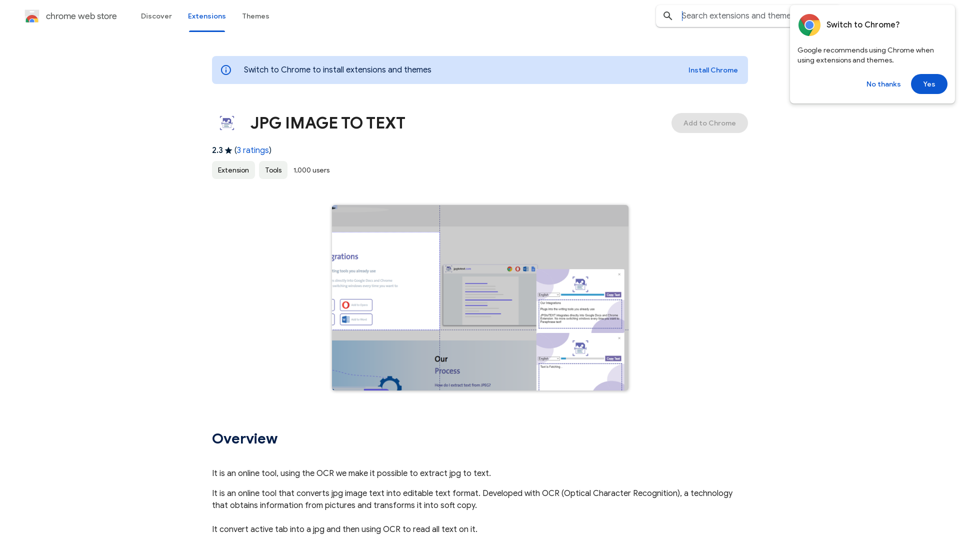
Converting JPG Images to Text Converting a JPG image to text is a process known as Optical Character Recognition (OCR). This technology enables you to extract text from images, scanned documents, and photos. Here's how to do it: Method 1: Online OCR Tools You can use online OCR tools to convert JPG images to text. Here are the steps: 1. Upload your JPG image: Go to an online OCR tool website, such as Online OCR Tools or OCR.space, and upload your JPG image. 2. Select the language: Choose the language of the text in your image. 3. Click on "Convert": The tool will convert the image to text. 4. Download the text: You can download the extracted text as a Word document, PDF, or plain text file. Method 2: Google Drive You can also use Google Drive to convert JPG images to text. Here's how: 1. Upload your JPG image: Upload your JPG image to Google Drive. 2. Right-click on the image: Right-click on the uploaded image and select "Open with" > "Google Docs". 3. The image will be converted: Google Docs will automatically convert the image to text. 4. Edit and download: You can edit the extracted text and download it as a Word document or PDF. Method 3: Adobe Acrobat If you have Adobe Acrobat installed on your computer, you can use it to convert JPG images to text. Here's how: 1. Open Adobe Acrobat: Open Adobe Acrobat on your computer. 2. Create a new document: Create a new document and click on "Tools" > "Recognize Text". 3. Select the image: Select the JPG image you want to convert. 4. Click on "Recognize": Adobe Acrobat will convert the image to text. 5. Edit and save: You can edit the extracted text and save it as a Word document or PDF. These are the three methods to convert JPG images to text. Choose the method that works best for you!
Converting JPG Images to Text Converting a JPG image to text is a process known as Optical Character Recognition (OCR). This technology enables you to extract text from images, scanned documents, and photos. Here's how to do it: Method 1: Online OCR Tools You can use online OCR tools to convert JPG images to text. Here are the steps: 1. Upload your JPG image: Go to an online OCR tool website, such as Online OCR Tools or OCR.space, and upload your JPG image. 2. Select the language: Choose the language of the text in your image. 3. Click on "Convert": The tool will convert the image to text. 4. Download the text: You can download the extracted text as a Word document, PDF, or plain text file. Method 2: Google Drive You can also use Google Drive to convert JPG images to text. Here's how: 1. Upload your JPG image: Upload your JPG image to Google Drive. 2. Right-click on the image: Right-click on the uploaded image and select "Open with" > "Google Docs". 3. The image will be converted: Google Docs will automatically convert the image to text. 4. Edit and download: You can edit the extracted text and download it as a Word document or PDF. Method 3: Adobe Acrobat If you have Adobe Acrobat installed on your computer, you can use it to convert JPG images to text. Here's how: 1. Open Adobe Acrobat: Open Adobe Acrobat on your computer. 2. Create a new document: Create a new document and click on "Tools" > "Recognize Text". 3. Select the image: Select the JPG image you want to convert. 4. Click on "Recognize": Adobe Acrobat will convert the image to text. 5. Edit and save: You can edit the extracted text and save it as a Word document or PDF. These are the three methods to convert JPG images to text. Choose the method that works best for you!It is an online tool that uses Optical Character Recognition (OCR) to make it possible to extract text from images in JPG format.
193.90 M
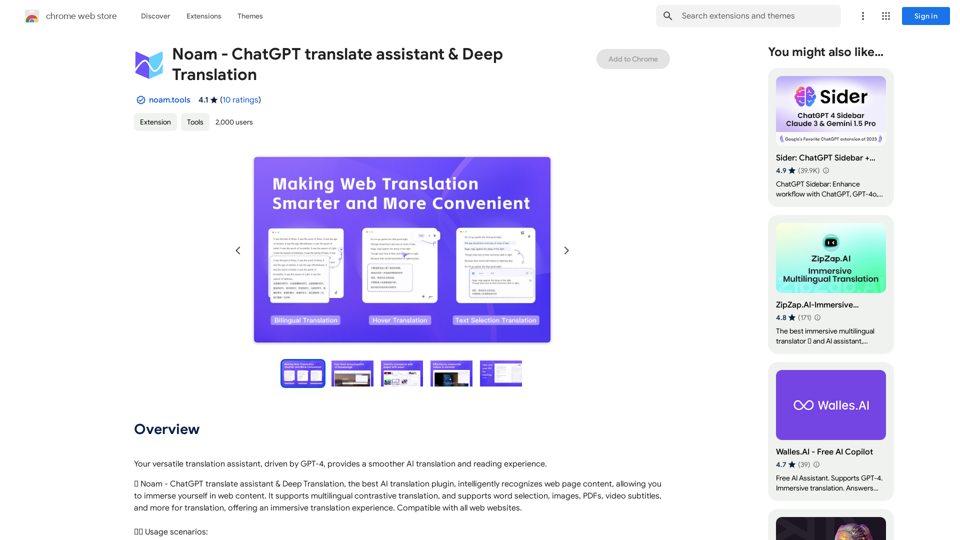
Noam - ChatGPT Translation Assistant & Deep Translation
Noam - ChatGPT Translation Assistant & Deep TranslationYour versatile translation assistant, driven by GPT-4, provides a smoother AI translation and reading experience.
193.90 M
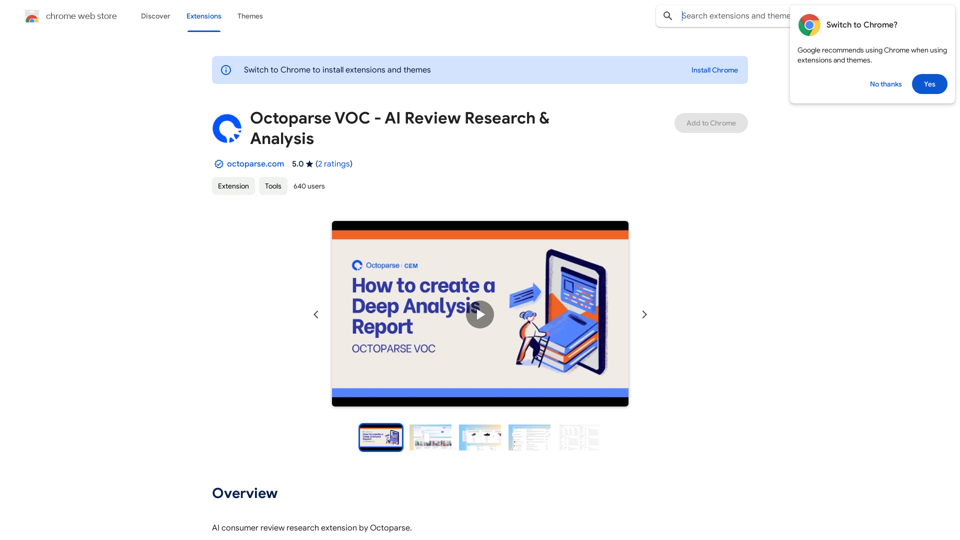
Octoparse VOC - AI Review Research & Analysis This is a document outlining the research and analysis conducted on user voice (VOC) data using Octoparse's AI capabilities.
Octoparse VOC - AI Review Research & Analysis This is a document outlining the research and analysis conducted on user voice (VOC) data using Octoparse's AI capabilities.AI Consumer Review Research Extension by Octoparse.
193.90 M
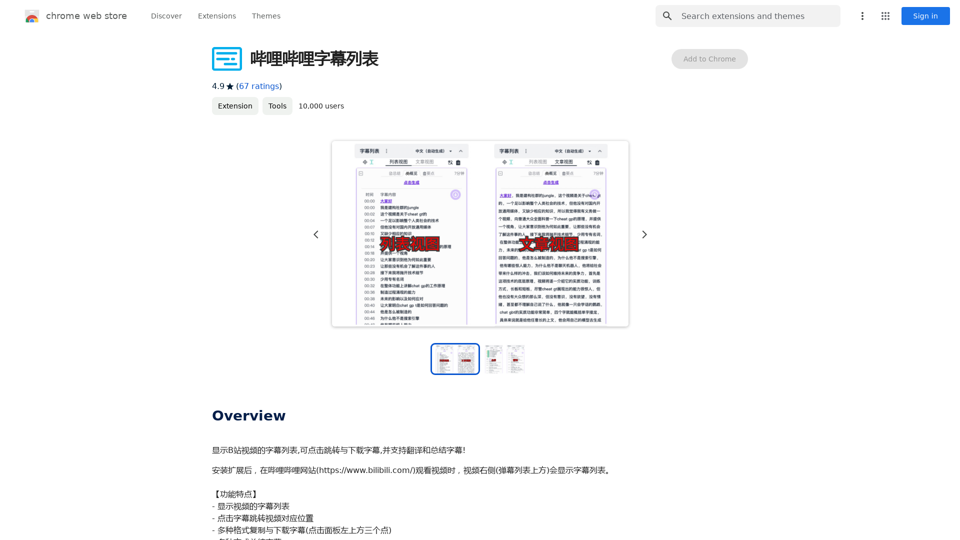
Display a list of Bilibili video subtitles, allowing you to click to jump and download subtitles, and supporting translation and summary of subtitles!
193.90 M