Open-source RightAI Tools Directory
  • Discover AI
  • Submit
  • Startup
  • Blog
Open-source RightAI Tools Directory
Discover the best AI tools of 2025 with the RightAI Tools Directory!

Friend Links

AI Anime GeneratorToolsApp AI

Support

Tap4
Privacy policyTerms & ConditionsContact Us
Loading...
loading...

Manus

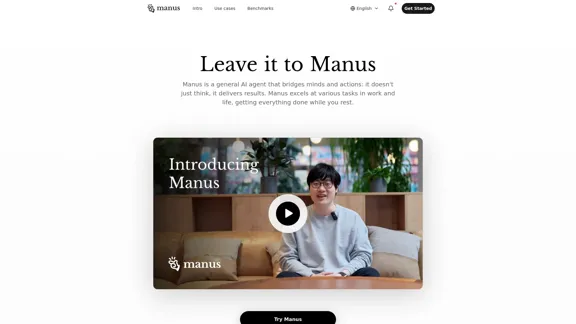
Manus is a general AI agent that transforms your thoughts into actions. It excels at a variety of tasks in both work and life, accomplishing everything while you relax.
Visit Website
Manus
Visit Website

Introduction

Manus is a general AI agent designed to bridge thoughts and actions, delivering results across various tasks in both work and life. It excels in simplifying complex processes, allowing users to focus on other activities while it handles the workload. Manus is versatile and can assist with a wide range of tasks, from travel planning to data analysis.

Feature

  1. Personalized Itineraries

    Manus integrates comprehensive travel information to create tailored itineraries and custom travel handbooks for specific destinations, such as Japan.

  2. In-Depth Stock Analysis

    It provides detailed stock analysis with visually compelling dashboards, offering insights into market performance and financial outlooks, exemplified by its analysis of Tesla stocks.

  3. Engaging Educational Content

    Manus develops interactive video presentations for educational purposes, such as explaining complex concepts like the momentum theorem to middle school students.

  4. Insurance Policy Comparisons

    The AI generates structured comparison tables for insurance policies, highlighting key information and providing optimal recommendations based on user needs.

  5. Supplier Sourcing

    Manus conducts extensive research to identify suitable suppliers for businesses, ensuring that it operates in the best interest of its users.

  6. Comprehensive Research Reports

    It can perform in-depth research on various topics, including AI products in the clothing industry, and compile findings into structured analyses.

  7. Sales Data Insights

    Users can upload their sales data, such as from Amazon stores, and Manus will deliver actionable insights and customized strategies to enhance sales performance.

How to Use?

  1. Explore the Manus website to familiarize yourself with its features.
  2. Identify the specific task you want Manus to handle.
  3. Provide clear and detailed instructions to Manus for optimal results.
  4. Utilize the gallery to see examples of how others have successfully used Manus.
  5. Review the generated outputs to ensure they meet your expectations and make adjustments as needed.

FAQ

What is Manus?

Manus is a general AI agent that helps users accomplish various tasks by turning thoughts into actions, making it suitable for both personal and professional use.

How does Manus work?

Manus utilizes advanced AI algorithms to analyze user inputs and generate outputs that meet specified requirements, ranging from travel itineraries to data analysis.

Can I rely on Manus for complex tasks?

Yes, Manus is designed to handle complex tasks efficiently, providing structured and insightful outputs tailored to user needs.

How does Manus differ from other AI tools?

Manus stands out by combining a wide range of functionalities, from travel planning to data analysis, all while maintaining a user-friendly interface and delivering high-quality results.

Price

  • Free plan: $0/month
  • Basic plan: $9.99/month
  • Standard plan: $19.99/month
  • Professional plan: $49.99/month
The price is for reference only, please refer to the latest official data for actual information.

Evaluation

  1. Manus demonstrates impressive capabilities in generating structured outputs and handling a variety of tasks effectively, making it a valuable tool for users across different domains.

  2. However, there may be limitations in handling highly specialized tasks that require deep domain knowledge or nuanced understanding, which could affect the quality of the output.

  3. Users may need to invest time in learning how to best utilize Manus for their specific needs, as the effectiveness of the AI can depend on the clarity and detail of the instructions provided.

  4. Overall, Manus offers a robust solution for many common tasks, but users should be aware of its limitations and be prepared to provide detailed guidance for optimal results.

Related Websites

SharpAPI - Automate with AI-powered API, AI automation for: E-Commerce, Marketing, Content Management, HR Tech, Travel -
View Detail

SharpAPI - Automate with AI-powered API, AI automation for: E-Commerce, Marketing, Content Management, HR Tech, Travel -

SharpAPI - Automate with AI-powered API, AI automation for: E-Commerce, Marketing, Content Management, HR Tech, Travel -

Leverage AI API to streamline workflow in E-Commerce, Marketing, Content Management, HR Tech, Travel, and more.

2.92 K
Magic ToDo - GoblinTools
View Detail

Magic ToDo - GoblinTools

Magic ToDo - GoblinTools

Magic ToDo is a versatile task management tool that combines standard to-do list functionality with AI-powered features.

939.21 K
Copilot for Microsoft 365 – Microsoft Adoption

Copilot for Microsoft 365 is a powerful AI assistant that helps you work smarter and faster across Microsoft 365 apps and services. It combines the power of large language models (LLMs) with your organization's data in the Microsoft Graph and Microsoft 365 apps to turn your words into the most powerful productivity tool on the planet.

Copilot is designed to help you:

β€’ Unleash creativity
β€’ Unlock productivity
β€’ Uplevel skills

Copilot is built on Microsoft's comprehensive approach to security, compliance, and privacy. Copilot in Microsoft 365 apps and services:

β€’ Does not use your data to train the underlying LLM
β€’ Does not replace human ingenuity and judgment
β€’ Is designed to keep humans in the loop

Copilot is currently available in Word, Excel, PowerPoint, Outlook, Teams, and more.

Getting Started with Copilot

To get started with Copilot, follow these steps:

1. Check availability: Ensure your organization has access to Copilot.
2. Learn the basics: Familiarize yourself with Copilot's capabilities and how to use it effectively.
3. Explore use cases: Discover how Copilot can help you in your specific role and tasks.
4. Practice and refine: Use Copilot regularly and refine your prompts for better results.
5. Share and collaborate: Collaborate with colleagues using Copilot and share best practices.

Best Practices for Using Copilot

1. Be specific in your prompts
2. Provide context for better results
3. Review and edit Copilot's output
4. Use Copilot as a starting point, not a final product
5. Experiment with different approaches
6. Stay informed about new features and updates

Copilot in Different Microsoft 365 Apps

β€’ Word: Draft, edit, summarize, and rewrite content
β€’ Excel: Analyze data, create formulas, and generate insights
β€’ PowerPoint: Create presentations, design slides, and generate content
β€’ Outlook: Compose emails, summarize threads, and manage your inbox
β€’ Teams: Summarize meetings, generate action items, and create meeting notes

Responsible AI and Copilot

Microsoft is committed to developing AI systems responsibly. When using Copilot, keep in mind:

β€’ AI-generated content may contain biases or inaccuracies
β€’ Always review and verify Copilot's output
β€’ Use your judgment and expertise alongside Copilot's suggestions
β€’ Be aware of your organization's policies regarding AI use

Conclusion

Copilot for Microsoft 365 is a powerful tool that can significantly enhance your productivity and creativity. By understanding its capabilities, following best practices, and using it responsibly, you can make the most of this AI assistant in your daily work.
View Detail

Copilot for Microsoft 365 – Microsoft Adoption Copilot for Microsoft 365 is a powerful AI assistant that helps you work smarter and faster across Microsoft 365 apps and services. It combines the power of large language models (LLMs) with your organization's data in the Microsoft Graph and Microsoft 365 apps to turn your words into the most powerful productivity tool on the planet. Copilot is designed to help you: β€’ Unleash creativity β€’ Unlock productivity β€’ Uplevel skills Copilot is built on Microsoft's comprehensive approach to security, compliance, and privacy. Copilot in Microsoft 365 apps and services: β€’ Does not use your data to train the underlying LLM β€’ Does not replace human ingenuity and judgment β€’ Is designed to keep humans in the loop Copilot is currently available in Word, Excel, PowerPoint, Outlook, Teams, and more. Getting Started with Copilot To get started with Copilot, follow these steps: 1. Check availability: Ensure your organization has access to Copilot. 2. Learn the basics: Familiarize yourself with Copilot's capabilities and how to use it effectively. 3. Explore use cases: Discover how Copilot can help you in your specific role and tasks. 4. Practice and refine: Use Copilot regularly and refine your prompts for better results. 5. Share and collaborate: Collaborate with colleagues using Copilot and share best practices. Best Practices for Using Copilot 1. Be specific in your prompts 2. Provide context for better results 3. Review and edit Copilot's output 4. Use Copilot as a starting point, not a final product 5. Experiment with different approaches 6. Stay informed about new features and updates Copilot in Different Microsoft 365 Apps β€’ Word: Draft, edit, summarize, and rewrite content β€’ Excel: Analyze data, create formulas, and generate insights β€’ PowerPoint: Create presentations, design slides, and generate content β€’ Outlook: Compose emails, summarize threads, and manage your inbox β€’ Teams: Summarize meetings, generate action items, and create meeting notes Responsible AI and Copilot Microsoft is committed to developing AI systems responsibly. When using Copilot, keep in mind: β€’ AI-generated content may contain biases or inaccuracies β€’ Always review and verify Copilot's output β€’ Use your judgment and expertise alongside Copilot's suggestions β€’ Be aware of your organization's policies regarding AI use Conclusion Copilot for Microsoft 365 is a powerful tool that can significantly enhance your productivity and creativity. By understanding its capabilities, following best practices, and using it responsibly, you can make the most of this AI assistant in your daily work.

Copilot for Microsoft 365 – Microsoft Adoption Copilot for Microsoft 365 is a powerful AI assistant that helps you work smarter and faster across Microsoft 365 apps and services. It combines the power of large language models (LLMs) with your organization's data in the Microsoft Graph and Microsoft 365 apps to turn your words into the most powerful productivity tool on the planet. Copilot is designed to help you: β€’ Unleash creativity β€’ Unlock productivity β€’ Uplevel skills Copilot is built on Microsoft's comprehensive approach to security, compliance, and privacy. Copilot in Microsoft 365 apps and services: β€’ Does not use your data to train the underlying LLM β€’ Does not replace human ingenuity and judgment β€’ Is designed to keep humans in the loop Copilot is currently available in Word, Excel, PowerPoint, Outlook, Teams, and more. Getting Started with Copilot To get started with Copilot, follow these steps: 1. Check availability: Ensure your organization has access to Copilot. 2. Learn the basics: Familiarize yourself with Copilot's capabilities and how to use it effectively. 3. Explore use cases: Discover how Copilot can help you in your specific role and tasks. 4. Practice and refine: Use Copilot regularly and refine your prompts for better results. 5. Share and collaborate: Collaborate with colleagues using Copilot and share best practices. Best Practices for Using Copilot 1. Be specific in your prompts 2. Provide context for better results 3. Review and edit Copilot's output 4. Use Copilot as a starting point, not a final product 5. Experiment with different approaches 6. Stay informed about new features and updates Copilot in Different Microsoft 365 Apps β€’ Word: Draft, edit, summarize, and rewrite content β€’ Excel: Analyze data, create formulas, and generate insights β€’ PowerPoint: Create presentations, design slides, and generate content β€’ Outlook: Compose emails, summarize threads, and manage your inbox β€’ Teams: Summarize meetings, generate action items, and create meeting notes Responsible AI and Copilot Microsoft is committed to developing AI systems responsibly. When using Copilot, keep in mind: β€’ AI-generated content may contain biases or inaccuracies β€’ Always review and verify Copilot's output β€’ Use your judgment and expertise alongside Copilot's suggestions β€’ Be aware of your organization's policies regarding AI use Conclusion Copilot for Microsoft 365 is a powerful tool that can significantly enhance your productivity and creativity. By understanding its capabilities, following best practices, and using it responsibly, you can make the most of this AI assistant in your daily work.

Microsoft Copilot combines the power of large language models (LLMs) with your organization's data to turn your words into one of the most powerful productivity tools on the planet.

608.60 K
Dashboard
View Detail

Dashboard

Dashboard

56.03 K
UCG - Chrome Web Store
View Detail

UCG - Chrome Web Store

UCG - Chrome Web Store

ChatGPT without leaving the tab or visible chat!

193.90 M
terrific.tools - Free Online Tools
View Detail

terrific.tools - Free Online Tools

terrific.tools - Free Online Tools

A modern collection of free, browser-based tools for everyone. Transform images, convert audio, format code, and much more.

52.91 K
Floutwork – The AI-Enhanced Browser for Work and Efficiency
View Detail

Floutwork – The AI-Enhanced Browser for Work and Efficiency

Floutwork – The AI-Enhanced Browser for Work and Efficiency

Floutwork is an AI-powered productivity browser that brings together workspaces, organizes your tabs, and integrates AI assistants directly into your workflow. It is designed to help you stay focused, streamline tasks, and accomplish more without distractions.

0
AI-Powered Contract Management for Legal Teams | LinkSquares
View Detail

AI-Powered Contract Management for Legal Teams | LinkSquares

AI-Powered Contract Management for Legal Teams | LinkSquares

Legal teams depend on LinkSquares for effortless agreement drafting, reviewing, and execution using AI-powered contract lifecycle management and project management software.

81.95 K