Open-source RightAI Tools Directory
  • Discover AI
  • Submit
  • Startup
  • Blog
Open-source RightAI Tools Directory
Discover the best AI tools of 2025 with the RightAI Tools Directory!

Friend Links

AI Anime GeneratorToolsApp AI

Support

Tap4
Privacy policyTerms & ConditionsContact Us
Loading...
loading...

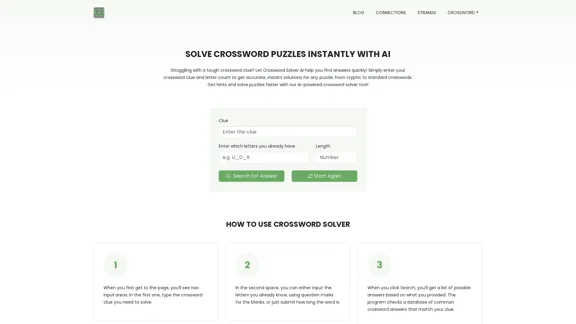
Crossword Solver AI - Get Instant Help for Any Puzzle

Get instant crossword help with our AI-powered solver. Enter your clue and letter count to find accurate answers quickly for any puzzle, cryptic or standard.
Visit Website
Crossword Solver AI - Get Instant Help for Any Puzzle
Visit Website

Introduction

Crossword Solver AI is an online tool designed to assist users in solving crossword puzzles quickly and efficiently. It uses artificial intelligence to provide instant solutions for various types of crosswords, from standard to cryptic puzzles. The tool aims to help users overcome challenging clues and enhance their puzzle-solving experience.

Feature

  1. Instant Puzzle Solutions

    • Enter crossword clue and letter count
    • Receive accurate, AI-powered answers immediately
    • Compatible with various crossword types (standard, cryptic)
  2. Flexible Input Options

    • Input known letters using question marks for blanks
    • Specify word length for more precise results
  3. Database-Driven Results

    • Utilizes a comprehensive database of common crossword answers
    • Matches user input with potential solutions
  4. User-Friendly Interface

    • Simple two-step input process
    • Clear instructions for ease of use
  5. Hint System

    • Provides hints to assist in puzzle-solving
    • Helps users learn and improve their crossword skills

How to Use?

  1. Start with Easy Clues

    • Begin with fill-in-the-blank clues
    • Focus on well-known names and phrases
    • Look for commonly reused linking words (e.g., EAR, ALE, ERE)
  2. Interpret Clues Carefully

    • Pay attention to the tense of the clue
    • Match the tense of your answer to the clue's tense
    • Be prepared for wordplay in more challenging puzzles
  3. Consider Clue Relevance

    • Long-term puzzles use timeless clues
    • Daily or weekly puzzles may reference current events or celebrities
  4. Use the Tool Strategically

    • Input partial answers to narrow down possibilities
    • Combine the tool's suggestions with your own knowledge
  5. Practice Regularly

    • Familiarize yourself with common crossword conventions
    • Learn to recognize frequently used clues and answers

FAQ

How do I use the Crossword Solver AI?

  1. Enter the crossword clue in the first input area.
  2. In the second area, input known letters using question marks for blanks, or just the word length.
  3. Click "Search" to receive a list of possible answers based on your input.

Can the tool solve cryptic crosswords?

Yes, the Crossword Solver AI is designed to assist with various types of crosswords, including cryptic puzzles. However, cryptic clues may require more interpretation and creative thinking.

Is the tool suitable for beginners?

Absolutely. The tool is user-friendly and can help beginners learn crossword-solving techniques. It provides instant answers and can be used as a learning aid to understand clue patterns and common answers.

How accurate are the results?

The tool uses a comprehensive database of common crossword answers, ensuring high accuracy. However, the final accuracy depends on the specificity of your input and the uniqueness of the clue.

Can I use this tool for competitive crossword solving?

While the tool is great for practice and learning, using it in competitive settings may be against the rules. Always check the guidelines of any crossword competition before using external aids.

Evaluation

  1. The Crossword Solver AI offers a valuable resource for crossword enthusiasts of all levels, providing quick and accurate solutions to challenging clues.

  2. The tool's user-friendly interface and flexible input options make it accessible to both beginners and experienced solvers, enhancing the overall puzzle-solving experience.

  3. The inclusion of helpful tips and FAQs adds educational value, helping users improve their crossword-solving skills over time.

  4. However, the tool's effectiveness may vary depending on the complexity and uniqueness of the crossword clues, particularly for highly specialized or cryptic puzzles.

  5. While it's an excellent aid for learning and practice, users should be cautious about over-reliance, as it may diminish the satisfaction of solving puzzles independently.

  6. The tool could potentially be improved by incorporating more advanced AI features, such as learning from user interactions or providing more detailed explanations for answers.

  7. Overall, the Crossword Solver AI is a powerful and useful tool for crossword enthusiasts, striking a good balance between assistance and maintaining the challenge of puzzle-solving.

Related Websites
Automate Your Content Strategy and Lead Generation with Captain
View Detail

Automate Your Content Strategy and Lead Generation with Captain

Automate Your Content Strategy and Lead Generation with Captain

Captain's AI-powered platform automatically creates and optimizes data-driven content that generates awareness, engagement, and leads.

23
Parabola | Simplify complex logic
View Detail

Parabola | Simplify complex logic

Parabola | Simplify complex logic

Parabola is the spreadsheet alternative that allows you to integrate data from across your company and create automated workflows.

87.60 K
Copilot for Microsoft 365 – Microsoft Adoption

Copilot for Microsoft 365 is a powerful AI assistant that helps you work smarter and faster across Microsoft 365 apps and services. It combines the power of large language models (LLMs) with your organization's data in the Microsoft Graph and Microsoft 365 apps to turn your words into the most powerful productivity tool on the planet.

Copilot is designed to help you:

• Unleash creativity
• Unlock productivity
• Uplevel skills

Copilot is built on Microsoft's comprehensive approach to security, compliance, and privacy. Copilot in Microsoft 365 apps and services:

• Does not use your data to train the underlying LLM
• Does not replace human ingenuity and judgment
• Is designed to keep humans in the loop

Copilot is currently available in Word, Excel, PowerPoint, Outlook, Teams, and more.

Getting Started with Copilot

To get started with Copilot, follow these steps:

1. Check availability: Ensure your organization has access to Copilot.
2. Learn the basics: Familiarize yourself with Copilot's capabilities and how to use it effectively.
3. Explore use cases: Discover how Copilot can help you in your specific role and tasks.
4. Practice and refine: Use Copilot regularly and refine your prompts for better results.
5. Share and collaborate: Collaborate with colleagues using Copilot and share best practices.

Best Practices for Using Copilot

1. Be specific in your prompts
2. Provide context for better results
3. Review and edit Copilot's output
4. Use Copilot as a starting point, not a final product
5. Experiment with different approaches
6. Stay informed about new features and updates

Copilot in Different Microsoft 365 Apps

• Word: Draft, edit, summarize, and rewrite content
• Excel: Analyze data, create formulas, and generate insights
• PowerPoint: Create presentations, design slides, and generate content
• Outlook: Compose emails, summarize threads, and manage your inbox
• Teams: Summarize meetings, generate action items, and create meeting notes

Responsible AI and Copilot

Microsoft is committed to developing AI systems responsibly. When using Copilot, keep in mind:

• AI-generated content may contain biases or inaccuracies
• Always review and verify Copilot's output
• Use your judgment and expertise alongside Copilot's suggestions
• Be aware of your organization's policies regarding AI use

Conclusion

Copilot for Microsoft 365 is a powerful tool that can significantly enhance your productivity and creativity. By understanding its capabilities, following best practices, and using it responsibly, you can make the most of this AI assistant in your daily work.
View Detail

Copilot for Microsoft 365 – Microsoft Adoption Copilot for Microsoft 365 is a powerful AI assistant that helps you work smarter and faster across Microsoft 365 apps and services. It combines the power of large language models (LLMs) with your organization's data in the Microsoft Graph and Microsoft 365 apps to turn your words into the most powerful productivity tool on the planet. Copilot is designed to help you: • Unleash creativity • Unlock productivity • Uplevel skills Copilot is built on Microsoft's comprehensive approach to security, compliance, and privacy. Copilot in Microsoft 365 apps and services: • Does not use your data to train the underlying LLM • Does not replace human ingenuity and judgment • Is designed to keep humans in the loop Copilot is currently available in Word, Excel, PowerPoint, Outlook, Teams, and more. Getting Started with Copilot To get started with Copilot, follow these steps: 1. Check availability: Ensure your organization has access to Copilot. 2. Learn the basics: Familiarize yourself with Copilot's capabilities and how to use it effectively. 3. Explore use cases: Discover how Copilot can help you in your specific role and tasks. 4. Practice and refine: Use Copilot regularly and refine your prompts for better results. 5. Share and collaborate: Collaborate with colleagues using Copilot and share best practices. Best Practices for Using Copilot 1. Be specific in your prompts 2. Provide context for better results 3. Review and edit Copilot's output 4. Use Copilot as a starting point, not a final product 5. Experiment with different approaches 6. Stay informed about new features and updates Copilot in Different Microsoft 365 Apps • Word: Draft, edit, summarize, and rewrite content • Excel: Analyze data, create formulas, and generate insights • PowerPoint: Create presentations, design slides, and generate content • Outlook: Compose emails, summarize threads, and manage your inbox • Teams: Summarize meetings, generate action items, and create meeting notes Responsible AI and Copilot Microsoft is committed to developing AI systems responsibly. When using Copilot, keep in mind: • AI-generated content may contain biases or inaccuracies • Always review and verify Copilot's output • Use your judgment and expertise alongside Copilot's suggestions • Be aware of your organization's policies regarding AI use Conclusion Copilot for Microsoft 365 is a powerful tool that can significantly enhance your productivity and creativity. By understanding its capabilities, following best practices, and using it responsibly, you can make the most of this AI assistant in your daily work.

Copilot for Microsoft 365 – Microsoft Adoption Copilot for Microsoft 365 is a powerful AI assistant that helps you work smarter and faster across Microsoft 365 apps and services. It combines the power of large language models (LLMs) with your organization's data in the Microsoft Graph and Microsoft 365 apps to turn your words into the most powerful productivity tool on the planet. Copilot is designed to help you: • Unleash creativity • Unlock productivity • Uplevel skills Copilot is built on Microsoft's comprehensive approach to security, compliance, and privacy. Copilot in Microsoft 365 apps and services: • Does not use your data to train the underlying LLM • Does not replace human ingenuity and judgment • Is designed to keep humans in the loop Copilot is currently available in Word, Excel, PowerPoint, Outlook, Teams, and more. Getting Started with Copilot To get started with Copilot, follow these steps: 1. Check availability: Ensure your organization has access to Copilot. 2. Learn the basics: Familiarize yourself with Copilot's capabilities and how to use it effectively. 3. Explore use cases: Discover how Copilot can help you in your specific role and tasks. 4. Practice and refine: Use Copilot regularly and refine your prompts for better results. 5. Share and collaborate: Collaborate with colleagues using Copilot and share best practices. Best Practices for Using Copilot 1. Be specific in your prompts 2. Provide context for better results 3. Review and edit Copilot's output 4. Use Copilot as a starting point, not a final product 5. Experiment with different approaches 6. Stay informed about new features and updates Copilot in Different Microsoft 365 Apps • Word: Draft, edit, summarize, and rewrite content • Excel: Analyze data, create formulas, and generate insights • PowerPoint: Create presentations, design slides, and generate content • Outlook: Compose emails, summarize threads, and manage your inbox • Teams: Summarize meetings, generate action items, and create meeting notes Responsible AI and Copilot Microsoft is committed to developing AI systems responsibly. When using Copilot, keep in mind: • AI-generated content may contain biases or inaccuracies • Always review and verify Copilot's output • Use your judgment and expertise alongside Copilot's suggestions • Be aware of your organization's policies regarding AI use Conclusion Copilot for Microsoft 365 is a powerful tool that can significantly enhance your productivity and creativity. By understanding its capabilities, following best practices, and using it responsibly, you can make the most of this AI assistant in your daily work.

Microsoft Copilot combines the power of large language models (LLMs) with your organization's data to turn your words into one of the most powerful productivity tools on the planet.

608.60 K
EZPZAI | Home
View Detail

EZPZAI | Home

EZPZAI | Home

0
Alter | AI for Your Whole Workday
View Detail

Alter | AI for Your Whole Workday

Alter | AI for Your Whole Workday

Alter: The seamless AI that enhances your Mac. Bypass the chat, perform instant actions across all applications. Boost your productivity by 10 times with full privacy control.

19.74 K
Adaptive Planning EPM Software | Workday US
View Detail

Adaptive Planning EPM Software | Workday US

Adaptive Planning EPM Software | Workday US

Drive enterprise-wide business planning with Workday Adaptive Planning Cloud. Our EPM platform helps organizations plan smarter, report faster, and analyze better.

511.80 K
Otto
View Detail

Otto

Otto

OttoTemplates is designed to automate manual research tasks, enabling users to leverage AI agents for enriching lists, researching companies, and processing documents efficiently

10.30 K
Flowith - AI for Deep Work
View Detail

Flowith - AI for Deep Work

Flowith - AI for Deep Work

Surpassing traditional chat-based tools, Flowith streamlines tasks on a multi-thread interface powered by a most advanced agent framework. The intuitive canvas and smart framework boost productivity, helping users stay in the flow.

13.71 K