Open-source RightAI Tools Directory
  • Discover AI
  • Submit
  • Startup
  • Blog
Open-source RightAI Tools Directory
Discover the best AI tools of 2025 with the RightAI Tools Directory!

Friend Links

AI Anime GeneratorToolsApp AI

Support

Tap4
Privacy policyTerms & ConditionsContact Us
Loading...
loading...

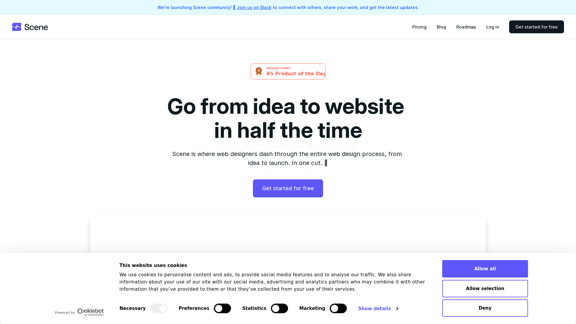
Where ideas transform into websites

Scene is where web designers race through the complete web design process, from concept to launch. In a single take. 🎬
Visit Website
Where ideas transform into websites
Visit Website

Introduction

Scene is an innovative all-in-one web workspace that revolutionizes the web design process. It combines ideation, design, and launch capabilities with an AI-powered assistant, enabling designers and marketers to create stunning websites efficiently. Scene's comprehensive platform streamlines the entire workflow, from concept to publication, significantly reducing development time and increasing productivity.

Feature

All-in-one Web Workspace

  • Unified platform for entire design process
  • Accelerates website delivery
  • Boosts profitability
  • Enhances creative collaboration

Muse: AI-powered Assistant

  • Refines website briefs
  • Conducts competitor research
  • Generates wireframes automatically
  • Creates and revises web copy

Visual Co-creation

  • Simplifies client onboarding
  • Provides user-friendly tools for all skill levels
  • Offers unified environment for brainstorming and brief development
  • Implements seamless feedback and change proposal system

Build & Publish

  • Utilizes adaptable blocks for multi-screen design
  • Features growing library of best-practice blocks
  • Provides industry-standard editing experience
  • Includes integrated tracking layers
  • Enables one-click publishing

Flexible Pricing Plans

PlanPriceFeatures
StarterFree2 active projects, 2 editors per project, 10 Muse AI conversations
Pro€29/month per editorUnlimited projects, editors, and Muse AI conversations
Site Plan€10/month per 5k unique visitorsCustom domain, AWS Global CDN hosting, TwicPics optimization

FAQ

What is Scene?

Scene is an all-in-one web workspace that combines design tools, AI assistance, and collaboration features to streamline the website creation process from ideation to launch.

How does Scene's AI assistant, Muse, help in the design process?

Muse assists by refining website briefs, researching competitors, automatically generating wireframes, and writing or revising web copy, acting as a thinking partner throughout the design process.

What collaboration features does Scene offer?

Scene provides visual co-creation tools, easy client onboarding, intuitive interfaces for all skill levels, a unified environment for brainstorming and brief development, and a seamless feedback and change proposal system.

Can I publish websites directly from Scene?

Yes, Scene offers one-click publishing, custom domain publishing (with Site Plan), AWS Global CDN hosting, and TwicPics image and video optimization for efficient website deployment.

Is there a free version of Scene available?

Yes, Scene offers a free Starter plan that includes 2 active projects, 2 editors per project, and 10 conversations with Muse AI, allowing users to explore the platform's capabilities without cost.

Related Websites
Parabola | Simplify complex logic
View Detail

Parabola | Simplify complex logic

Parabola | Simplify complex logic

Parabola is the spreadsheet alternative that allows you to integrate data from across your company and create automated workflows.

87.60 K
Drive Business Performance With Planning Software | Anaplan
View Detail

Drive Business Performance With Planning Software | Anaplan

Drive Business Performance With Planning Software | Anaplan

See, plan, and lead financial, supply chain, and sales strategies that drive business performance using the Anaplan connected planning platform.

1.03 M
Copilot for Microsoft 365 – Microsoft Adoption

Copilot for Microsoft 365 is a powerful AI assistant that helps you work smarter and faster across Microsoft 365 apps and services. It combines the power of large language models (LLMs) with your organization's data in the Microsoft Graph and Microsoft 365 apps to turn your words into the most powerful productivity tool on the planet.

Copilot is designed to help you:

• Unleash creativity
• Unlock productivity
• Uplevel skills

Copilot is built on Microsoft's comprehensive approach to security, compliance, and privacy. Copilot in Microsoft 365 apps and services:

• Does not use your data to train the underlying LLM
• Does not replace human ingenuity and judgment
• Is designed to keep humans in the loop

Copilot is currently available in Word, Excel, PowerPoint, Outlook, Teams, and more.

Getting Started with Copilot

To get started with Copilot, follow these steps:

1. Check availability: Ensure your organization has access to Copilot.
2. Learn the basics: Familiarize yourself with Copilot's capabilities and how to use it effectively.
3. Explore use cases: Discover how Copilot can help you in your specific role and tasks.
4. Practice and refine: Use Copilot regularly and refine your prompts for better results.
5. Share and collaborate: Collaborate with colleagues using Copilot and share best practices.

Best Practices for Using Copilot

1. Be specific in your prompts
2. Provide context for better results
3. Review and edit Copilot's output
4. Use Copilot as a starting point, not a final product
5. Experiment with different approaches
6. Stay informed about new features and updates

Copilot in Different Microsoft 365 Apps

• Word: Draft, edit, summarize, and rewrite content
• Excel: Analyze data, create formulas, and generate insights
• PowerPoint: Create presentations, design slides, and generate content
• Outlook: Compose emails, summarize threads, and manage your inbox
• Teams: Summarize meetings, generate action items, and create meeting notes

Responsible AI and Copilot

Microsoft is committed to developing AI systems responsibly. When using Copilot, keep in mind:

• AI-generated content may contain biases or inaccuracies
• Always review and verify Copilot's output
• Use your judgment and expertise alongside Copilot's suggestions
• Be aware of your organization's policies regarding AI use

Conclusion

Copilot for Microsoft 365 is a powerful tool that can significantly enhance your productivity and creativity. By understanding its capabilities, following best practices, and using it responsibly, you can make the most of this AI assistant in your daily work.
View Detail

Copilot for Microsoft 365 – Microsoft Adoption Copilot for Microsoft 365 is a powerful AI assistant that helps you work smarter and faster across Microsoft 365 apps and services. It combines the power of large language models (LLMs) with your organization's data in the Microsoft Graph and Microsoft 365 apps to turn your words into the most powerful productivity tool on the planet. Copilot is designed to help you: • Unleash creativity • Unlock productivity • Uplevel skills Copilot is built on Microsoft's comprehensive approach to security, compliance, and privacy. Copilot in Microsoft 365 apps and services: • Does not use your data to train the underlying LLM • Does not replace human ingenuity and judgment • Is designed to keep humans in the loop Copilot is currently available in Word, Excel, PowerPoint, Outlook, Teams, and more. Getting Started with Copilot To get started with Copilot, follow these steps: 1. Check availability: Ensure your organization has access to Copilot. 2. Learn the basics: Familiarize yourself with Copilot's capabilities and how to use it effectively. 3. Explore use cases: Discover how Copilot can help you in your specific role and tasks. 4. Practice and refine: Use Copilot regularly and refine your prompts for better results. 5. Share and collaborate: Collaborate with colleagues using Copilot and share best practices. Best Practices for Using Copilot 1. Be specific in your prompts 2. Provide context for better results 3. Review and edit Copilot's output 4. Use Copilot as a starting point, not a final product 5. Experiment with different approaches 6. Stay informed about new features and updates Copilot in Different Microsoft 365 Apps • Word: Draft, edit, summarize, and rewrite content • Excel: Analyze data, create formulas, and generate insights • PowerPoint: Create presentations, design slides, and generate content • Outlook: Compose emails, summarize threads, and manage your inbox • Teams: Summarize meetings, generate action items, and create meeting notes Responsible AI and Copilot Microsoft is committed to developing AI systems responsibly. When using Copilot, keep in mind: • AI-generated content may contain biases or inaccuracies • Always review and verify Copilot's output • Use your judgment and expertise alongside Copilot's suggestions • Be aware of your organization's policies regarding AI use Conclusion Copilot for Microsoft 365 is a powerful tool that can significantly enhance your productivity and creativity. By understanding its capabilities, following best practices, and using it responsibly, you can make the most of this AI assistant in your daily work.

Copilot for Microsoft 365 – Microsoft Adoption Copilot for Microsoft 365 is a powerful AI assistant that helps you work smarter and faster across Microsoft 365 apps and services. It combines the power of large language models (LLMs) with your organization's data in the Microsoft Graph and Microsoft 365 apps to turn your words into the most powerful productivity tool on the planet. Copilot is designed to help you: • Unleash creativity • Unlock productivity • Uplevel skills Copilot is built on Microsoft's comprehensive approach to security, compliance, and privacy. Copilot in Microsoft 365 apps and services: • Does not use your data to train the underlying LLM • Does not replace human ingenuity and judgment • Is designed to keep humans in the loop Copilot is currently available in Word, Excel, PowerPoint, Outlook, Teams, and more. Getting Started with Copilot To get started with Copilot, follow these steps: 1. Check availability: Ensure your organization has access to Copilot. 2. Learn the basics: Familiarize yourself with Copilot's capabilities and how to use it effectively. 3. Explore use cases: Discover how Copilot can help you in your specific role and tasks. 4. Practice and refine: Use Copilot regularly and refine your prompts for better results. 5. Share and collaborate: Collaborate with colleagues using Copilot and share best practices. Best Practices for Using Copilot 1. Be specific in your prompts 2. Provide context for better results 3. Review and edit Copilot's output 4. Use Copilot as a starting point, not a final product 5. Experiment with different approaches 6. Stay informed about new features and updates Copilot in Different Microsoft 365 Apps • Word: Draft, edit, summarize, and rewrite content • Excel: Analyze data, create formulas, and generate insights • PowerPoint: Create presentations, design slides, and generate content • Outlook: Compose emails, summarize threads, and manage your inbox • Teams: Summarize meetings, generate action items, and create meeting notes Responsible AI and Copilot Microsoft is committed to developing AI systems responsibly. When using Copilot, keep in mind: • AI-generated content may contain biases or inaccuracies • Always review and verify Copilot's output • Use your judgment and expertise alongside Copilot's suggestions • Be aware of your organization's policies regarding AI use Conclusion Copilot for Microsoft 365 is a powerful tool that can significantly enhance your productivity and creativity. By understanding its capabilities, following best practices, and using it responsibly, you can make the most of this AI assistant in your daily work.

Microsoft Copilot combines the power of large language models (LLMs) with your organization's data to turn your words into one of the most powerful productivity tools on the planet.

608.60 K
AiAssistWorks - AI for Google Sheetsâ„¢ - GPT- Claude - Gemini - Llama, Mistral, OpenRouter, Groq.
View Detail

AiAssistWorks - AI for Google Sheetsâ„¢ - GPT- Claude - Gemini - Llama, Mistral, OpenRouter, Groq.

AiAssistWorks - AI for Google Sheetsâ„¢ - GPT- Claude - Gemini - Llama, Mistral, OpenRouter, Groq.

4.99 K
Globe Explorer
View Detail

Globe Explorer

Globe Explorer

Explorer is an AI-powered discovery and learning engine that delivers intelligent and relevant search results. Give it a try now!

80.85 K
UPDF AI: The GPT-4 Powered AI for PDF Questions and More
View Detail

UPDF AI: The GPT-4 Powered AI for PDF Questions and More

UPDF AI: The GPT-4 Powered AI for PDF Questions and More

UPDF AI with GPT-4 integrated to enhance productivity by summarizing, translating, explaining, rewriting, etc., for PDFs or anything!

1.61 M
Home - Coming Together
View Detail

Home - Coming Together

Home - Coming Together

🎉 Proxy 1.0 Your AI assistant for your daily tasks Proxy is a fully automated AI assistant for your daily tasks. Message* New Templates Shuffle Show less Summarize articles about a company Find relevant jobs Find trending GitHub authors' LinkedIn profiles Summarize pull requests on Github Summarize top news stories as an email Summarize daily […]

11.66 K
One-Click SEO Links - Chrome Web Store
View Detail

One-Click SEO Links - Chrome Web Store

One-Click SEO Links - Chrome Web Store

# User Guide for One-Click SEO Links Chrome Extension ## Overview One-Click SEO Links is a Chrome extension designed for web developers and SEO professionals. It allows users to quickly generate and copy various SEO-related links for the current webpage with just one click. ## Features - Generate and copy Google Cache link - Generate and copy Google Index link - Generate and copy Wayback Machine link - Generate and copy PageSpeed Insights link - Generate and copy Mobile-Friendly Test link - Generate and copy Rich Results Test link ## Installation 1. Open the Chrome Web Store 2. Search for "One-Click SEO Links" 3. Click "Add to Chrome" 4. Confirm the installation when prompted ## How to Use 1. Navigate to the webpage you want to analyze 2. Click on the One-Click SEO Links extension icon in your Chrome toolbar 3. Select the desired link type from the dropdown menu 4. The link will be automatically copied to your clipboard 5. Paste the link into your desired location (e.g., browser address bar, document, etc.) ## Troubleshooting If you encounter any issues: - Ensure you have the latest version of the extension installed - Try refreshing the webpage - Restart your Chrome browser - If problems persist, please contact our support team ## Privacy Policy We do not collect or store any personal data. The extension only accesses the current tab's URL to generate the SEO links. ## Feedback and Support For feedback, suggestions, or support, please email us at [email protected] or visit our website www.oneclickseolinks.com. Thank you for using One-Click SEO Links!

193.90 M