Open-source RightAI Tools Directory
  • Discover AI
  • Submit
  • Startup
  • Blog
Open-source RightAI Tools Directory
Discover the best AI tools of 2025 with the RightAI Tools Directory!

Friend Links

AI Anime GeneratorToolsApp AI

Support

Tap4
Privacy policyTerms & ConditionsContact Us
Loading...
loading...

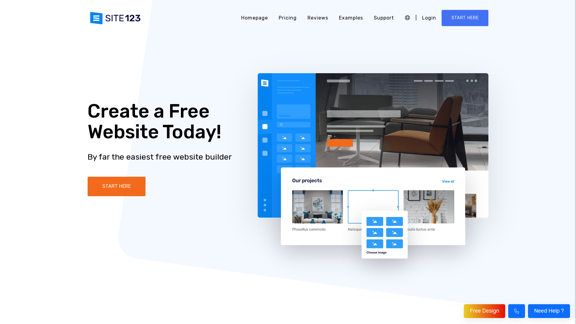
Free Website Builder 100% Off | Create a Free Website - SITE123

Create a free website with SITE123. No design or coding skills needed. SITE123 is the simplest free website builder by far. Make your website now!
Visit Website
Free Website Builder 100% Off | Create a Free Website - SITE123
Visit Website

Introduction

SITE123 is a user-friendly website builder that enables users to create professional websites quickly and easily. It offers a range of features including an intuitive editor, mobile-friendly design, free hosting, SEO tools, custom domains, and e-commerce capabilities. The platform is designed to be accessible to users with no coding experience, making it an ideal solution for beginners and small businesses looking to establish an online presence.

Feature

Easy-to-Use Website Editor

  • Intuitive interface for effortless website creation
  • No coding skills required
  • More efficient than traditional drag-and-drop builders
  • Complete website setup in less than an hour

Mobile-Friendly Design

  • Responsive web design ensures optimal viewing on all devices
  • Automatic adjustment for various screen sizes

Free Hosting and CDN

  • Secure and reliable hosting provided at no cost
  • Content Distribution Network (CDN) for faster loading times

SEO Optimization Tools

  • Built-in tools to improve search engine visibility
  • Helps drive organic traffic to your website

Domain Options

  • Free subdomain provided for all users
  • Option to connect a custom domain (paid feature)

E-commerce Functionality

  • Create and manage an online store
  • Sell products globally through your website

Comprehensive Support

  • 24/7 live chat support available
  • Guidance provided throughout the website creation process

FAQ

What are the pricing options for SITE123?

SITE123 offers a free plan with basic features. For users who want to connect a custom domain, plans start at $10.8 per month with an annual subscription.

Do I need coding skills to use SITE123?

No, SITE123 is designed to be user-friendly and does not require any coding skills. The intuitive interface allows you to create a professional website without technical expertise.

Can I sell products through a SITE123 website?

Yes, SITE123 offers e-commerce capabilities that allow you to create an online store and sell products globally.

How long does it take to create a website with SITE123?

The entire process of creating a website with SITE123 can be completed in less than an hour, allowing you to establish your online presence quickly.

Is customer support available for SITE123 users?

Yes, SITE123 provides 24/7 live chat support and offers guidance throughout the website creation process.

Latest Traffic Insights

  • Monthly Visits

    611.72 K

  • Bounce Rate

    41.28%

  • Pages Per Visit

    4.35

  • Time on Site(s)

    222.90

  • Global Rank

    67523

  • Country Rank

    United States 71213

Recent Visits

Traffic Sources

  • Social Media:
    1.87%
  • Paid Referrals:
    0.81%
  • Email:
    0.10%
  • Referrals:
    6.68%
  • Search Engines:
    46.34%
  • Direct:
    44.20%
More Data

Related Websites

Copilot for Microsoft 365 – Microsoft Adoption

Copilot for Microsoft 365 is a powerful AI assistant that helps you work smarter and faster across Microsoft 365 apps and services. It combines the power of large language models (LLMs) with your organization's data in the Microsoft Graph and Microsoft 365 apps to turn your words into the most powerful productivity tool on the planet.

Copilot is designed to help you:

β€’ Unleash creativity
β€’ Unlock productivity
β€’ Uplevel skills

Copilot is built on Microsoft's comprehensive approach to security, compliance, and privacy. Copilot in Microsoft 365 apps and services:

β€’ Does not use your data to train the underlying LLM
β€’ Does not replace human ingenuity and judgment
β€’ Is designed to keep humans in the loop

Copilot is currently available in Word, Excel, PowerPoint, Outlook, Teams, and more.

Getting Started with Copilot

To get started with Copilot, follow these steps:

1. Check availability: Ensure your organization has access to Copilot.
2. Learn the basics: Familiarize yourself with Copilot's capabilities and how to use it effectively.
3. Explore use cases: Discover how Copilot can help you in your specific role and tasks.
4. Practice and refine: Use Copilot regularly and refine your prompts for better results.
5. Share and collaborate: Collaborate with colleagues using Copilot and share best practices.

Best Practices for Using Copilot

1. Be specific in your prompts
2. Provide context for better results
3. Review and edit Copilot's output
4. Use Copilot as a starting point, not a final product
5. Experiment with different approaches
6. Stay informed about new features and updates

Copilot in Different Microsoft 365 Apps

β€’ Word: Draft, edit, summarize, and rewrite content
β€’ Excel: Analyze data, create formulas, and generate insights
β€’ PowerPoint: Create presentations, design slides, and generate content
β€’ Outlook: Compose emails, summarize threads, and manage your inbox
β€’ Teams: Summarize meetings, generate action items, and create meeting notes

Responsible AI and Copilot

Microsoft is committed to developing AI systems responsibly. When using Copilot, keep in mind:

β€’ AI-generated content may contain biases or inaccuracies
β€’ Always review and verify Copilot's output
β€’ Use your judgment and expertise alongside Copilot's suggestions
β€’ Be aware of your organization's policies regarding AI use

Conclusion

Copilot for Microsoft 365 is a powerful tool that can significantly enhance your productivity and creativity. By understanding its capabilities, following best practices, and using it responsibly, you can make the most of this AI assistant in your daily work.
View Detail

Copilot for Microsoft 365 – Microsoft Adoption Copilot for Microsoft 365 is a powerful AI assistant that helps you work smarter and faster across Microsoft 365 apps and services. It combines the power of large language models (LLMs) with your organization's data in the Microsoft Graph and Microsoft 365 apps to turn your words into the most powerful productivity tool on the planet. Copilot is designed to help you: β€’ Unleash creativity β€’ Unlock productivity β€’ Uplevel skills Copilot is built on Microsoft's comprehensive approach to security, compliance, and privacy. Copilot in Microsoft 365 apps and services: β€’ Does not use your data to train the underlying LLM β€’ Does not replace human ingenuity and judgment β€’ Is designed to keep humans in the loop Copilot is currently available in Word, Excel, PowerPoint, Outlook, Teams, and more. Getting Started with Copilot To get started with Copilot, follow these steps: 1. Check availability: Ensure your organization has access to Copilot. 2. Learn the basics: Familiarize yourself with Copilot's capabilities and how to use it effectively. 3. Explore use cases: Discover how Copilot can help you in your specific role and tasks. 4. Practice and refine: Use Copilot regularly and refine your prompts for better results. 5. Share and collaborate: Collaborate with colleagues using Copilot and share best practices. Best Practices for Using Copilot 1. Be specific in your prompts 2. Provide context for better results 3. Review and edit Copilot's output 4. Use Copilot as a starting point, not a final product 5. Experiment with different approaches 6. Stay informed about new features and updates Copilot in Different Microsoft 365 Apps β€’ Word: Draft, edit, summarize, and rewrite content β€’ Excel: Analyze data, create formulas, and generate insights β€’ PowerPoint: Create presentations, design slides, and generate content β€’ Outlook: Compose emails, summarize threads, and manage your inbox β€’ Teams: Summarize meetings, generate action items, and create meeting notes Responsible AI and Copilot Microsoft is committed to developing AI systems responsibly. When using Copilot, keep in mind: β€’ AI-generated content may contain biases or inaccuracies β€’ Always review and verify Copilot's output β€’ Use your judgment and expertise alongside Copilot's suggestions β€’ Be aware of your organization's policies regarding AI use Conclusion Copilot for Microsoft 365 is a powerful tool that can significantly enhance your productivity and creativity. By understanding its capabilities, following best practices, and using it responsibly, you can make the most of this AI assistant in your daily work.

Copilot for Microsoft 365 – Microsoft Adoption Copilot for Microsoft 365 is a powerful AI assistant that helps you work smarter and faster across Microsoft 365 apps and services. It combines the power of large language models (LLMs) with your organization's data in the Microsoft Graph and Microsoft 365 apps to turn your words into the most powerful productivity tool on the planet. Copilot is designed to help you: β€’ Unleash creativity β€’ Unlock productivity β€’ Uplevel skills Copilot is built on Microsoft's comprehensive approach to security, compliance, and privacy. Copilot in Microsoft 365 apps and services: β€’ Does not use your data to train the underlying LLM β€’ Does not replace human ingenuity and judgment β€’ Is designed to keep humans in the loop Copilot is currently available in Word, Excel, PowerPoint, Outlook, Teams, and more. Getting Started with Copilot To get started with Copilot, follow these steps: 1. Check availability: Ensure your organization has access to Copilot. 2. Learn the basics: Familiarize yourself with Copilot's capabilities and how to use it effectively. 3. Explore use cases: Discover how Copilot can help you in your specific role and tasks. 4. Practice and refine: Use Copilot regularly and refine your prompts for better results. 5. Share and collaborate: Collaborate with colleagues using Copilot and share best practices. Best Practices for Using Copilot 1. Be specific in your prompts 2. Provide context for better results 3. Review and edit Copilot's output 4. Use Copilot as a starting point, not a final product 5. Experiment with different approaches 6. Stay informed about new features and updates Copilot in Different Microsoft 365 Apps β€’ Word: Draft, edit, summarize, and rewrite content β€’ Excel: Analyze data, create formulas, and generate insights β€’ PowerPoint: Create presentations, design slides, and generate content β€’ Outlook: Compose emails, summarize threads, and manage your inbox β€’ Teams: Summarize meetings, generate action items, and create meeting notes Responsible AI and Copilot Microsoft is committed to developing AI systems responsibly. When using Copilot, keep in mind: β€’ AI-generated content may contain biases or inaccuracies β€’ Always review and verify Copilot's output β€’ Use your judgment and expertise alongside Copilot's suggestions β€’ Be aware of your organization's policies regarding AI use Conclusion Copilot for Microsoft 365 is a powerful tool that can significantly enhance your productivity and creativity. By understanding its capabilities, following best practices, and using it responsibly, you can make the most of this AI assistant in your daily work.

Microsoft Copilot combines the power of large language models (LLMs) with your organization's data to turn your words into one of the most powerful productivity tools on the planet.

608.60 K
Search | BaGooDex Meta Search
View Detail

Search | BaGooDex Meta Search

Search | BaGooDex Meta Search

AI-powered Meta Search

12.80 K
Scottie - AI-Powered Daily News Summaries
View Detail

Scottie - AI-Powered Daily News Summaries

Scottie - AI-Powered Daily News Summaries

Get personalized daily news briefs powered by AI. Transform your news experience with Scottie's intelligent summaries.

0
Hootsuite | Social Media Marketing and Management Tool
View Detail

Hootsuite | Social Media Marketing and Management Tool

Hootsuite | Social Media Marketing and Management Tool

Hootsuite is a social media management tool that combines scheduling, content creation, analytics, and social listening in a single platform.

2.19 M
AI-Powered Contract Management for Legal Teams | LinkSquares
View Detail

AI-Powered Contract Management for Legal Teams | LinkSquares

AI-Powered Contract Management for Legal Teams | LinkSquares

Legal teams depend on LinkSquares for effortless agreement drafting, reviewing, and execution using AI-powered contract lifecycle management and project management software.

81.95 K
Workflow – The simplest way to manage creative work
View Detail

Workflow – The simplest way to manage creative work

Workflow – The simplest way to manage creative work

A minimalist collaboration platform for creative teams. Manage tasks, get AI reviews, and share work, all in one place.

5.88 K
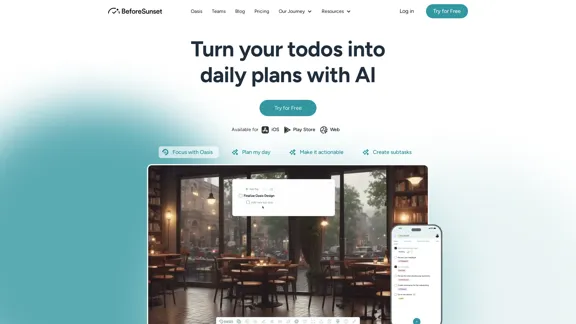
BeforeSunset AI - Home
View Detail

BeforeSunset AI - Home

BeforeSunset AI - Home

Focus on completing your tasks while BeforeSunset AI plans the ideal schedule for you. Daily planning has never been simpler.

76.01 K

terrific.tools - Free Online Tools
View Detail

terrific.tools - Free Online Tools

terrific.tools - Free Online Tools

A modern collection of free, browser-based tools for everyone. Transform images, convert audio, format code, and much more.

52.91 K