Open-source RightAI Tools Directory
  • Discover AI
  • Submit
  • Startup
  • Blog
Open-source RightAI Tools Directory
Discover the best AI tools of 2025 with the RightAI Tools Directory!

Friend Links

AI Anime GeneratorToolsApp AI

Support

Tap4
Privacy policyTerms & ConditionsContact Us
Loading...
loading...

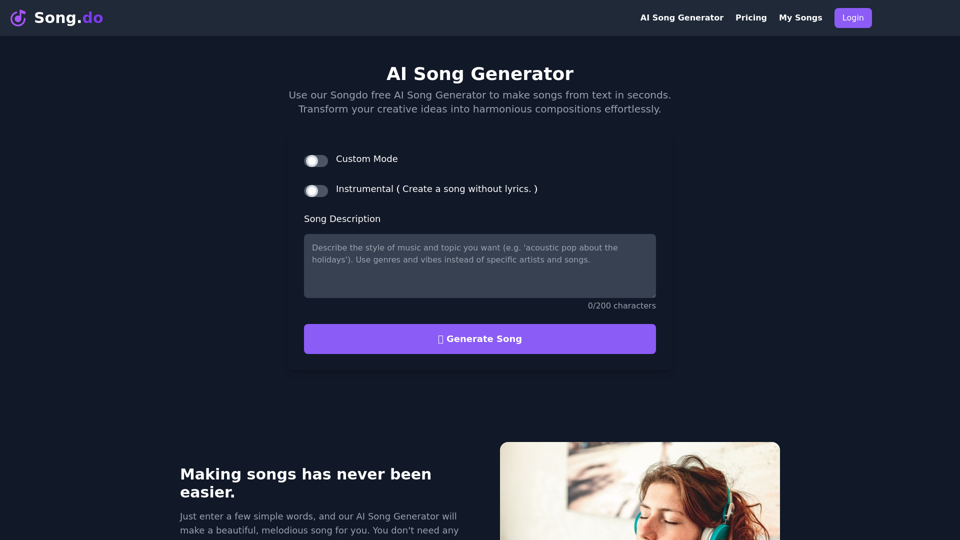
Free AI Song Generator | Song.do

The best free AI song generator: create songs and make music in the simplest way possible.
Visit Website
Free AI Song Generator | Song.do
Visit Website

Introduction

Song.do AI Song Generator is an advanced online tool that creates beautiful, melodious songs from text input. Users can generate songs by customizing lyrics and music styles, or by simply entering words, phrases, or sentences. This versatile tool offers both custom and free modes, making it accessible for various creative needs.

Feature

Custom Mode

  • Lyrics customization: Enter your own lyrics and adjust the length
  • Instrumental option: Create music without lyrics
  • Style selection: Describe the desired music style (e.g., 'acoustic pop')

Free Generation Service

  • Limited number of free song generations available
  • Accessible anytime through the website

Easy-to-Use Process

  1. Input your idea using keywords, phrases, or sentences
  2. Click "Generate" to transform text into a unique song within seconds
  3. Listen online or download the MP3 to any device

Versatile Music Styles

  • Supports various genres including:
    • Blues
    • Classical
    • Rock
    • Pop
    • EDM
    • Funk
    • Instrumental
    • Metal
    • Jazz
    • Rap
    • And more

Personalized Song Creation

  • Create songs as gifts for loved ones (kids, partners, parents)
  • Experiment with different styles and lyrics for unique compositions

FAQ

What is the Song.do AI Song Generator?

Song.do AI Song Generator is an advanced online AI tool that creates beautiful, melodious songs from text input. Users can generate songs by customizing lyrics and music styles or by entering simple words, phrases, or sentences.

Is the AI Song Generator free to use?

The AI Song Generator offers a limited number of free song generation services. Users can visit the website anytime to generate songs for free.

What music styles can the AI Song Generator create?

The tool supports a wide range of music styles, including Blues, Classical, Rock, Pop, EDM, Funk, Instrumental, Metal, Jazz, Rap, and others. Users can choose from various music styles according to their needs.

Can the songs generated by the AI Song Generator be downloaded?

Yes, users can download the generated songs in MP3 format to any of their devices.

Latest Traffic Insights

  • Monthly Visits

    427.38 K

  • Bounce Rate

    35.28%

  • Pages Per Visit

    9.30

  • Time on Site(s)

    446.59

  • Global Rank

    69171

  • Country Rank

    United States 33433

Recent Visits

Traffic Sources

  • Social Media:
    3.18%
  • Paid Referrals:
    0.82%
  • Email:
    0.10%
  • Referrals:
    9.02%
  • Search Engines:
    47.80%
  • Direct:
    39.05%
More Data

Related Websites

ChatGPT Plus
View Detail

ChatGPT Plus

ChatGPT Plus

Bringing the ChatGPT app's features to the browser

193.90 M
Satellite AI. Minutes Creation AI
View Detail

Satellite AI. Minutes Creation AI

Satellite AI. Minutes Creation AI

Satellite AI. The minutes creation AI is a function that utilizes AI to automatically create minutes of meetings on Google Meet™, Microsoft Teams, and Zoom.

193.90 M
Simple TODOs from Customer Feedback 

- Improve search functionality: Customers are having trouble finding specific products.
- Add more product filters:  Allow users to narrow down search results by category, price, etc.
- Implement a wishlist feature: Let customers save items they are interested in for later.
- Enhance mobile responsiveness:  The website is not displaying correctly on all mobile devices.
- Provide clearer product descriptions:  Some descriptions are too vague or lack important details.
- Offer more payment options:  Expand the list of accepted payment methods.
- Simplify the checkout process:  Reduce the number of steps required to complete a purchase.
- Improve customer support:  Make it easier for customers to contact support and get timely responses.
View Detail

Simple TODOs from Customer Feedback - Improve search functionality: Customers are having trouble finding specific products. - Add more product filters: Allow users to narrow down search results by category, price, etc. - Implement a wishlist feature: Let customers save items they are interested in for later. - Enhance mobile responsiveness: The website is not displaying correctly on all mobile devices. - Provide clearer product descriptions: Some descriptions are too vague or lack important details. - Offer more payment options: Expand the list of accepted payment methods. - Simplify the checkout process: Reduce the number of steps required to complete a purchase. - Improve customer support: Make it easier for customers to contact support and get timely responses.

Simple TODOs from Customer Feedback - Improve search functionality: Customers are having trouble finding specific products. - Add more product filters: Allow users to narrow down search results by category, price, etc. - Implement a wishlist feature: Let customers save items they are interested in for later. - Enhance mobile responsiveness: The website is not displaying correctly on all mobile devices. - Provide clearer product descriptions: Some descriptions are too vague or lack important details. - Offer more payment options: Expand the list of accepted payment methods. - Simplify the checkout process: Reduce the number of steps required to complete a purchase. - Improve customer support: Make it easier for customers to contact support and get timely responses.

FeedMonky.com creates simple to-do lists from lengthy customer reviews. It uses a state-of-the-art language model that has been specially trained.

0
SEO by AI
View Detail

SEO by AI

SEO by AI

SEOByAI helps you start your marketing efforts for free by giving you 100% free SEO tools.

193.90 M
MaxBot Plus
View Detail

MaxBot Plus

MaxBot Plus

Fast ways to get tickets for events on certain websites.

193.90 M
Claude to Notion

This is a guide on how to connect Claude, an AI assistant, with Notion, a note-taking and workspace app. 

Why connect Claude and Notion?

* Boost your productivity: Use Claude to generate content, summarize information, and automate tasks directly within Notion.
* Enhance your research: Ask Claude questions about your Notion notes and get insightful answers.
* Unlock new creative possibilities: Leverage Claude's generative capabilities to brainstorm ideas, write stories, or compose emails within your Notion workspace.

How to connect Claude and Notion:

1. API Keys: Obtain an API key for both Claude and Notion. 
2. Integration Tool: Explore integration tools like Zapier or Integromat to connect Claude and Notion. These platforms allow you to create workflows that trigger actions in one app based on events in the other.
3. Custom Development: For advanced users, you can develop your own custom integration using the Claude and Notion APIs. This gives you the most flexibility but requires coding knowledge.

Example Use Cases:

* Meeting Summarization: After a meeting, paste the transcript into Notion and use Claude to generate a concise summary.
* Content Creation:  Use Claude to write blog posts, articles, or social media captions directly within your Notion pages.
* Idea Generation: Brainstorm new ideas for projects or tasks by prompting Claude with specific questions within your Notion workspace.


Remember to review the documentation and terms of service for both Claude and Notion to ensure proper usage and security.
View Detail

Claude to Notion This is a guide on how to connect Claude, an AI assistant, with Notion, a note-taking and workspace app. Why connect Claude and Notion? * Boost your productivity: Use Claude to generate content, summarize information, and automate tasks directly within Notion. * Enhance your research: Ask Claude questions about your Notion notes and get insightful answers. * Unlock new creative possibilities: Leverage Claude's generative capabilities to brainstorm ideas, write stories, or compose emails within your Notion workspace. How to connect Claude and Notion: 1. API Keys: Obtain an API key for both Claude and Notion. 2. Integration Tool: Explore integration tools like Zapier or Integromat to connect Claude and Notion. These platforms allow you to create workflows that trigger actions in one app based on events in the other. 3. Custom Development: For advanced users, you can develop your own custom integration using the Claude and Notion APIs. This gives you the most flexibility but requires coding knowledge. Example Use Cases: * Meeting Summarization: After a meeting, paste the transcript into Notion and use Claude to generate a concise summary. * Content Creation: Use Claude to write blog posts, articles, or social media captions directly within your Notion pages. * Idea Generation: Brainstorm new ideas for projects or tasks by prompting Claude with specific questions within your Notion workspace. Remember to review the documentation and terms of service for both Claude and Notion to ensure proper usage and security.

Claude to Notion This is a guide on how to connect Claude, an AI assistant, with Notion, a note-taking and workspace app. Why connect Claude and Notion? * Boost your productivity: Use Claude to generate content, summarize information, and automate tasks directly within Notion. * Enhance your research: Ask Claude questions about your Notion notes and get insightful answers. * Unlock new creative possibilities: Leverage Claude's generative capabilities to brainstorm ideas, write stories, or compose emails within your Notion workspace. How to connect Claude and Notion: 1. API Keys: Obtain an API key for both Claude and Notion. 2. Integration Tool: Explore integration tools like Zapier or Integromat to connect Claude and Notion. These platforms allow you to create workflows that trigger actions in one app based on events in the other. 3. Custom Development: For advanced users, you can develop your own custom integration using the Claude and Notion APIs. This gives you the most flexibility but requires coding knowledge. Example Use Cases: * Meeting Summarization: After a meeting, paste the transcript into Notion and use Claude to generate a concise summary. * Content Creation: Use Claude to write blog posts, articles, or social media captions directly within your Notion pages. * Idea Generation: Brainstorm new ideas for projects or tasks by prompting Claude with specific questions within your Notion workspace. Remember to review the documentation and terms of service for both Claude and Notion to ensure proper usage and security.

Save Claude conversations to Notion with one click. Export Claude conversations.

193.90 M
Converting JPG Images to Text

Converting a JPG image to text is a process known as Optical Character Recognition (OCR). This technology enables you to extract text from images, scanned documents, and photos. Here's how to do it:

Method 1: Online OCR Tools

You can use online OCR tools to convert JPG images to text. Here are the steps:

1. Upload your JPG image: Go to an online OCR tool website, such as Online OCR Tools or OCR.space, and upload your JPG image.
2. Select the language: Choose the language of the text in your image.
3. Click on "Convert": The tool will convert the image to text.
4. Download the text: You can download the extracted text as a Word document, PDF, or plain text file.

Method 2: Google Drive

You can also use Google Drive to convert JPG images to text. Here's how:

1. Upload your JPG image: Upload your JPG image to Google Drive.
2. Right-click on the image: Right-click on the uploaded image and select "Open with" > "Google Docs".
3. The image will be converted: Google Docs will automatically convert the image to text.
4. Edit and download: You can edit the extracted text and download it as a Word document or PDF.

Method 3: Adobe Acrobat

If you have Adobe Acrobat installed on your computer, you can use it to convert JPG images to text. Here's how:

1. Open Adobe Acrobat: Open Adobe Acrobat on your computer.
2. Create a new document: Create a new document and click on "Tools" > "Recognize Text".
3. Select the image: Select the JPG image you want to convert.
4. Click on "Recognize": Adobe Acrobat will convert the image to text.
5. Edit and save: You can edit the extracted text and save it as a Word document or PDF.

These are the three methods to convert JPG images to text. Choose the method that works best for you!
View Detail

Converting JPG Images to Text Converting a JPG image to text is a process known as Optical Character Recognition (OCR). This technology enables you to extract text from images, scanned documents, and photos. Here's how to do it: Method 1: Online OCR Tools You can use online OCR tools to convert JPG images to text. Here are the steps: 1. Upload your JPG image: Go to an online OCR tool website, such as Online OCR Tools or OCR.space, and upload your JPG image. 2. Select the language: Choose the language of the text in your image. 3. Click on "Convert": The tool will convert the image to text. 4. Download the text: You can download the extracted text as a Word document, PDF, or plain text file. Method 2: Google Drive You can also use Google Drive to convert JPG images to text. Here's how: 1. Upload your JPG image: Upload your JPG image to Google Drive. 2. Right-click on the image: Right-click on the uploaded image and select "Open with" > "Google Docs". 3. The image will be converted: Google Docs will automatically convert the image to text. 4. Edit and download: You can edit the extracted text and download it as a Word document or PDF. Method 3: Adobe Acrobat If you have Adobe Acrobat installed on your computer, you can use it to convert JPG images to text. Here's how: 1. Open Adobe Acrobat: Open Adobe Acrobat on your computer. 2. Create a new document: Create a new document and click on "Tools" > "Recognize Text". 3. Select the image: Select the JPG image you want to convert. 4. Click on "Recognize": Adobe Acrobat will convert the image to text. 5. Edit and save: You can edit the extracted text and save it as a Word document or PDF. These are the three methods to convert JPG images to text. Choose the method that works best for you!

Converting JPG Images to Text Converting a JPG image to text is a process known as Optical Character Recognition (OCR). This technology enables you to extract text from images, scanned documents, and photos. Here's how to do it: Method 1: Online OCR Tools You can use online OCR tools to convert JPG images to text. Here are the steps: 1. Upload your JPG image: Go to an online OCR tool website, such as Online OCR Tools or OCR.space, and upload your JPG image. 2. Select the language: Choose the language of the text in your image. 3. Click on "Convert": The tool will convert the image to text. 4. Download the text: You can download the extracted text as a Word document, PDF, or plain text file. Method 2: Google Drive You can also use Google Drive to convert JPG images to text. Here's how: 1. Upload your JPG image: Upload your JPG image to Google Drive. 2. Right-click on the image: Right-click on the uploaded image and select "Open with" > "Google Docs". 3. The image will be converted: Google Docs will automatically convert the image to text. 4. Edit and download: You can edit the extracted text and download it as a Word document or PDF. Method 3: Adobe Acrobat If you have Adobe Acrobat installed on your computer, you can use it to convert JPG images to text. Here's how: 1. Open Adobe Acrobat: Open Adobe Acrobat on your computer. 2. Create a new document: Create a new document and click on "Tools" > "Recognize Text". 3. Select the image: Select the JPG image you want to convert. 4. Click on "Recognize": Adobe Acrobat will convert the image to text. 5. Edit and save: You can edit the extracted text and save it as a Word document or PDF. These are the three methods to convert JPG images to text. Choose the method that works best for you!

It is an online tool that uses Optical Character Recognition (OCR) to make it possible to extract text from images in JPG format.

193.90 M
SkillMil - Free Resume, Track Jobs & Contacts
View Detail

SkillMil - Free Resume, Track Jobs & Contacts

SkillMil - Free Resume, Track Jobs & Contacts

Free Resume Builder, Job Search & Contacts Tracker

193.90 M