Open-source RightAI Tools Directory
  • Discover AI
  • Submit
  • Startup
  • Blog
Open-source RightAI Tools Directory
Discover the best AI tools of 2025 with the RightAI Tools Directory!

Friend Links

AI Anime GeneratorToolsApp AI

Support

Tap4
Privacy policyTerms & ConditionsContact Us
Loading...
loading...

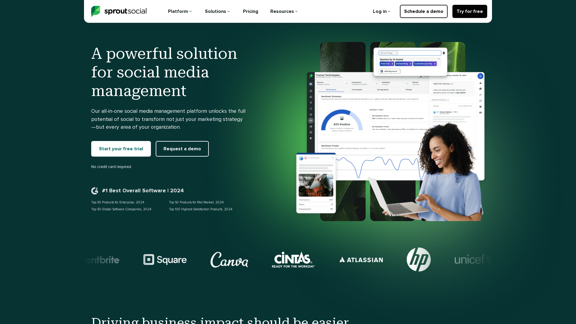
Sprout Social: Social Media Management Solutions

Reimagine how social media can boost your business with Sprout Social. Experience our social media management tools firsthand. Begin your free trial today.
Visit Website
Sprout Social: Social Media Management Solutions
Visit Website

Introduction

Sprout Social is a comprehensive social media management platform designed to revolutionize marketing strategies and impact various aspects of organizations. It offers a wide range of features including engagement tools, publishing capabilities, analytics, listening features, employee advocacy, and influencer marketing. The platform leverages AI technology to streamline processes, save time, and provide actionable insights, allowing teams to focus on strategic and creative thinking.

Feature

All-in-One Social Media Management

Sprout Social provides a unified platform for managing multiple aspects of social media marketing, including:

  • Engagement tools
  • Publishing capabilities
  • Analytics
  • Listening features
  • Employee advocacy
  • Influencer marketing

Advanced Engagement Tools

  • Unified inbox for streamlined customer interactions
  • AI-enhanced agent replies for faster response times
  • Automated routing and chatbots
  • AI-powered message classifications

Powerful Publishing Features

  • Effortless planning, creation, and management of social content
  • Campaign delivery tools for coordinated marketing efforts

Comprehensive Analytics

  • Strategic decision-making support through data-driven insights
  • Customized data and reports for ROI proof

Premium Solutions

  • Advanced listening capabilities for trend uncovering
  • Influencer marketing partnership management
  • Employee advocacy program support

AI and Automation Integration

Sprout Social incorporates AI technology to:

  • Accelerate business processes
  • Save time on routine tasks
  • Provide actionable data insights

Seamless Integrations

  • Integration with various social networks
  • Global Salesforce partnership
  • Easy incorporation into existing workflows

Enterprise-Level Solutions

Comprehensive solutions for large organizations, including:

  • Industry insights
  • Competitive intelligence
  • Customer service
  • Data and analytics

FAQ

What recognition has Sprout Social received?

Sprout Social has been named G2's #1 Best Overall Software Product for 2024, along with several other accolades in various categories.

Is there a free trial available for Sprout Social?

Yes, Sprout Social offers a free trial with no credit card required. Custom pricing is available based on specific needs, and interested parties can contact the company for details.

What resources does Sprout Social provide for users?

Sprout Social offers various resources including:

  • A blog with social media tips and best practices
  • Certification program
  • Case studies
  • Online community (The Arboretum)
  • Webinars
  • Learning portal
  • Help center

Can you provide examples of client success stories?

Some notable client success stories include:

  • Grammarly: Achieved an 80%+ reduction in average time to first response
  • Trek Bikes: Experienced a 1,002% increase in total social engagements
  • Digital Natives: Doubled their average client retainer

Latest Traffic Insights

  • Monthly Visits

    1.75 M

  • Bounce Rate

    44.81%

  • Pages Per Visit

    3.86

  • Time on Site(s)

    240.46

  • Global Rank

    30160

  • Country Rank

    United States 13246

Recent Visits

Traffic Sources

  • Social Media:
    1.85%
  • Paid Referrals:
    0.60%
  • Email:
    0.12%
  • Referrals:
    5.54%
  • Search Engines:
    39.94%
  • Direct:
    51.96%
More Data

Related Websites

Sully.ai - The #1 all-in-one AI solution for saving doctors' time
View Detail

Sully.ai - The #1 all-in-one AI solution for saving doctors' time

Sully.ai - The #1 all-in-one AI solution for saving doctors' time

Sully.ai is an all-in-one AI Medical Assistant designed to save doctors' time by helping them with time-consuming tasks performed before, during, and after patient visits.

42.63 K
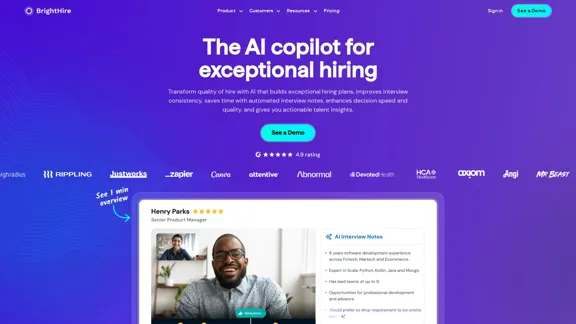
Interview Intelligence Platform for Streamlined Hiring | BrightHire
View Detail

Interview Intelligence Platform for Streamlined Hiring | BrightHire

Interview Intelligence Platform for Streamlined Hiring | BrightHire

An Interview Intelligence platform that creates recruitment strategies, produces interview summaries and key points, provides candidate insights, and offers additional features.

40.01 K
AI Form Fill - Magically Complete Forms with AI
View Detail

AI Form Fill - Magically Complete Forms with AI

AI Form Fill - Magically Complete Forms with AI

AI Form Fill: The browser extension that uses AI to automatically fill out forms for you. Save time and boost productivity with magical form completion.

2.35 K
Yes or No | Tool for Making Decisions & Generating Random Answers
View Detail

Yes or No | Tool for Making Decisions & Generating Random Answers

Yes or No | Tool for Making Decisions & Generating Random Answers

Make difficult decisions easier with YesOrNo.run - the yes or no decision maker. Use our simple online decision maker to get instant answers to your questions.

0
EasyGen | AI to write LinkedIn posts
View Detail

EasyGen | AI to write LinkedIn posts

EasyGen | AI to write LinkedIn posts

After reaching 78 million views on LinkedIn, Ruben Hassid built EasyGen - his AI to write LinkedIn posts.

63.03 K
HeroUI Chat
View Detail

HeroUI Chat

HeroUI Chat

Generate beautiful apps regardless of your design experience; AI turns your ideas into reality.

58.75 K
UCG - Chrome Web Store
View Detail

UCG - Chrome Web Store

UCG - Chrome Web Store

ChatGPT without leaving the tab or visible chat!

193.90 M
Copilot for Microsoft 365 – Microsoft Adoption

Copilot for Microsoft 365 is a powerful AI assistant that helps you work smarter and faster across Microsoft 365 apps and services. It combines the power of large language models (LLMs) with your organization's data in the Microsoft Graph and Microsoft 365 apps to turn your words into the most powerful productivity tool on the planet.

Copilot is designed to help you:

• Unleash creativity
• Unlock productivity
• Uplevel skills

Copilot is built on Microsoft's comprehensive approach to security, compliance, and privacy. Copilot in Microsoft 365 apps and services:

• Does not use your data to train the underlying LLM
• Does not replace human ingenuity and judgment
• Is designed to keep humans in the loop

Copilot is currently available in Word, Excel, PowerPoint, Outlook, Teams, and more.

Getting Started with Copilot

To get started with Copilot, follow these steps:

1. Check availability: Ensure your organization has access to Copilot.
2. Learn the basics: Familiarize yourself with Copilot's capabilities and how to use it effectively.
3. Explore use cases: Discover how Copilot can help you in your specific role and tasks.
4. Practice and refine: Use Copilot regularly and refine your prompts for better results.
5. Share and collaborate: Collaborate with colleagues using Copilot and share best practices.

Best Practices for Using Copilot

1. Be specific in your prompts
2. Provide context for better results
3. Review and edit Copilot's output
4. Use Copilot as a starting point, not a final product
5. Experiment with different approaches
6. Stay informed about new features and updates

Copilot in Different Microsoft 365 Apps

• Word: Draft, edit, summarize, and rewrite content
• Excel: Analyze data, create formulas, and generate insights
• PowerPoint: Create presentations, design slides, and generate content
• Outlook: Compose emails, summarize threads, and manage your inbox
• Teams: Summarize meetings, generate action items, and create meeting notes

Responsible AI and Copilot

Microsoft is committed to developing AI systems responsibly. When using Copilot, keep in mind:

• AI-generated content may contain biases or inaccuracies
• Always review and verify Copilot's output
• Use your judgment and expertise alongside Copilot's suggestions
• Be aware of your organization's policies regarding AI use

Conclusion

Copilot for Microsoft 365 is a powerful tool that can significantly enhance your productivity and creativity. By understanding its capabilities, following best practices, and using it responsibly, you can make the most of this AI assistant in your daily work.
View Detail

Copilot for Microsoft 365 – Microsoft Adoption Copilot for Microsoft 365 is a powerful AI assistant that helps you work smarter and faster across Microsoft 365 apps and services. It combines the power of large language models (LLMs) with your organization's data in the Microsoft Graph and Microsoft 365 apps to turn your words into the most powerful productivity tool on the planet. Copilot is designed to help you: • Unleash creativity • Unlock productivity • Uplevel skills Copilot is built on Microsoft's comprehensive approach to security, compliance, and privacy. Copilot in Microsoft 365 apps and services: • Does not use your data to train the underlying LLM • Does not replace human ingenuity and judgment • Is designed to keep humans in the loop Copilot is currently available in Word, Excel, PowerPoint, Outlook, Teams, and more. Getting Started with Copilot To get started with Copilot, follow these steps: 1. Check availability: Ensure your organization has access to Copilot. 2. Learn the basics: Familiarize yourself with Copilot's capabilities and how to use it effectively. 3. Explore use cases: Discover how Copilot can help you in your specific role and tasks. 4. Practice and refine: Use Copilot regularly and refine your prompts for better results. 5. Share and collaborate: Collaborate with colleagues using Copilot and share best practices. Best Practices for Using Copilot 1. Be specific in your prompts 2. Provide context for better results 3. Review and edit Copilot's output 4. Use Copilot as a starting point, not a final product 5. Experiment with different approaches 6. Stay informed about new features and updates Copilot in Different Microsoft 365 Apps • Word: Draft, edit, summarize, and rewrite content • Excel: Analyze data, create formulas, and generate insights • PowerPoint: Create presentations, design slides, and generate content • Outlook: Compose emails, summarize threads, and manage your inbox • Teams: Summarize meetings, generate action items, and create meeting notes Responsible AI and Copilot Microsoft is committed to developing AI systems responsibly. When using Copilot, keep in mind: • AI-generated content may contain biases or inaccuracies • Always review and verify Copilot's output • Use your judgment and expertise alongside Copilot's suggestions • Be aware of your organization's policies regarding AI use Conclusion Copilot for Microsoft 365 is a powerful tool that can significantly enhance your productivity and creativity. By understanding its capabilities, following best practices, and using it responsibly, you can make the most of this AI assistant in your daily work.

Copilot for Microsoft 365 – Microsoft Adoption Copilot for Microsoft 365 is a powerful AI assistant that helps you work smarter and faster across Microsoft 365 apps and services. It combines the power of large language models (LLMs) with your organization's data in the Microsoft Graph and Microsoft 365 apps to turn your words into the most powerful productivity tool on the planet. Copilot is designed to help you: • Unleash creativity • Unlock productivity • Uplevel skills Copilot is built on Microsoft's comprehensive approach to security, compliance, and privacy. Copilot in Microsoft 365 apps and services: • Does not use your data to train the underlying LLM • Does not replace human ingenuity and judgment • Is designed to keep humans in the loop Copilot is currently available in Word, Excel, PowerPoint, Outlook, Teams, and more. Getting Started with Copilot To get started with Copilot, follow these steps: 1. Check availability: Ensure your organization has access to Copilot. 2. Learn the basics: Familiarize yourself with Copilot's capabilities and how to use it effectively. 3. Explore use cases: Discover how Copilot can help you in your specific role and tasks. 4. Practice and refine: Use Copilot regularly and refine your prompts for better results. 5. Share and collaborate: Collaborate with colleagues using Copilot and share best practices. Best Practices for Using Copilot 1. Be specific in your prompts 2. Provide context for better results 3. Review and edit Copilot's output 4. Use Copilot as a starting point, not a final product 5. Experiment with different approaches 6. Stay informed about new features and updates Copilot in Different Microsoft 365 Apps • Word: Draft, edit, summarize, and rewrite content • Excel: Analyze data, create formulas, and generate insights • PowerPoint: Create presentations, design slides, and generate content • Outlook: Compose emails, summarize threads, and manage your inbox • Teams: Summarize meetings, generate action items, and create meeting notes Responsible AI and Copilot Microsoft is committed to developing AI systems responsibly. When using Copilot, keep in mind: • AI-generated content may contain biases or inaccuracies • Always review and verify Copilot's output • Use your judgment and expertise alongside Copilot's suggestions • Be aware of your organization's policies regarding AI use Conclusion Copilot for Microsoft 365 is a powerful tool that can significantly enhance your productivity and creativity. By understanding its capabilities, following best practices, and using it responsibly, you can make the most of this AI assistant in your daily work.

Microsoft Copilot combines the power of large language models (LLMs) with your organization's data to turn your words into one of the most powerful productivity tools on the planet.

608.60 K