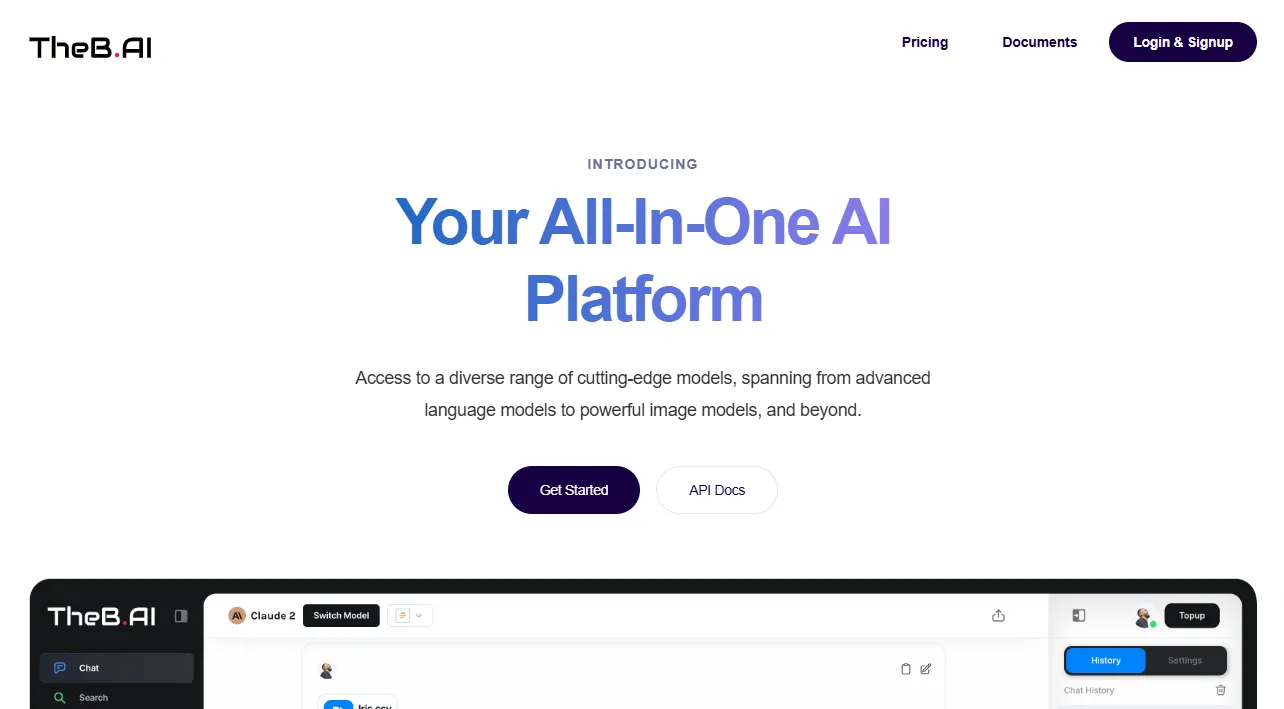
TheB.AI is an all-in-one AI platform offering access to diverse AI models, including language, image generation, and more. It allows users to integrate AI into their workflows via the web or API, making it accessible for teams and enterprises.
TheB.AI
Your All-In-One AI Platform
Access to a diverse range of cutting-edge models, spanning from advanced language models to powerful image models, and beyond.
Introduction
Feature
- Multiple AI models: Supports various cutting-edge AI models for text, image, and more.
- Web and API access: Easily integrate with workflows or build custom applications.
- Custom personas: Tailor model behavior using system messages.
- Long-term memory: Retain conversational context for extended periods.
- Image generation: Generate images with customizable parameters.
How to Use?
- Create an account for free.
- Use API keys for advanced custom integrations.
- Explore long-term memory for personalized user experiences.
FAQ
Can I use TheB.AI for free?
Yes, free usage is available with potential speed variation.
How does billing work?
Usage-based billing, with future subscription options.
Can it be used by teams?
Yes, TheB.AI supports team collaboration.
Price
Free plan available. Paid models and features use a pay-as-you-go system. Subscription plans are coming soon.
The price is for reference only, please refer to the latest official data for actual information.
Evaluation
TheB.AI excels in offering flexible AI tools with strong customization options. While its free version is useful, high-traffic periods may slow response times. Its focus on team integration is a highlight, but clearer pricing on premium features could improve user transparency.
Related Websites
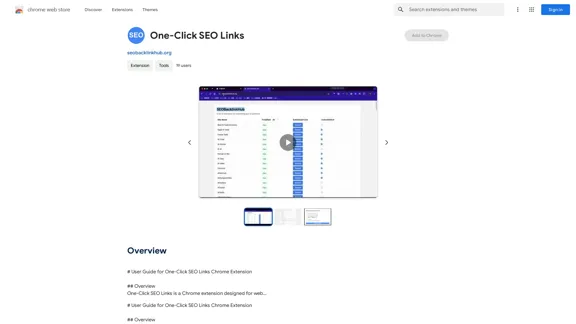
# User Guide for One-Click SEO Links Chrome Extension ## Overview One-Click SEO Links is a Chrome extension designed for web developers and SEO professionals. It allows users to quickly generate and copy various SEO-related links for the current webpage with just one click. ## Features - Generate and copy Google Cache link - Generate and copy Google Index link - Generate and copy Wayback Machine link - Generate and copy PageSpeed Insights link - Generate and copy Mobile-Friendly Test link - Generate and copy Rich Results Test link ## Installation 1. Open the Chrome Web Store 2. Search for "One-Click SEO Links" 3. Click "Add to Chrome" 4. Confirm the installation when prompted ## How to Use 1. Navigate to the webpage you want to analyze 2. Click on the One-Click SEO Links extension icon in your Chrome toolbar 3. Select the desired link type from the dropdown menu 4. The link will be automatically copied to your clipboard 5. Paste the link into your desired location (e.g., browser address bar, document, etc.) ## Troubleshooting If you encounter any issues: - Ensure you have the latest version of the extension installed - Try refreshing the webpage - Restart your Chrome browser - If problems persist, please contact our support team ## Privacy Policy We do not collect or store any personal data. The extension only accesses the current tab's URL to generate the SEO links. ## Feedback and Support For feedback, suggestions, or support, please email us at [email protected] or visit our website www.oneclickseolinks.com. Thank you for using One-Click SEO Links!
193.90 M
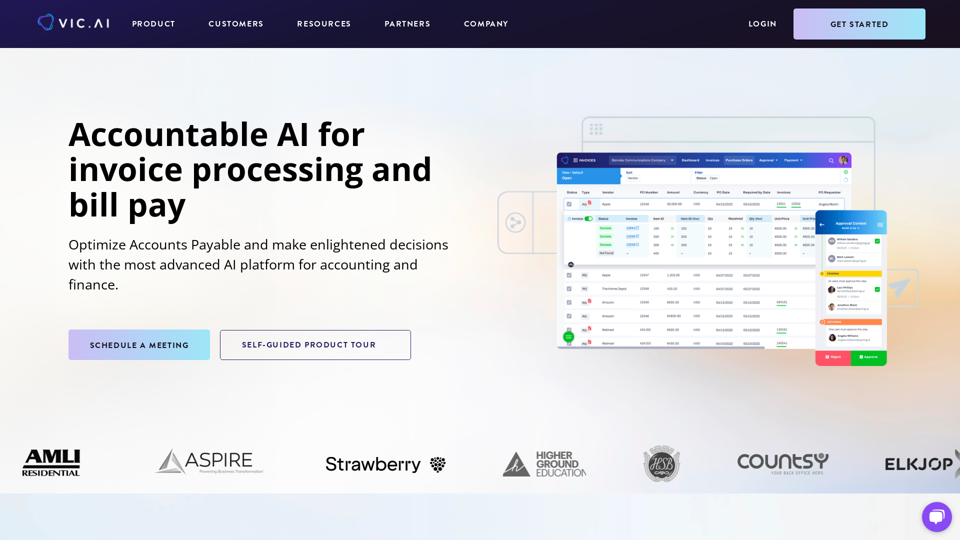
Accounting AI software for faster invoice processing
Accounting AI software for faster invoice processingTransform invoice processing and enhance PO matching with Vic.ai's autonomous accounting solutions. Our platform offers robust AI capabilities, ensuring accuracy and speed in your financial operations and elevating your accounts payable process.
79.80 K
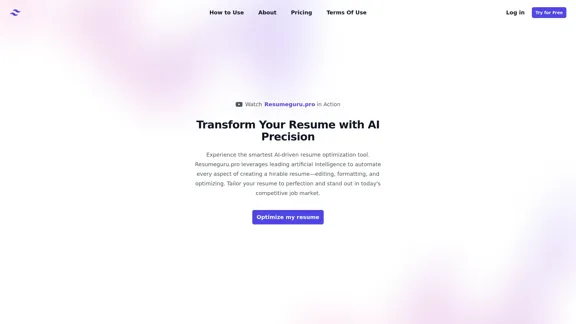
Resumeguru.pro is an advanced AI-powered resume optimization tool designed to transform and enhance job seekers' resumes. By leveraging cutting-edge artificial intelligence technology, it automates the entire process of creating a highly effective and hirable resume, including editing, formatting, and optimization. This innovative platform aims to help users stand out in the competitive job market by tailoring their resumes to perfection.
0
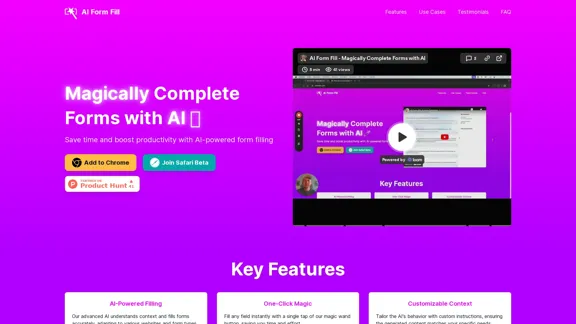
AI Form Fill: The browser extension that uses AI to automatically fill out forms for you. Save time and boost productivity with magical form completion.
2.35 K
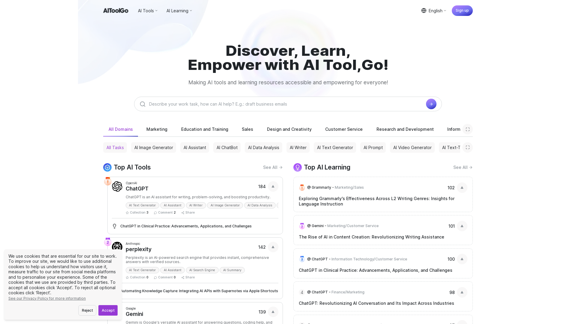
Discover and Learn AI Tools with AiToolGo | Your AI Learning Platform
Discover and Learn AI Tools with AiToolGo | Your AI Learning PlatformFind the best AI tools and learning resources tailored to your needs at AiToolGo. Empower your AI journey with solutions for everyone, regardless of background or expertise. Join our community today!
65.31 K
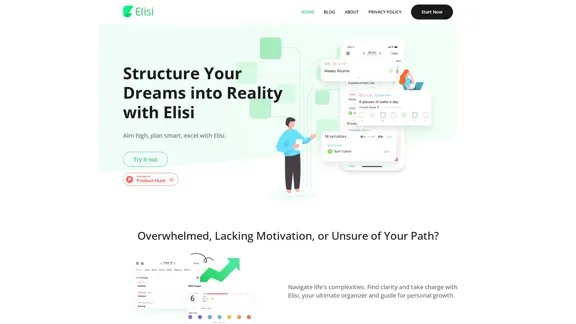
Digital All-in-One Planner for Productivity & Time Management | Elisi
Digital All-in-One Planner for Productivity & Time Management | ElisiElisi is a user-friendly, cross-device All-in-one Planner to help you improve personal productivity and manage your time effectively. Features include pre-templated modules in a bullet journal along with task planning, habit tracking, project management and note taking. Try Elisi on your iPhone or Android device today!
8.90 K
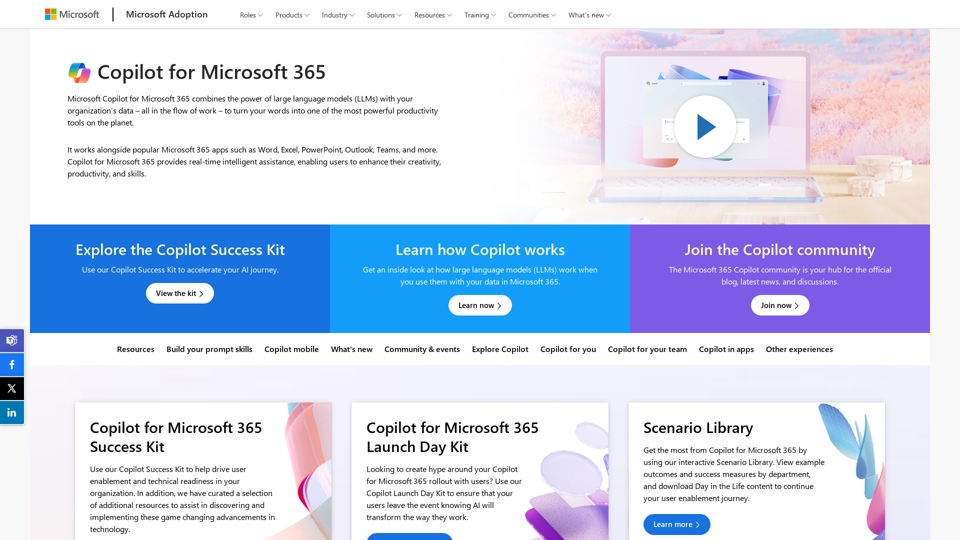
Copilot for Microsoft 365 – Microsoft Adoption Copilot for Microsoft 365 is a powerful AI assistant that helps you work smarter and faster across Microsoft 365 apps and services. It combines the power of large language models (LLMs) with your organization's data in the Microsoft Graph and Microsoft 365 apps to turn your words into the most powerful productivity tool on the planet. Copilot is designed to help you: • Unleash creativity • Unlock productivity • Uplevel skills Copilot is built on Microsoft's comprehensive approach to security, compliance, and privacy. Copilot in Microsoft 365 apps and services: • Does not use your data to train the underlying LLM • Does not replace human ingenuity and judgment • Is designed to keep humans in the loop Copilot is currently available in Word, Excel, PowerPoint, Outlook, Teams, and more. Getting Started with Copilot To get started with Copilot, follow these steps: 1. Check availability: Ensure your organization has access to Copilot. 2. Learn the basics: Familiarize yourself with Copilot's capabilities and how to use it effectively. 3. Explore use cases: Discover how Copilot can help you in your specific role and tasks. 4. Practice and refine: Use Copilot regularly and refine your prompts for better results. 5. Share and collaborate: Collaborate with colleagues using Copilot and share best practices. Best Practices for Using Copilot 1. Be specific in your prompts 2. Provide context for better results 3. Review and edit Copilot's output 4. Use Copilot as a starting point, not a final product 5. Experiment with different approaches 6. Stay informed about new features and updates Copilot in Different Microsoft 365 Apps • Word: Draft, edit, summarize, and rewrite content • Excel: Analyze data, create formulas, and generate insights • PowerPoint: Create presentations, design slides, and generate content • Outlook: Compose emails, summarize threads, and manage your inbox • Teams: Summarize meetings, generate action items, and create meeting notes Responsible AI and Copilot Microsoft is committed to developing AI systems responsibly. When using Copilot, keep in mind: • AI-generated content may contain biases or inaccuracies • Always review and verify Copilot's output • Use your judgment and expertise alongside Copilot's suggestions • Be aware of your organization's policies regarding AI use Conclusion Copilot for Microsoft 365 is a powerful tool that can significantly enhance your productivity and creativity. By understanding its capabilities, following best practices, and using it responsibly, you can make the most of this AI assistant in your daily work.
Copilot for Microsoft 365 – Microsoft Adoption Copilot for Microsoft 365 is a powerful AI assistant that helps you work smarter and faster across Microsoft 365 apps and services. It combines the power of large language models (LLMs) with your organization's data in the Microsoft Graph and Microsoft 365 apps to turn your words into the most powerful productivity tool on the planet. Copilot is designed to help you: • Unleash creativity • Unlock productivity • Uplevel skills Copilot is built on Microsoft's comprehensive approach to security, compliance, and privacy. Copilot in Microsoft 365 apps and services: • Does not use your data to train the underlying LLM • Does not replace human ingenuity and judgment • Is designed to keep humans in the loop Copilot is currently available in Word, Excel, PowerPoint, Outlook, Teams, and more. Getting Started with Copilot To get started with Copilot, follow these steps: 1. Check availability: Ensure your organization has access to Copilot. 2. Learn the basics: Familiarize yourself with Copilot's capabilities and how to use it effectively. 3. Explore use cases: Discover how Copilot can help you in your specific role and tasks. 4. Practice and refine: Use Copilot regularly and refine your prompts for better results. 5. Share and collaborate: Collaborate with colleagues using Copilot and share best practices. Best Practices for Using Copilot 1. Be specific in your prompts 2. Provide context for better results 3. Review and edit Copilot's output 4. Use Copilot as a starting point, not a final product 5. Experiment with different approaches 6. Stay informed about new features and updates Copilot in Different Microsoft 365 Apps • Word: Draft, edit, summarize, and rewrite content • Excel: Analyze data, create formulas, and generate insights • PowerPoint: Create presentations, design slides, and generate content • Outlook: Compose emails, summarize threads, and manage your inbox • Teams: Summarize meetings, generate action items, and create meeting notes Responsible AI and Copilot Microsoft is committed to developing AI systems responsibly. When using Copilot, keep in mind: • AI-generated content may contain biases or inaccuracies • Always review and verify Copilot's output • Use your judgment and expertise alongside Copilot's suggestions • Be aware of your organization's policies regarding AI use Conclusion Copilot for Microsoft 365 is a powerful tool that can significantly enhance your productivity and creativity. By understanding its capabilities, following best practices, and using it responsibly, you can make the most of this AI assistant in your daily work.Microsoft Copilot combines the power of large language models (LLMs) with your organization's data to turn your words into one of the most powerful productivity tools on the planet.
608.60 K