Open-source RightAI Tools Directory
  • Discover AI
  • Submit
  • Startup
  • Blog
Open-source RightAI Tools Directory
Discover the best AI tools of 2025 with the RightAI Tools Directory!

Friend Links

AI Anime GeneratorToolsApp AI

Support

Tap4
Privacy policyTerms & ConditionsContact Us
Loading...
loading...

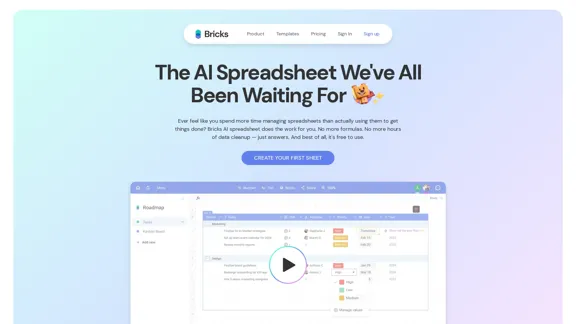
The AI Spreadsheet Everyone Has Been Anticipating

Ever feel like you spend more time managing spreadsheets than actually using them to get things done? Bricks AI spreadsheet does the work for you. No more formulas. No more hours of data cleanup — just answers. And best of all, it's free to use.
Visit Website
The AI Spreadsheet Everyone Has Been Anticipating
Visit Website

Introduction

Bricks is an innovative AI-powered spreadsheet tool designed to streamline the process of creating reports, dashboards, and visuals. It eliminates the need for complex formulas and extensive data cleanup, allowing users to focus on generating insights and results quickly. With a strong emphasis on privacy and security, Bricks ensures that user data is protected while providing a user-friendly experience.

Feature

  1. AI-Powered Creation

    Bricks allows users to create various types of documents, including reports, dashboards, and presentations, in seconds by simply describing what they want. The AI processes the input and generates the desired output without the need for manual data manipulation.

  2. Pre-Built Templates

    The tool offers a collection of pre-built templates designed by industry experts, enabling users to get started quickly and efficiently. These templates cater to various use cases across different teams, such as sales, marketing, and operations.

  3. Visual Data Representation

    Users can create charts, timelines, roadmaps, and other visuals directly from their spreadsheet data. This feature enhances data analysis and presentation, making it easier to communicate insights.

  4. AI Assistant

    The built-in AI assistant helps users automate repetitive tasks, such as data cleanup and organization, allowing them to focus on more strategic activities.

  5. Privacy and Security

    Bricks prioritizes user privacy by ensuring that all data is encrypted and securely stored. User data is not used for AI training, providing peace of mind regarding data protection.

  6. User-Friendly Interface

    The intuitive interface of Bricks makes it accessible for users of all skill levels, eliminating the need for spreadsheet expertise to achieve professional results.

How to Use?

  1. Explore Templates: Start by browsing through the pre-built templates to find one that suits your needs.

  2. Utilize the AI Assistant: Take advantage of the AI assistant to automate repetitive tasks and streamline your workflow.

  3. Experiment with Visuals: Use the visual creation feature to enhance your reports and presentations, making data more engaging.

  4. Focus on Data Security: Ensure that you understand the privacy features of Bricks to keep your data secure.

FAQ

What is Bricks?

Bricks is an AI-powered spreadsheet tool that simplifies the creation of reports, dashboards, and visuals, making it accessible to users without extensive spreadsheet expertise.

How does Bricks work?

Bricks uses AI to generate documents based on user descriptions, eliminating the need for complex formulas and manual data manipulation.

Can I use Bricks for team collaboration?

Yes, Bricks is designed to enhance team collaboration by providing tools for creating shared reports and visuals that can be easily accessed and edited by team members.

Is my data safe with Bricks?

Absolutely. Bricks prioritizes user privacy and security, ensuring that all data is encrypted and never used for AI training.

Price

  • Free plan: $0/month
  • Basic plan: $9.99/month
  • Standard plan: $19.99/month
  • Professional plan: $49.99/month
The price is for reference only, please refer to the latest official data for actual information.

Evaluation

  1. Bricks effectively simplifies the spreadsheet experience, allowing users to create complex reports and visuals without needing advanced skills.
  2. The AI-powered features significantly reduce the time spent on data management, making it a valuable tool for busy professionals.
  3. However, users may encounter limitations in customization options, which could restrict advanced users looking for more control over their data.
  4. The pricing structure offers a free plan, but the value of paid plans may need to be assessed based on individual user needs and frequency of use.
  5. Overall, Bricks presents a compelling solution for those seeking to enhance productivity and streamline their spreadsheet tasks, though it may not fully meet the demands of advanced users.

Latest Traffic Insights

  • Monthly Visits

    705.85 K

  • Bounce Rate

    43.99%

  • Pages Per Visit

    2.97

  • Time on Site(s)

    86.29

  • Global Rank

    70594

  • Country Rank

    United States 65571

Recent Visits

Traffic Sources

  • Social Media:
    1.87%
  • Paid Referrals:
    0.61%
  • Email:
    0.07%
  • Referrals:
    4.44%
  • Search Engines:
    69.25%
  • Direct:
    23.75%
More Data

Related Websites

The AI Cloud for Banks, Insurers and Financial Services
View Detail

The AI Cloud for Banks, Insurers and Financial Services

The AI Cloud for Banks, Insurers and Financial Services

Arya.ai is the 'AI Cloud' for Banks, Insurers and Financial Services to expedite the adoption of AI that is responsible, accurate and auditable.

108.58 K
Cove
View Detail

Cove

Cove

Visual workspace for thinking with AI

21.16 K
AI Generators
View Detail

AI Generators

AI Generators

Generate ideas, stories, poems, jokes, and more with AI.

0
Dashboard
View Detail

Dashboard

Dashboard

56.03 K
Translation tool for professionals | SYSTRAN
View Detail

Translation tool for professionals | SYSTRAN

Translation tool for professionals | SYSTRAN

Translate texts, documents and much more in over 55 languages with SYSTRAN's fully secure professional translation solutions. API & CAT Tool integration

314.63 K
Receipt OCR API: Precise Data Extraction Tool | ReceiptUp
View Detail

Receipt OCR API: Precise Data Extraction Tool | ReceiptUp

Receipt OCR API: Precise Data Extraction Tool | ReceiptUp

Transform your receipt management with our advanced OCR API. Experience fast, accurate data extraction for streamlined workflow and improved efficiency.

0
ChatPRD | An AI Copilot for Product Work
View Detail

ChatPRD | An AI Copilot for Product Work

ChatPRD | An AI Copilot for Product Work

An on-demand Chief Product Officer who creates and enhances your Product Requirements Documents (PRDs), while mentoring you to become a top-tier Product Manager.

162.60 K
Copilot for Microsoft 365 – Microsoft Adoption

Copilot for Microsoft 365 is a powerful AI assistant that helps you work smarter and faster across Microsoft 365 apps and services. It combines the power of large language models (LLMs) with your organization's data in the Microsoft Graph and Microsoft 365 apps to turn your words into the most powerful productivity tool on the planet.

Copilot is designed to help you:

• Unleash creativity
• Unlock productivity
• Uplevel skills

Copilot is built on Microsoft's comprehensive approach to security, compliance, and privacy. Copilot in Microsoft 365 apps and services:

• Does not use your data to train the underlying LLM
• Does not replace human ingenuity and judgment
• Is designed to keep humans in the loop

Copilot is currently available in Word, Excel, PowerPoint, Outlook, Teams, and more.

Getting Started with Copilot

To get started with Copilot, follow these steps:

1. Check availability: Ensure your organization has access to Copilot.
2. Learn the basics: Familiarize yourself with Copilot's capabilities and how to use it effectively.
3. Explore use cases: Discover how Copilot can help you in your specific role and tasks.
4. Practice and refine: Use Copilot regularly and refine your prompts for better results.
5. Share and collaborate: Collaborate with colleagues using Copilot and share best practices.

Best Practices for Using Copilot

1. Be specific in your prompts
2. Provide context for better results
3. Review and edit Copilot's output
4. Use Copilot as a starting point, not a final product
5. Experiment with different approaches
6. Stay informed about new features and updates

Copilot in Different Microsoft 365 Apps

• Word: Draft, edit, summarize, and rewrite content
• Excel: Analyze data, create formulas, and generate insights
• PowerPoint: Create presentations, design slides, and generate content
• Outlook: Compose emails, summarize threads, and manage your inbox
• Teams: Summarize meetings, generate action items, and create meeting notes

Responsible AI and Copilot

Microsoft is committed to developing AI systems responsibly. When using Copilot, keep in mind:

• AI-generated content may contain biases or inaccuracies
• Always review and verify Copilot's output
• Use your judgment and expertise alongside Copilot's suggestions
• Be aware of your organization's policies regarding AI use

Conclusion

Copilot for Microsoft 365 is a powerful tool that can significantly enhance your productivity and creativity. By understanding its capabilities, following best practices, and using it responsibly, you can make the most of this AI assistant in your daily work.
View Detail

Copilot for Microsoft 365 – Microsoft Adoption Copilot for Microsoft 365 is a powerful AI assistant that helps you work smarter and faster across Microsoft 365 apps and services. It combines the power of large language models (LLMs) with your organization's data in the Microsoft Graph and Microsoft 365 apps to turn your words into the most powerful productivity tool on the planet. Copilot is designed to help you: • Unleash creativity • Unlock productivity • Uplevel skills Copilot is built on Microsoft's comprehensive approach to security, compliance, and privacy. Copilot in Microsoft 365 apps and services: • Does not use your data to train the underlying LLM • Does not replace human ingenuity and judgment • Is designed to keep humans in the loop Copilot is currently available in Word, Excel, PowerPoint, Outlook, Teams, and more. Getting Started with Copilot To get started with Copilot, follow these steps: 1. Check availability: Ensure your organization has access to Copilot. 2. Learn the basics: Familiarize yourself with Copilot's capabilities and how to use it effectively. 3. Explore use cases: Discover how Copilot can help you in your specific role and tasks. 4. Practice and refine: Use Copilot regularly and refine your prompts for better results. 5. Share and collaborate: Collaborate with colleagues using Copilot and share best practices. Best Practices for Using Copilot 1. Be specific in your prompts 2. Provide context for better results 3. Review and edit Copilot's output 4. Use Copilot as a starting point, not a final product 5. Experiment with different approaches 6. Stay informed about new features and updates Copilot in Different Microsoft 365 Apps • Word: Draft, edit, summarize, and rewrite content • Excel: Analyze data, create formulas, and generate insights • PowerPoint: Create presentations, design slides, and generate content • Outlook: Compose emails, summarize threads, and manage your inbox • Teams: Summarize meetings, generate action items, and create meeting notes Responsible AI and Copilot Microsoft is committed to developing AI systems responsibly. When using Copilot, keep in mind: • AI-generated content may contain biases or inaccuracies • Always review and verify Copilot's output • Use your judgment and expertise alongside Copilot's suggestions • Be aware of your organization's policies regarding AI use Conclusion Copilot for Microsoft 365 is a powerful tool that can significantly enhance your productivity and creativity. By understanding its capabilities, following best practices, and using it responsibly, you can make the most of this AI assistant in your daily work.

Copilot for Microsoft 365 – Microsoft Adoption Copilot for Microsoft 365 is a powerful AI assistant that helps you work smarter and faster across Microsoft 365 apps and services. It combines the power of large language models (LLMs) with your organization's data in the Microsoft Graph and Microsoft 365 apps to turn your words into the most powerful productivity tool on the planet. Copilot is designed to help you: • Unleash creativity • Unlock productivity • Uplevel skills Copilot is built on Microsoft's comprehensive approach to security, compliance, and privacy. Copilot in Microsoft 365 apps and services: • Does not use your data to train the underlying LLM • Does not replace human ingenuity and judgment • Is designed to keep humans in the loop Copilot is currently available in Word, Excel, PowerPoint, Outlook, Teams, and more. Getting Started with Copilot To get started with Copilot, follow these steps: 1. Check availability: Ensure your organization has access to Copilot. 2. Learn the basics: Familiarize yourself with Copilot's capabilities and how to use it effectively. 3. Explore use cases: Discover how Copilot can help you in your specific role and tasks. 4. Practice and refine: Use Copilot regularly and refine your prompts for better results. 5. Share and collaborate: Collaborate with colleagues using Copilot and share best practices. Best Practices for Using Copilot 1. Be specific in your prompts 2. Provide context for better results 3. Review and edit Copilot's output 4. Use Copilot as a starting point, not a final product 5. Experiment with different approaches 6. Stay informed about new features and updates Copilot in Different Microsoft 365 Apps • Word: Draft, edit, summarize, and rewrite content • Excel: Analyze data, create formulas, and generate insights • PowerPoint: Create presentations, design slides, and generate content • Outlook: Compose emails, summarize threads, and manage your inbox • Teams: Summarize meetings, generate action items, and create meeting notes Responsible AI and Copilot Microsoft is committed to developing AI systems responsibly. When using Copilot, keep in mind: • AI-generated content may contain biases or inaccuracies • Always review and verify Copilot's output • Use your judgment and expertise alongside Copilot's suggestions • Be aware of your organization's policies regarding AI use Conclusion Copilot for Microsoft 365 is a powerful tool that can significantly enhance your productivity and creativity. By understanding its capabilities, following best practices, and using it responsibly, you can make the most of this AI assistant in your daily work.

Microsoft Copilot combines the power of large language models (LLMs) with your organization's data to turn your words into one of the most powerful productivity tools on the planet.

608.60 K