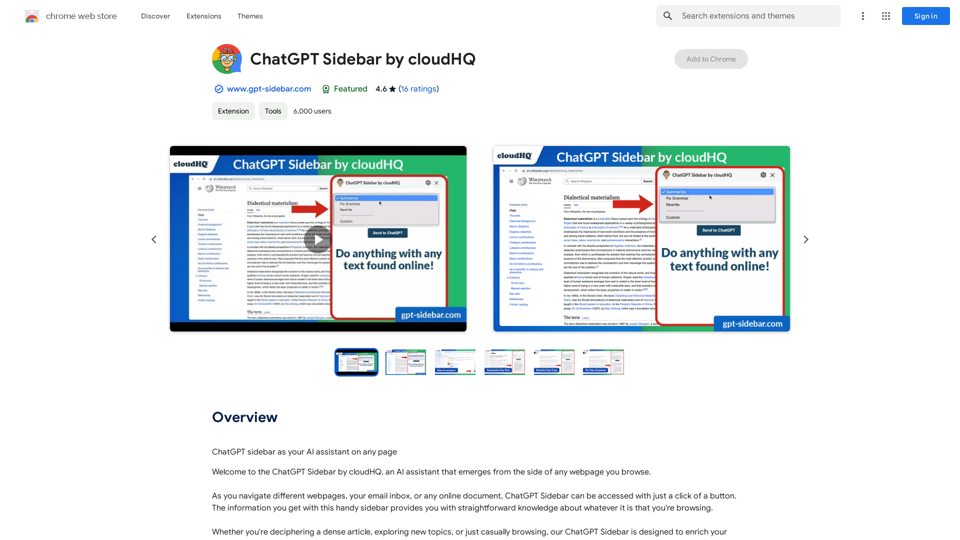
ChatGPT Sidebar 是一個創新的 AI 助手,能無縫整合到您的網頁瀏覽體驗中。這個強大的工具會出現在任何網頁的側邊,提供與您正在瀏覽的內容相關的即時知識和協助。無論您是在處理複雜的文章、探索新主題,還是只是隨意瀏覽,ChatGPT Sidebar 都能以 AI 驅動的洞察力和功能來增強您的線上體驗。
ChatGPT 側邊欄 by cloudHQ
在任何網頁上,將 ChatGPT 側邊欄作為您的 AI 助理。
介紹
功能
AI 驅動的網頁協助
ChatGPT Sidebar 為您正在瀏覽的任何網頁提供直接的知識,幫助您解讀複雜的文章、探索新主題或增強隨意瀏覽的體驗。
多功能提示功能
在各個網站上使用 ChatGPT 提示進行各種任務:
- 內容摘要
- 文本重寫
- 語法檢查
- 翻譯
- 代碼解釋
- 網頁摘要
可自定義的提示庫
訪問現成的提示庫,並能夠進一步自定義提示以滿足特定需求。
全面的 ChatGPT 支持
完全支持 ChatGPT-4 和 ChatGPT-3.5 模型,確保能夠使用最新的 AI 功能。
OpenAI API 整合
完全支持 OpenAI API,允許進行高級功能和自定義。
提示管理
強大的提示管理功能,用於組織和優化您的 AI 互動。
易用的界面
簡單的三步流程:
- 訪問任何網站
- 選擇所需文本
- 點擊 ChatGPT Sidebar 圖標並選擇提示
常見問題
如何使用 ChatGPT Sidebar?
使用 ChatGPT Sidebar:
- 導航到任何網站
- 選擇您想分析的文本
- 點擊屏幕右側的 ChatGPT Sidebar 圖標
- 選擇一個提示並點擊"發送到 ChatGPT"
使用 ChatGPT Sidebar 的主要好處是什麼?
主要好處包括:
- 跨網站使用 ChatGPT 提示進行各種任務
- 訪問可自定義的提示庫
- 完全支持 ChatGPT-4 和 ChatGPT-3.5 模型
如何開始使用 ChatGPT Sidebar?
開始使用:
- 從 Chrome 網上應用店下載並安裝擴展程序
- 按照設置提示創建您的帳戶
- 開始在任何網頁上使用 ChatGPT Sidebar
在哪裡可以找到 ChatGPT Sidebar 的價格信息?
價格詳情可在官方網站上查看:https://www.gpt-sidebar.com/pricing
相關網站

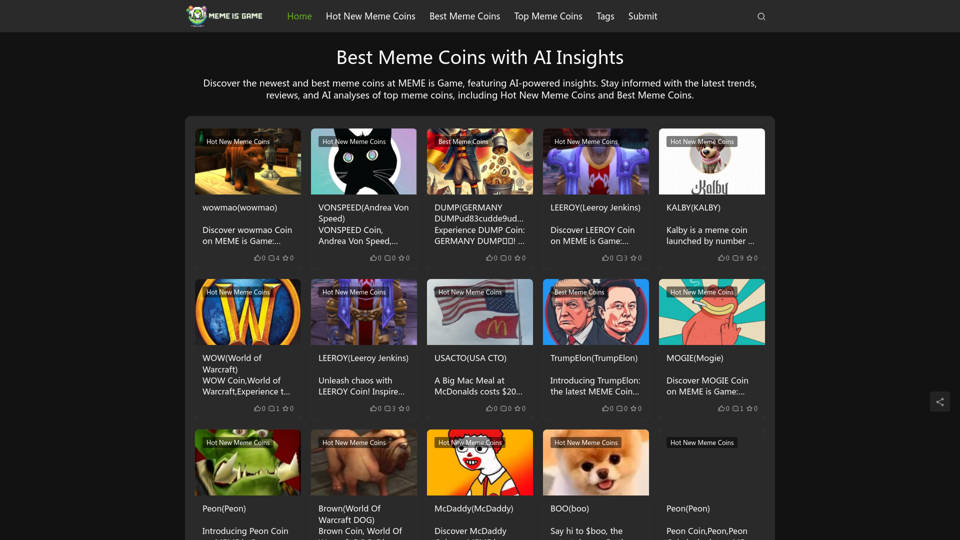
最佳 AI 洞察力加密貨幣於 MEME 遊戲 * Dogecoin (DOGE): 經典的狗狗幣,擁有龐大的社群支持。 * Shiba Inu (SHIB): 以狗狗為主題的加密貨幣,價格波動劇烈。 * Floki Inu (FLOKI): 以 Elon Musk 的狗狗為名,吸引了許多關注。 * Pepe Coin (PEPE): 以經典網路梗圖為靈感,迅速崛起。 * Bonk Inu (BONK): 以狗狗為主題,強調社區參與和去中心化。
最佳 AI 洞察力加密貨幣於 MEME 遊戲 * Dogecoin (DOGE): 經典的狗狗幣,擁有龐大的社群支持。 * Shiba Inu (SHIB): 以狗狗為主題的加密貨幣,價格波動劇烈。 * Floki Inu (FLOKI): 以 Elon Musk 的狗狗為名,吸引了許多關注。 * Pepe Coin (PEPE): 以經典網路梗圖為靈感,迅速崛起。 * Bonk Inu (BONK): 以狗狗為主題,強調社區參與和去中心化。在 MEME is Game 探索最新和最佳的 meme 代幣,並擁有由人工智能驅動的洞察力。 隨時掌握最新的趨勢、評論和頂級 meme 代幣的人工智能分析,包括熱門新 meme 代幣和最佳 meme 代幣。
0
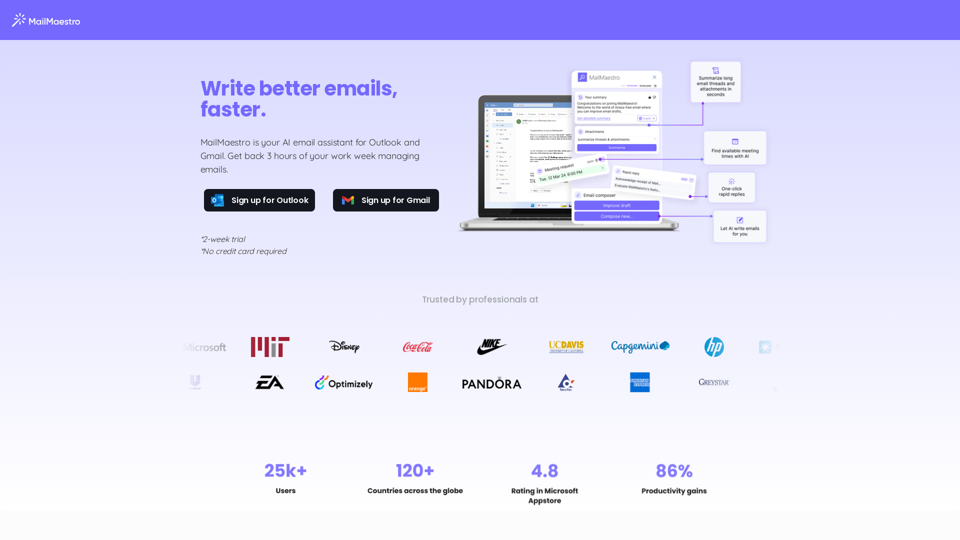
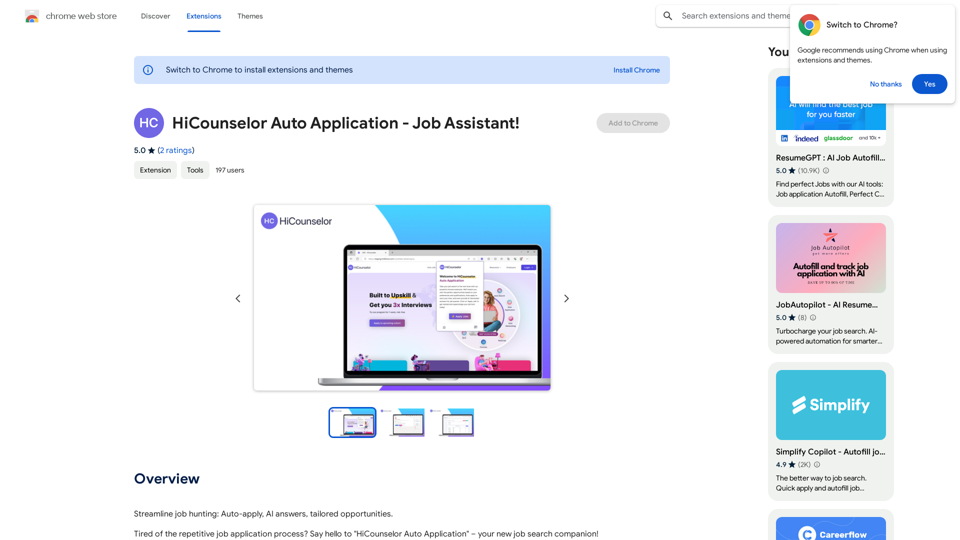
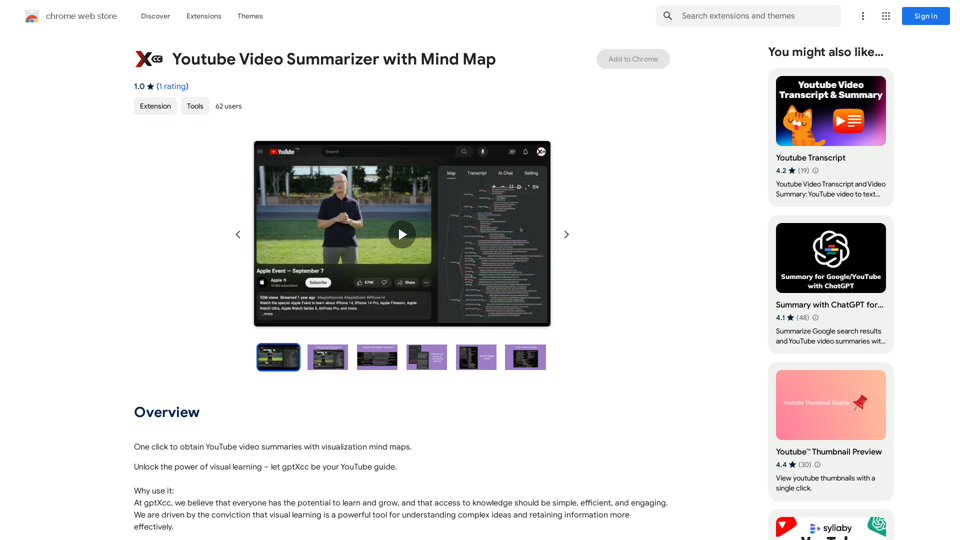
YouTube 影片摘要器與思維導圖 功能: * 自動從 YouTube 影片中提取關鍵資訊。 * 生成簡潔易懂的影片摘要。 * 以思維導圖形式呈現影片內容,幫助理解影片結構和重點。 優勢: * 節省時間,快速掌握影片重點。 * 提升學習效率,加深對影片內容的理解。 * 方便分享和討論影片內容。 使用方法: 1. 輸入 YouTube 影片連結。 2. 點擊「生成摘要」按鈕。 3. 檢視影片摘要和思維導圖。
YouTube 影片摘要器與思維導圖 功能: * 自動從 YouTube 影片中提取關鍵資訊。 * 生成簡潔易懂的影片摘要。 * 以思維導圖形式呈現影片內容,幫助理解影片結構和重點。 優勢: * 節省時間,快速掌握影片重點。 * 提升學習效率,加深對影片內容的理解。 * 方便分享和討論影片內容。 使用方法: 1. 輸入 YouTube 影片連結。 2. 點擊「生成摘要」按鈕。 3. 檢視影片摘要和思維導圖。單擊即可獲得 YouTube 影片摘要和可視化思維導圖。
193.90 M