Open-source RightAI Tools Directory
  • Discover AI
  • Submit
  • Startup
  • Blog
Open-source RightAI Tools Directory
Discover the best AI tools of 2025 with the RightAI Tools Directory!

Friend Links

AI Anime GeneratorToolsApp AI

Support

Tap4
Privacy policyTerms & ConditionsContact Us
Loading...
loading...

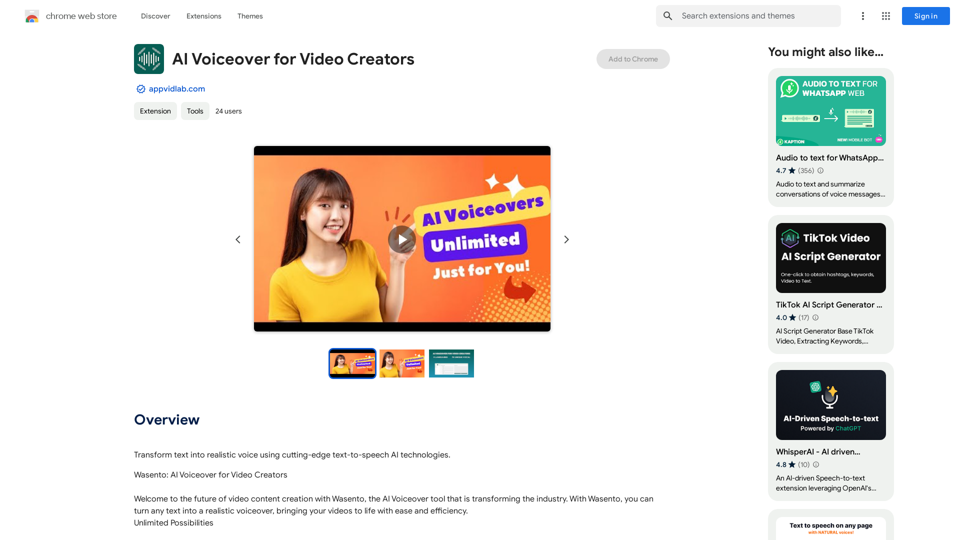
AI Voiceover for Video Creators Elevate Your Videos with Realistic AI Voices Tired of bland, monotone narration? Want to add a professional touch to your videos without breaking the bank? Introducing AI voiceover, the game-changer for video creators! Benefits of Using AI Voiceover: * High-Quality, Natural-Sounding Voices: Choose from a wide range of realistic AI voices, each with unique tones and styles. * Cost-Effective: Say goodbye to expensive voice actors and studios. AI voiceover is affordable and accessible to everyone. * Time-Saving: Generate voiceovers quickly and easily, freeing up your time to focus on other aspects of your video production. * Multilingual Support: Reach a global audience by translating your voiceovers into multiple languages. * Customizable Options: Adjust voice pitch, speed, and emphasis to perfectly match your video's tone and style. Perfect for: * YouTube Videos * Explainer Videos * Corporate Videos * E-Learning Content * Podcasts * And More! Get Started Today! Try our AI voiceover tool and experience the difference.

Use state-of-the-art text-to-speech AI to make your text sound like a real person speaking.
Visit Website
AI Voiceover for Video Creators 

Elevate Your Videos with Realistic AI Voices

Tired of bland, monotone narration? 

Want to add a professional touch to your videos without breaking the bank?

Introducing AI voiceover, the game-changer for video creators!

Benefits of Using AI Voiceover:

* High-Quality, Natural-Sounding Voices: Choose from a wide range of realistic AI voices, each with unique tones and styles.
* Cost-Effective: Say goodbye to expensive voice actors and studios. AI voiceover is affordable and accessible to everyone.
* Time-Saving: Generate voiceovers quickly and easily, freeing up your time to focus on other aspects of your video production.
* Multilingual Support: Reach a global audience by translating your voiceovers into multiple languages.
* Customizable Options: Adjust voice pitch, speed, and emphasis to perfectly match your video's tone and style.

Perfect for:

* YouTube Videos
* Explainer Videos
* Corporate Videos
* E-Learning Content
* Podcasts
* And More!

Get Started Today!

Try our AI voiceover tool and experience the difference.
Visit Website

Introduction

Wasento is an AI-powered tool that transforms text into realistic voiceovers, revolutionizing video content creation. It uses cutting-edge text-to-speech AI technologies to enable users to create high-quality voiceovers easily and efficiently. Wasento supports multiple languages, offers unlimited requests and characters, and features an intuitive interface, making it accessible for users of all experience levels.

Feature

Unlimited Possibilities

  • Unlimited requests and characters
  • Create as much content as needed without restrictions

Cutting-Edge Technology

  • Advanced algorithms for realistic voiceovers
  • Engaging and natural-sounding output

Multilingual Support

  • 9 languages supported
  • 78 unique vocal options
  • Connect with global audiences

Easy to Use

  • Intuitive interface
  • Transform text to voiceover in a few clicks

Versatile Applications

  • Create engaging video content for:
    • Social media
    • Educational courses
    • Corporate presentations

Flexible Pricing Options

  • Free version with limited features
  • Paid subscription with additional benefits

FAQ

What is the main feature of Wasento?

Wasento's primary feature is its ability to transform text into realistic voiceovers using cutting-edge text-to-speech AI technologies.

Is Wasento easy to use?

Yes, Wasento's intuitive interface makes it easy to use, even for those without prior experience with AI-powered tools.

Does Wasento offer multilingual support?

Yes, Wasento supports 9 languages with 78 unique vocal options, making it an excellent tool for reaching global audiences.

Related Websites

Horus
View Detail

Horus

Horus

Horus is your AI assistant for creating summaries, insights, and expanding knowledge.

193.90 M
Converting JPG Images to Text

Converting a JPG image to text is a process known as Optical Character Recognition (OCR). This technology enables you to extract text from images, scanned documents, and photos. Here's how to do it:

Method 1: Online OCR Tools

You can use online OCR tools to convert JPG images to text. Here are the steps:

1. Upload your JPG image: Go to an online OCR tool website, such as Online OCR Tools or OCR.space, and upload your JPG image.
2. Select the language: Choose the language of the text in your image.
3. Click on "Convert": The tool will convert the image to text.
4. Download the text: You can download the extracted text as a Word document, PDF, or plain text file.

Method 2: Google Drive

You can also use Google Drive to convert JPG images to text. Here's how:

1. Upload your JPG image: Upload your JPG image to Google Drive.
2. Right-click on the image: Right-click on the uploaded image and select "Open with" > "Google Docs".
3. The image will be converted: Google Docs will automatically convert the image to text.
4. Edit and download: You can edit the extracted text and download it as a Word document or PDF.

Method 3: Adobe Acrobat

If you have Adobe Acrobat installed on your computer, you can use it to convert JPG images to text. Here's how:

1. Open Adobe Acrobat: Open Adobe Acrobat on your computer.
2. Create a new document: Create a new document and click on "Tools" > "Recognize Text".
3. Select the image: Select the JPG image you want to convert.
4. Click on "Recognize": Adobe Acrobat will convert the image to text.
5. Edit and save: You can edit the extracted text and save it as a Word document or PDF.

These are the three methods to convert JPG images to text. Choose the method that works best for you!
View Detail

Converting JPG Images to Text Converting a JPG image to text is a process known as Optical Character Recognition (OCR). This technology enables you to extract text from images, scanned documents, and photos. Here's how to do it: Method 1: Online OCR Tools You can use online OCR tools to convert JPG images to text. Here are the steps: 1. Upload your JPG image: Go to an online OCR tool website, such as Online OCR Tools or OCR.space, and upload your JPG image. 2. Select the language: Choose the language of the text in your image. 3. Click on "Convert": The tool will convert the image to text. 4. Download the text: You can download the extracted text as a Word document, PDF, or plain text file. Method 2: Google Drive You can also use Google Drive to convert JPG images to text. Here's how: 1. Upload your JPG image: Upload your JPG image to Google Drive. 2. Right-click on the image: Right-click on the uploaded image and select "Open with" > "Google Docs". 3. The image will be converted: Google Docs will automatically convert the image to text. 4. Edit and download: You can edit the extracted text and download it as a Word document or PDF. Method 3: Adobe Acrobat If you have Adobe Acrobat installed on your computer, you can use it to convert JPG images to text. Here's how: 1. Open Adobe Acrobat: Open Adobe Acrobat on your computer. 2. Create a new document: Create a new document and click on "Tools" > "Recognize Text". 3. Select the image: Select the JPG image you want to convert. 4. Click on "Recognize": Adobe Acrobat will convert the image to text. 5. Edit and save: You can edit the extracted text and save it as a Word document or PDF. These are the three methods to convert JPG images to text. Choose the method that works best for you!

Converting JPG Images to Text Converting a JPG image to text is a process known as Optical Character Recognition (OCR). This technology enables you to extract text from images, scanned documents, and photos. Here's how to do it: Method 1: Online OCR Tools You can use online OCR tools to convert JPG images to text. Here are the steps: 1. Upload your JPG image: Go to an online OCR tool website, such as Online OCR Tools or OCR.space, and upload your JPG image. 2. Select the language: Choose the language of the text in your image. 3. Click on "Convert": The tool will convert the image to text. 4. Download the text: You can download the extracted text as a Word document, PDF, or plain text file. Method 2: Google Drive You can also use Google Drive to convert JPG images to text. Here's how: 1. Upload your JPG image: Upload your JPG image to Google Drive. 2. Right-click on the image: Right-click on the uploaded image and select "Open with" > "Google Docs". 3. The image will be converted: Google Docs will automatically convert the image to text. 4. Edit and download: You can edit the extracted text and download it as a Word document or PDF. Method 3: Adobe Acrobat If you have Adobe Acrobat installed on your computer, you can use it to convert JPG images to text. Here's how: 1. Open Adobe Acrobat: Open Adobe Acrobat on your computer. 2. Create a new document: Create a new document and click on "Tools" > "Recognize Text". 3. Select the image: Select the JPG image you want to convert. 4. Click on "Recognize": Adobe Acrobat will convert the image to text. 5. Edit and save: You can edit the extracted text and save it as a Word document or PDF. These are the three methods to convert JPG images to text. Choose the method that works best for you!

It is an online tool that uses Optical Character Recognition (OCR) to make it possible to extract text from images in JPG format.

193.90 M
TechLink - Genius Connection
View Detail

TechLink - Genius Connection

TechLink - Genius Connection

TechLink-Darling is a lightweight plugin designed for Kuaishou colleagues, mainly enabling users to conveniently access various development tools and data tools, and leveraging existing AI capabilities to help everyone improve quality and efficiency.

193.90 M
ScanGPT
View Detail

ScanGPT

ScanGPT

Our extension makes it simple to find GPT-generated text on any website or any text given to it.

193.90 M
Ketchup.AI on the App Store
View Detail

Ketchup.AI on the App Store

Ketchup.AI on the App Store

Introducing Ketchup.AI, your ultimate cooking assistant powered by AI, designed to revolutionize your culinary experience, offering comprehensive answers for all your cooking needs.

124.77 M
Image Translator - ai photo/image Translator use ChatGPT

This is a tool that uses ChatGPT to describe images. 

You can upload a photo and ChatGPT will generate a written description of what it sees.
View Detail

Image Translator - ai photo/image Translator use ChatGPT This is a tool that uses ChatGPT to describe images. You can upload a photo and ChatGPT will generate a written description of what it sees.

Image Translator - ai photo/image Translator use ChatGPT This is a tool that uses ChatGPT to describe images. You can upload a photo and ChatGPT will generate a written description of what it sees.

AI Photo/Image Translator, Supports 130 Languages

193.90 M
Telepathic Demo Recordings
View Detail

Telepathic Demo Recordings

Telepathic Demo Recordings

Telepathic - Instantly help every prospect reach their "aha" moment with conversational product demos. Provide an amazing buying…

193.90 M
ImagePrompt - Reverse Image To Prompt

This tool takes an image as input and generates a textual description (prompt) that can be used to recreate the image using text-to-image AI models.
View Detail

ImagePrompt - Reverse Image To Prompt This tool takes an image as input and generates a textual description (prompt) that can be used to recreate the image using text-to-image AI models.

ImagePrompt - Reverse Image To Prompt This tool takes an image as input and generates a textual description (prompt) that can be used to recreate the image using text-to-image AI models.

ImagePrompt: The Ultimate Tool for Generating Prompts From Images.

193.90 M