Open-source RightAI Tools Directory
  • Discover AI
  • Submit
  • Startup
  • Blog
Open-source RightAI Tools Directory
Discover the best AI tools of 2025 with the RightAI Tools Directory!

Friend Links

AI Anime GeneratorToolsApp AI

Support

Tap4
Privacy policyTerms & ConditionsContact Us
Loading...
loading...

Genius PT

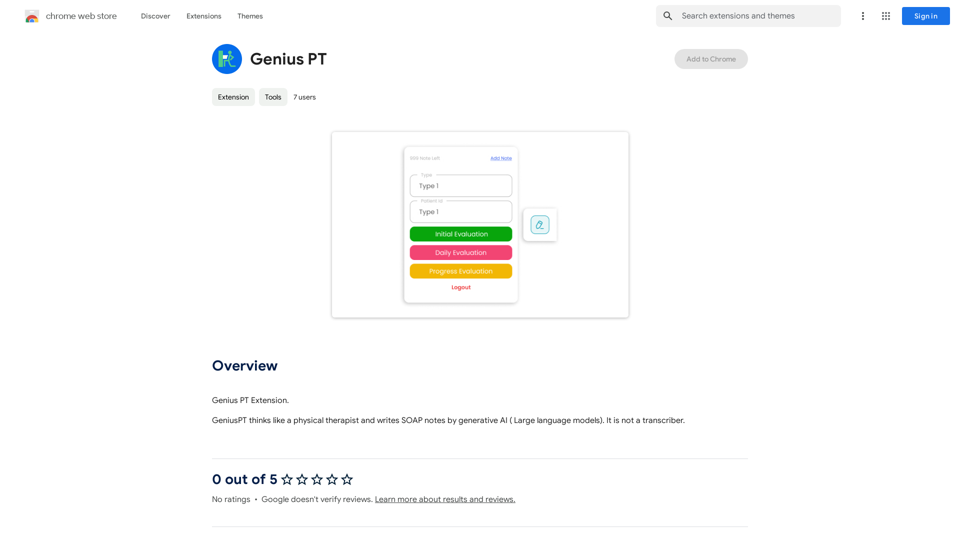
Genius PT Extension.
Visit Website
Genius PT
Visit Website

Introduction

Genius PT is an innovative Chrome extension that leverages AI technology to assist physical therapists in writing SOAP notes. Unlike traditional transcription tools, this extension utilizes advanced large language models to generate accurate and efficient notes, functioning as a virtual physical therapist assistant. Genius PT aims to streamline the note-taking process, allowing healthcare professionals to focus more on patient care.

Feature

AI-Powered SOAP Note Generation

Genius PT employs cutting-edge AI technology to generate comprehensive SOAP notes, mimicking the thought process of a physical therapist. This feature significantly reduces the time spent on documentation while maintaining high accuracy.

Large Language Model Integration

The extension incorporates sophisticated large language models, ensuring that the generated notes are not only accurate but also contextually relevant. This advanced AI capability sets Genius PT apart from simple transcription tools.

User-Friendly Chrome Extension

As a Chrome extension, Genius PT offers seamless integration into the therapist's workflow. Its easy installation and accessibility make it a convenient tool for healthcare professionals.

Time-Saving Efficiency

By automating the note-taking process, Genius PT allows physical therapists to save valuable time, potentially increasing the number of patients they can see and improving overall productivity.

Customizable Note Templates

Users can experiment with different prompts and templates to tailor the note-taking process to their specific needs and preferences, enhancing the flexibility of the tool.

Free Access with Potential Premium Features

Currently, Genius PT is offered as a free Chrome extension, making it accessible to a wide range of users. Future updates may include premium features or subscription options for enhanced functionality.

FAQ

How does Genius PT differ from a transcription tool?

Genius PT is not a transcriber but an AI-driven assistant that generates SOAP notes using large language models. It thinks like a physical therapist, providing more contextual and relevant notes compared to simple transcription tools.

What are the steps to start using Genius PT?

To begin using Genius PT:

  1. Install the Genius PT Chrome extension
  2. Open the extension in your Chrome browser
  3. Start generating SOAP notes using the AI-powered interface

Can Genius PT improve my note-taking skills?

Yes, regular use of Genius PT can help improve note-taking skills. By observing the AI-generated notes and experimenting with different prompts, users can learn more efficient and comprehensive note-taking techniques.

Is there a cost associated with using Genius PT?

Currently, Genius PT is available as a free Chrome extension. However, the developers may introduce premium features or subscription plans in the future to enhance functionality and support ongoing development.

Related Websites
MaxBot Plus
View Detail

MaxBot Plus

MaxBot Plus

Fast ways to get tickets for events on certain websites.

193.90 M
Chrome Web Store
View Detail

Chrome Web Store

Chrome Web Store

Enhance your browser with new features and customize your browsing experience.

193.90 M
PlutoAI - AI Bookmarks and Tabs Manager
View Detail

PlutoAI - AI Bookmarks and Tabs Manager

PlutoAI - AI Bookmarks and Tabs Manager

An AI-powered bookmarking assistant that lets you quickly save, highlight, add notes to, and find web pages.

193.90 M
ChatGPT Partner - Your Artificial Intelligence Assistant
View Detail

ChatGPT Partner - Your Artificial Intelligence Assistant

ChatGPT Partner - Your Artificial Intelligence Assistant

Your GPT-4 AI assistant. It can answer any complex questions and also help you find answers in search engines.

193.90 M
Text Summarizer 

This is a tool that can condense large amounts of text into shorter, more manageable summaries.
View Detail

Text Summarizer This is a tool that can condense large amounts of text into shorter, more manageable summaries.

Text Summarizer This is a tool that can condense large amounts of text into shorter, more manageable summaries.

Instantly summarize text with Text Summarizer: optimize your work using AI-powered text summarization with ChatGPT.

193.90 M
AI Voice Over for YouTube 

This is a guide to using AI voice over for your YouTube videos. 

Why Use AI Voice Over?

* Cost-Effective: AI voice over is much cheaper than hiring a professional voice actor.
* Time-Saving: You can generate voice over quickly and easily, without needing to schedule recording sessions.
* Variety of Voices: Choose from a wide range of AI voices, including male, female, and even robotic voices.
* Accessibility: Make your videos accessible to viewers who are deaf or hard of hearing by adding captions generated by AI.

How to Use AI Voice Over

1. Choose a Platform: There are many different platforms that offer AI voice over services, such as:
    * Google Cloud Text-to-Speech
    * Amazon Polly
    * Microsoft Azure Text to Speech
    * Murf.ai
    * NaturalReader
2. Write Your Script:  Write a clear and concise script for your video.
3. Upload Your Script:  Upload your script to the chosen platform.
4. Select a Voice: Choose the voice that best suits your video.
5. Adjust Settings:  Adjust settings such as speed, pitch, and volume.
6. Generate Voice Over:  Click the "Generate" button to create your voice over.
7. Download and Edit: Download the generated voice over file and edit it as needed.
8. Add to Your Video:  Add the voice over to your YouTube video.

Tips for Using AI Voice Over

* Use Natural Language:  Write your script as if you were speaking naturally.
* Vary Your Tone:  Use different tones of voice to keep your viewers engaged.
* Add Pauses:  Include pauses in your script to allow viewers to process information.
* Proofread Carefully:  Always proofread your script before generating the voice over.
* Experiment:  Try different voices, settings, and styles to find what works best for you.
View Detail

AI Voice Over for YouTube This is a guide to using AI voice over for your YouTube videos. Why Use AI Voice Over? * Cost-Effective: AI voice over is much cheaper than hiring a professional voice actor. * Time-Saving: You can generate voice over quickly and easily, without needing to schedule recording sessions. * Variety of Voices: Choose from a wide range of AI voices, including male, female, and even robotic voices. * Accessibility: Make your videos accessible to viewers who are deaf or hard of hearing by adding captions generated by AI. How to Use AI Voice Over 1. Choose a Platform: There are many different platforms that offer AI voice over services, such as: * Google Cloud Text-to-Speech * Amazon Polly * Microsoft Azure Text to Speech * Murf.ai * NaturalReader 2. Write Your Script: Write a clear and concise script for your video. 3. Upload Your Script: Upload your script to the chosen platform. 4. Select a Voice: Choose the voice that best suits your video. 5. Adjust Settings: Adjust settings such as speed, pitch, and volume. 6. Generate Voice Over: Click the "Generate" button to create your voice over. 7. Download and Edit: Download the generated voice over file and edit it as needed. 8. Add to Your Video: Add the voice over to your YouTube video. Tips for Using AI Voice Over * Use Natural Language: Write your script as if you were speaking naturally. * Vary Your Tone: Use different tones of voice to keep your viewers engaged. * Add Pauses: Include pauses in your script to allow viewers to process information. * Proofread Carefully: Always proofread your script before generating the voice over. * Experiment: Try different voices, settings, and styles to find what works best for you.

AI Voice Over for YouTube This is a guide to using AI voice over for your YouTube videos. Why Use AI Voice Over? * Cost-Effective: AI voice over is much cheaper than hiring a professional voice actor. * Time-Saving: You can generate voice over quickly and easily, without needing to schedule recording sessions. * Variety of Voices: Choose from a wide range of AI voices, including male, female, and even robotic voices. * Accessibility: Make your videos accessible to viewers who are deaf or hard of hearing by adding captions generated by AI. How to Use AI Voice Over 1. Choose a Platform: There are many different platforms that offer AI voice over services, such as: * Google Cloud Text-to-Speech * Amazon Polly * Microsoft Azure Text to Speech * Murf.ai * NaturalReader 2. Write Your Script: Write a clear and concise script for your video. 3. Upload Your Script: Upload your script to the chosen platform. 4. Select a Voice: Choose the voice that best suits your video. 5. Adjust Settings: Adjust settings such as speed, pitch, and volume. 6. Generate Voice Over: Click the "Generate" button to create your voice over. 7. Download and Edit: Download the generated voice over file and edit it as needed. 8. Add to Your Video: Add the voice over to your YouTube video. Tips for Using AI Voice Over * Use Natural Language: Write your script as if you were speaking naturally. * Vary Your Tone: Use different tones of voice to keep your viewers engaged. * Add Pauses: Include pauses in your script to allow viewers to process information. * Proofread Carefully: Always proofread your script before generating the voice over. * Experiment: Try different voices, settings, and styles to find what works best for you.

Watch foreign language YouTube videos in your own language.

193.90 M
ChatGPT Keyboard Shortcuts

#Navigation

* Ctrl + β†’: Move to the next message
* Ctrl + ←: Move to the previous message
* Home: Move to the beginning of the conversation
* End: Move to the end of the conversation

#Editing

* Ctrl + A: Select all text
* Ctrl + C: Copy selected text
* Ctrl + X: Cut selected text
* Ctrl + V: Paste copied or cut text
* Ctrl + Z: Undo
* Ctrl + Y: Redo
* Ctrl + Shift + F: Format text as code

#Actions

* Enter: Send the message
* Shift + Enter: Insert a new line
* Ctrl + Shift + Enter: Send the message and insert a new line
* Esc: Cancel editing and close the message input field
* Ctrl + Shift + Space: Open the emoji picker
* Ctrl + Shift + /: Open the help menu

#Accessibility

* Ctrl + +: Increase font size
* Ctrl + -: Decrease font size
* Ctrl + 0: Reset font size to default
View Detail

ChatGPT Keyboard Shortcuts #Navigation * Ctrl + β†’: Move to the next message * Ctrl + ←: Move to the previous message * Home: Move to the beginning of the conversation * End: Move to the end of the conversation #Editing * Ctrl + A: Select all text * Ctrl + C: Copy selected text * Ctrl + X: Cut selected text * Ctrl + V: Paste copied or cut text * Ctrl + Z: Undo * Ctrl + Y: Redo * Ctrl + Shift + F: Format text as code #Actions * Enter: Send the message * Shift + Enter: Insert a new line * Ctrl + Shift + Enter: Send the message and insert a new line * Esc: Cancel editing and close the message input field * Ctrl + Shift + Space: Open the emoji picker * Ctrl + Shift + /: Open the help menu #Accessibility * Ctrl + +: Increase font size * Ctrl + -: Decrease font size * Ctrl + 0: Reset font size to default

ChatGPT Keyboard Shortcuts #Navigation * Ctrl + β†’: Move to the next message * Ctrl + ←: Move to the previous message * Home: Move to the beginning of the conversation * End: Move to the end of the conversation #Editing * Ctrl + A: Select all text * Ctrl + C: Copy selected text * Ctrl + X: Cut selected text * Ctrl + V: Paste copied or cut text * Ctrl + Z: Undo * Ctrl + Y: Redo * Ctrl + Shift + F: Format text as code #Actions * Enter: Send the message * Shift + Enter: Insert a new line * Ctrl + Shift + Enter: Send the message and insert a new line * Esc: Cancel editing and close the message input field * Ctrl + Shift + Space: Open the emoji picker * Ctrl + Shift + /: Open the help menu #Accessibility * Ctrl + +: Increase font size * Ctrl + -: Decrease font size * Ctrl + 0: Reset font size to default

Enhance your ChatGPT experience with easy-to-use keyboard shortcuts.

193.90 M
NoteGPT: ChatGPT Summary for Vimeo
===============

What is NoteGPT?

NoteGPT is an AI-powered note-taking tool that utilizes the capabilities of ChatGPT to assist users in summarizing and organizing their video content on Vimeo.

Key Features

* Automatic Summarization: NoteGPT can automatically generate a concise summary of Vimeo videos, saving users time and effort.
* Customizable Notes: Users can add their own notes and tags to the generated summary, making it easy to review and reference later.
* Organization: NoteGPT allows users to organize their video content by categorizing and tagging their notes, making it simple to find specific information.

Benefits

* Time-Saving: NoteGPT's automatic summarization feature saves users time and effort, allowing them to focus on more important tasks.
* Improved Productivity: With NoteGPT, users can quickly review and reference their video content, improving their overall productivity.
* Enhanced Learning: NoteGPT's customizable notes and organization features enable users to engage more effectively with their video content, leading to enhanced learning and retention.

Use Cases

* Education: NoteGPT is ideal for students and educators who need to review and summarize video lectures and online courses.
* Business: NoteGPT can be used by professionals to summarize and organize video content for meetings, training sessions, and presentations.
* Personal Development: Individuals can use NoteGPT to summarize and review video content for personal development, such as language learning or skill-building.
View Detail

NoteGPT: ChatGPT Summary for Vimeo =============== What is NoteGPT? NoteGPT is an AI-powered note-taking tool that utilizes the capabilities of ChatGPT to assist users in summarizing and organizing their video content on Vimeo. Key Features * Automatic Summarization: NoteGPT can automatically generate a concise summary of Vimeo videos, saving users time and effort. * Customizable Notes: Users can add their own notes and tags to the generated summary, making it easy to review and reference later. * Organization: NoteGPT allows users to organize their video content by categorizing and tagging their notes, making it simple to find specific information. Benefits * Time-Saving: NoteGPT's automatic summarization feature saves users time and effort, allowing them to focus on more important tasks. * Improved Productivity: With NoteGPT, users can quickly review and reference their video content, improving their overall productivity. * Enhanced Learning: NoteGPT's customizable notes and organization features enable users to engage more effectively with their video content, leading to enhanced learning and retention. Use Cases * Education: NoteGPT is ideal for students and educators who need to review and summarize video lectures and online courses. * Business: NoteGPT can be used by professionals to summarize and organize video content for meetings, training sessions, and presentations. * Personal Development: Individuals can use NoteGPT to summarize and review video content for personal development, such as language learning or skill-building.

NoteGPT: ChatGPT Summary for Vimeo =============== What is NoteGPT? NoteGPT is an AI-powered note-taking tool that utilizes the capabilities of ChatGPT to assist users in summarizing and organizing their video content on Vimeo. Key Features * Automatic Summarization: NoteGPT can automatically generate a concise summary of Vimeo videos, saving users time and effort. * Customizable Notes: Users can add their own notes and tags to the generated summary, making it easy to review and reference later. * Organization: NoteGPT allows users to organize their video content by categorizing and tagging their notes, making it simple to find specific information. Benefits * Time-Saving: NoteGPT's automatic summarization feature saves users time and effort, allowing them to focus on more important tasks. * Improved Productivity: With NoteGPT, users can quickly review and reference their video content, improving their overall productivity. * Enhanced Learning: NoteGPT's customizable notes and organization features enable users to engage more effectively with their video content, leading to enhanced learning and retention. Use Cases * Education: NoteGPT is ideal for students and educators who need to review and summarize video lectures and online courses. * Business: NoteGPT can be used by professionals to summarize and organize video content for meetings, training sessions, and presentations. * Personal Development: Individuals can use NoteGPT to summarize and review video content for personal development, such as language learning or skill-building.

Vimeo Summary with ChatGPT for Better Learning ===================================================== What is Vimeo? --------------- Vimeo is a video-hosting platform that allows users to upload, share, and view videos. It is popular among creative professionals, businesses, and individuals who want to showcase their videos in a high-quality format. How Can ChatGPT Help with Vimeo Courses? ----------------------------------------- ChatGPT is an AI-powered language model that can assist with summarizing Vimeo courses by: * Identifying key points: ChatGPT can analyze the video content and extract the most important information, making it easier to understand and retain. * Generating summaries: ChatGPT can create concise summaries of the video courses, saving time and effort. * Improving learning: By providing a clear and concise summary, ChatGPT can help learners focus on the essential concepts and improve their understanding of the material. Benefits of Using ChatGPT for Vimeo Courses --------------------------------------------- * Time-saving: ChatGPT can quickly summarize long video courses, saving learners time and effort. * Improved comprehension: ChatGPT's summaries can help learners understand complex concepts more easily. * Enhanced retention: By providing a concise summary, ChatGPT can help learners retain information better. How to Use ChatGPT for Vimeo Courses ----------------------------------------- 1. Upload the video course: Upload the Vimeo course to ChatGPT. 2. Analyze the content: ChatGPT will analyze the video content and extract key points. 3. Generate a summary: ChatGPT will create a concise summary of the video course. 4. Review and learn: Review the summary and use it to learn and retain the information. Conclusion ---------- ChatGPT can be a valuable tool for summarizing Vimeo courses, making it easier to learn and retain information. By using ChatGPT, learners can save time, improve comprehension, and enhance retention.

193.90 M