Open-source RightAI Tools Directory
  • Discover AI
  • Submit
  • Startup
  • Blog
Open-source RightAI Tools Directory
Discover the best AI tools of 2025 with the RightAI Tools Directory!

Friend Links

AI Anime GeneratorToolsApp AI

Support

Tap4
Privacy policyTerms & ConditionsContact Us
Loading...
loading...

SliceX AI Tweet Analyzer

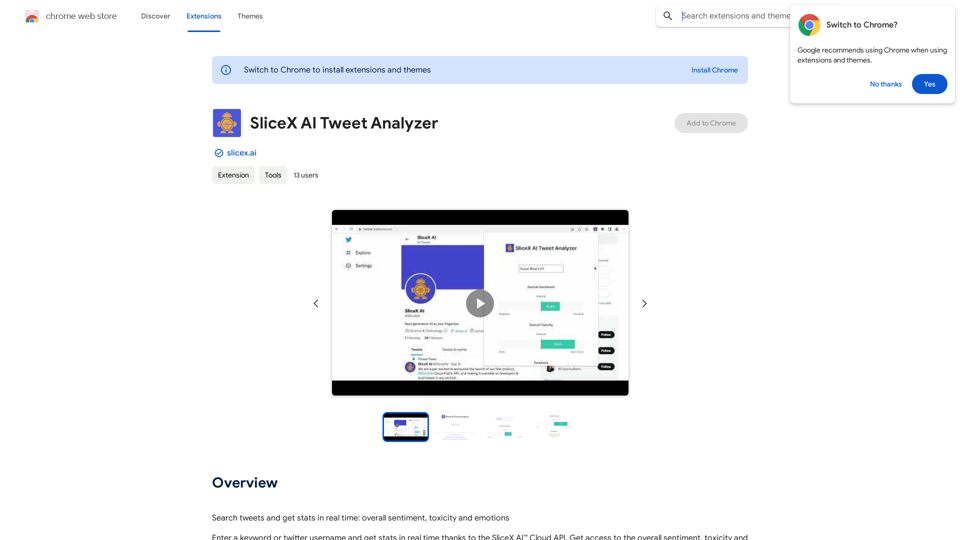
Search for tweets and get real-time statistics: general sentiment, toxicity levels, and emotions expressed.
Visit Website
SliceX AI Tweet Analyzer
Visit Website

Introduction

SliceX AI Tweet Analyzer is a Chrome extension designed to provide users with real-time analytics for Twitter content. This powerful tool leverages the SliceX AI Cloud API to deliver accurate and up-to-date information on tweet sentiment, toxicity, and emotions. By offering instant access to these insights, SliceX AI Tweet Analyzer enables users to gain a deeper understanding of social media trends and make data-driven decisions for their social media strategies.

Feature

Real-time Tweet Analysis

SliceX AI Tweet Analyzer provides instant access to overall sentiment, toxicity, and emotions of tweets, allowing users to quickly gauge the tone and impact of Twitter content.

User-Friendly Interface

The extension offers a simple and intuitive interface. Users can easily search for tweets by entering keywords or Twitter usernames, making it accessible for both novice and experienced social media analysts.

Advanced AI Technology

Utilizing state-of-the-art AI algorithms through the SliceX AI Cloud API, the extension delivers highly accurate results for tweet analysis.

Flexible Search Options

Users can analyze tweets based on specific keywords or by focusing on particular Twitter accounts, providing versatility in research and analysis.

Comprehensive Insights

The tool offers a range of metrics including sentiment analysis, toxicity levels, and emotional content, providing a holistic view of Twitter conversations.

Time-Saving Automation

By automating the process of tweet analysis, SliceX AI Tweet Analyzer significantly increases efficiency in social media research and strategy development.

Multiple Pricing Options

The extension offers a free plan along with several paid plans, catering to different user needs and budgets.

FAQ

How does SliceX AI Tweet Analyzer work?

SliceX AI Tweet Analyzer utilizes the SliceX AI Cloud API to analyze tweets. Users input keywords or Twitter usernames, and the extension processes this data to provide real-time stats on sentiment, toxicity, and emotions.

What are the main benefits of using this tool?

The key benefits include:

  1. Improved understanding of tweet sentiment and emotions
  2. Enhanced decision-making for social media strategies
  3. Increased efficiency through automated analysis
  4. Real-time access to comprehensive tweet statistics

Is SliceX AI Tweet Analyzer free to use?

SliceX AI Tweet Analyzer offers a free plan for basic usage. Additionally, it provides several paid plans with advanced features and benefits for users requiring more comprehensive analysis capabilities.

How can I get the most out of SliceX AI Tweet Analyzer?

To maximize the tool's effectiveness:

  1. Use relevant and specific keywords in your searches
  2. Analyze multiple tweets for a more comprehensive understanding
  3. Apply the generated stats to inform and refine your social media strategy
  4. Explore different pricing plans to find the best fit for your needs

Related Websites

HiCounselor Auto Application - Job Assistant!
View Detail

HiCounselor Auto Application - Job Assistant!

HiCounselor Auto Application - Job Assistant!

Find your dream job faster: Apply automatically, get AI-powered answers, and discover personalized opportunities.

193.90 M
Buffup - AI Copilot of ChatGPT4 & Claude3 with 1,000+ bots
View Detail

Buffup - AI Copilot of ChatGPT4 & Claude3 with 1,000+ bots

Buffup - AI Copilot of ChatGPT4 & Claude3 with 1,000+ bots

AI Copilot of ChatGPT4 & Claude3 with 1K+ bots, GPTs, Internet Connectivity, Translation, Summarization This AI copilot combines the power of ChatGPT4 and Claude3, along with over 1,000 bots, GPTs, and internet connectivity, to provide advanced features such as translation and summarization.

193.90 M
Job Clerk Co-pilot
View Detail

Job Clerk Co-pilot

Job Clerk Co-pilot

Your AI assistant for job applications. Visit jobclerk.com for more.

193.90 M
Chatgpt PDF
===============

Ask your PDF
----------------
View Detail

Chatgpt PDF =============== Ask your PDF ----------------

Chatgpt PDF =============== Ask your PDF ----------------

Ask Your PDF AI Chapdf: Best AI Summarizer Plugin Powered by GPT Summarize Text and Have a Chat with Any PDF Pro Summary Generator

193.90 M
Homie.AI on the App Store
View Detail

Homie.AI on the App Store

Homie.AI on the App Store

Homie.AI is your go-to academic assistant powered by AI with the unique ability to answer all your questions, summarize books, and fact-check information, Homie is always here to help you with your academic needs.

124.77 M
Converting JPG Images to Text

Converting a JPG image to text is a process known as Optical Character Recognition (OCR). This technology enables you to extract text from images, scanned documents, and photos. Here's how to do it:

Method 1: Online OCR Tools

You can use online OCR tools to convert JPG images to text. Here are the steps:

1. Upload your JPG image: Go to an online OCR tool website, such as Online OCR Tools or OCR.space, and upload your JPG image.
2. Select the language: Choose the language of the text in your image.
3. Click on "Convert": The tool will convert the image to text.
4. Download the text: You can download the extracted text as a Word document, PDF, or plain text file.

Method 2: Google Drive

You can also use Google Drive to convert JPG images to text. Here's how:

1. Upload your JPG image: Upload your JPG image to Google Drive.
2. Right-click on the image: Right-click on the uploaded image and select "Open with" > "Google Docs".
3. The image will be converted: Google Docs will automatically convert the image to text.
4. Edit and download: You can edit the extracted text and download it as a Word document or PDF.

Method 3: Adobe Acrobat

If you have Adobe Acrobat installed on your computer, you can use it to convert JPG images to text. Here's how:

1. Open Adobe Acrobat: Open Adobe Acrobat on your computer.
2. Create a new document: Create a new document and click on "Tools" > "Recognize Text".
3. Select the image: Select the JPG image you want to convert.
4. Click on "Recognize": Adobe Acrobat will convert the image to text.
5. Edit and save: You can edit the extracted text and save it as a Word document or PDF.

These are the three methods to convert JPG images to text. Choose the method that works best for you!
View Detail

Converting JPG Images to Text Converting a JPG image to text is a process known as Optical Character Recognition (OCR). This technology enables you to extract text from images, scanned documents, and photos. Here's how to do it: Method 1: Online OCR Tools You can use online OCR tools to convert JPG images to text. Here are the steps: 1. Upload your JPG image: Go to an online OCR tool website, such as Online OCR Tools or OCR.space, and upload your JPG image. 2. Select the language: Choose the language of the text in your image. 3. Click on "Convert": The tool will convert the image to text. 4. Download the text: You can download the extracted text as a Word document, PDF, or plain text file. Method 2: Google Drive You can also use Google Drive to convert JPG images to text. Here's how: 1. Upload your JPG image: Upload your JPG image to Google Drive. 2. Right-click on the image: Right-click on the uploaded image and select "Open with" > "Google Docs". 3. The image will be converted: Google Docs will automatically convert the image to text. 4. Edit and download: You can edit the extracted text and download it as a Word document or PDF. Method 3: Adobe Acrobat If you have Adobe Acrobat installed on your computer, you can use it to convert JPG images to text. Here's how: 1. Open Adobe Acrobat: Open Adobe Acrobat on your computer. 2. Create a new document: Create a new document and click on "Tools" > "Recognize Text". 3. Select the image: Select the JPG image you want to convert. 4. Click on "Recognize": Adobe Acrobat will convert the image to text. 5. Edit and save: You can edit the extracted text and save it as a Word document or PDF. These are the three methods to convert JPG images to text. Choose the method that works best for you!

Converting JPG Images to Text Converting a JPG image to text is a process known as Optical Character Recognition (OCR). This technology enables you to extract text from images, scanned documents, and photos. Here's how to do it: Method 1: Online OCR Tools You can use online OCR tools to convert JPG images to text. Here are the steps: 1. Upload your JPG image: Go to an online OCR tool website, such as Online OCR Tools or OCR.space, and upload your JPG image. 2. Select the language: Choose the language of the text in your image. 3. Click on "Convert": The tool will convert the image to text. 4. Download the text: You can download the extracted text as a Word document, PDF, or plain text file. Method 2: Google Drive You can also use Google Drive to convert JPG images to text. Here's how: 1. Upload your JPG image: Upload your JPG image to Google Drive. 2. Right-click on the image: Right-click on the uploaded image and select "Open with" > "Google Docs". 3. The image will be converted: Google Docs will automatically convert the image to text. 4. Edit and download: You can edit the extracted text and download it as a Word document or PDF. Method 3: Adobe Acrobat If you have Adobe Acrobat installed on your computer, you can use it to convert JPG images to text. Here's how: 1. Open Adobe Acrobat: Open Adobe Acrobat on your computer. 2. Create a new document: Create a new document and click on "Tools" > "Recognize Text". 3. Select the image: Select the JPG image you want to convert. 4. Click on "Recognize": Adobe Acrobat will convert the image to text. 5. Edit and save: You can edit the extracted text and save it as a Word document or PDF. These are the three methods to convert JPG images to text. Choose the method that works best for you!

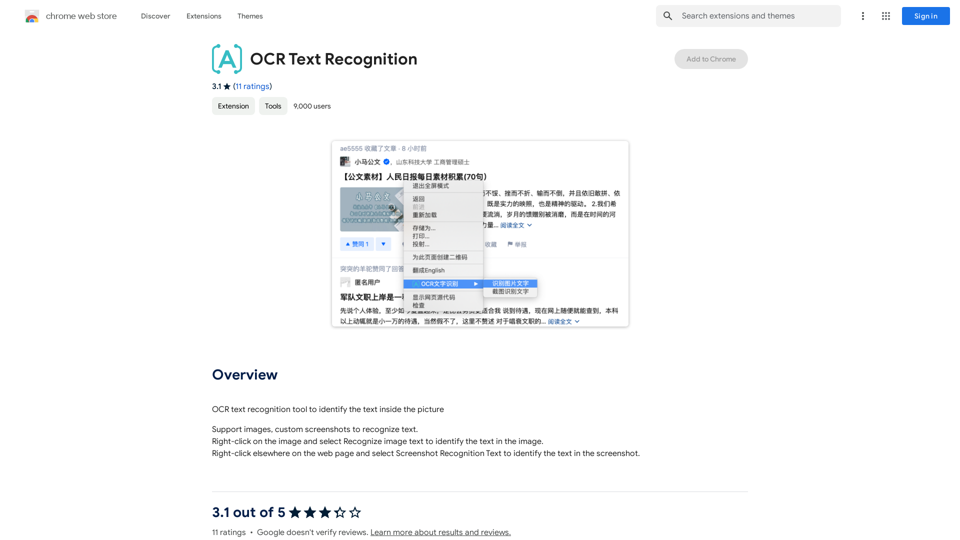
It is an online tool that uses Optical Character Recognition (OCR) to make it possible to extract text from images in JPG format.

193.90 M
Liner | AI Copilot on Your Workspace, Powered by ChatGPT
View Detail

Liner | AI Copilot on Your Workspace, Powered by ChatGPT

Liner | AI Copilot on Your Workspace, Powered by ChatGPT

Try Liner. Boost productivity and optimize your workflow with AI Copilot by summarizing articles, generating code, and composing emails.

6.20 M
Blenny - AI Vision Co-Pilot Powered by GPT-4V
View Detail

Blenny - AI Vision Co-Pilot Powered by GPT-4V

Blenny - AI Vision Co-Pilot Powered by GPT-4V

Screenshot any part of a webpage, and Blenny will instantly help you summarize, translate, apply custom agents, and do more.

193.90 M