Open-source RightAI Tools Directory
  • Discover AI
  • Submit
  • Startup
  • Blog
Open-source RightAI Tools Directory
Discover the best AI tools of 2025 with the RightAI Tools Directory!

Friend Links

AI Anime GeneratorToolsApp AI

Support

Tap4
Privacy policyTerms & ConditionsContact Us
Loading...
loading...

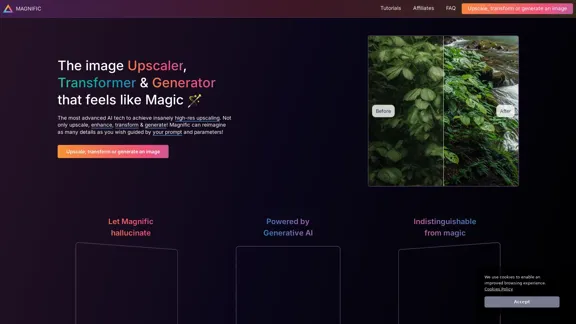
Magnific AI — The amazing image upscaling and enhancement tool

The most advanced AI upscaler and enhancer. Magnific can reimagine as many details in your image or photo as you wish, guided by your prompt and parameters!
Visit Website
Magnific AI — The amazing image upscaling and enhancement tool
Visit Website

Introduction

Magnific AI is an advanced image upscaling and enhancement tool that utilizes cutting-edge AI technology to transform images into high-resolution versions. Users can upscale, enhance, and generate images with remarkable detail, guided by customizable prompts and parameters. The platform is designed to be user-friendly, making it accessible for both beginners and professionals in various creative fields.

Feature

  1. AI-Powered Upscaling

    Magnific AI employs advanced algorithms to upscale images, achieving significantly higher resolutions while adding intricate details.

  2. Customizable Parameters

    Users can control the upscaling process through various sliders, including 'Creativity', which influences the level of detail added to the images.

  3. Versatile Applications

    The tool is suitable for a wide range of image types, including portraits, illustrations, landscapes, graphic designs, and more.

  4. User-Friendly Interface

    Designed for creators of all skill levels, Magnific AI offers an intuitive interface and comprehensive tutorials to assist users in their creative endeavors.

  5. High-Quality Output

    The platform ensures that the upscaled images maintain high quality, making them suitable for professional use in marketing, photography, and digital art.

  6. Community Support

    Magnific AI fosters a community of users who can share tips, tutorials, and experiences, enhancing the overall user experience.

How to Use?

  1. Start by logging into your Magnific AI account.
  2. Upload the image you wish to upscale or enhance.
  3. Adjust the 'Creativity' slider to control the level of detail added.
  4. Use the various parameters to customize the upscaling process according to your needs.
  5. Preview the changes before finalizing the upscale.
  6. Download the enhanced image once you are satisfied with the results.

FAQ

How does Magnific's AI upscaler & enhancer work?

Magnific AI transforms images into higher-resolution versions by adding details based on user-defined prompts and controls.

Is Magnific suitable for beginners?

Yes, the platform is designed to be accessible and user-friendly for creators of all backgrounds and skill levels.

Who can benefit from using Magnific AI?

Professionals and enthusiasts in photography, graphic design, digital art, and illustration can enhance their workflow with Magnific AI.

Will the upscaled images have artifacts?

Artifacts may occur, but they can often be controlled using the available sliders and prompts.

Is the payment service secure?

Yes, Magnific AI uses Stripe for secure payment processing, ensuring that no card details are retained.

Price

  • Free Plan: $0/month
  • Basic Plan: $9.99/month
  • Standard Plan: $19.99/month
  • Professional Plan: $49.99/month
The price is for reference only, please refer to the latest official data for actual information.

Evaluation

Magnific AI excels in providing high-quality image upscaling and enhancement, making it a valuable tool for both casual users and professionals. The ability to customize the upscaling process through various parameters is a significant advantage, allowing for tailored results. However, users may encounter artifacts if settings are not adjusted properly, which could detract from the final output. Additionally, while the tool is user-friendly, a deeper understanding of image editing principles could enhance the user experience. Overall, Magnific AI is a powerful solution for anyone looking to elevate their visual content.

Related Websites

Page Summarizer (Using AI)
View Detail

Page Summarizer (Using AI)

Page Summarizer (Using AI)

View a summary of any webpage in your browser sidebar powered by the OpenAI engine.

193.90 M
Lushair, AI-Powered Hair & Scalp Analysis | Personalized Care Solutions
View Detail

Lushair, AI-Powered Hair & Scalp Analysis | Personalized Care Solutions

Lushair, AI-Powered Hair & Scalp Analysis | Personalized Care Solutions

Unlock the secrets of healthy hair with our AI-powered hair and scalp analysis. Discover personalized insights, effective treatments, and embrace a vibrant, confident you. Elevate your hair care journey with cutting-edge technology and expert analysis.

0
Drawbert - A Portrait Artist AI
View Detail

Drawbert - A Portrait Artist AI

Drawbert - A Portrait Artist AI

Drawbert creates beautiful paintings for you within seconds and at low cost. You can choose from watercolor, sketch, oil painting, comic, cartoon, caricature and more styles, plus the option to customize the painting to your liking.

0
AI-Mask - In-browser inference
View Detail

AI-Mask - In-browser inference

AI-Mask - In-browser inference

Bring local inference to web apps!

193.90 M
 Create a Consistent Character Across Different Looks!

Imagine this:

* Your character rocking a cool new outfit.
* Your character with a fresh hairstyle.
* Your character in a variety of exciting backgrounds.

But...

* They always look like *themselves*.
* Their personality shines through, no matter the change.

That's where a Consistent Character Generator comes in!

This powerful tool lets you:

* Generate variations of your character with different:
    * Poses
    * Clothing
    * Hairstyles
    * Backgrounds

* Maintain consistency in your character's appearance and essence.

Say goodbye to:

* Inconsistent character designs that break immersion.
* Spending hours tweaking details to keep your character recognizable.

Say hello to:

* A library of diverse character variations, all true to your vision.
* Effortless character customization for your projects.
View Detail

Create a Consistent Character Across Different Looks! Imagine this: * Your character rocking a cool new outfit. * Your character with a fresh hairstyle. * Your character in a variety of exciting backgrounds. But... * They always look like *themselves*. * Their personality shines through, no matter the change. That's where a Consistent Character Generator comes in! This powerful tool lets you: * Generate variations of your character with different: * Poses * Clothing * Hairstyles * Backgrounds * Maintain consistency in your character's appearance and essence. Say goodbye to: * Inconsistent character designs that break immersion. * Spending hours tweaking details to keep your character recognizable. Say hello to: * A library of diverse character variations, all true to your vision. * Effortless character customization for your projects.

Create a Consistent Character Across Different Looks! Imagine this: * Your character rocking a cool new outfit. * Your character with a fresh hairstyle. * Your character in a variety of exciting backgrounds. But... * They always look like *themselves*. * Their personality shines through, no matter the change. That's where a Consistent Character Generator comes in! This powerful tool lets you: * Generate variations of your character with different: * Poses * Clothing * Hairstyles * Backgrounds * Maintain consistency in your character's appearance and essence. Say goodbye to: * Inconsistent character designs that break immersion. * Spending hours tweaking details to keep your character recognizable. Say hello to: * A library of diverse character variations, all true to your vision. * Effortless character customization for your projects.

Unlock your creative potential with the AI Consistent Character Generator. Effortlessly generate, customize, and transform characters with consistent features for photography, gaming, art, and more. Start your creative journey today!

37.98 K
Super Time Travel - Explore the Past... and the Future
View Detail

Super Time Travel - Explore the Past... and the Future

Super Time Travel - Explore the Past... and the Future

Super Time Travel lets you upload your photos and see them transformed to any past or future year. Experience your images as they would appear in any historical era or future setting with the magic of AI.

0
Batch Save ChatGPT to Notion

This is a guide on how to save multiple ChatGPT responses to Notion in a batch. 

Tools You'll Need:

* ChatGPT: An AI chatbot that can generate text.
* Notion: A note-taking and project management tool.
* Python: A programming language.
* Requests Library: A Python library for making HTTP requests.

Steps:

1. Get Your Notion API Token:
   - Go to your Notion workspace settings.
   - Navigate to the "Integrations" tab.
   - Click "Create new integration" and choose "API Token".
   - Copy your API token.

2. Install Python Libraries:
   - Open your terminal or command prompt.
   - Type `pip install requests` and press Enter.

3. Write Python Script:
   - Create a new Python file (e.g., `save_chatgpt_to_notion.py`).
   - Paste the following code into the file, replacing `YOUR_NOTION_API_TOKEN` with your actual token:

```python
import requests

def save_chatgpt_response_to_notion(response, page_id, token):
  """Saves a ChatGPT response to a Notion page."""
  url = f"https://api.notion.com/v1/pages/{page_id}/children"
  headers = {"Authorization": f"Bearer {token}"}
  data = {
    "parent": {
      "page_id": page_id
    },
    "properties": {
      "title": {
        "title": [
          {
            "text": {
              "content": "ChatGPT Response"
            }
          }
        ]
      },
      "content": {
        "rich_text": [
          {
            "text": {
              "content": response
            }
          }
        ]
      }
    }
  }
  response = requests.post(url, headers=headers, json=data)
  print(response.status_code)

Example usage
page_id = "YOUR_NOTION_PAGE_ID"
token = "YOUR_NOTION_API_TOKEN"

Get ChatGPT responses (replace with your actual ChatGPT interaction)
chatgpt_responses = [
  "This is the first ChatGPT response.",
  "This is the second ChatGPT response.",
  "This is the third ChatGPT response."
]

Save each response to Notion
for response in chatgpt_responses:
  save_chatgpt_response_to_notion(response, page_id, token)
```

4. Run the Script:
   - In your terminal, navigate to the directory where you saved the Python file.
   - Type `python save_chatgpt_to_notion.py` and press Enter.

5. Check Notion:
   - Open your Notion workspace and go to the page specified by `page_id`.
   - You should see your ChatGPT responses saved as separate blocks.
View Detail

Batch Save ChatGPT to Notion This is a guide on how to save multiple ChatGPT responses to Notion in a batch. Tools You'll Need: * ChatGPT: An AI chatbot that can generate text. * Notion: A note-taking and project management tool. * Python: A programming language. * Requests Library: A Python library for making HTTP requests. Steps: 1. Get Your Notion API Token: - Go to your Notion workspace settings. - Navigate to the "Integrations" tab. - Click "Create new integration" and choose "API Token". - Copy your API token. 2. Install Python Libraries: - Open your terminal or command prompt. - Type `pip install requests` and press Enter. 3. Write Python Script: - Create a new Python file (e.g., `save_chatgpt_to_notion.py`). - Paste the following code into the file, replacing `YOUR_NOTION_API_TOKEN` with your actual token: ```python import requests def save_chatgpt_response_to_notion(response, page_id, token): """Saves a ChatGPT response to a Notion page.""" url = f"https://api.notion.com/v1/pages/{page_id}/children" headers = {"Authorization": f"Bearer {token}"} data = { "parent": { "page_id": page_id }, "properties": { "title": { "title": [ { "text": { "content": "ChatGPT Response" } } ] }, "content": { "rich_text": [ { "text": { "content": response } } ] } } } response = requests.post(url, headers=headers, json=data) print(response.status_code) Example usage page_id = "YOUR_NOTION_PAGE_ID" token = "YOUR_NOTION_API_TOKEN" Get ChatGPT responses (replace with your actual ChatGPT interaction) chatgpt_responses = [ "This is the first ChatGPT response.", "This is the second ChatGPT response.", "This is the third ChatGPT response." ] Save each response to Notion for response in chatgpt_responses: save_chatgpt_response_to_notion(response, page_id, token) ``` 4. Run the Script: - In your terminal, navigate to the directory where you saved the Python file. - Type `python save_chatgpt_to_notion.py` and press Enter. 5. Check Notion: - Open your Notion workspace and go to the page specified by `page_id`. - You should see your ChatGPT responses saved as separate blocks.

Batch Save ChatGPT to Notion This is a guide on how to save multiple ChatGPT responses to Notion in a batch. Tools You'll Need: * ChatGPT: An AI chatbot that can generate text. * Notion: A note-taking and project management tool. * Python: A programming language. * Requests Library: A Python library for making HTTP requests. Steps: 1. Get Your Notion API Token: - Go to your Notion workspace settings. - Navigate to the "Integrations" tab. - Click "Create new integration" and choose "API Token". - Copy your API token. 2. Install Python Libraries: - Open your terminal or command prompt. - Type `pip install requests` and press Enter. 3. Write Python Script: - Create a new Python file (e.g., `save_chatgpt_to_notion.py`). - Paste the following code into the file, replacing `YOUR_NOTION_API_TOKEN` with your actual token: ```python import requests def save_chatgpt_response_to_notion(response, page_id, token): """Saves a ChatGPT response to a Notion page.""" url = f"https://api.notion.com/v1/pages/{page_id}/children" headers = {"Authorization": f"Bearer {token}"} data = { "parent": { "page_id": page_id }, "properties": { "title": { "title": [ { "text": { "content": "ChatGPT Response" } } ] }, "content": { "rich_text": [ { "text": { "content": response } } ] } } } response = requests.post(url, headers=headers, json=data) print(response.status_code) Example usage page_id = "YOUR_NOTION_PAGE_ID" token = "YOUR_NOTION_API_TOKEN" Get ChatGPT responses (replace with your actual ChatGPT interaction) chatgpt_responses = [ "This is the first ChatGPT response.", "This is the second ChatGPT response.", "This is the third ChatGPT response." ] Save each response to Notion for response in chatgpt_responses: save_chatgpt_response_to_notion(response, page_id, token) ``` 4. Run the Script: - In your terminal, navigate to the directory where you saved the Python file. - Type `python save_chatgpt_to_notion.py` and press Enter. 5. Check Notion: - Open your Notion workspace and go to the page specified by `page_id`. - You should see your ChatGPT responses saved as separate blocks.

Save ChatGPT Conversations to Notion with One Click Export your ChatGPT conversations directly to Notion with a single click.

193.90 M
AI Image Enlarger | Enlarge Images Without Losing Quality!
View Detail

AI Image Enlarger | Enlarge Images Without Losing Quality!

AI Image Enlarger | Enlarge Images Without Losing Quality!

AI Image Enlarger is a FREE online tool for automatically upscaling and enhancing small images. It can make jpg/png pictures larger without compromising quality.

614.68 K