Change Clothes AI is an innovative online tool that uses advanced AI algorithms to virtually dress users in different outfits. By analyzing user photos and garment images, it creates realistic visualizations of how clothing would look on individuals. This technology aims to revolutionize online shopping, allowing users to "try on" clothes virtually before making purchases.
Change Clothes AI - AI Clothes Changer Online, Free Trial To Change Clothes With AI
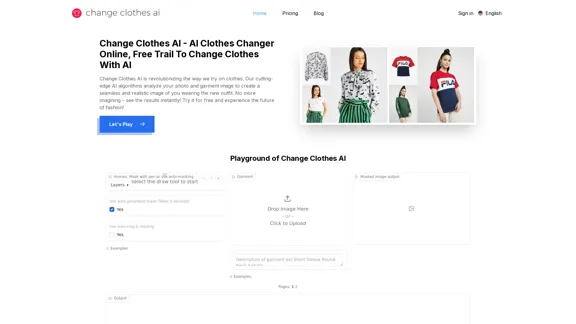
Change Clothes AI is an online outfit changer powered by AI technology. Easily swap clothes in your photos by uploading a portrait and garment image. Our AI algorithm generates a new image in seconds, letting you experiment with different looks and find the perfect outfit.
Introduction
Feature
AI-Powered Clothes Changer
- Utilizes state-of-the-art AI algorithms
- Realistically dresses users in chosen garments
- Transforms photos instantly
- Reduces guesswork in online shopping
Effortless Outfit Experimentation
- Upload personal photo and select garment image
- AI generates results within seconds
- Allows visualization of countless outfits
- Enables experimentation with different styles and colors
Hyperrealistic Results
- Goes beyond simple image overlays
- Meticulously analyzes user photos and garment images
- Generates highly realistic and detailed results
- Creates images that look like actual try-ons
User-Friendly Interface
- Accessible directly from web browsers
- No downloads or complex software required
- Free trial available
- Easy three-step process:
- Upload your photo
- Select a garment image
- Let the AI work its magic
Advanced Image Processing
- Image Recognition & Understanding
- Garment Analysis
- AI-Powered Image Synthesis
Versatile Applications
- Online shopping assistance
- Fashion experimentation
- Social media content creation
- E-commerce enhancement for businesses
FAQ
What is Change Clothes AI?
Change Clothes AI is an AI-powered online tool that allows users to visualize themselves in different outfits. It uses sophisticated algorithms to create realistic images of users wearing selected garments, enhancing the online shopping experience and facilitating fashion experimentation.
How does Change Clothes AI work?
The tool works in three main steps:
- Image Recognition: Analyzes the user's uploaded photo, identifying body shape and current outfit.
- Garment Analysis: Examines the selected clothing item's details.
- AI-Powered Image Synthesis: Combines the information to create a realistic image of the user wearing the new outfit.
Is Change Clothes AI free to use?
Change Clothes AI offers a free trial for users to experience the technology. There are also affordable paid plans available for enhanced features and unlimited outfit changes.
What are the system requirements for using Change Clothes AI?
Change Clothes AI is a web-based service that requires only a device with a web browser and a stable internet connection. No specific software installations or powerful hardware are needed.
Can Change Clothes AI be integrated into other software or workflows?
Currently, Change Clothes AI is designed as a standalone web-based service. While direct integration is not available, the company is open to discussing potential options for specific inquiries.
Related Websites
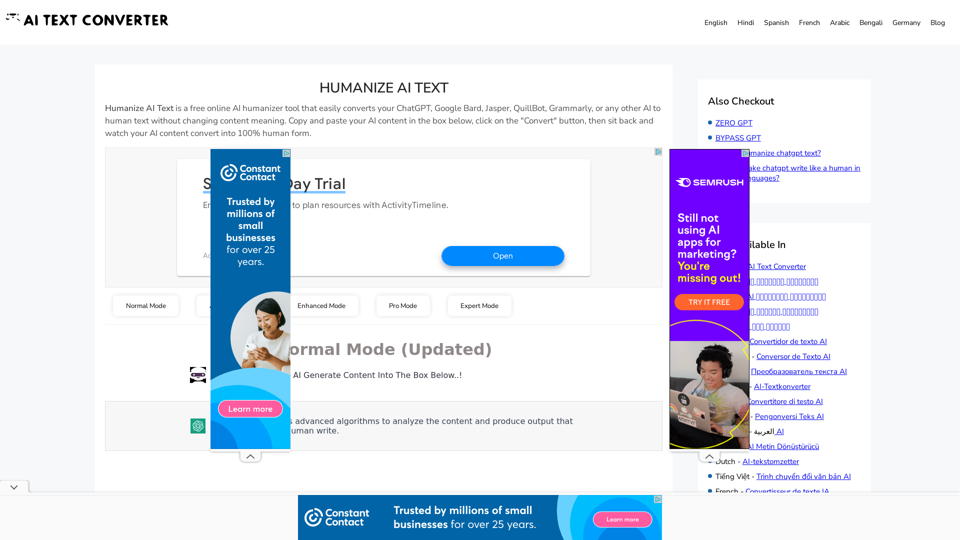
Humanize AI Text - Convert AI to Human-Like Text Instantly Are you tired of robotic AI-generated content that lacks the personal touch? Do you want to breathe life into your AI-written text and make it sound more human? Look no further! Our AI humanizer tool is here to help you convert your AI text into engaging, natural-sounding content that resonates with your audience. How Does it Work? Our advanced AI humanizer uses sophisticated algorithms to analyze your AI-generated text and identify areas that need improvement. It then applies a range of linguistic and stylistic adjustments to make your text more relatable, conversational, and authentic. The result is a rewritten text that sounds like it was written by a human, not a machine. Benefits of Humanizing AI Text * Increased Engagement: Human-like text is more likely to capture your audience's attention and keep them engaged. * Improved Credibility: Authentic-sounding content builds trust and credibility with your readers. * Enhanced Readability: Our AI humanizer ensures that your text is easy to read and understand, making it more accessible to a wider audience. Try Our AI Humanizer Today! Don't settle for robotic AI-generated content. Convert your AI text into human-like content that resonates with your audience. Try our AI humanizer tool now and see the difference for yourself!
Humanize AI Text - Convert AI to Human-Like Text Instantly Are you tired of robotic AI-generated content that lacks the personal touch? Do you want to breathe life into your AI-written text and make it sound more human? Look no further! Our AI humanizer tool is here to help you convert your AI text into engaging, natural-sounding content that resonates with your audience. How Does it Work? Our advanced AI humanizer uses sophisticated algorithms to analyze your AI-generated text and identify areas that need improvement. It then applies a range of linguistic and stylistic adjustments to make your text more relatable, conversational, and authentic. The result is a rewritten text that sounds like it was written by a human, not a machine. Benefits of Humanizing AI Text * Increased Engagement: Human-like text is more likely to capture your audience's attention and keep them engaged. * Improved Credibility: Authentic-sounding content builds trust and credibility with your readers. * Enhanced Readability: Our AI humanizer ensures that your text is easy to read and understand, making it more accessible to a wider audience. Try Our AI Humanizer Today! Don't settle for robotic AI-generated content. Convert your AI text into human-like content that resonates with your audience. Try our AI humanizer tool now and see the difference for yourself!Humanize AI Text is a free online tool that converts AI-generated text into human-like text, helping to evade AI detection and improving the quality of your writing to match that of a human.
157.34 K
Scrape G2 Reviews and Download to Excel - Extract G2 Reviews Data Easily
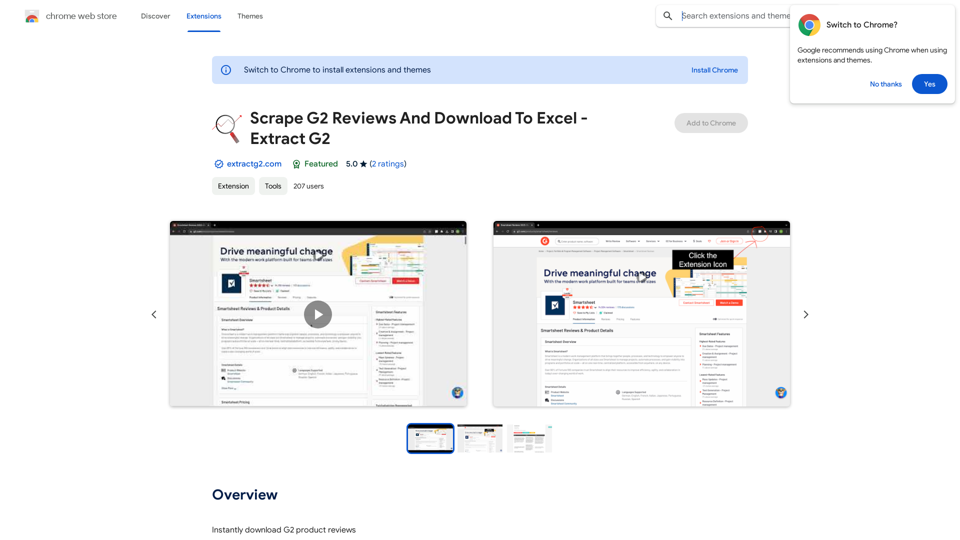
Scrape G2 Reviews and Download to Excel - Extract G2 Reviews Data EasilyInstantly download G2 product reviews
193.90 M
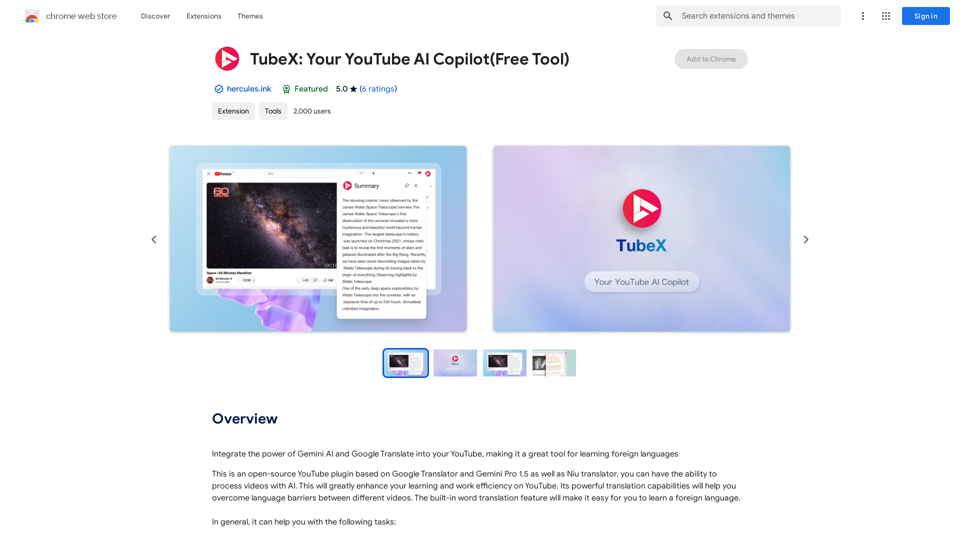
Integrate the power of Gemini AI and Google Translate into your YouTube, making it a great tool for learning foreign languages
193.90 M
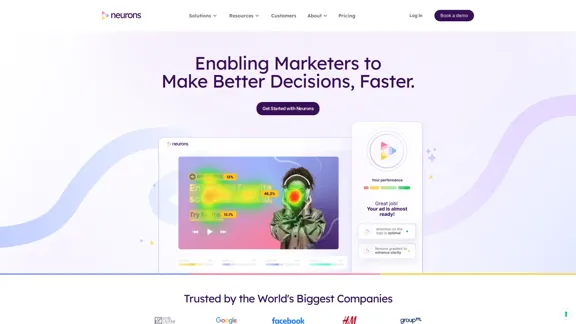
Visualize customer attention & get instant feedback on your visuals from the only AI Copilot powered by neuroscience. Improve campaign effectiveness with 20+ years of neuroscience experience at your fingertips.
68.88 K
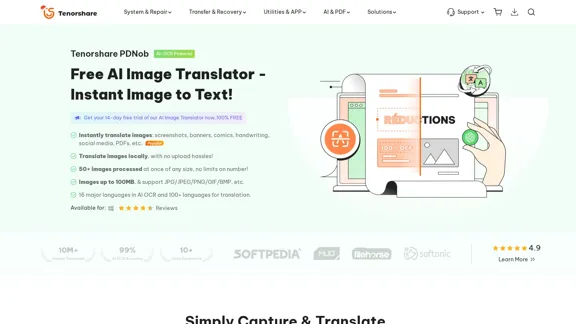
PDNob Image Translator is a powerful free image translator app that quickly extracts and translates text from images, screenshots, or scanned documents. It supports multiple languages and ensures high accuracy, making it ideal for students, professionals, and travelers.
4.18 M
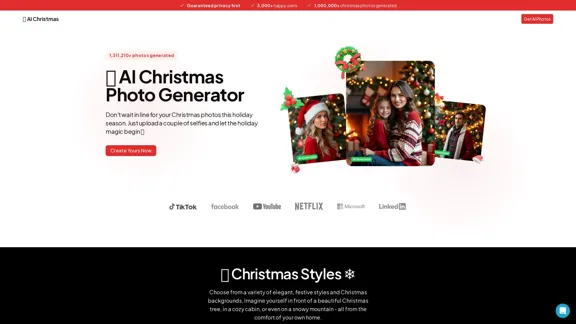
AI Christmas Photo Generator | The Best Christmas AI Generator
AI Christmas Photo Generator | The Best Christmas AI GeneratorDon't wait in line for your Christmas photos this holiday season. Just upload a couple of selfies and let the holiday magic begin 💫
295
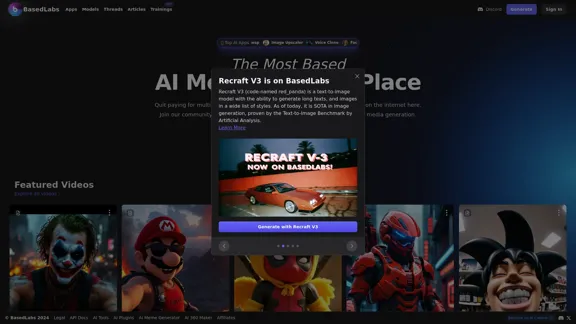
BasedLabs is your go-to source for AI video and tools. Join our community of thousands of AI enthusiasts and creators.
771.42 K
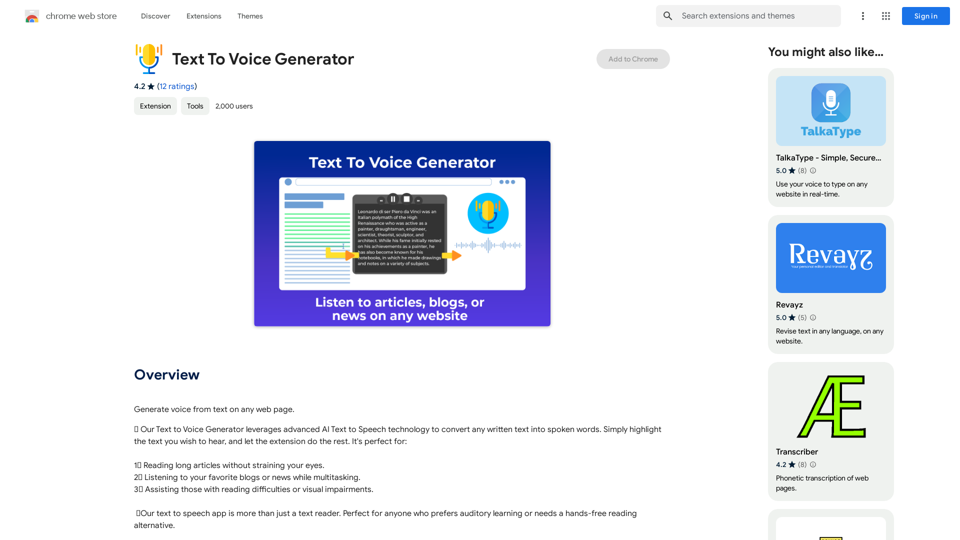
Text to Voice Generator ========================== A text-to-voice generator, also known as a text-to-speech (TTS) system, is a software that converts written text into a spoken voice output. This technology has been widely used in various applications, including virtual assistants, audiobooks, and language learning platforms. How it Works --------------- The process of generating voice from text involves several steps: 1. Text Analysis: The input text is analyzed to identify the language, syntax, and semantics. 2. Phonetic Transcription: The text is converted into a phonetic transcription, which represents the sounds of the spoken language. 3. Prosody Generation: The phonetic transcription is then used to generate the prosody, or rhythm and intonation, of the spoken voice. 4. Waveform Generation: The prosody and phonetic transcription are combined to generate the audio waveform, which is the final spoken voice output. Types of Text-to-Voice Generators ----------------------------------- There are two main types of text-to-voice generators: Rule-Based Systems These systems use a set of predefined rules to generate the spoken voice output. They are often limited in their ability to produce natural-sounding voices and may sound robotic. Machine Learning-Based Systems These systems use machine learning algorithms to learn from large datasets of spoken voices and generate more natural-sounding voices. They are often more advanced and can produce high-quality voice outputs. Applications of Text-to-Voice Generators ----------------------------------------- Text-to-voice generators have a wide range of applications, including: Virtual Assistants Virtual assistants, such as Siri and Alexa, use text-to-voice generators to respond to user queries. Audiobooks Text-to-voice generators can be used to create audiobooks from written texts, making it easier for people to access written content. Language Learning Language learning platforms use text-to-voice generators to provide pronunciation guidance and practice exercises for learners. Accessibility Text-to-voice generators can be used to assist people with disabilities, such as visual impairments, by providing an auditory interface to written content.
Text to Voice Generator ========================== A text-to-voice generator, also known as a text-to-speech (TTS) system, is a software that converts written text into a spoken voice output. This technology has been widely used in various applications, including virtual assistants, audiobooks, and language learning platforms. How it Works --------------- The process of generating voice from text involves several steps: 1. Text Analysis: The input text is analyzed to identify the language, syntax, and semantics. 2. Phonetic Transcription: The text is converted into a phonetic transcription, which represents the sounds of the spoken language. 3. Prosody Generation: The phonetic transcription is then used to generate the prosody, or rhythm and intonation, of the spoken voice. 4. Waveform Generation: The prosody and phonetic transcription are combined to generate the audio waveform, which is the final spoken voice output. Types of Text-to-Voice Generators ----------------------------------- There are two main types of text-to-voice generators: Rule-Based Systems These systems use a set of predefined rules to generate the spoken voice output. They are often limited in their ability to produce natural-sounding voices and may sound robotic. Machine Learning-Based Systems These systems use machine learning algorithms to learn from large datasets of spoken voices and generate more natural-sounding voices. They are often more advanced and can produce high-quality voice outputs. Applications of Text-to-Voice Generators ----------------------------------------- Text-to-voice generators have a wide range of applications, including: Virtual Assistants Virtual assistants, such as Siri and Alexa, use text-to-voice generators to respond to user queries. Audiobooks Text-to-voice generators can be used to create audiobooks from written texts, making it easier for people to access written content. Language Learning Language learning platforms use text-to-voice generators to provide pronunciation guidance and practice exercises for learners. Accessibility Text-to-voice generators can be used to assist people with disabilities, such as visual impairments, by providing an auditory interface to written content.Generate Voice from Text on Any Web Page With the advancement of technology, it is now possible to generate voice from text on any web page. This feature is particularly useful for people who prefer listening to content rather than reading it. Here's how you can do it: #Method 1: Using Browser Extension You can use a browser extension like Read Aloud or SpeakIt! to generate voice from text on any web page. These extensions are available for both Google Chrome and Mozilla Firefox browsers. #Method 2: Using Online Tools There are several online tools available that can convert text to speech. Some popular tools include NaturalReader, Voice Dream Reader, and Google Text-to-Speech. You can copy and paste the text from any web page into these tools to generate voice. #Method 3: Using Screen Reader If you are using a Windows operating system, you can use the built-in Narrator screen reader to generate voice from text on any web page. For Mac users, you can use VoiceOver. By using any of these methods, you can easily generate voice from text on any web page and enjoy a more convenient and accessible reading experience.
193.90 M