Open-source RightAI Tools Directory
  • Discover AI
  • Submit
  • Startup
  • Blog
Open-source RightAI Tools Directory
Discover the best AI tools of 2025 with the RightAI Tools Directory!

Friend Links

AI Anime GeneratorToolsApp AI

Support

Tap4
Privacy policyTerms & ConditionsContact Us
Loading...
loading...

AMISSU

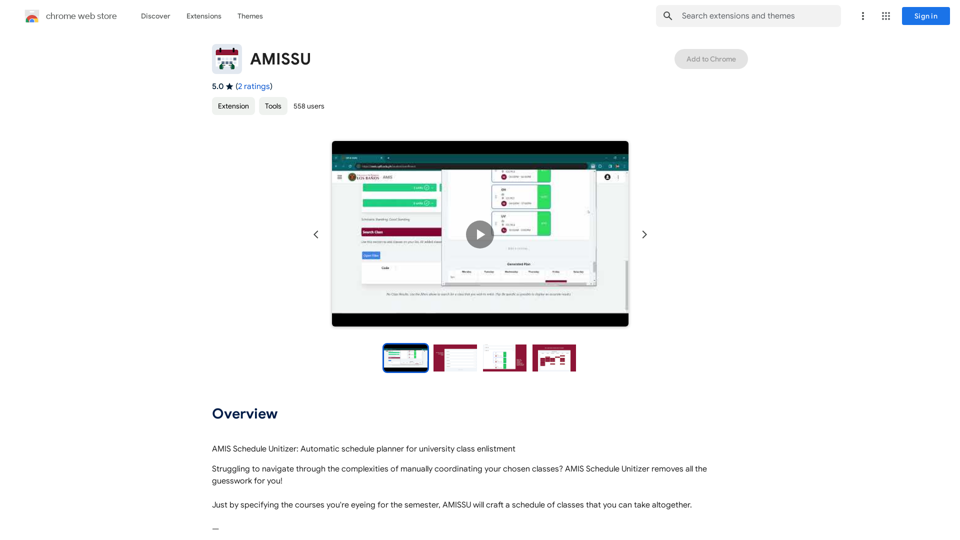
AMIS Schedule Unitizer: Automatic Schedule Planner for University Class Enrollment
Visit Website
AMISSU
Visit Website

Introduction

AMIS Schedule Unitizer is an AI-powered platform designed for University of the Philippines Los Baños (UPLB) students. It simplifies the complex process of coordinating class schedules by automatically generating a compatible timetable based on the courses selected by the student. This free Chrome extension is exclusively tailored for users of the UPLB Academic Management Information System, offering a time-saving and user-friendly solution for academic planning.

Feature

Automatic Schedule Generation

AMIS Schedule Unitizer eliminates guesswork by automatically creating a cohesive class schedule based on the courses specified by the student.

UPLB-Specific Design

The platform is exclusively tailored for UPLB students, integrating seamlessly with the university's Academic Management Information System.

User-Friendly Interface

With a simple input process, students can easily specify their desired courses and receive an optimized schedule, making it accessible even for those who are not tech-savvy.

Time-Efficient Planning

By automating the schedule creation process, AMIS Schedule Unitizer saves students significant time and effort in academic planning.

Free Accessibility

Available as a free extension on the Chrome Web Store, AMIS Schedule Unitizer is accessible to all UPLB students without any cost.

FAQ

What is AMIS Schedule Unitizer?

AMIS Schedule Unitizer is an AI-driven platform that helps UPLB students automatically generate compatible class schedules based on their selected courses for the semester.

How do I use AMIS Schedule Unitizer?

To use AMIS Schedule Unitizer, simply specify the courses you're interested in taking for the semester. The platform will then craft a schedule of classes that you can take altogether.

Is AMIS Schedule Unitizer exclusive to UPLB students?

Yes, AMIS Schedule Unitizer is tailored exclusively for users of the UPLB Academic Management Information System, currently the students of the University of the Philippines Los Baños.

How much does AMIS Schedule Unitizer cost?

AMIS Schedule Unitizer is a free extension, available for download on the Chrome Web Store.

What are some helpful tips for using AMIS Schedule Unitizer?

Make sure to specify your desired courses accurately to get the best results. It's also recommended to use AMIS Schedule Unitizer regularly to stay on top of your schedule and avoid conflicts.

Related Websites
Amolino Gmail Extension
View Detail

Amolino Gmail Extension

Amolino Gmail Extension

Amolino.AI is an AI-powered personal assistant that analyzes and learns from the emails you send and receive.

193.90 M
Xiao Yuan Intelligent Assistant - Free Multimodal AI Assistant (GTP-4, Drawing, Document Chat)
View Detail

Xiao Yuan Intelligent Assistant - Free Multimodal AI Assistant (GTP-4, Drawing, Document Chat)

Xiao Yuan Intelligent Assistant - Free Multimodal AI Assistant (GTP-4, Drawing, Document Chat)

"Xiao Yuan AI Assistant" is a multi-modal AI assistant powered by GPT-4V and several leading large models. Whether it's answering questions, writing content, writing code, or AI painting, it can handle it with ease. It also has many powerful features like quick commands, document reading, and knowledge base Q&A, making your work easier🌈 and life more colorful! 🎉

193.90 M
Chat-GPT PDF

What is Chat-GPT PDF?

Chat-GPT PDF is a tool that allows users to generate PDF files from Chat-GPT conversations. This innovative tool enables users to save and share their conversations in a more organized and visually appealing format.

How does Chat-GPT PDF work?

The process is simple and straightforward. Here's a step-by-step guide:

1. Copy the conversation: Copy the entire conversation from the Chat-GPT platform.
2. Paste the conversation: Paste the copied conversation into the Chat-GPT PDF tool.
3. Customize the layout: Customize the layout, font, and design of the PDF file according to your preferences.
4. Generate the PDF: Click the "Generate PDF" button to create a downloadable PDF file.

Features of Chat-GPT PDF

Chat-GPT PDF offers several features that make it an essential tool for users:

* Customizable layout: Customize the layout, font, and design of the PDF file to suit your needs.
* Easy sharing: Share the PDF file with others via email, social media, or messaging apps.
* Offline access: Access your conversations offline, even without an internet connection.
* Organization: Organize your conversations in a neat and tidy format, making it easier to review and reference.

Benefits of Chat-GPT PDF

The benefits of using Chat-GPT PDF are numerous:

* Improved productivity: Save time and increase productivity by having all your conversations in one place.
* Enhanced collaboration: Collaborate with others more effectively by sharing conversations in a clear and concise format.
* Better organization: Keep your conversations organized, making it easier to review and reference them later.

Conclusion

Chat-GPT PDF is a game-changer for anyone who uses Chat-GPT regularly. With its ease of use, customization options, and benefits, it's an essential tool for anyone looking to get the most out of their conversations.
View Detail

Chat-GPT PDF What is Chat-GPT PDF? Chat-GPT PDF is a tool that allows users to generate PDF files from Chat-GPT conversations. This innovative tool enables users to save and share their conversations in a more organized and visually appealing format. How does Chat-GPT PDF work? The process is simple and straightforward. Here's a step-by-step guide: 1. Copy the conversation: Copy the entire conversation from the Chat-GPT platform. 2. Paste the conversation: Paste the copied conversation into the Chat-GPT PDF tool. 3. Customize the layout: Customize the layout, font, and design of the PDF file according to your preferences. 4. Generate the PDF: Click the "Generate PDF" button to create a downloadable PDF file. Features of Chat-GPT PDF Chat-GPT PDF offers several features that make it an essential tool for users: * Customizable layout: Customize the layout, font, and design of the PDF file to suit your needs. * Easy sharing: Share the PDF file with others via email, social media, or messaging apps. * Offline access: Access your conversations offline, even without an internet connection. * Organization: Organize your conversations in a neat and tidy format, making it easier to review and reference. Benefits of Chat-GPT PDF The benefits of using Chat-GPT PDF are numerous: * Improved productivity: Save time and increase productivity by having all your conversations in one place. * Enhanced collaboration: Collaborate with others more effectively by sharing conversations in a clear and concise format. * Better organization: Keep your conversations organized, making it easier to review and reference them later. Conclusion Chat-GPT PDF is a game-changer for anyone who uses Chat-GPT regularly. With its ease of use, customization options, and benefits, it's an essential tool for anyone looking to get the most out of their conversations.

Chat-GPT PDF What is Chat-GPT PDF? Chat-GPT PDF is a tool that allows users to generate PDF files from Chat-GPT conversations. This innovative tool enables users to save and share their conversations in a more organized and visually appealing format. How does Chat-GPT PDF work? The process is simple and straightforward. Here's a step-by-step guide: 1. Copy the conversation: Copy the entire conversation from the Chat-GPT platform. 2. Paste the conversation: Paste the copied conversation into the Chat-GPT PDF tool. 3. Customize the layout: Customize the layout, font, and design of the PDF file according to your preferences. 4. Generate the PDF: Click the "Generate PDF" button to create a downloadable PDF file. Features of Chat-GPT PDF Chat-GPT PDF offers several features that make it an essential tool for users: * Customizable layout: Customize the layout, font, and design of the PDF file to suit your needs. * Easy sharing: Share the PDF file with others via email, social media, or messaging apps. * Offline access: Access your conversations offline, even without an internet connection. * Organization: Organize your conversations in a neat and tidy format, making it easier to review and reference. Benefits of Chat-GPT PDF The benefits of using Chat-GPT PDF are numerous: * Improved productivity: Save time and increase productivity by having all your conversations in one place. * Enhanced collaboration: Collaborate with others more effectively by sharing conversations in a clear and concise format. * Better organization: Keep your conversations organized, making it easier to review and reference them later. Conclusion Chat-GPT PDF is a game-changer for anyone who uses Chat-GPT regularly. With its ease of use, customization options, and benefits, it's an essential tool for anyone looking to get the most out of their conversations.

Exporting Chat History to PDF You can export your chat history with Chat-GPT to a PDF file using the following methods: #Method 1: Browser Print Function 1. Open your chat conversation with Chat-GPT in a web browser. 2. Press `Ctrl + P` (Windows) or `Cmd + P` (Mac) to open the print dialog box. 3. Select "Save as PDF" as the printer destination. 4. Choose a location to save the PDF file and set the file name. 5. Click "Save" to export the chat history to a PDF file. #Method 2: Online PDF Conversion Tools 1. Copy the entire chat conversation by pressing `Ctrl + A` (Windows) or `Cmd + A` (Mac) and then `Ctrl + C` (Windows) or `Cmd + C` (Mac). 2. Go to an online PDF conversion tool, such as SmallPDF or Convertio. 3. Paste the chat conversation into the conversion tool's text box. 4. Select the PDF format and click "Convert" to generate the PDF file. 5. Download the PDF file to your computer. #Method 3: Browser Extensions 1. Install a browser extension, such as Print Friendly & PDF or FireShot, that allows you to save web pages as PDF files. 2. Open your chat conversation with Chat-GPT in a web browser. 3. Click the browser extension's icon in the toolbar. 4. Select the "Save as PDF" option and choose a location to save the file. 5. Click "Save" to export the chat history to a PDF file. By following these methods, you can easily export your chat history with Chat-GPT to a PDF file for future reference or sharing.

193.90 M
OneClick AI
View Detail

OneClick AI

OneClick AI

Instantly understand web content and extract key points with AI-powered summarization and translation with just one click.

193.90 M
Transcript Helper for Chorus.ai 

This is a tool designed to help you work with transcripts generated by Chorus.ai. 


Let me know what you need help with! For example, you can ask me to:

* Summarize a transcript: Give me a transcript and I'll provide a concise summary of the main points.
* Find specific information: Tell me what you're looking for (e.g., "find all mentions of product X") and I'll search the transcript for relevant text.
* Identify key speakers: I can analyze the transcript and tell you who the main speakers are.
* Generate action items: Based on the transcript, I can help you identify tasks that need to be completed.
* Translate the transcript: I can translate the transcript into another language.


What can I do for you today?
View Detail

Transcript Helper for Chorus.ai This is a tool designed to help you work with transcripts generated by Chorus.ai. Let me know what you need help with! For example, you can ask me to: * Summarize a transcript: Give me a transcript and I'll provide a concise summary of the main points. * Find specific information: Tell me what you're looking for (e.g., "find all mentions of product X") and I'll search the transcript for relevant text. * Identify key speakers: I can analyze the transcript and tell you who the main speakers are. * Generate action items: Based on the transcript, I can help you identify tasks that need to be completed. * Translate the transcript: I can translate the transcript into another language. What can I do for you today?

Transcript Helper for Chorus.ai This is a tool designed to help you work with transcripts generated by Chorus.ai. Let me know what you need help with! For example, you can ask me to: * Summarize a transcript: Give me a transcript and I'll provide a concise summary of the main points. * Find specific information: Tell me what you're looking for (e.g., "find all mentions of product X") and I'll search the transcript for relevant text. * Identify key speakers: I can analyze the transcript and tell you who the main speakers are. * Generate action items: Based on the transcript, I can help you identify tasks that need to be completed. * Translate the transcript: I can translate the transcript into another language. What can I do for you today?

This extension finds chorus.ai transcripts and lets you copy them to your clipboard.

193.90 M
Free AI Face Swap - Photo & Video
View Detail

Free AI Face Swap - Photo & Video

Free AI Face Swap - Photo & Video

Free AI Face Swapper supports single photo face swaps, multiple photo face swaps, and video face swaps!

193.90 M
AnkAI
View Detail

AnkAI

AnkAI

AnkAI is the best tool for easily turning PDFs into Anki flash cards, making your studying process faster and simpler.

0
ChatGPT for Google Search
View Detail

ChatGPT for Google Search

ChatGPT for Google Search

Show the ChatGPT response next to the search engine results.

193.90 M