Copilotly is an AI-powered personal assistant designed to enhance productivity and unlock mental potential. It offers advanced writing assistance, translation, summarization, and various other features to help users search better, write faster, and be more productive in both professional and personal spheres.
Copilotly: Your Personal AI Copilot
Unlock your mind's potential with Copilotly AI. Search better, write faster & be more productive with Copilotly by your side.

Introduction
Feature
Advanced Writing Assistance
Copilotly provides flawless grammar and syntax correction, content rephrasing for clarity and style, and content expansion for depth and quality. This feature helps users improve their writing skills and produce high-quality content efficiently.
Intelligent Summarization
The tool offers lightning-fast summarization of online articles, allowing users to quickly grasp the main points of lengthy texts. This feature saves time and enhances information processing capabilities.
Multilingual Translation
Copilotly seamlessly translates content into various languages, breaking down language barriers and facilitating global communication.
Concept Simplification
Complex concepts are simplified and explained, making it easier for users to understand and work with challenging ideas or topics.
Programming Language Decoder
Developers can benefit from Copilotly's ability to decode programming languages, enhancing coding efficiency and understanding.
Creative Content Generation
The tool assists in generating persuasive ad scripts and engaging video scripts, boosting creative output for marketing and content creation purposes.
AI-Powered Tools
Copilotly offers a vast range of AI-powered tools to support various tasks, continuously updated with the latest AI breakthroughs and advancements.
Interactive AI Assistant
Users can select online content or draft their own, then use the Copilotly icon to open an interactive AI-assistant modal. This feature allows for easy task specification and execution.
Privacy Protection
Copilotly prioritizes user privacy with strict security measures and responsible data handling practices, ensuring a trustworthy AI companion experience.
FAQ
How does Copilotly work?
Copilotly works by allowing users to select online content or draft their own, then click the Copilotly icon to open an interactive AI-assistant modal. Users can choose the specific copilot they need, specify the task they want to accomplish, and then watch as Copilotly performs the requested action.
What are some ways to maximize the use of Copilotly?
To maximize Copilotly usage:
- Utilize daily free uses of GPT-4 document reading and Dalle's image generation
- Explore the wide range of AI-powered tools for various tasks
- Leverage advanced writing assistance, translation, and summarization features
- Stay updated with regular improvements incorporating the latest AI advancements
Is user information secure with Copilotly?
Yes, Copilotly prioritizes user privacy and data security. The platform implements strict security measures and responsible data handling practices, ensuring that user information is protected at all times.
Related Websites

At enso, you can get AI-powered digital services for most of your essential needs at a much lower price.
0
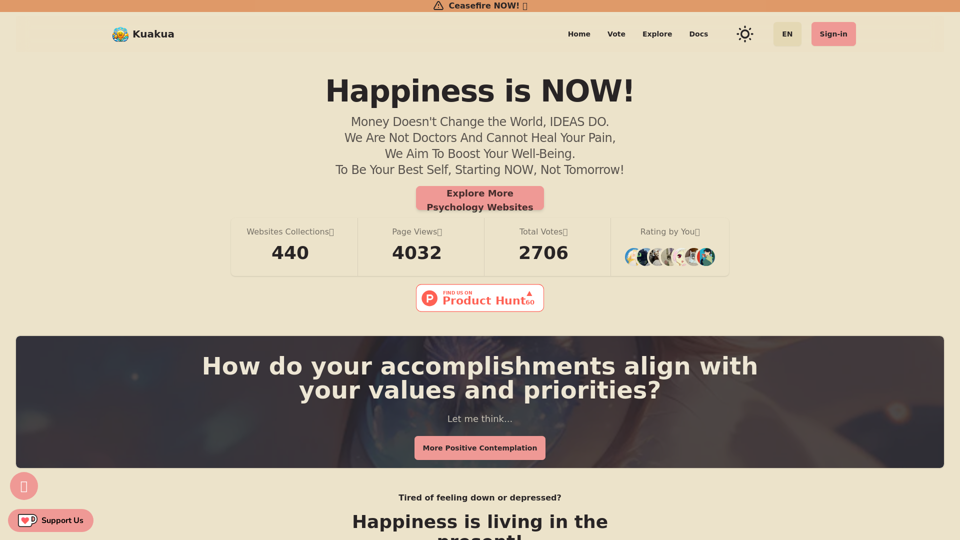
Explore psychology, AI tools, mindfulness, lifestyle, and therapy resources. Find happy languages, tasks, websites, and apps to boost your well-being and happiness.
0
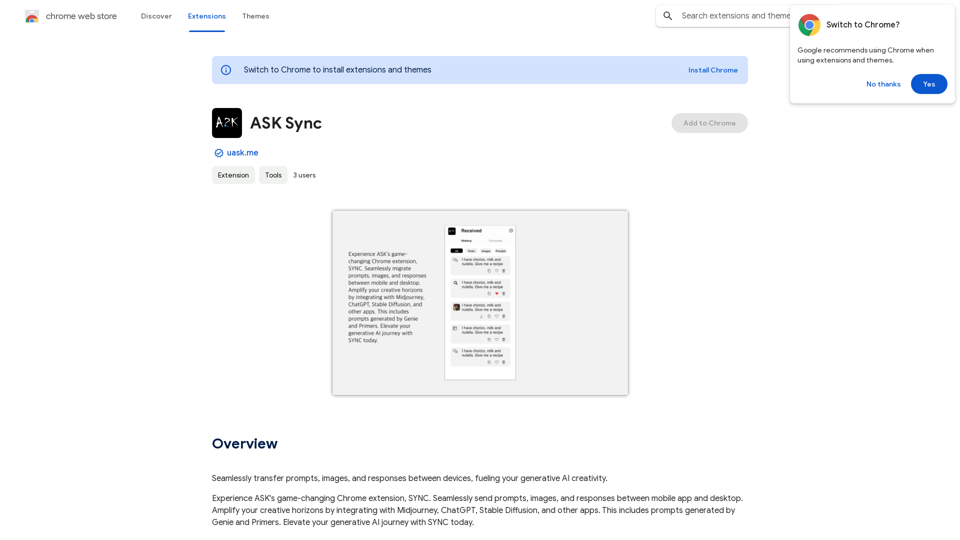
Effortlessly move your prompts, images, and responses between your devices, boosting your generative AI creativity.
193.90 M
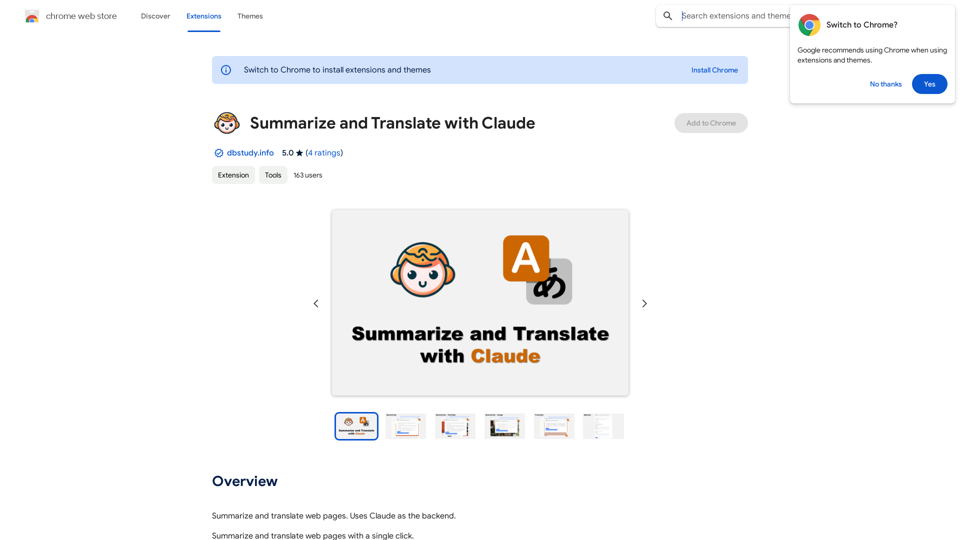
Please provide me with the text you'd like me to summarize and translate. I'm ready! 😊
Please provide me with the text you'd like me to summarize and translate. I'm ready! 😊I can help you with that! Just paste the web page URL here, and I'll use Claude's powerful abilities to: * Summarize the main points of the page in clear, concise language. * Translate the entire page into English for you. Let me know if you have a page you'd like me to work on!
193.90 M
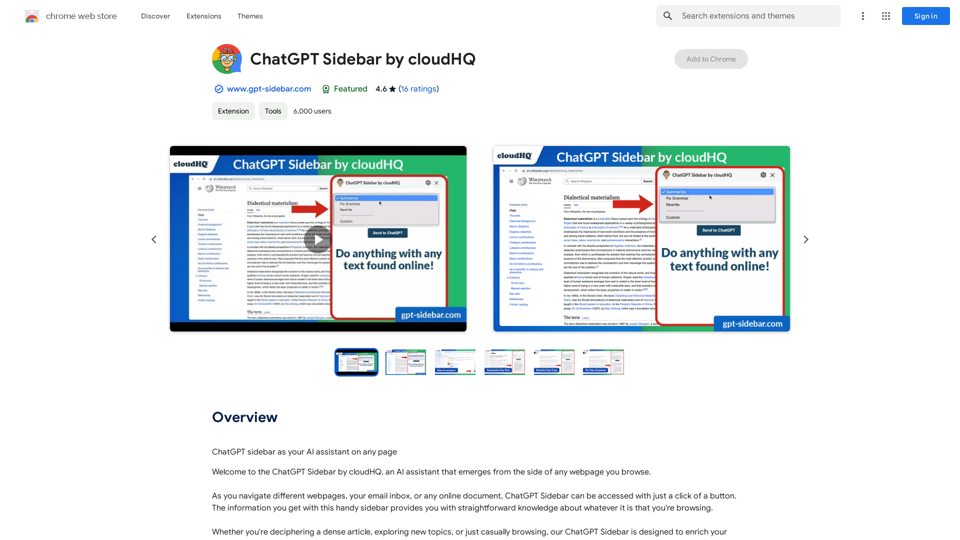
ChatGPT Sidebar by cloudHQ This is a powerful tool that brings the capabilities of ChatGPT directly into your workflow. Key Features: * Seamless Integration: Effortlessly access ChatGPT within your favorite applications like Gmail, Slack, and Notion. * Contextual Understanding: ChatGPT remembers past interactions, providing relevant and coherent responses within the context of your current task. * Boost Productivity: Automate repetitive tasks, generate creative content, and get instant answers to your questions, all without leaving your workspace. * Enhanced Collaboration: Share ChatGPT-powered insights and ideas with your team, fostering more productive and efficient collaboration. Benefits: * Save Time and Effort: Streamline your workflow and focus on high-value tasks. * Unlock Creativity: Overcome writer's block and generate innovative ideas. * Improve Communication: Craft clear, concise, and engaging messages. * Make Informed Decisions: Access reliable information and insights to support your decision-making process. Get Started Today: Visit our website to learn more and start using ChatGPT Sidebar by cloudHQ.
ChatGPT Sidebar by cloudHQ This is a powerful tool that brings the capabilities of ChatGPT directly into your workflow. Key Features: * Seamless Integration: Effortlessly access ChatGPT within your favorite applications like Gmail, Slack, and Notion. * Contextual Understanding: ChatGPT remembers past interactions, providing relevant and coherent responses within the context of your current task. * Boost Productivity: Automate repetitive tasks, generate creative content, and get instant answers to your questions, all without leaving your workspace. * Enhanced Collaboration: Share ChatGPT-powered insights and ideas with your team, fostering more productive and efficient collaboration. Benefits: * Save Time and Effort: Streamline your workflow and focus on high-value tasks. * Unlock Creativity: Overcome writer's block and generate innovative ideas. * Improve Communication: Craft clear, concise, and engaging messages. * Make Informed Decisions: Access reliable information and insights to support your decision-making process. Get Started Today: Visit our website to learn more and start using ChatGPT Sidebar by cloudHQ.ChatGPT sidebar as your AI assistant on any page
193.90 M