Open-source RightAI Tools Directory
  • Discover AI
  • Submit
  • Startup
  • Blog
Open-source RightAI Tools Directory
Discover the best AI tools of 2025 with the RightAI Tools Directory!

Friend Links

AI Anime GeneratorToolsApp AI

Support

Tap4
Privacy policyTerms & ConditionsContact Us
Loading...
loading...

TeQatlas: Instant Insights for VCs and Angels

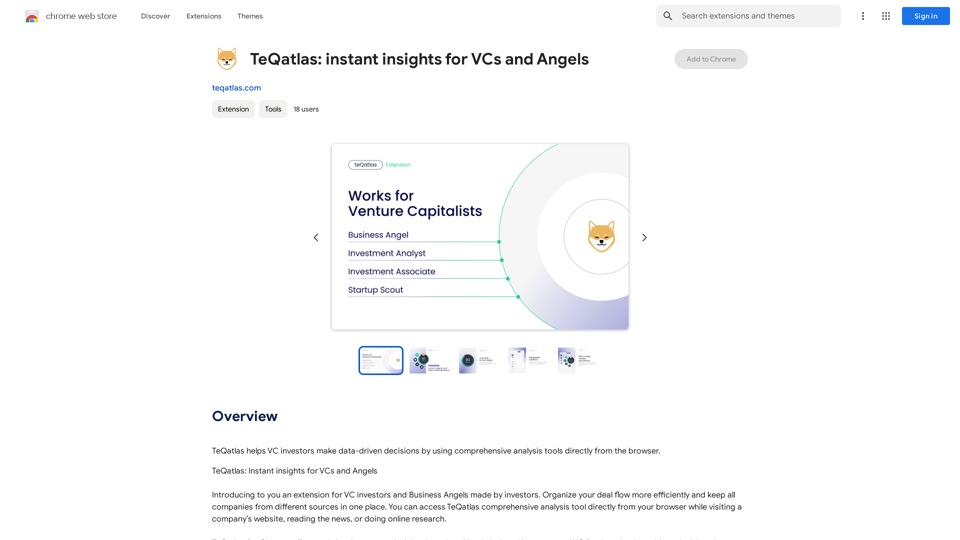
TeQatlas helps venture capital investors make decisions based on data by using complete analysis tools right in your web browser.
Visit Website
TeQatlas: Instant Insights for VCs and Angels
Visit Website

Introduction

TeQatlas is an innovative browser extension designed for VC investors and Business Angels. Created by investors, it streamlines deal flow management by consolidating companies from various sources into a single platform. TeQatlas offers comprehensive analysis tools accessible directly from your browser, enhancing efficiency while researching companies, reading news, or browsing websites.

Feature

Real-time Investment Insights

TeQatlas leverages AI technology to provide real-time investment insights, empowering Angel investors and VC funds to make data-driven decisions.

Comprehensive Analysis Tool

The extension offers a robust analysis tool that evaluates a company's relevance based on your specific investment focus, ensuring you identify the most promising opportunities.

Radar for Future Reference

Users can save highly relevant companies to their Radar, creating a curated list of potential investments for future consideration.

Chat Room for Updates

TeQatlas includes a Chat Room feature where users can monitor new messages from investees, keeping them informed about the latest developments.

One-Click Insights

With TeQatlas, users can quickly assess a company's relevance within seconds, relying on intelligent data analysis and a proprietary Relevance Score.

Integrated Workflow

The extension allows users to save all companies in one place without the need to open a separate CRM, streamlining deal-sourcing activities with the help of a personal assistant.

Opportunity Tracking

TeQatlas enables users to follow company updates and receive notifications about relevant news, including changes in company status, new releases, or active deals.

FAQ

How does TeQatlas work?

TeQatlas utilizes AI-based real-time investment insights to assist Angel investors and VC funds in making data-driven decisions. It allows users to find out a company's relevancy based on their investment focus, save highly relevant companies to their Radar, and monitor updates from investees in the Chat Room.

Who is TeQatlas designed for?

TeQatlas caters to two main user groups:

  1. Angel investors who want to conduct pre-screening efficiently and avoid missing investment opportunities.
  2. VC funds seeking to make data-driven decisions quickly and centralize companies from various sources in one location.

What are the key benefits of using TeQatlas?

The main benefits of using TeQatlas include:

  1. One-click insights: Quickly assess a company's relevance using data and an intelligent Relevance Score.
  2. Integrated workflow: Save all companies in one place without opening a separate CRM, syncing deal-sourcing activities with a personal assistant.
  3. No missed opportunities: Follow company updates and receive notifications about relevant news, status changes, releases, or new active deals.

Related Websites
Apexgo
View Detail

Apexgo

Apexgo

Check the rarity and score of all your favorite NFTs, calculated directly by Apexgo on Opensea. This feature goes beyond the...

193.90 M
FlowTunes - Music for Focus
View Detail

FlowTunes - Music for Focus

FlowTunes - Music for Focus

FlowTunes - Enhance your focus with curated music playlists designed to boost your productivity.

27.51 K
ReplyGO - AI for Customer Service
View Detail

ReplyGO - AI for Customer Service

ReplyGO - AI for Customer Service

AI Agent for e-commerce and ticketing platforms powered by ChatGPT

193.90 M
What is a Prompster?

A Prompster is a person who assists a speaker, actor, or presenter by providing them with lines or cues, usually in a subtle and discreet manner, during a performance, presentation, or speech.
View Detail

What is a Prompster? A Prompster is a person who assists a speaker, actor, or presenter by providing them with lines or cues, usually in a subtle and discreet manner, during a performance, presentation, or speech.

What is a Prompster? A Prompster is a person who assists a speaker, actor, or presenter by providing them with lines or cues, usually in a subtle and discreet manner, during a performance, presentation, or speech.

Slash Commands for ChatGPT and Bard ===================================== Introduction Slash commands are a convenient way to interact with ChatGPT and Bard, allowing you to perform various tasks and actions within the chat interface. This guide provides an overview of the available slash commands for both ChatGPT and Bard. ChatGPT Slash Commands #General Commands * `/help`: Displays a list of available slash commands and their descriptions. * `/reset`: Resets the conversation, clearing all previous messages and context. #Conversation Management * `/start`: Starts a new conversation, allowing you to begin a fresh topic or task. * `/stop`: Ends the current conversation, stopping any ongoing tasks or topics. #Language and Tone * `/lang <language_code>`: Sets the language for the conversation (e.g., `/lang en` for English). * `/tone <tone>`: Adjusts the tone of the responses (e.g., `/tone formal` for formal tone). #Task Management * `/task <task_name>`: Creates a new task or topic for the conversation (e.g., `/task math problem`). * `/done`: Marks the current task as completed. #Information and Resources * `/define <word>`: Provides the definition of a word or phrase. * `/wiki <topic>`: Displays information about a topic from Wikipedia. Bard Slash Commands #General Commands * `/help`: Displays a list of available slash commands and their descriptions. * `/reset`: Resets the conversation, clearing all previous messages and context. #Conversation Management * `/start`: Starts a new conversation, allowing you to begin a fresh topic or task. * `/stop`: Ends the current conversation, stopping any ongoing tasks or topics. #Language and Tone * `/lang <language_code>`: Sets the language for the conversation (e.g., `/lang en` for English). * `/tone <tone>`: Adjusts the tone of the responses (e.g., `/tone formal` for formal tone). #Task Management * `/task <task_name>`: Creates a new task or topic for the conversation (e.g., `/task math problem`). * `/done`: Marks the current task as completed. #Information and Resources * `/define <word>`: Provides the definition of a word or phrase. * `/wiki <topic>`: Displays information about a topic from Wikipedia. * `/news <topic>`: Displays news articles related to a specific topic. Conclusion Slash commands provide a convenient way to interact with ChatGPT and Bard, allowing you to manage conversations, adjust language and tone, and access various resources. By mastering these commands, you can optimize your experience and get the most out of your interactions with these AI models.

193.90 M
Artu
View Detail

Artu

Artu

ARTU Meetings: Your Meeting's Personal Scribe! Install ARTU to receive automatic meeting minutes for your Google Meet and...

193.90 M
Make AI Text More Human
View Detail

Make AI Text More Human

Make AI Text More Human

Meet Humanize.io, the best AI tool to make your AI content sound more human. Try our AI humanizer for free now!

164.25 K
Magic Cal
View Detail

Magic Cal

Magic Cal

Make events with AI -- ChatGPT in Google Calendar This is a guide on how to use ChatGPT to create events in your Google Calendar. 1. Open ChatGPT and Google Calendar: * Start a new conversation in ChatGPT. * Open your Google Calendar in a separate tab or window. 2. Tell ChatGPT what you want to schedule: * Be specific about the event details, including: * Event name: (e.g., "Team Meeting") * Date and time: (e.g., "Next Tuesday at 2:00 PM") * Duration: (e.g., "1 hour") * Location: (e.g., "Conference Room") * Description: (optional, add any relevant details) 3. ChatGPT will generate a calendar event string: * ChatGPT will provide you with a text string that includes all the event details in a format suitable for Google Calendar. 4. Copy and paste the event string into Google Calendar: * Click on the "Create" button in Google Calendar. * Paste the event string generated by ChatGPT into the event details field. * Adjust any details if needed. 5. Save the event: * Click "Save" to add the event to your Google Calendar. Let me know if you have any other questions.

193.90 M
AI-cruiter by WorkInBiotech.com
View Detail

AI-cruiter by WorkInBiotech.com

AI-cruiter by WorkInBiotech.com

Free, Fast, AI-Powered Job Applicant Review for Recruiters

193.90 M