Open-source RightAI Tools Directory
  • Discover AI
  • Submit
  • Startup
  • Blog
Open-source RightAI Tools Directory
Discover the best AI tools of 2025 with the RightAI Tools Directory!

Friend Links

AI Anime GeneratorToolsApp AI

Support

Tap4
Privacy policyTerms & ConditionsContact Us
Loading...
loading...

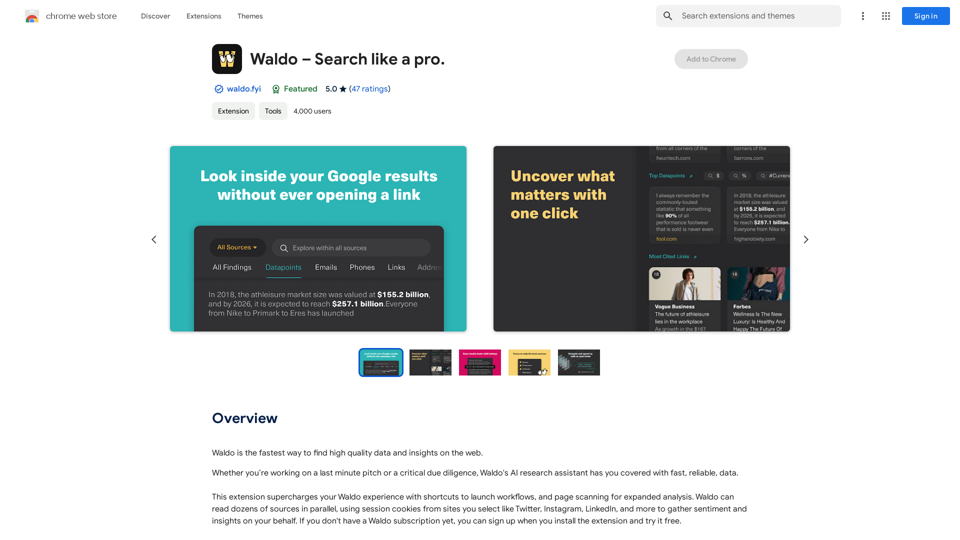
Waldo – Search like a pro.

Waldo is the fastest way to find high-quality data and insights on the web.
Visit Website
Waldo – Search like a pro.
Visit Website

Introduction

Waldo is an AI-powered research assistant designed to enhance web-based data discovery and analysis. It offers a range of features to streamline research workflows, including automated processes, page scanning capabilities, and shortcuts for efficient task execution. Waldo caters to various research needs, from market analysis to creating comprehensive reports, making it a versatile tool for professionals across different industries.

Feature

AI-Powered Research Assistant

Waldo utilizes artificial intelligence to help users find high-quality data and insights on the web, significantly improving the research experience.

Automated Workflows

Waldo offers automated workflows to streamline various research tasks, increasing efficiency and productivity.

Page Scanning for Expanded Analysis

The tool includes a page scanning feature that allows for more comprehensive analysis of web content.

Shortcuts for Workflow Launch

Users can take advantage of shortcuts to quickly initiate research workflows, saving valuable time.

Versatile Research Applications

Waldo supports a wide range of research applications, including:

  • Industry / Market Analysis
  • Brand Audits
  • Company Profiles
  • Four C's Analysis
  • Audience Identification
  • Buyer Personas
  • Competitive Analysis
  • Demographic Analysis
  • Marketing Case Studies
  • Clip Reports
  • Briefing Books
  • Creative Briefs

Easy Installation and Setup

Waldo can be easily installed as a browser extension, making it readily accessible for users.

Flexible Pricing Options

The tool offers a free trial period, followed by affordable subscription options that provide access to additional features and extended usage limits.

FAQ

What is Waldo?

Waldo is an AI-powered research assistant that helps users find high-quality data and insights on the web. It offers features like automated workflows, page scanning for expanded analysis, and shortcuts to launch research tasks.

How do I use Waldo?

To use Waldo, follow these steps:

  1. Install the Waldo browser extension
  2. Sign up for a subscription (if required)
  3. Start using Waldo's AI research assistant to find data and insights on the web

Is Waldo free?

Waldo offers a free trial period. After the trial, users can subscribe to affordable plans to access more features and extended usage limits.

What are some helpful tips for using Waldo?

Here are some tips to maximize your use of Waldo:

  • Utilize automated workflows to streamline research tasks
  • Take advantage of the page scanning feature for more comprehensive analysis
  • Use shortcuts to quickly launch workflows and save time

Related Websites
Work Hunty
View Detail

Work Hunty

Work Hunty

Easily track the jobs you are applying for.

193.90 M
Hints Playbook AI

This playbook provides guidance on how to effectively use hints to improve the performance of AI models.

Understanding Hints

Hints are additional pieces of information provided to an AI model to guide its output. They can take various forms, such as:

* Textual prompts: Direct instructions or suggestions.
* Examples: Demonstrating the desired output format or style.
* Constraints: Specifying limitations or boundaries for the response.

Types of Hints

* Zero-shot: Hints are provided without any examples.
* Few-shot: A small number of examples are given to illustrate the desired output.
* Fine-tuning: Hints are incorporated into the training data to adjust the model's behavior.

Best Practices for Using Hints

* Be specific: Clearly articulate what you want the AI to do.
* Provide context: Give the model enough background information to understand the task.
* Use examples: Demonstrate the desired output format or style.
* Iterate and refine: Experiment with different types and formats of hints to find what works best.
* Evaluate results: Assess the quality of the AI's output and adjust hints accordingly.
View Detail

Hints Playbook AI This playbook provides guidance on how to effectively use hints to improve the performance of AI models. Understanding Hints Hints are additional pieces of information provided to an AI model to guide its output. They can take various forms, such as: * Textual prompts: Direct instructions or suggestions. * Examples: Demonstrating the desired output format or style. * Constraints: Specifying limitations or boundaries for the response. Types of Hints * Zero-shot: Hints are provided without any examples. * Few-shot: A small number of examples are given to illustrate the desired output. * Fine-tuning: Hints are incorporated into the training data to adjust the model's behavior. Best Practices for Using Hints * Be specific: Clearly articulate what you want the AI to do. * Provide context: Give the model enough background information to understand the task. * Use examples: Demonstrate the desired output format or style. * Iterate and refine: Experiment with different types and formats of hints to find what works best. * Evaluate results: Assess the quality of the AI's output and adjust hints accordingly.

Hints Playbook AI This playbook provides guidance on how to effectively use hints to improve the performance of AI models. Understanding Hints Hints are additional pieces of information provided to an AI model to guide its output. They can take various forms, such as: * Textual prompts: Direct instructions or suggestions. * Examples: Demonstrating the desired output format or style. * Constraints: Specifying limitations or boundaries for the response. Types of Hints * Zero-shot: Hints are provided without any examples. * Few-shot: A small number of examples are given to illustrate the desired output. * Fine-tuning: Hints are incorporated into the training data to adjust the model's behavior. Best Practices for Using Hints * Be specific: Clearly articulate what you want the AI to do. * Provide context: Give the model enough background information to understand the task. * Use examples: Demonstrate the desired output format or style. * Iterate and refine: Experiment with different types and formats of hints to find what works best. * Evaluate results: Assess the quality of the AI's output and adjust hints accordingly.

Hints automatically updates CRM fields from video calls. Keep your CRM up-to-date.

193.90 M
Audeo AI: Audio Stem Splitter & Audio Enhancer
View Detail

Audeo AI: Audio Stem Splitter & Audio Enhancer

Audeo AI: Audio Stem Splitter & Audio Enhancer

Easily record, separate stems, isolate vocals, improve audio quality, and download audio directly from your web browser.

193.90 M
Find fashion
View Detail

Find fashion

Find fashion

Imagine being able to find that perfect outfit you saw on social media or in a magazine by just taking a photo.

193.90 M
What is a Prompster?

A Prompster is a person who assists a speaker, actor, or presenter by providing them with lines or cues, usually in a subtle and discreet manner, during a performance, presentation, or speech.
View Detail

What is a Prompster? A Prompster is a person who assists a speaker, actor, or presenter by providing them with lines or cues, usually in a subtle and discreet manner, during a performance, presentation, or speech.

What is a Prompster? A Prompster is a person who assists a speaker, actor, or presenter by providing them with lines or cues, usually in a subtle and discreet manner, during a performance, presentation, or speech.

Slash Commands for ChatGPT and Bard ===================================== Introduction Slash commands are a convenient way to interact with ChatGPT and Bard, allowing you to perform various tasks and actions within the chat interface. This guide provides an overview of the available slash commands for both ChatGPT and Bard. ChatGPT Slash Commands #General Commands * `/help`: Displays a list of available slash commands and their descriptions. * `/reset`: Resets the conversation, clearing all previous messages and context. #Conversation Management * `/start`: Starts a new conversation, allowing you to begin a fresh topic or task. * `/stop`: Ends the current conversation, stopping any ongoing tasks or topics. #Language and Tone * `/lang <language_code>`: Sets the language for the conversation (e.g., `/lang en` for English). * `/tone <tone>`: Adjusts the tone of the responses (e.g., `/tone formal` for formal tone). #Task Management * `/task <task_name>`: Creates a new task or topic for the conversation (e.g., `/task math problem`). * `/done`: Marks the current task as completed. #Information and Resources * `/define <word>`: Provides the definition of a word or phrase. * `/wiki <topic>`: Displays information about a topic from Wikipedia. Bard Slash Commands #General Commands * `/help`: Displays a list of available slash commands and their descriptions. * `/reset`: Resets the conversation, clearing all previous messages and context. #Conversation Management * `/start`: Starts a new conversation, allowing you to begin a fresh topic or task. * `/stop`: Ends the current conversation, stopping any ongoing tasks or topics. #Language and Tone * `/lang <language_code>`: Sets the language for the conversation (e.g., `/lang en` for English). * `/tone <tone>`: Adjusts the tone of the responses (e.g., `/tone formal` for formal tone). #Task Management * `/task <task_name>`: Creates a new task or topic for the conversation (e.g., `/task math problem`). * `/done`: Marks the current task as completed. #Information and Resources * `/define <word>`: Provides the definition of a word or phrase. * `/wiki <topic>`: Displays information about a topic from Wikipedia. * `/news <topic>`: Displays news articles related to a specific topic. Conclusion Slash commands provide a convenient way to interact with ChatGPT and Bard, allowing you to manage conversations, adjust language and tone, and access various resources. By mastering these commands, you can optimize your experience and get the most out of your interactions with these AI models.

193.90 M
Chrome Web Store
View Detail

Chrome Web Store

Chrome Web Store

Enhance your browser with new features and customize your browsing experience.

193.90 M
Claude to Notion

This is a guide on how to connect Claude, an AI assistant, with Notion, a note-taking and workspace app. 

Why connect Claude and Notion?

* Boost your productivity: Use Claude to generate content, summarize information, and automate tasks directly within Notion.
* Enhance your research: Ask Claude questions about your Notion notes and get insightful answers.
* Unlock new creative possibilities: Leverage Claude's generative capabilities to brainstorm ideas, write stories, or compose emails within your Notion workspace.

How to connect Claude and Notion:

1. API Keys: Obtain an API key for both Claude and Notion. 
2. Integration Tool: Explore integration tools like Zapier or Integromat to connect Claude and Notion. These platforms allow you to create workflows that trigger actions in one app based on events in the other.
3. Custom Development: For advanced users, you can develop your own custom integration using the Claude and Notion APIs. This gives you the most flexibility but requires coding knowledge.

Example Use Cases:

* Meeting Summarization: After a meeting, paste the transcript into Notion and use Claude to generate a concise summary.
* Content Creation:  Use Claude to write blog posts, articles, or social media captions directly within your Notion pages.
* Idea Generation: Brainstorm new ideas for projects or tasks by prompting Claude with specific questions within your Notion workspace.


Remember to review the documentation and terms of service for both Claude and Notion to ensure proper usage and security.
View Detail

Claude to Notion This is a guide on how to connect Claude, an AI assistant, with Notion, a note-taking and workspace app. Why connect Claude and Notion? * Boost your productivity: Use Claude to generate content, summarize information, and automate tasks directly within Notion. * Enhance your research: Ask Claude questions about your Notion notes and get insightful answers. * Unlock new creative possibilities: Leverage Claude's generative capabilities to brainstorm ideas, write stories, or compose emails within your Notion workspace. How to connect Claude and Notion: 1. API Keys: Obtain an API key for both Claude and Notion. 2. Integration Tool: Explore integration tools like Zapier or Integromat to connect Claude and Notion. These platforms allow you to create workflows that trigger actions in one app based on events in the other. 3. Custom Development: For advanced users, you can develop your own custom integration using the Claude and Notion APIs. This gives you the most flexibility but requires coding knowledge. Example Use Cases: * Meeting Summarization: After a meeting, paste the transcript into Notion and use Claude to generate a concise summary. * Content Creation: Use Claude to write blog posts, articles, or social media captions directly within your Notion pages. * Idea Generation: Brainstorm new ideas for projects or tasks by prompting Claude with specific questions within your Notion workspace. Remember to review the documentation and terms of service for both Claude and Notion to ensure proper usage and security.

Claude to Notion This is a guide on how to connect Claude, an AI assistant, with Notion, a note-taking and workspace app. Why connect Claude and Notion? * Boost your productivity: Use Claude to generate content, summarize information, and automate tasks directly within Notion. * Enhance your research: Ask Claude questions about your Notion notes and get insightful answers. * Unlock new creative possibilities: Leverage Claude's generative capabilities to brainstorm ideas, write stories, or compose emails within your Notion workspace. How to connect Claude and Notion: 1. API Keys: Obtain an API key for both Claude and Notion. 2. Integration Tool: Explore integration tools like Zapier or Integromat to connect Claude and Notion. These platforms allow you to create workflows that trigger actions in one app based on events in the other. 3. Custom Development: For advanced users, you can develop your own custom integration using the Claude and Notion APIs. This gives you the most flexibility but requires coding knowledge. Example Use Cases: * Meeting Summarization: After a meeting, paste the transcript into Notion and use Claude to generate a concise summary. * Content Creation: Use Claude to write blog posts, articles, or social media captions directly within your Notion pages. * Idea Generation: Brainstorm new ideas for projects or tasks by prompting Claude with specific questions within your Notion workspace. Remember to review the documentation and terms of service for both Claude and Notion to ensure proper usage and security.

Save Claude conversations to Notion with one click. Export Claude conversations.

193.90 M
Copy.ai
View Detail

Copy.ai

Copy.ai

Use Artificial Intelligence to write better SEO content.

193.90 M