Open-source RightAI Tools Directory
  • Discover AI
  • Submit
  • Startup
  • Blog
Open-source RightAI Tools Directory
Discover the best AI tools of 2025 with the RightAI Tools Directory!

Friend Links

AI Anime GeneratorToolsApp AI

Support

Tap4
Privacy policyTerms & ConditionsContact Us
Loading...
loading...

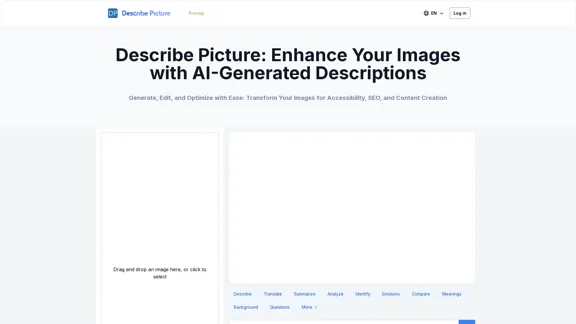
Describe Picture: AI-Generated Image Descriptions for Enhanced Accessibility and SEO

Describe Picture is an AI-driven platform that generates detailed descriptions of your images, enhancing accessibility, SEO, and content creation. Upload your images and let our AI provide accurate and editable descriptions to improve your digital content.
Visit Website
Describe Picture: AI-Generated Image Descriptions for Enhanced Accessibility and SEO
Visit Website

Introduction

Describe Picture is an AI-driven platform designed to generate detailed descriptions of images uploaded by users. It enhances accessibility, boosts SEO, and aids in content creation by providing accurate and engaging image descriptions. The platform caters to a variety of needs, from e-commerce to education, making it a versatile tool for users across different sectors.

Feature

  1. AI-Driven Image Analysis

    Describe Picture utilizes advanced AI technology to analyze images and generate comprehensive descriptions that include objects, colors, textures, emotions, and themes.

  2. Multi-Language Support

    The platform can produce descriptions in multiple languages, making it accessible for a global audience.

  3. User Editing and Refinement

    Users have the ability to edit and refine AI-generated descriptions to ensure accuracy and detail.

  4. Image Categorization

    Users can select categories (e.g., art, product, travel) when uploading images, allowing the AI to generate more relevant descriptions.

  5. Industry-Specific Prompts

    Describe Picture offers tailored prompts for various industries, enhancing the precision of generated descriptions.

  6. Community Interaction

    Users can share their descriptions and receive feedback, fostering engagement and quality improvement.

  7. Educational Resources

    The platform provides tips and guides on writing effective image descriptions, along with tutorials for different fields.

  8. API Services

    Describe Picture offers API services for integration into other websites and applications, broadening its usability.

  9. Free Trial and Subscription Model

    Users can access a free trial with limited uses, after which a subscription is required for continued access to full features.

  10. Performance Optimization and Security

    The platform is optimized for performance and prioritizes user data security and privacy.

How to Use?

  1. Visit the Describe Picture website to get started.
  2. Upload an image by clicking the "Upload" button.
  3. Select a category for your image to help the AI generate relevant descriptions.
  4. Choose from various preset prompts to guide the AI in generating descriptions.
  5. Click "Generate Description" to receive a detailed description of your image.
  6. Edit and refine the AI-generated description as needed.
  7. For developers, refer to the API documentation for integration options.

FAQ

What is Describe Picture?

Describe Picture is an AI-powered platform that generates detailed descriptions of uploaded images, enhancing accessibility, SEO, and content creation.

How accurate are Describe Picture's AI-generated descriptions?

The AI is highly accurate, but users can edit and refine the descriptions for perfect accuracy.

How many free uses does Describe Picture offer?

It offers 5 free uses for non-registered users and 20 monthly free uses for registered users.

Can I use Describe Picture for commercial purposes?

Yes, it can be used for commercial purposes, especially with a paid subscription.

Does Describe Picture support multiple languages?

Yes, it generates descriptions in various languages.

How can I integrate Describe Picture into my website or app?

Describe Picture provides an API for seamless integration into other platforms.

Can Describe Picture handle all types of images?

Yes, it can analyze and describe a wide range of image types.

How does Describe Picture enhance SEO?

By generating keyword-rich, detailed descriptions that improve image discoverability and overall site ranking.

Is my data safe with Describe Picture?

Yes, the platform prioritizes user privacy and data security.

Can I save and manage my descriptions on Describe Picture?

Yes, users can save, categorize, and tag their descriptions for easy management.

Price

Plan TypePrice
Free Trial5 uses (non-registered) / 20 uses (registered)
Subscription ModelVarious tiers available (details on pricing page)
The price is for reference only, please refer to the latest official data for actual information.

Evaluation

  1. Describe Picture effectively generates detailed and accurate image descriptions, enhancing accessibility and SEO for users.
  2. The multi-language support broadens its usability, making it suitable for a global audience.
  3. User editing capabilities allow for refinement, ensuring high-quality output.
  4. The community interaction feature fosters engagement and improves description quality through feedback.
  5. However, the reliance on AI means that users must still verify and refine descriptions to ensure they meet specific needs.
  6. The subscription model may deter some users, especially those who only need occasional access.
  7. Overall, Describe Picture is a valuable tool for enhancing digital content, but users should be aware of its limitations and the need for manual oversight.

Related Websites
YT Hacks
View Detail

YT Hacks

YT Hacks

Artificial Intelligence for Generating YouTube Content Ideas from Subtitles.

193.90 M
FLUX Canny - Advanced AI Tool for Image Generation with Edge Guidance
View Detail

FLUX Canny - Advanced AI Tool for Image Generation with Edge Guidance

FLUX Canny - Advanced AI Tool for Image Generation with Edge Guidance

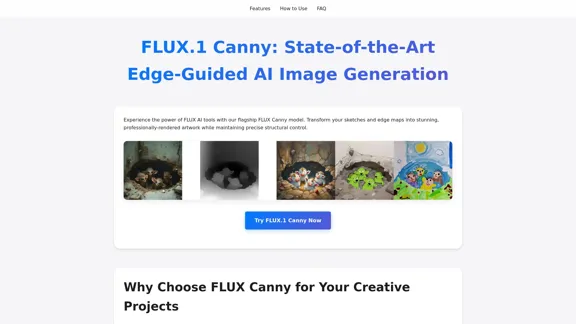
FLUX Canny - A professional edge-guided AI image generation tool. Transform sketches into stunning artwork with precise structural control.

0
Midjourney API - Automate Midjourney AI Image Generation 

This document outlines how to use the Midjourney API to automate the generation of AI images. 

What is the Midjourney API?

The Midjourney API allows developers to programmatically interact with the powerful Midjourney AI model. This means you can generate images, control various parameters, and integrate Midjourney into your own applications and workflows.

Why Use the Midjourney API?

* Automation: Automate the creation of images for various purposes, such as marketing materials, website content, or research projects.
* Customization: Fine-tune image generation by controlling parameters like aspect ratio, style, and seed values.
* Integration: Seamlessly integrate Midjourney's capabilities into your existing tools and platforms.

Getting Started

1. Sign Up for a Midjourney Account: You'll need a Midjourney account to access the API.

2. Obtain an API Key: Once you have an account, you can generate an API key from your account settings.

3. Choose a Programming Language: The Midjourney API supports various programming languages, including Python, JavaScript, and Go.

4. Install the API Client: Install the appropriate API client library for your chosen language.

5. Start Generating Images: Use the API client to send image generation requests to the Midjourney server.

Example (Python):

```python
import midjourney

Replace with your actual API key
api_key = "YOUR_API_KEY"

Create a Midjourney client
client = midjourney.Client(api_key=api_key)

Generate an image
response = client.create_image(prompt="A cat wearing a hat", num_images=1)

Print the image URL
print(response.images[0].url)
```

Documentation and Resources

For detailed information about the Midjourney API, including available endpoints, parameters, and examples, please refer to the official documentation: [https://docs.midjourney.com/](https://docs.midjourney.com/)
View Detail

Midjourney API - Automate Midjourney AI Image Generation This document outlines how to use the Midjourney API to automate the generation of AI images. What is the Midjourney API? The Midjourney API allows developers to programmatically interact with the powerful Midjourney AI model. This means you can generate images, control various parameters, and integrate Midjourney into your own applications and workflows. Why Use the Midjourney API? * Automation: Automate the creation of images for various purposes, such as marketing materials, website content, or research projects. * Customization: Fine-tune image generation by controlling parameters like aspect ratio, style, and seed values. * Integration: Seamlessly integrate Midjourney's capabilities into your existing tools and platforms. Getting Started 1. Sign Up for a Midjourney Account: You'll need a Midjourney account to access the API. 2. Obtain an API Key: Once you have an account, you can generate an API key from your account settings. 3. Choose a Programming Language: The Midjourney API supports various programming languages, including Python, JavaScript, and Go. 4. Install the API Client: Install the appropriate API client library for your chosen language. 5. Start Generating Images: Use the API client to send image generation requests to the Midjourney server. Example (Python): ```python import midjourney Replace with your actual API key api_key = "YOUR_API_KEY" Create a Midjourney client client = midjourney.Client(api_key=api_key) Generate an image response = client.create_image(prompt="A cat wearing a hat", num_images=1) Print the image URL print(response.images[0].url) ``` Documentation and Resources For detailed information about the Midjourney API, including available endpoints, parameters, and examples, please refer to the official documentation: [https://docs.midjourney.com/](https://docs.midjourney.com/)

Midjourney API - Automate Midjourney AI Image Generation This document outlines how to use the Midjourney API to automate the generation of AI images. What is the Midjourney API? The Midjourney API allows developers to programmatically interact with the powerful Midjourney AI model. This means you can generate images, control various parameters, and integrate Midjourney into your own applications and workflows. Why Use the Midjourney API? * Automation: Automate the creation of images for various purposes, such as marketing materials, website content, or research projects. * Customization: Fine-tune image generation by controlling parameters like aspect ratio, style, and seed values. * Integration: Seamlessly integrate Midjourney's capabilities into your existing tools and platforms. Getting Started 1. Sign Up for a Midjourney Account: You'll need a Midjourney account to access the API. 2. Obtain an API Key: Once you have an account, you can generate an API key from your account settings. 3. Choose a Programming Language: The Midjourney API supports various programming languages, including Python, JavaScript, and Go. 4. Install the API Client: Install the appropriate API client library for your chosen language. 5. Start Generating Images: Use the API client to send image generation requests to the Midjourney server. Example (Python): ```python import midjourney Replace with your actual API key api_key = "YOUR_API_KEY" Create a Midjourney client client = midjourney.Client(api_key=api_key) Generate an image response = client.create_image(prompt="A cat wearing a hat", num_images=1) Print the image URL print(response.images[0].url) ``` Documentation and Resources For detailed information about the Midjourney API, including available endpoints, parameters, and examples, please refer to the official documentation: [https://docs.midjourney.com/](https://docs.midjourney.com/)

Easily integrate Midjourney AI into your apps using the Midjourney API. Start creating AI images automatically today!

0
Text Summarizer
View Detail

Text Summarizer

Text Summarizer

Summarizing texts is an application that creates short text from much longer text files.

193.90 M
Batch Save ChatGPT to Notion

This is a guide on how to save multiple ChatGPT responses to Notion in a batch. 

Tools You'll Need:

* ChatGPT: An AI chatbot that can generate text.
* Notion: A note-taking and project management tool.
* Python: A programming language.
* Requests Library: A Python library for making HTTP requests.

Steps:

1. Get Your Notion API Token:
   - Go to your Notion workspace settings.
   - Navigate to the "Integrations" tab.
   - Click "Create new integration" and choose "API Token".
   - Copy your API token.

2. Install Python Libraries:
   - Open your terminal or command prompt.
   - Type `pip install requests` and press Enter.

3. Write Python Script:
   - Create a new Python file (e.g., `save_chatgpt_to_notion.py`).
   - Paste the following code into the file, replacing `YOUR_NOTION_API_TOKEN` with your actual token:

```python
import requests

def save_chatgpt_response_to_notion(response, page_id, token):
  """Saves a ChatGPT response to a Notion page."""
  url = f"https://api.notion.com/v1/pages/{page_id}/children"
  headers = {"Authorization": f"Bearer {token}"}
  data = {
    "parent": {
      "page_id": page_id
    },
    "properties": {
      "title": {
        "title": [
          {
            "text": {
              "content": "ChatGPT Response"
            }
          }
        ]
      },
      "content": {
        "rich_text": [
          {
            "text": {
              "content": response
            }
          }
        ]
      }
    }
  }
  response = requests.post(url, headers=headers, json=data)
  print(response.status_code)

Example usage
page_id = "YOUR_NOTION_PAGE_ID"
token = "YOUR_NOTION_API_TOKEN"

Get ChatGPT responses (replace with your actual ChatGPT interaction)
chatgpt_responses = [
  "This is the first ChatGPT response.",
  "This is the second ChatGPT response.",
  "This is the third ChatGPT response."
]

Save each response to Notion
for response in chatgpt_responses:
  save_chatgpt_response_to_notion(response, page_id, token)
```

4. Run the Script:
   - In your terminal, navigate to the directory where you saved the Python file.
   - Type `python save_chatgpt_to_notion.py` and press Enter.

5. Check Notion:
   - Open your Notion workspace and go to the page specified by `page_id`.
   - You should see your ChatGPT responses saved as separate blocks.
View Detail

Batch Save ChatGPT to Notion This is a guide on how to save multiple ChatGPT responses to Notion in a batch. Tools You'll Need: * ChatGPT: An AI chatbot that can generate text. * Notion: A note-taking and project management tool. * Python: A programming language. * Requests Library: A Python library for making HTTP requests. Steps: 1. Get Your Notion API Token: - Go to your Notion workspace settings. - Navigate to the "Integrations" tab. - Click "Create new integration" and choose "API Token". - Copy your API token. 2. Install Python Libraries: - Open your terminal or command prompt. - Type `pip install requests` and press Enter. 3. Write Python Script: - Create a new Python file (e.g., `save_chatgpt_to_notion.py`). - Paste the following code into the file, replacing `YOUR_NOTION_API_TOKEN` with your actual token: ```python import requests def save_chatgpt_response_to_notion(response, page_id, token): """Saves a ChatGPT response to a Notion page.""" url = f"https://api.notion.com/v1/pages/{page_id}/children" headers = {"Authorization": f"Bearer {token}"} data = { "parent": { "page_id": page_id }, "properties": { "title": { "title": [ { "text": { "content": "ChatGPT Response" } } ] }, "content": { "rich_text": [ { "text": { "content": response } } ] } } } response = requests.post(url, headers=headers, json=data) print(response.status_code) Example usage page_id = "YOUR_NOTION_PAGE_ID" token = "YOUR_NOTION_API_TOKEN" Get ChatGPT responses (replace with your actual ChatGPT interaction) chatgpt_responses = [ "This is the first ChatGPT response.", "This is the second ChatGPT response.", "This is the third ChatGPT response." ] Save each response to Notion for response in chatgpt_responses: save_chatgpt_response_to_notion(response, page_id, token) ``` 4. Run the Script: - In your terminal, navigate to the directory where you saved the Python file. - Type `python save_chatgpt_to_notion.py` and press Enter. 5. Check Notion: - Open your Notion workspace and go to the page specified by `page_id`. - You should see your ChatGPT responses saved as separate blocks.

Batch Save ChatGPT to Notion This is a guide on how to save multiple ChatGPT responses to Notion in a batch. Tools You'll Need: * ChatGPT: An AI chatbot that can generate text. * Notion: A note-taking and project management tool. * Python: A programming language. * Requests Library: A Python library for making HTTP requests. Steps: 1. Get Your Notion API Token: - Go to your Notion workspace settings. - Navigate to the "Integrations" tab. - Click "Create new integration" and choose "API Token". - Copy your API token. 2. Install Python Libraries: - Open your terminal or command prompt. - Type `pip install requests` and press Enter. 3. Write Python Script: - Create a new Python file (e.g., `save_chatgpt_to_notion.py`). - Paste the following code into the file, replacing `YOUR_NOTION_API_TOKEN` with your actual token: ```python import requests def save_chatgpt_response_to_notion(response, page_id, token): """Saves a ChatGPT response to a Notion page.""" url = f"https://api.notion.com/v1/pages/{page_id}/children" headers = {"Authorization": f"Bearer {token}"} data = { "parent": { "page_id": page_id }, "properties": { "title": { "title": [ { "text": { "content": "ChatGPT Response" } } ] }, "content": { "rich_text": [ { "text": { "content": response } } ] } } } response = requests.post(url, headers=headers, json=data) print(response.status_code) Example usage page_id = "YOUR_NOTION_PAGE_ID" token = "YOUR_NOTION_API_TOKEN" Get ChatGPT responses (replace with your actual ChatGPT interaction) chatgpt_responses = [ "This is the first ChatGPT response.", "This is the second ChatGPT response.", "This is the third ChatGPT response." ] Save each response to Notion for response in chatgpt_responses: save_chatgpt_response_to_notion(response, page_id, token) ``` 4. Run the Script: - In your terminal, navigate to the directory where you saved the Python file. - Type `python save_chatgpt_to_notion.py` and press Enter. 5. Check Notion: - Open your Notion workspace and go to the page specified by `page_id`. - You should see your ChatGPT responses saved as separate blocks.

Save ChatGPT Conversations to Notion with One Click Export your ChatGPT conversations directly to Notion with a single click.

193.90 M
Free QR Code AI Art Generator (2024) • Scanner, Link in Bio, Smart Link, Analytics, Workspace, Monkey, Tiger
View Detail

Free QR Code AI Art Generator (2024) • Scanner, Link in Bio, Smart Link, Analytics, Workspace, Monkey, Tiger

Free QR Code AI Art Generator (2024) • Scanner, Link in Bio, Smart Link, Analytics, Workspace, Monkey, Tiger

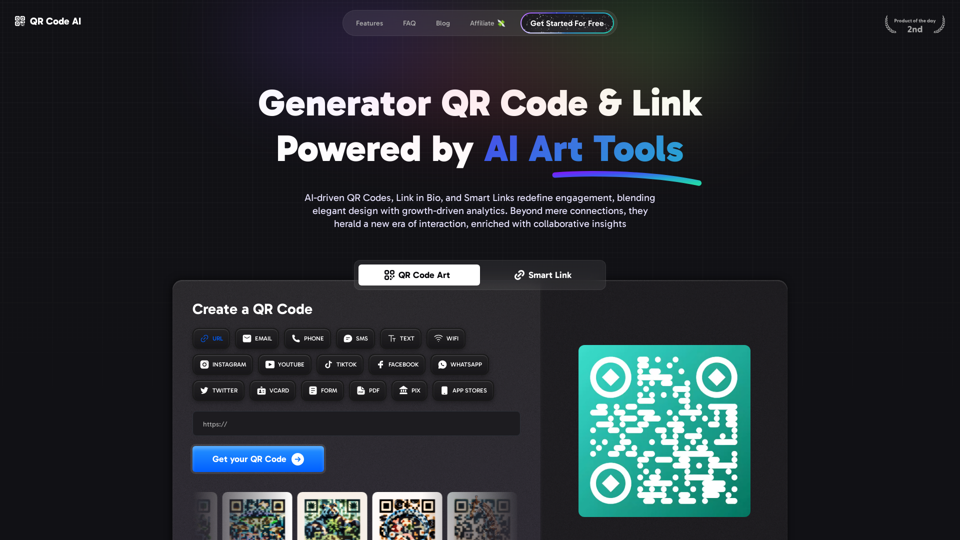
Create an artistic QR Code for free, featuring images, logos, colors, and shapes. Select from templates that link to your website, email, WiFi, URL, phone, UPI, PIX, or Rick Roll. Use tools like Canva, Adobe, or Google to design. Compatible with Android and iOS devices. A top alternative to QR Monkey, Tiger, Chimp, and Unitag.

194.49 K
ImageTrans
View Detail

ImageTrans

ImageTrans

Translate text within images found on websites.

193.90 M
Machina
View Detail

Machina

Machina

2.41 K