Open-source RightAI Tools Directory
  • Discover AI
  • Submit
  • Startup
  • Blog
Open-source RightAI Tools Directory
Discover the best AI tools of 2025 with the RightAI Tools Directory!

Friend Links

AI Anime GeneratorToolsApp AI

Support

Tap4
Privacy policyTerms & ConditionsContact Us
Loading...
loading...

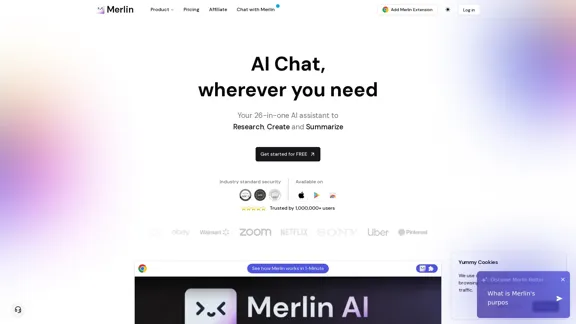
Merlin AI | Ask AI to Research, Write, Summarize in 1-click

Free AI Chat to answer all your questions. Ask Merlin to summarize videos, articles, PDFs, and websites, write emails and content for social media, and review content using an AI detector.
Visit Website
Merlin AI | Ask AI to Research, Write, Summarize in 1-click
Visit Website

Introduction

Merlin AI is a versatile Chrome extension and web app that functions as a 26-in-one AI assistant. It's designed to streamline research, writing, and summarization tasks with a single click. Trusted by over 1 million users, Merlin offers industry-standard security and is available on multiple platforms, making it an essential tool for various professionals including entrepreneurs, researchers, marketers, educators, and developers.

Feature

AI Chat Everywhere

  • Chat with AI on any website
  • Access to 20+ top AI models (including GPT-4 and Claude-3)
  • AI responses integrated with Google search results

Versatile Tools

  • Website and document chat functionality
  • Gmail email composition assistance
  • YouTube and blog content summarization
  • LinkedIn messaging and networking support
  • Code explanation and interpretation
  • AI image generation ('Bonkers')
  • Custom chatbot creation

Competitive Advantages

  • 20x higher usage limits compared to ChatGPT
  • Top alternative to other AI platforms like Poe and Perplexity
  • Official partnerships with leading LLM providers
  • SOC2, GDPR, and ISO compliant

Pricing and Accessibility

  • Competitive pricing starting at $19/month (annual billing)
  • Free installation option available
  • Quick activation using Ctrl + M or Cmd + M

FAQ

What is Merlin AI?

Merlin AI is a comprehensive AI assistant Chrome extension and web app that offers 26-in-one functionality for research, writing, and summarization tasks. It's designed to enhance productivity across various professional fields.

How does the Merlin AI Chrome extension work?

The extension integrates AI capabilities into your browsing experience, allowing you to chat with AI on any website, access multiple AI models, and utilize various tools for tasks like email writing, content summarization, and code interpretation.

Is Merlin AI free to use?

While Merlin AI offers a free installation option, it also has a paid plan starting at $19 per month when billed annually, which provides access to advanced features and higher usage limits.

What security measures does Merlin AI have in place?

Merlin AI prioritizes user privacy and data protection. It adheres to strict security standards including SOC2, GDPR, and ISO compliance. For team accounts, it offers data confidentiality features.

Latest Traffic Insights

  • Monthly Visits

    1.84 M

  • Bounce Rate

    46.70%

  • Pages Per Visit

    2.86

  • Time on Site(s)

    269.61

  • Global Rank

    33681

  • Country Rank

    United States 32710

Recent Visits

Traffic Sources

  • Social Media:
    1.14%
  • Paid Referrals:
    0.32%
  • Email:
    0.05%
  • Referrals:
    3.09%
  • Search Engines:
    33.78%
  • Direct:
    61.62%
More Data

Related Websites

Home - Background
View Detail

Home - Background

Home - Background

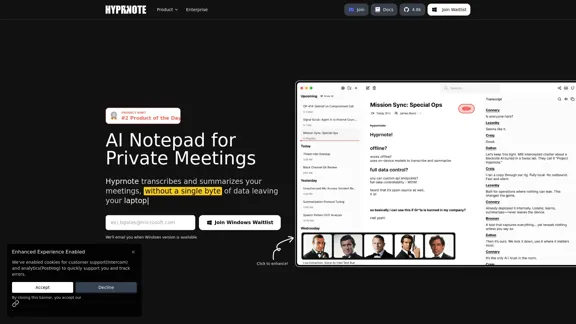
Context is a hippocampus for LLMs. It's the best way to integrate AI into your work.

21.23 K
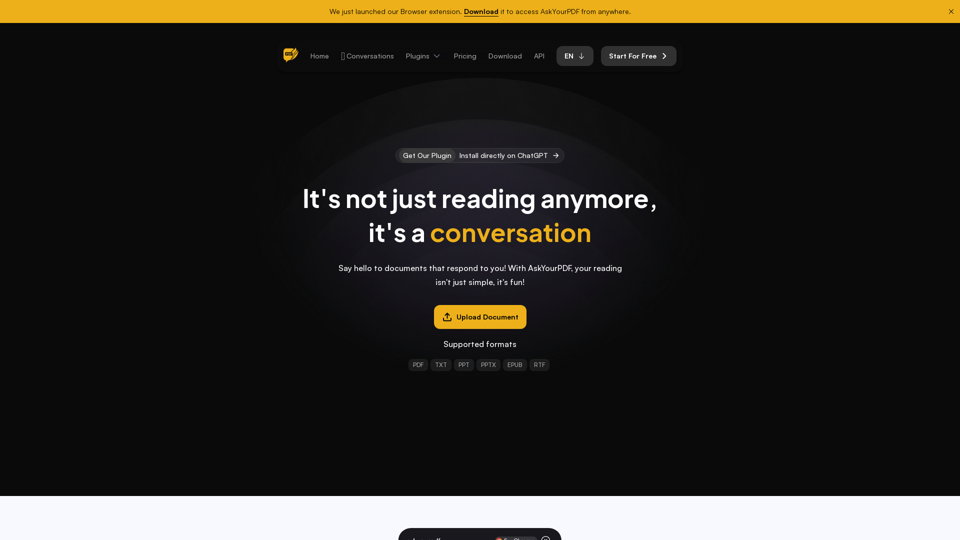
Converse - AI Reading Assistant for web articles, PDFs, and videos
View Detail

Converse - AI Reading Assistant for web articles, PDFs, and videos

Converse - AI Reading Assistant for web articles, PDFs, and videos

Save, summarize, and chat with web articles, PDF documents, and YouTube videos. Enhance your reading experience with customized summaries, TLDRs, Key Takeaways, intuitive document chat, and social sharing on Converse.

2.41 K
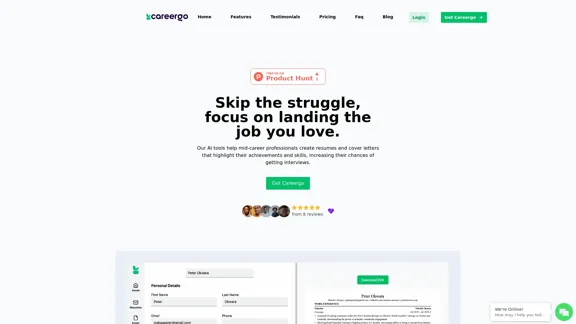
AI Resume and Cover Letter Builder
View Detail

AI Resume and Cover Letter Builder

AI Resume and Cover Letter Builder

Skip the struggle, concentrate on securing the job you're passionate about

1.35 K
Tech Tool Decode - New Age Content Services LLP
View Detail

Tech Tool Decode - New Age Content Services LLP

Tech Tool Decode - New Age Content Services LLP

Our "Tech Tool Decode" consultancy service offers specialized evaluation services for artificial intelligence (AI) tools, apps, services, and everything in between.* If the tool is not AI, don't worry, we'll still evaluate it for you. We provide the human in the loop to test AI tools, products, services, etc. No automation or algorithms here. This

0
Workflow – The simplest way to manage creative work
View Detail

Workflow – The simplest way to manage creative work

Workflow – The simplest way to manage creative work

A minimalist collaboration platform for creative teams. Manage tasks, get AI reviews, and share work, all in one place.

5.88 K
Gong - Revenue Intelligence Platform
View Detail

Gong - Revenue Intelligence Platform

Gong - Revenue Intelligence Platform

Gong captures customer interactions and then delivers insights at scale, enabling teams to make decisions based on data rather than opinions.

1.95 M
Copilot for Microsoft 365 – Microsoft Adoption

Copilot for Microsoft 365 is a powerful AI assistant that helps you work smarter and faster across Microsoft 365 apps and services. It combines the power of large language models (LLMs) with your organization's data in the Microsoft Graph and Microsoft 365 apps to turn your words into the most powerful productivity tool on the planet.

Copilot is designed to help you:

β€’ Unleash creativity
β€’ Unlock productivity
β€’ Uplevel skills

Copilot is built on Microsoft's comprehensive approach to security, compliance, and privacy. Copilot in Microsoft 365 apps and services:

β€’ Does not use your data to train the underlying LLM
β€’ Does not replace human ingenuity and judgment
β€’ Is designed to keep humans in the loop

Copilot is currently available in Word, Excel, PowerPoint, Outlook, Teams, and more.

Getting Started with Copilot

To get started with Copilot, follow these steps:

1. Check availability: Ensure your organization has access to Copilot.
2. Learn the basics: Familiarize yourself with Copilot's capabilities and how to use it effectively.
3. Explore use cases: Discover how Copilot can help you in your specific role and tasks.
4. Practice and refine: Use Copilot regularly and refine your prompts for better results.
5. Share and collaborate: Collaborate with colleagues using Copilot and share best practices.

Best Practices for Using Copilot

1. Be specific in your prompts
2. Provide context for better results
3. Review and edit Copilot's output
4. Use Copilot as a starting point, not a final product
5. Experiment with different approaches
6. Stay informed about new features and updates

Copilot in Different Microsoft 365 Apps

β€’ Word: Draft, edit, summarize, and rewrite content
β€’ Excel: Analyze data, create formulas, and generate insights
β€’ PowerPoint: Create presentations, design slides, and generate content
β€’ Outlook: Compose emails, summarize threads, and manage your inbox
β€’ Teams: Summarize meetings, generate action items, and create meeting notes

Responsible AI and Copilot

Microsoft is committed to developing AI systems responsibly. When using Copilot, keep in mind:

β€’ AI-generated content may contain biases or inaccuracies
β€’ Always review and verify Copilot's output
β€’ Use your judgment and expertise alongside Copilot's suggestions
β€’ Be aware of your organization's policies regarding AI use

Conclusion

Copilot for Microsoft 365 is a powerful tool that can significantly enhance your productivity and creativity. By understanding its capabilities, following best practices, and using it responsibly, you can make the most of this AI assistant in your daily work.
View Detail

Copilot for Microsoft 365 – Microsoft Adoption Copilot for Microsoft 365 is a powerful AI assistant that helps you work smarter and faster across Microsoft 365 apps and services. It combines the power of large language models (LLMs) with your organization's data in the Microsoft Graph and Microsoft 365 apps to turn your words into the most powerful productivity tool on the planet. Copilot is designed to help you: β€’ Unleash creativity β€’ Unlock productivity β€’ Uplevel skills Copilot is built on Microsoft's comprehensive approach to security, compliance, and privacy. Copilot in Microsoft 365 apps and services: β€’ Does not use your data to train the underlying LLM β€’ Does not replace human ingenuity and judgment β€’ Is designed to keep humans in the loop Copilot is currently available in Word, Excel, PowerPoint, Outlook, Teams, and more. Getting Started with Copilot To get started with Copilot, follow these steps: 1. Check availability: Ensure your organization has access to Copilot. 2. Learn the basics: Familiarize yourself with Copilot's capabilities and how to use it effectively. 3. Explore use cases: Discover how Copilot can help you in your specific role and tasks. 4. Practice and refine: Use Copilot regularly and refine your prompts for better results. 5. Share and collaborate: Collaborate with colleagues using Copilot and share best practices. Best Practices for Using Copilot 1. Be specific in your prompts 2. Provide context for better results 3. Review and edit Copilot's output 4. Use Copilot as a starting point, not a final product 5. Experiment with different approaches 6. Stay informed about new features and updates Copilot in Different Microsoft 365 Apps β€’ Word: Draft, edit, summarize, and rewrite content β€’ Excel: Analyze data, create formulas, and generate insights β€’ PowerPoint: Create presentations, design slides, and generate content β€’ Outlook: Compose emails, summarize threads, and manage your inbox β€’ Teams: Summarize meetings, generate action items, and create meeting notes Responsible AI and Copilot Microsoft is committed to developing AI systems responsibly. When using Copilot, keep in mind: β€’ AI-generated content may contain biases or inaccuracies β€’ Always review and verify Copilot's output β€’ Use your judgment and expertise alongside Copilot's suggestions β€’ Be aware of your organization's policies regarding AI use Conclusion Copilot for Microsoft 365 is a powerful tool that can significantly enhance your productivity and creativity. By understanding its capabilities, following best practices, and using it responsibly, you can make the most of this AI assistant in your daily work.

Copilot for Microsoft 365 – Microsoft Adoption Copilot for Microsoft 365 is a powerful AI assistant that helps you work smarter and faster across Microsoft 365 apps and services. It combines the power of large language models (LLMs) with your organization's data in the Microsoft Graph and Microsoft 365 apps to turn your words into the most powerful productivity tool on the planet. Copilot is designed to help you: β€’ Unleash creativity β€’ Unlock productivity β€’ Uplevel skills Copilot is built on Microsoft's comprehensive approach to security, compliance, and privacy. Copilot in Microsoft 365 apps and services: β€’ Does not use your data to train the underlying LLM β€’ Does not replace human ingenuity and judgment β€’ Is designed to keep humans in the loop Copilot is currently available in Word, Excel, PowerPoint, Outlook, Teams, and more. Getting Started with Copilot To get started with Copilot, follow these steps: 1. Check availability: Ensure your organization has access to Copilot. 2. Learn the basics: Familiarize yourself with Copilot's capabilities and how to use it effectively. 3. Explore use cases: Discover how Copilot can help you in your specific role and tasks. 4. Practice and refine: Use Copilot regularly and refine your prompts for better results. 5. Share and collaborate: Collaborate with colleagues using Copilot and share best practices. Best Practices for Using Copilot 1. Be specific in your prompts 2. Provide context for better results 3. Review and edit Copilot's output 4. Use Copilot as a starting point, not a final product 5. Experiment with different approaches 6. Stay informed about new features and updates Copilot in Different Microsoft 365 Apps β€’ Word: Draft, edit, summarize, and rewrite content β€’ Excel: Analyze data, create formulas, and generate insights β€’ PowerPoint: Create presentations, design slides, and generate content β€’ Outlook: Compose emails, summarize threads, and manage your inbox β€’ Teams: Summarize meetings, generate action items, and create meeting notes Responsible AI and Copilot Microsoft is committed to developing AI systems responsibly. When using Copilot, keep in mind: β€’ AI-generated content may contain biases or inaccuracies β€’ Always review and verify Copilot's output β€’ Use your judgment and expertise alongside Copilot's suggestions β€’ Be aware of your organization's policies regarding AI use Conclusion Copilot for Microsoft 365 is a powerful tool that can significantly enhance your productivity and creativity. By understanding its capabilities, following best practices, and using it responsibly, you can make the most of this AI assistant in your daily work.

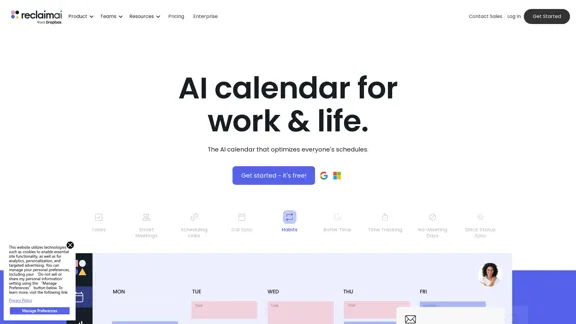
Microsoft Copilot combines the power of large language models (LLMs) with your organization's data to turn your words into one of the most powerful productivity tools on the planet.

608.60 K
MyLens
View Detail

MyLens

MyLens

Discover the intersections of history with our AI-powered timelines. Dive deep into the narratives of the past and see where two unique histories meet. Create, explore, and connect stories seamlessly.

193.06 K