Open-source RightAI Tools Directory
  • Discover AI
  • Submit
  • Startup
  • Blog
Open-source RightAI Tools Directory
Discover the best AI tools of 2025 with the RightAI Tools Directory!

Friend Links

AI Anime GeneratorToolsApp AI

Support

Tap4
Privacy policyTerms & ConditionsContact Us
Loading...
loading...

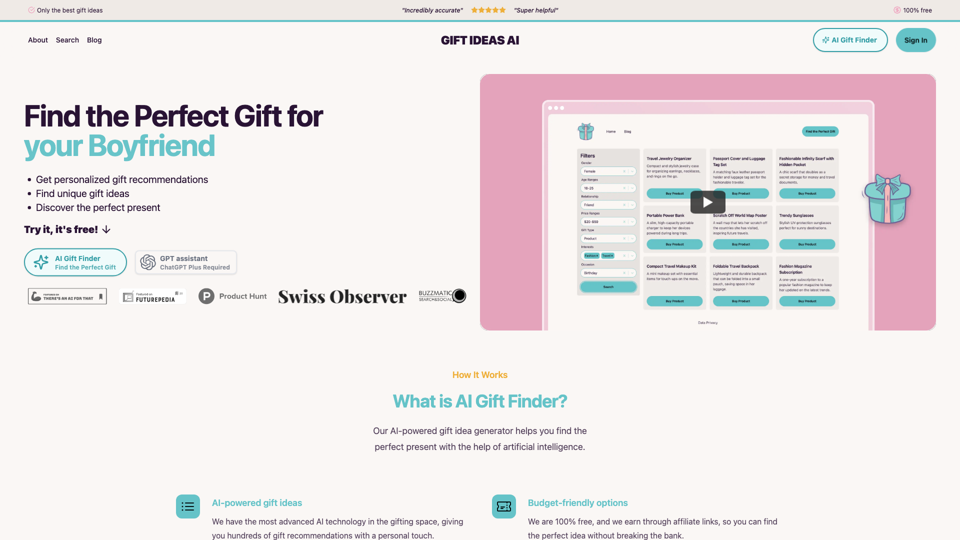
Gift Ideas AI: Free AI Gift Finder & Idea Generator

Discover the ideal present for those dear to you with our AI-powered gift finder. Receive customized gift suggestions for any occasion.
Visit Website
Gift Ideas AI: Free AI Gift Finder & Idea Generator
Visit Website

Introduction

Gift Ideas AI is a free, AI-powered gift finder and idea generator designed to simplify the process of discovering perfect presents for various occasions. This innovative platform uses advanced artificial intelligence to provide personalized gift recommendations, making gift-giving easier and more efficient for users.

Feature

AI-Powered Gift Recommendations

Gift Ideas AI utilizes cutting-edge AI technology to generate hundreds of personalized gift ideas based on user input and preferences.

Budget-Friendly Options

The service is 100% free, earning revenue through affiliate links to help users find affordable gift options without any cost to them.

Comprehensive Gift Lists

Provides gift ideas for a wide range of occasions, including birthdays, anniversaries, holidays, and more.

GPT Assistant

Features a chatbot powered by ChatGPT Plus to assist users in finding the perfect gift and providing Amazon store links for last-minute shopping.

Diverse Gift Categories

Covers a wide range of gift ideas for different professions, age groups, budgets, interests, and occasions.

User-Friendly Interface

Simple steps to use the service:

  1. Visit the Gift Ideas AI website
  2. Use the AI Gift Finder tool for personalized recommendations
  3. Explore blog posts for specific gift ideas by category
  4. Utilize the GPT assistant for more tailored suggestions (requires ChatGPT Plus)

Personalization

Offers tailored suggestions based on recipient characteristics and the specific occasion.

FAQ

How does Gift Ideas AI work?

Gift Ideas AI uses advanced artificial intelligence to analyze user input and generate personalized gift recommendations based on the recipient, occasion, and other factors.

Is Gift Ideas AI only for special occasions?

No, Gift Ideas AI provides suggestions for a wide range of occasions, including everyday gifting and unique events.

How do I know if my recipient will like the gift suggestions?

While Gift Ideas AI provides personalized recommendations, it's best to combine these suggestions with your personal knowledge of the recipient's preferences and interests.

What if I can't find the perfect gift in the recommendations?

If you're not satisfied with the initial recommendations, try using the GPT assistant for more tailored suggestions or explore the blog posts for additional ideas.

Is my personal information secure on Gift Ideas AI?

Gift Ideas AI values user privacy. For specific information about data security and privacy practices, refer to their Data Privacy policy on the website.

What is the pricing structure for Gift Ideas AI?

Gift Ideas AI is a 100% free service. The platform generates revenue through affiliate links, allowing users to access gift recommendations and ideas without any cost.

ServicePrice
AI Gift FinderFree
Blog PostsFree
GPT AssistantFree (requires ChatGPT Plus subscription)

Related Websites

Create AI Tools without coding in minutes | TypeflowAI
View Detail

Create AI Tools without coding in minutes | TypeflowAI

Create AI Tools without coding in minutes | TypeflowAI

TypeflowAI enables users to create AI tools using dynamic forms and advanced prompts. Improve your SEO, boost traffic, and generate more leads by incorporating these tools into your website.

593
Floutwork – The AI-Enhanced Browser for Work and Efficiency
View Detail

Floutwork – The AI-Enhanced Browser for Work and Efficiency

Floutwork – The AI-Enhanced Browser for Work and Efficiency

Floutwork is an AI-powered productivity browser that brings together workspaces, organizes your tabs, and integrates AI assistants directly into your workflow. It is designed to help you stay focused, streamline tasks, and accomplish more without distractions.

0
Automate Your Content Strategy and Lead Generation with Captain
View Detail

Automate Your Content Strategy and Lead Generation with Captain

Automate Your Content Strategy and Lead Generation with Captain

Captain's AI-powered platform automatically creates and optimizes data-driven content that generates awareness, engagement, and leads.

23
terrific.tools - Free Online Tools
View Detail

terrific.tools - Free Online Tools

terrific.tools - Free Online Tools

A modern collection of free, browser-based tools for everyone. Transform images, convert audio, format code, and much more.

52.91 K
BidPacer - AI Bidder for Freelance Projects.
View Detail

BidPacer - AI Bidder for Freelance Projects.

BidPacer - AI Bidder for Freelance Projects.

0
The enterprise work management platform
View Detail

The enterprise work management platform

The enterprise work management platform

Smartsheet empowers teams to manage projects, automate workflows, and scale programs within a single robust platform. It helps maintain transparency and keeps dispersed teams connected.

22.15 M
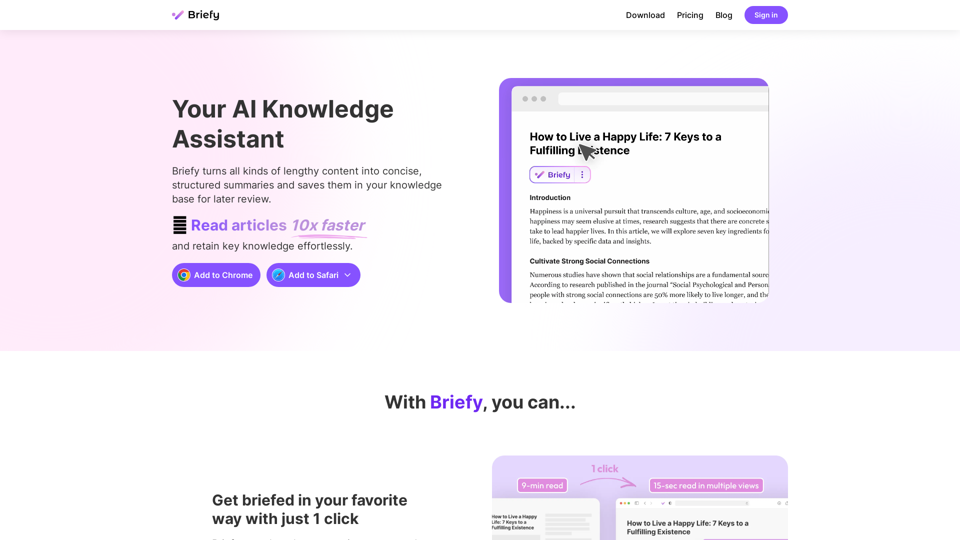
Converse - AI Reading Assistant for web articles, PDFs, and videos
View Detail

Converse - AI Reading Assistant for web articles, PDFs, and videos

Converse - AI Reading Assistant for web articles, PDFs, and videos

Save, summarize, and chat with web articles, PDF documents, and YouTube videos. Enhance your reading experience with customized summaries, TLDRs, Key Takeaways, intuitive document chat, and social sharing on Converse.

2.41 K
Copilot for Microsoft 365 – Microsoft Adoption

Copilot for Microsoft 365 is a powerful AI assistant that helps you work smarter and faster across Microsoft 365 apps and services. It combines the power of large language models (LLMs) with your organization's data in the Microsoft Graph and Microsoft 365 apps to turn your words into the most powerful productivity tool on the planet.

Copilot is designed to help you:

β€’ Unleash creativity
β€’ Unlock productivity
β€’ Uplevel skills

Copilot is built on Microsoft's comprehensive approach to security, compliance, and privacy. Copilot in Microsoft 365 apps and services:

β€’ Does not use your data to train the underlying LLM
β€’ Does not replace human ingenuity and judgment
β€’ Is designed to keep humans in the loop

Copilot is currently available in Word, Excel, PowerPoint, Outlook, Teams, and more.

Getting Started with Copilot

To get started with Copilot, follow these steps:

1. Check availability: Ensure your organization has access to Copilot.
2. Learn the basics: Familiarize yourself with Copilot's capabilities and how to use it effectively.
3. Explore use cases: Discover how Copilot can help you in your specific role and tasks.
4. Practice and refine: Use Copilot regularly and refine your prompts for better results.
5. Share and collaborate: Collaborate with colleagues using Copilot and share best practices.

Best Practices for Using Copilot

1. Be specific in your prompts
2. Provide context for better results
3. Review and edit Copilot's output
4. Use Copilot as a starting point, not a final product
5. Experiment with different approaches
6. Stay informed about new features and updates

Copilot in Different Microsoft 365 Apps

β€’ Word: Draft, edit, summarize, and rewrite content
β€’ Excel: Analyze data, create formulas, and generate insights
β€’ PowerPoint: Create presentations, design slides, and generate content
β€’ Outlook: Compose emails, summarize threads, and manage your inbox
β€’ Teams: Summarize meetings, generate action items, and create meeting notes

Responsible AI and Copilot

Microsoft is committed to developing AI systems responsibly. When using Copilot, keep in mind:

β€’ AI-generated content may contain biases or inaccuracies
β€’ Always review and verify Copilot's output
β€’ Use your judgment and expertise alongside Copilot's suggestions
β€’ Be aware of your organization's policies regarding AI use

Conclusion

Copilot for Microsoft 365 is a powerful tool that can significantly enhance your productivity and creativity. By understanding its capabilities, following best practices, and using it responsibly, you can make the most of this AI assistant in your daily work.
View Detail

Copilot for Microsoft 365 – Microsoft Adoption Copilot for Microsoft 365 is a powerful AI assistant that helps you work smarter and faster across Microsoft 365 apps and services. It combines the power of large language models (LLMs) with your organization's data in the Microsoft Graph and Microsoft 365 apps to turn your words into the most powerful productivity tool on the planet. Copilot is designed to help you: β€’ Unleash creativity β€’ Unlock productivity β€’ Uplevel skills Copilot is built on Microsoft's comprehensive approach to security, compliance, and privacy. Copilot in Microsoft 365 apps and services: β€’ Does not use your data to train the underlying LLM β€’ Does not replace human ingenuity and judgment β€’ Is designed to keep humans in the loop Copilot is currently available in Word, Excel, PowerPoint, Outlook, Teams, and more. Getting Started with Copilot To get started with Copilot, follow these steps: 1. Check availability: Ensure your organization has access to Copilot. 2. Learn the basics: Familiarize yourself with Copilot's capabilities and how to use it effectively. 3. Explore use cases: Discover how Copilot can help you in your specific role and tasks. 4. Practice and refine: Use Copilot regularly and refine your prompts for better results. 5. Share and collaborate: Collaborate with colleagues using Copilot and share best practices. Best Practices for Using Copilot 1. Be specific in your prompts 2. Provide context for better results 3. Review and edit Copilot's output 4. Use Copilot as a starting point, not a final product 5. Experiment with different approaches 6. Stay informed about new features and updates Copilot in Different Microsoft 365 Apps β€’ Word: Draft, edit, summarize, and rewrite content β€’ Excel: Analyze data, create formulas, and generate insights β€’ PowerPoint: Create presentations, design slides, and generate content β€’ Outlook: Compose emails, summarize threads, and manage your inbox β€’ Teams: Summarize meetings, generate action items, and create meeting notes Responsible AI and Copilot Microsoft is committed to developing AI systems responsibly. When using Copilot, keep in mind: β€’ AI-generated content may contain biases or inaccuracies β€’ Always review and verify Copilot's output β€’ Use your judgment and expertise alongside Copilot's suggestions β€’ Be aware of your organization's policies regarding AI use Conclusion Copilot for Microsoft 365 is a powerful tool that can significantly enhance your productivity and creativity. By understanding its capabilities, following best practices, and using it responsibly, you can make the most of this AI assistant in your daily work.

Copilot for Microsoft 365 – Microsoft Adoption Copilot for Microsoft 365 is a powerful AI assistant that helps you work smarter and faster across Microsoft 365 apps and services. It combines the power of large language models (LLMs) with your organization's data in the Microsoft Graph and Microsoft 365 apps to turn your words into the most powerful productivity tool on the planet. Copilot is designed to help you: β€’ Unleash creativity β€’ Unlock productivity β€’ Uplevel skills Copilot is built on Microsoft's comprehensive approach to security, compliance, and privacy. Copilot in Microsoft 365 apps and services: β€’ Does not use your data to train the underlying LLM β€’ Does not replace human ingenuity and judgment β€’ Is designed to keep humans in the loop Copilot is currently available in Word, Excel, PowerPoint, Outlook, Teams, and more. Getting Started with Copilot To get started with Copilot, follow these steps: 1. Check availability: Ensure your organization has access to Copilot. 2. Learn the basics: Familiarize yourself with Copilot's capabilities and how to use it effectively. 3. Explore use cases: Discover how Copilot can help you in your specific role and tasks. 4. Practice and refine: Use Copilot regularly and refine your prompts for better results. 5. Share and collaborate: Collaborate with colleagues using Copilot and share best practices. Best Practices for Using Copilot 1. Be specific in your prompts 2. Provide context for better results 3. Review and edit Copilot's output 4. Use Copilot as a starting point, not a final product 5. Experiment with different approaches 6. Stay informed about new features and updates Copilot in Different Microsoft 365 Apps β€’ Word: Draft, edit, summarize, and rewrite content β€’ Excel: Analyze data, create formulas, and generate insights β€’ PowerPoint: Create presentations, design slides, and generate content β€’ Outlook: Compose emails, summarize threads, and manage your inbox β€’ Teams: Summarize meetings, generate action items, and create meeting notes Responsible AI and Copilot Microsoft is committed to developing AI systems responsibly. When using Copilot, keep in mind: β€’ AI-generated content may contain biases or inaccuracies β€’ Always review and verify Copilot's output β€’ Use your judgment and expertise alongside Copilot's suggestions β€’ Be aware of your organization's policies regarding AI use Conclusion Copilot for Microsoft 365 is a powerful tool that can significantly enhance your productivity and creativity. By understanding its capabilities, following best practices, and using it responsibly, you can make the most of this AI assistant in your daily work.

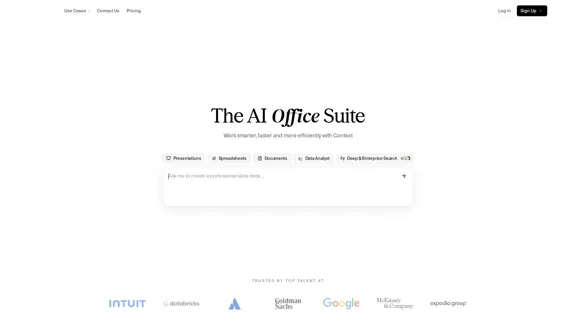
Microsoft Copilot combines the power of large language models (LLMs) with your organization's data to turn your words into one of the most powerful productivity tools on the planet.

608.60 K