Open-source RightAI Tools Directory
  • Discover AI
  • Submit
  • Startup
  • Blog
Open-source RightAI Tools Directory
Discover the best AI tools of 2025 with the RightAI Tools Directory!

Friend Links

AI Anime GeneratorToolsApp AI

Support

Tap4
Privacy policyTerms & ConditionsContact Us
Loading...
loading...

Hadana: Your AI Travel Planner

An AI-powered travel companion that crafts personalized travel plans based on your preferences.

Visit Website
Hadana: Your AI Travel Planner
Visit Website

Introduction

Hadana is an AI-powered travel planner that simplifies the process of creating personalized itineraries. By considering user preferences, budget constraints, and chosen attractions, Hadana's sophisticated algorithms generate tailored travel plans. This innovative tool aims to streamline trip planning, making it effortless and efficient for travelers to design their ideal adventures.

Feature

Optimal Route Planning

Hadana's AI algorithms analyze user preferences to craft the most efficient route, optimizing time and effort for travelers.

Personalized Itinerary Customization

Users can shape their journey by freely adding, editing, or deleting activities from their itinerary, ensuring a truly personalized experience.

Local Cuisine Recommendations

The AI provides tailored recommendations for local cuisines and hidden gems, catering to users' individual taste preferences.

User-Friendly Interface

Hadana offers a simple and intuitive platform where users can input their preferences, from destination desires to budget constraints, allowing the AI to generate a customized travel plan.

Flexible Pricing Options

Hadana provides a free AI-powered travel planning service, with the option to upgrade to an all-inclusive package that includes experience bookings.

FAQ

How does Hadana's AI-powered travel planner work?

Hadana's AI algorithms analyze your preferences, chosen attractions, and budget to craft a personalized travel plan that optimizes your route and experiences.

Can I customize my itinerary after it's generated?

Yes, you can freely add, edit, or delete activities from your itinerary to ensure it perfectly fits your needs and preferences.

What kind of local cuisine recommendations does Hadana offer?

Hadana's AI recommends local cuisines and hidden gems tailored to your taste preferences, helping you discover unique culinary experiences during your travels.

Is there an option to upgrade the service?

Yes, while Hadana offers a free AI-powered travel planning service, you can upgrade to an all-inclusive package that includes experience bookings. Contact Hadana directly to customize your journey and explore upgrade options.

Latest Traffic Insights

  • Monthly Visits

    593.63 K

  • Bounce Rate

    71.90%

  • Pages Per Visit

    1.41

  • Time on Site(s)

    81.15

  • Global Rank

    134636

  • Country Rank

    Indonesia 4845

Recent Visits

Traffic Sources

  • Social Media:
    2.06%
  • Paid Referrals:
    0.46%
  • Email:
    0.01%
  • Referrals:
    2.06%
  • Search Engines:
    74.63%
  • Direct:
    20.77%
More Data

Related Websites

The Song Says - Song Lyrics and Meanings
View Detail

The Song Says - Song Lyrics and Meanings

The Song Says - Song Lyrics and Meanings

Discover the meaning and stories behind song lyrics. The song says that each verse has a story to tell.

90.21 K
AI Voice Over for YouTube 

This is a guide to using AI voice over for your YouTube videos. 

Why Use AI Voice Over?

* Cost-Effective: AI voice over is much cheaper than hiring a professional voice actor.
* Time-Saving: You can generate voice over quickly and easily, without needing to schedule recording sessions.
* Variety of Voices: Choose from a wide range of AI voices, including male, female, and even robotic voices.
* Accessibility: Make your videos accessible to viewers who are deaf or hard of hearing by adding captions generated by AI.

How to Use AI Voice Over

1. Choose a Platform: There are many different platforms that offer AI voice over services, such as:
    * Google Cloud Text-to-Speech
    * Amazon Polly
    * Microsoft Azure Text to Speech
    * Murf.ai
    * NaturalReader
2. Write Your Script:  Write a clear and concise script for your video.
3. Upload Your Script:  Upload your script to the chosen platform.
4. Select a Voice: Choose the voice that best suits your video.
5. Adjust Settings:  Adjust settings such as speed, pitch, and volume.
6. Generate Voice Over:  Click the "Generate" button to create your voice over.
7. Download and Edit: Download the generated voice over file and edit it as needed.
8. Add to Your Video:  Add the voice over to your YouTube video.

Tips for Using AI Voice Over

* Use Natural Language:  Write your script as if you were speaking naturally.
* Vary Your Tone:  Use different tones of voice to keep your viewers engaged.
* Add Pauses:  Include pauses in your script to allow viewers to process information.
* Proofread Carefully:  Always proofread your script before generating the voice over.
* Experiment:  Try different voices, settings, and styles to find what works best for you.
View Detail

AI Voice Over for YouTube This is a guide to using AI voice over for your YouTube videos. Why Use AI Voice Over? * Cost-Effective: AI voice over is much cheaper than hiring a professional voice actor. * Time-Saving: You can generate voice over quickly and easily, without needing to schedule recording sessions. * Variety of Voices: Choose from a wide range of AI voices, including male, female, and even robotic voices. * Accessibility: Make your videos accessible to viewers who are deaf or hard of hearing by adding captions generated by AI. How to Use AI Voice Over 1. Choose a Platform: There are many different platforms that offer AI voice over services, such as: * Google Cloud Text-to-Speech * Amazon Polly * Microsoft Azure Text to Speech * Murf.ai * NaturalReader 2. Write Your Script: Write a clear and concise script for your video. 3. Upload Your Script: Upload your script to the chosen platform. 4. Select a Voice: Choose the voice that best suits your video. 5. Adjust Settings: Adjust settings such as speed, pitch, and volume. 6. Generate Voice Over: Click the "Generate" button to create your voice over. 7. Download and Edit: Download the generated voice over file and edit it as needed. 8. Add to Your Video: Add the voice over to your YouTube video. Tips for Using AI Voice Over * Use Natural Language: Write your script as if you were speaking naturally. * Vary Your Tone: Use different tones of voice to keep your viewers engaged. * Add Pauses: Include pauses in your script to allow viewers to process information. * Proofread Carefully: Always proofread your script before generating the voice over. * Experiment: Try different voices, settings, and styles to find what works best for you.

AI Voice Over for YouTube This is a guide to using AI voice over for your YouTube videos. Why Use AI Voice Over? * Cost-Effective: AI voice over is much cheaper than hiring a professional voice actor. * Time-Saving: You can generate voice over quickly and easily, without needing to schedule recording sessions. * Variety of Voices: Choose from a wide range of AI voices, including male, female, and even robotic voices. * Accessibility: Make your videos accessible to viewers who are deaf or hard of hearing by adding captions generated by AI. How to Use AI Voice Over 1. Choose a Platform: There are many different platforms that offer AI voice over services, such as: * Google Cloud Text-to-Speech * Amazon Polly * Microsoft Azure Text to Speech * Murf.ai * NaturalReader 2. Write Your Script: Write a clear and concise script for your video. 3. Upload Your Script: Upload your script to the chosen platform. 4. Select a Voice: Choose the voice that best suits your video. 5. Adjust Settings: Adjust settings such as speed, pitch, and volume. 6. Generate Voice Over: Click the "Generate" button to create your voice over. 7. Download and Edit: Download the generated voice over file and edit it as needed. 8. Add to Your Video: Add the voice over to your YouTube video. Tips for Using AI Voice Over * Use Natural Language: Write your script as if you were speaking naturally. * Vary Your Tone: Use different tones of voice to keep your viewers engaged. * Add Pauses: Include pauses in your script to allow viewers to process information. * Proofread Carefully: Always proofread your script before generating the voice over. * Experiment: Try different voices, settings, and styles to find what works best for you.

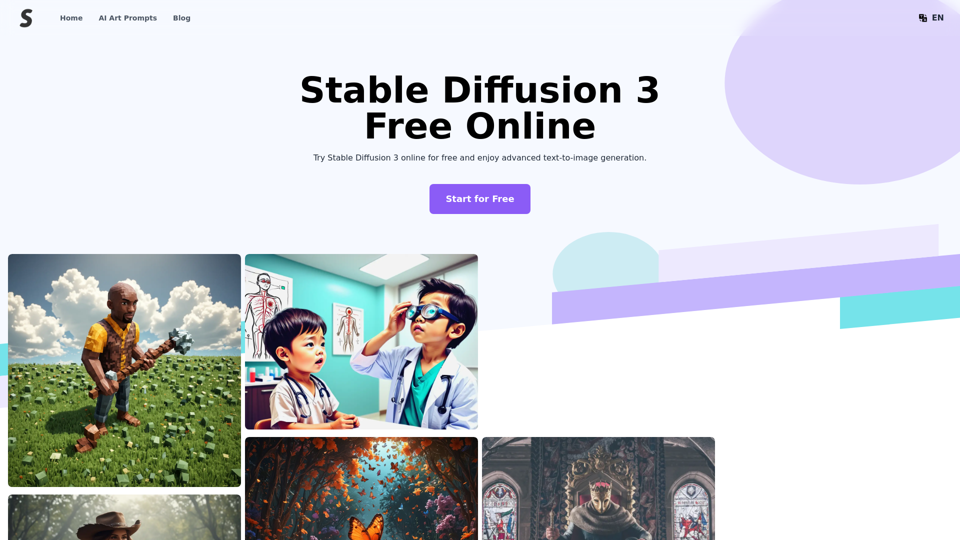
Watch foreign language YouTube videos in your own language.

193.90 M
Glue Trail
View Detail

Glue Trail

Glue Trail

Turn Screen Recordings into How-To Content in Seconds! Tired of spending hours editing videos for tutorials? Introducing [Your Product Name]! Our revolutionary tool lets you instantly transform your screen recordings into professional-looking how-to articles and videos. Here's how it works: 1. Record your screen: Capture your steps clearly and concisely. 2. Upload to [Your Product Name]: Our AI does the heavy lifting. 3. Get your content: Choose from automatically generated articles or polished videos, ready to share! [Your Product Name] is perfect for: * Educators: Create engaging online lessons. * Businesses: Train employees efficiently. * YouTubers: Boost your content creation speed. Stop wasting time editing. Start creating with [Your Product Name]!

193.90 M
Keble | Online Business Co-Pilot
View Detail

Keble | Online Business Co-Pilot

Keble | Online Business Co-Pilot

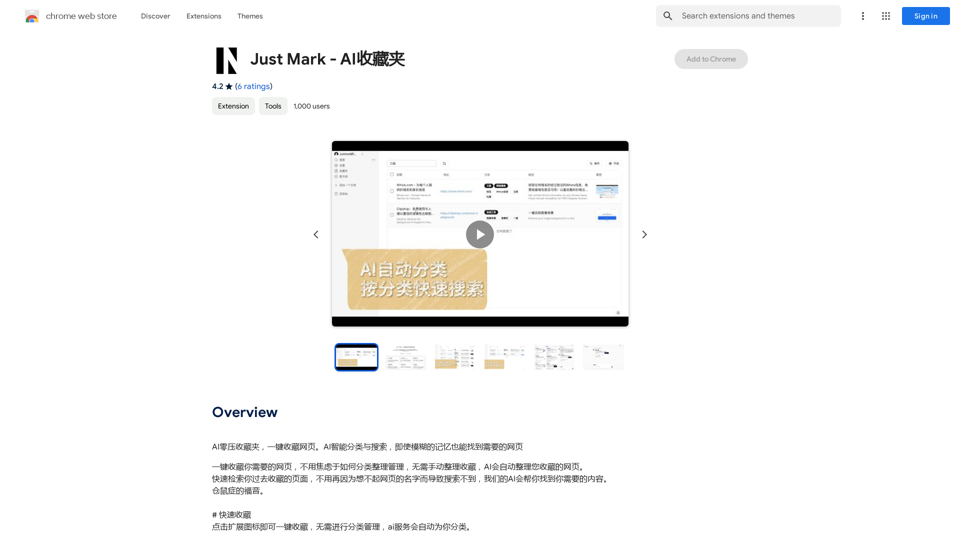
Keble | Online Business Co-Pilot | Bridging data and AI

193.90 M
Token Counter for ChatGPT 

This tool helps you count the number of tokens in your text input.

How to Use:

1. Paste your text into the input box.
2. Click the "Count Tokens" button.
3. The number of tokens will be displayed below the input box.

What is a Token?

A token is the basic unit of text that ChatGPT processes. 

It can be a word, part of a word, or a punctuation mark.


Example:

Input Text: Hello, world!

Token Count: 4
View Detail

Token Counter for ChatGPT This tool helps you count the number of tokens in your text input. How to Use: 1. Paste your text into the input box. 2. Click the "Count Tokens" button. 3. The number of tokens will be displayed below the input box. What is a Token? A token is the basic unit of text that ChatGPT processes. It can be a word, part of a word, or a punctuation mark. Example: Input Text: Hello, world! Token Count: 4

Token Counter for ChatGPT This tool helps you count the number of tokens in your text input. How to Use: 1. Paste your text into the input box. 2. Click the "Count Tokens" button. 3. The number of tokens will be displayed below the input box. What is a Token? A token is the basic unit of text that ChatGPT processes. It can be a word, part of a word, or a punctuation mark. Example: Input Text: Hello, world! Token Count: 4

110

193.90 M
Midjourney SREF Codes Library for Style Reference

What are SREF Codes?

SREF codes are special text strings used in Midjourney to quickly and easily apply specific artistic styles to your image generations. 

How to Use SREF Codes:

Simply add an SREF code to your Midjourney prompt. For example:

`/imagine a majestic dragon, SREF:cyberpunk`

SREF Code Library:

This library contains a collection of SREF codes categorized by style. 

* Art Styles:
    * `photorealistic`: Creates images with high levels of realism.
    * `impressionistic`:  Captures the essence of a scene with loose brushstrokes and vibrant colors.
    * `cubist`:  Breaks down objects into geometric shapes.
    * `surrealist`:  Creates dreamlike and fantastical images.
    * `abstract`:  Focuses on form, color, and composition rather than representational imagery.

* Visual Effects:
    * `cinematic`:  Gives images a cinematic look and feel.
    * `HDR`:  Creates images with high dynamic range, resulting in greater detail and contrast.
    * `neon`:  Adds vibrant neon lights to the image.
    * `pixel art`:  Generates images in a retro pixel art style.

* Other Styles:
    * `anime`:  Creates images in the style of Japanese animation.
    * `manga`:  Similar to anime, but with a more comic book aesthetic.
    * `sketch`:  Generates images that resemble pencil sketches.
    * `watercolor`:  Creates images with the look and feel of watercolor paintings.

Note: This is just a small sample of the many SREF codes available. 

Explore and Experiment:

The best way to learn about SREF codes is to experiment with them! Try combining different codes to create unique and interesting styles.
View Detail

Midjourney SREF Codes Library for Style Reference What are SREF Codes? SREF codes are special text strings used in Midjourney to quickly and easily apply specific artistic styles to your image generations. How to Use SREF Codes: Simply add an SREF code to your Midjourney prompt. For example: `/imagine a majestic dragon, SREF:cyberpunk` SREF Code Library: This library contains a collection of SREF codes categorized by style. * Art Styles: * `photorealistic`: Creates images with high levels of realism. * `impressionistic`: Captures the essence of a scene with loose brushstrokes and vibrant colors. * `cubist`: Breaks down objects into geometric shapes. * `surrealist`: Creates dreamlike and fantastical images. * `abstract`: Focuses on form, color, and composition rather than representational imagery. * Visual Effects: * `cinematic`: Gives images a cinematic look and feel. * `HDR`: Creates images with high dynamic range, resulting in greater detail and contrast. * `neon`: Adds vibrant neon lights to the image. * `pixel art`: Generates images in a retro pixel art style. * Other Styles: * `anime`: Creates images in the style of Japanese animation. * `manga`: Similar to anime, but with a more comic book aesthetic. * `sketch`: Generates images that resemble pencil sketches. * `watercolor`: Creates images with the look and feel of watercolor paintings. Note: This is just a small sample of the many SREF codes available. Explore and Experiment: The best way to learn about SREF codes is to experiment with them! Try combining different codes to create unique and interesting styles.

Midjourney SREF Codes Library for Style Reference What are SREF Codes? SREF codes are special text strings used in Midjourney to quickly and easily apply specific artistic styles to your image generations. How to Use SREF Codes: Simply add an SREF code to your Midjourney prompt. For example: `/imagine a majestic dragon, SREF:cyberpunk` SREF Code Library: This library contains a collection of SREF codes categorized by style. * Art Styles: * `photorealistic`: Creates images with high levels of realism. * `impressionistic`: Captures the essence of a scene with loose brushstrokes and vibrant colors. * `cubist`: Breaks down objects into geometric shapes. * `surrealist`: Creates dreamlike and fantastical images. * `abstract`: Focuses on form, color, and composition rather than representational imagery. * Visual Effects: * `cinematic`: Gives images a cinematic look and feel. * `HDR`: Creates images with high dynamic range, resulting in greater detail and contrast. * `neon`: Adds vibrant neon lights to the image. * `pixel art`: Generates images in a retro pixel art style. * Other Styles: * `anime`: Creates images in the style of Japanese animation. * `manga`: Similar to anime, but with a more comic book aesthetic. * `sketch`: Generates images that resemble pencil sketches. * `watercolor`: Creates images with the look and feel of watercolor paintings. Note: This is just a small sample of the many SREF codes available. Explore and Experiment: The best way to learn about SREF codes is to experiment with them! Try combining different codes to create unique and interesting styles.

Explore a list of 177 unique Midjourney sref codes and style references to find your perfect Midjourney sref code effect.

149.96 K
PrepBuddy
View Detail

PrepBuddy

PrepBuddy

PrepBuddy offers AI-powered practice for consulting case interviews. Learn with materials from former McKinsey consultants and get instant feedback. Start your free trial today!

2.63 K
Claude to Notion

This is a guide on how to connect Claude, an AI assistant, with Notion, a note-taking and workspace app. 

Why connect Claude and Notion?

* Boost your productivity: Use Claude to generate content, summarize information, and automate tasks directly within Notion.
* Enhance your research: Ask Claude questions about your Notion notes and get insightful answers.
* Unlock new creative possibilities: Leverage Claude's generative capabilities to brainstorm ideas, write stories, or compose emails within your Notion workspace.

How to connect Claude and Notion:

1. API Keys: Obtain an API key for both Claude and Notion. 
2. Integration Tool: Explore integration tools like Zapier or Integromat to connect Claude and Notion. These platforms allow you to create workflows that trigger actions in one app based on events in the other.
3. Custom Development: For advanced users, you can develop your own custom integration using the Claude and Notion APIs. This gives you the most flexibility but requires coding knowledge.

Example Use Cases:

* Meeting Summarization: After a meeting, paste the transcript into Notion and use Claude to generate a concise summary.
* Content Creation:  Use Claude to write blog posts, articles, or social media captions directly within your Notion pages.
* Idea Generation: Brainstorm new ideas for projects or tasks by prompting Claude with specific questions within your Notion workspace.


Remember to review the documentation and terms of service for both Claude and Notion to ensure proper usage and security.
View Detail

Claude to Notion This is a guide on how to connect Claude, an AI assistant, with Notion, a note-taking and workspace app. Why connect Claude and Notion? * Boost your productivity: Use Claude to generate content, summarize information, and automate tasks directly within Notion. * Enhance your research: Ask Claude questions about your Notion notes and get insightful answers. * Unlock new creative possibilities: Leverage Claude's generative capabilities to brainstorm ideas, write stories, or compose emails within your Notion workspace. How to connect Claude and Notion: 1. API Keys: Obtain an API key for both Claude and Notion. 2. Integration Tool: Explore integration tools like Zapier or Integromat to connect Claude and Notion. These platforms allow you to create workflows that trigger actions in one app based on events in the other. 3. Custom Development: For advanced users, you can develop your own custom integration using the Claude and Notion APIs. This gives you the most flexibility but requires coding knowledge. Example Use Cases: * Meeting Summarization: After a meeting, paste the transcript into Notion and use Claude to generate a concise summary. * Content Creation: Use Claude to write blog posts, articles, or social media captions directly within your Notion pages. * Idea Generation: Brainstorm new ideas for projects or tasks by prompting Claude with specific questions within your Notion workspace. Remember to review the documentation and terms of service for both Claude and Notion to ensure proper usage and security.

Claude to Notion This is a guide on how to connect Claude, an AI assistant, with Notion, a note-taking and workspace app. Why connect Claude and Notion? * Boost your productivity: Use Claude to generate content, summarize information, and automate tasks directly within Notion. * Enhance your research: Ask Claude questions about your Notion notes and get insightful answers. * Unlock new creative possibilities: Leverage Claude's generative capabilities to brainstorm ideas, write stories, or compose emails within your Notion workspace. How to connect Claude and Notion: 1. API Keys: Obtain an API key for both Claude and Notion. 2. Integration Tool: Explore integration tools like Zapier or Integromat to connect Claude and Notion. These platforms allow you to create workflows that trigger actions in one app based on events in the other. 3. Custom Development: For advanced users, you can develop your own custom integration using the Claude and Notion APIs. This gives you the most flexibility but requires coding knowledge. Example Use Cases: * Meeting Summarization: After a meeting, paste the transcript into Notion and use Claude to generate a concise summary. * Content Creation: Use Claude to write blog posts, articles, or social media captions directly within your Notion pages. * Idea Generation: Brainstorm new ideas for projects or tasks by prompting Claude with specific questions within your Notion workspace. Remember to review the documentation and terms of service for both Claude and Notion to ensure proper usage and security.

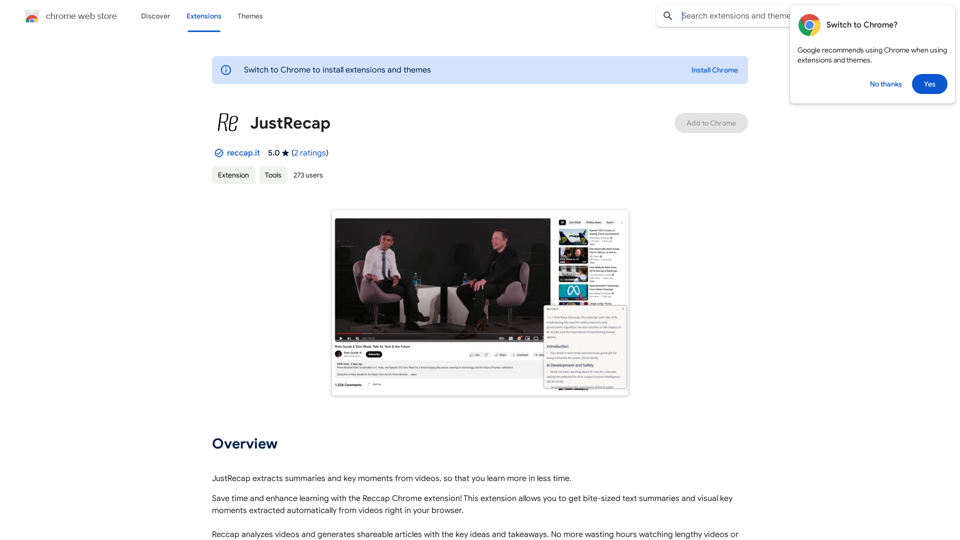
Save Claude conversations to Notion with one click. Export Claude conversations.

193.90 M