Open-source RightAI Tools Directory
  • Discover AI
  • Submit
  • Startup
  • Blog
Open-source RightAI Tools Directory
Discover the best AI tools of 2025 with the RightAI Tools Directory!

Friend Links

AI Anime GeneratorToolsApp AI

Support

Tap4
Privacy policyTerms & ConditionsContact Us
Loading...
loading...

100% Free AI Image Generator: Text to Image Online | insMind

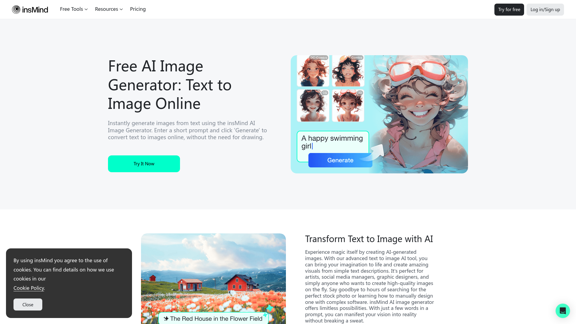
Looking for a free AI image generator from text? Create stunning images with a simple text prompt using the most advanced AI text-to-image generator.
Visit Website
100% Free AI Image Generator: Text to Image Online | insMind
Visit Website

Introduction

insMind offers an advanced text-to-image AI tool that transforms written descriptions into stunning visuals. This innovative platform caters to artists, social media managers, graphic designers, and anyone seeking to create high-quality images quickly. With a wide range of artistic styles and additional AI-powered editing tools, insMind provides a comprehensive solution for image generation and manipulation.

Feature

Text-to-Image AI Generation

Transform your ideas into visual reality using insMind's AI image generator. Simply input a text description, and the AI will create a corresponding image.

Diverse Artistic Styles

Choose from a variety of styles including:

  • Realistic photos
  • Abstract art
  • Cartoon illustrations
  • CG
  • LineArt
  • Flat
  • WaterColor
  • Anime
  • 3D

Additional AI Image Editing Tools

Enhance your creations with:

  • AI image expansion
  • AI filters
  • Object removal features

User-Friendly Interface

Generate images in just a few simple steps:

  1. Open insMind
  2. Enter prompt and choose style
  3. Generate images
  4. Download the photo

Free and Premium Plans

  • Free plan available for casual users
  • Premium plans for professionals with higher resolution outputs and access to premium styles

Background Tools

Explore various background options:

  • White Background
  • Black Background
  • Pink Background
  • Blue Background
  • Red Background
  • Green Background
  • Purple Background
  • Gold Background

Image Resizing Tools

Optimize your images for different platforms:

  • Resize Photo for Instagram
  • Shopify Image Resizer
  • YouTube Thumbnail Resizer
  • Resize Photo for Facebook

FAQ

What makes insMind stand out among AI image generators?

insMind offers a powerful yet intuitive solution with numerous style choices and additional AI image editing tools. Its user-friendly interface, high-quality outputs, and versatility make it a standout platform in the AI image generation space.

How detailed should my text description be when using the AI image generator?

The more detailed your description, the better the results. Include information about style, colors, composition, and mood. You can also use style presets or reference past images to guide the AI in creating your desired image.

Are there any legal considerations when using AI-generated images?

While AI-generated images are generally fine for personal and most commercial use, it's important to check specific licensing terms and be aware of potential copyright claims. The legal landscape surrounding AI-generated content is evolving, so staying informed about current regulations is crucial.

Can I use insMind's AI image generator for free?

Yes, insMind offers a free plan that allows users to create images from text at no cost. This is ideal for casual users or those testing the platform. Premium plans are available for professionals or heavy-duty users who require higher resolution outputs and access to premium features.

Latest Traffic Insights

  • Monthly Visits

    1.77 M

  • Bounce Rate

    42.61%

  • Pages Per Visit

    2.90

  • Time on Site(s)

    105.61

  • Global Rank

    31108

  • Country Rank

    Indonesia 3888

Recent Visits

Traffic Sources

  • Social Media:
    0.92%
  • Paid Referrals:
    0.32%
  • Email:
    0.04%
  • Referrals:
    6.43%
  • Search Engines:
    68.07%
  • Direct:
    24.22%
More Data

Related Websites

Scientific Paper Advisor 

This is a tool to help you write a scientific paper. 

Features:

* Generate a paper outline:  Provide a topic and get a structured outline to guide your writing.
* Suggest relevant literature:  Find recent research papers related to your topic.
* Check for plagiarism: Ensure your work is original and properly cited.
* Improve grammar and style:  Polish your writing for clarity and conciseness.
* Format your paper:  Adhere to standard scientific paper formatting guidelines.


Let me know how I can help you with your scientific paper!
View Detail

Scientific Paper Advisor This is a tool to help you write a scientific paper. Features: * Generate a paper outline: Provide a topic and get a structured outline to guide your writing. * Suggest relevant literature: Find recent research papers related to your topic. * Check for plagiarism: Ensure your work is original and properly cited. * Improve grammar and style: Polish your writing for clarity and conciseness. * Format your paper: Adhere to standard scientific paper formatting guidelines. Let me know how I can help you with your scientific paper!

Scientific Paper Advisor This is a tool to help you write a scientific paper. Features: * Generate a paper outline: Provide a topic and get a structured outline to guide your writing. * Suggest relevant literature: Find recent research papers related to your topic. * Check for plagiarism: Ensure your work is original and properly cited. * Improve grammar and style: Polish your writing for clarity and conciseness. * Format your paper: Adhere to standard scientific paper formatting guidelines. Let me know how I can help you with your scientific paper!

Please provide me with the article so I can analyze its connotations in the scientific field.

193.90 M
Batch Save ChatGPT to Notion

This is a guide on how to save multiple ChatGPT responses to Notion in a batch. 

Tools You'll Need:

* ChatGPT: An AI chatbot that can generate text.
* Notion: A note-taking and project management tool.
* Python: A programming language.
* Requests Library: A Python library for making HTTP requests.

Steps:

1. Get Your Notion API Token:
   - Go to your Notion workspace settings.
   - Navigate to the "Integrations" tab.
   - Click "Create new integration" and choose "API Token".
   - Copy your API token.

2. Install Python Libraries:
   - Open your terminal or command prompt.
   - Type `pip install requests` and press Enter.

3. Write Python Script:
   - Create a new Python file (e.g., `save_chatgpt_to_notion.py`).
   - Paste the following code into the file, replacing `YOUR_NOTION_API_TOKEN` with your actual token:

```python
import requests

def save_chatgpt_response_to_notion(response, page_id, token):
  """Saves a ChatGPT response to a Notion page."""
  url = f"https://api.notion.com/v1/pages/{page_id}/children"
  headers = {"Authorization": f"Bearer {token}"}
  data = {
    "parent": {
      "page_id": page_id
    },
    "properties": {
      "title": {
        "title": [
          {
            "text": {
              "content": "ChatGPT Response"
            }
          }
        ]
      },
      "content": {
        "rich_text": [
          {
            "text": {
              "content": response
            }
          }
        ]
      }
    }
  }
  response = requests.post(url, headers=headers, json=data)
  print(response.status_code)

Example usage
page_id = "YOUR_NOTION_PAGE_ID"
token = "YOUR_NOTION_API_TOKEN"

Get ChatGPT responses (replace with your actual ChatGPT interaction)
chatgpt_responses = [
  "This is the first ChatGPT response.",
  "This is the second ChatGPT response.",
  "This is the third ChatGPT response."
]

Save each response to Notion
for response in chatgpt_responses:
  save_chatgpt_response_to_notion(response, page_id, token)
```

4. Run the Script:
   - In your terminal, navigate to the directory where you saved the Python file.
   - Type `python save_chatgpt_to_notion.py` and press Enter.

5. Check Notion:
   - Open your Notion workspace and go to the page specified by `page_id`.
   - You should see your ChatGPT responses saved as separate blocks.
View Detail

Batch Save ChatGPT to Notion This is a guide on how to save multiple ChatGPT responses to Notion in a batch. Tools You'll Need: * ChatGPT: An AI chatbot that can generate text. * Notion: A note-taking and project management tool. * Python: A programming language. * Requests Library: A Python library for making HTTP requests. Steps: 1. Get Your Notion API Token: - Go to your Notion workspace settings. - Navigate to the "Integrations" tab. - Click "Create new integration" and choose "API Token". - Copy your API token. 2. Install Python Libraries: - Open your terminal or command prompt. - Type `pip install requests` and press Enter. 3. Write Python Script: - Create a new Python file (e.g., `save_chatgpt_to_notion.py`). - Paste the following code into the file, replacing `YOUR_NOTION_API_TOKEN` with your actual token: ```python import requests def save_chatgpt_response_to_notion(response, page_id, token): """Saves a ChatGPT response to a Notion page.""" url = f"https://api.notion.com/v1/pages/{page_id}/children" headers = {"Authorization": f"Bearer {token}"} data = { "parent": { "page_id": page_id }, "properties": { "title": { "title": [ { "text": { "content": "ChatGPT Response" } } ] }, "content": { "rich_text": [ { "text": { "content": response } } ] } } } response = requests.post(url, headers=headers, json=data) print(response.status_code) Example usage page_id = "YOUR_NOTION_PAGE_ID" token = "YOUR_NOTION_API_TOKEN" Get ChatGPT responses (replace with your actual ChatGPT interaction) chatgpt_responses = [ "This is the first ChatGPT response.", "This is the second ChatGPT response.", "This is the third ChatGPT response." ] Save each response to Notion for response in chatgpt_responses: save_chatgpt_response_to_notion(response, page_id, token) ``` 4. Run the Script: - In your terminal, navigate to the directory where you saved the Python file. - Type `python save_chatgpt_to_notion.py` and press Enter. 5. Check Notion: - Open your Notion workspace and go to the page specified by `page_id`. - You should see your ChatGPT responses saved as separate blocks.

Batch Save ChatGPT to Notion This is a guide on how to save multiple ChatGPT responses to Notion in a batch. Tools You'll Need: * ChatGPT: An AI chatbot that can generate text. * Notion: A note-taking and project management tool. * Python: A programming language. * Requests Library: A Python library for making HTTP requests. Steps: 1. Get Your Notion API Token: - Go to your Notion workspace settings. - Navigate to the "Integrations" tab. - Click "Create new integration" and choose "API Token". - Copy your API token. 2. Install Python Libraries: - Open your terminal or command prompt. - Type `pip install requests` and press Enter. 3. Write Python Script: - Create a new Python file (e.g., `save_chatgpt_to_notion.py`). - Paste the following code into the file, replacing `YOUR_NOTION_API_TOKEN` with your actual token: ```python import requests def save_chatgpt_response_to_notion(response, page_id, token): """Saves a ChatGPT response to a Notion page.""" url = f"https://api.notion.com/v1/pages/{page_id}/children" headers = {"Authorization": f"Bearer {token}"} data = { "parent": { "page_id": page_id }, "properties": { "title": { "title": [ { "text": { "content": "ChatGPT Response" } } ] }, "content": { "rich_text": [ { "text": { "content": response } } ] } } } response = requests.post(url, headers=headers, json=data) print(response.status_code) Example usage page_id = "YOUR_NOTION_PAGE_ID" token = "YOUR_NOTION_API_TOKEN" Get ChatGPT responses (replace with your actual ChatGPT interaction) chatgpt_responses = [ "This is the first ChatGPT response.", "This is the second ChatGPT response.", "This is the third ChatGPT response." ] Save each response to Notion for response in chatgpt_responses: save_chatgpt_response_to_notion(response, page_id, token) ``` 4. Run the Script: - In your terminal, navigate to the directory where you saved the Python file. - Type `python save_chatgpt_to_notion.py` and press Enter. 5. Check Notion: - Open your Notion workspace and go to the page specified by `page_id`. - You should see your ChatGPT responses saved as separate blocks.

Save ChatGPT Conversations to Notion with One Click Export your ChatGPT conversations directly to Notion with a single click.

193.90 M
RevenueEngine
View Detail

RevenueEngine

RevenueEngine

RevenueEngine.ai | Helping Creators Monetize Content Quickly & Easily - Access Thousands of Affiliate Programs In One Place

193.90 M
InstaApply
View Detail

InstaApply

InstaApply

Maximize your job search on LinkedIn. Apply to hundreds of jobs quickly and easily, unlocking your career potential.

193.90 M
ICLight Studio - Free and Easy AI Photo Relighting
View Detail

ICLight Studio - Free and Easy AI Photo Relighting

ICLight Studio - Free and Easy AI Photo Relighting

Transform your photos with ICLight's free AI-powered relighting technology. Create professional studio lighting effects with simple text prompts.

0
Lushair, AI-Powered Hair & Scalp Analysis | Personalized Care Solutions
View Detail

Lushair, AI-Powered Hair & Scalp Analysis | Personalized Care Solutions

Lushair, AI-Powered Hair & Scalp Analysis | Personalized Care Solutions

Unlock the secrets of healthy hair with our AI-powered hair and scalp analysis. Discover personalized insights, effective treatments, and embrace a vibrant, confident you. Elevate your hair care journey with cutting-edge technology and expert analysis.

0
Red Panda AI | A New Future of AI Image Generation
View Detail

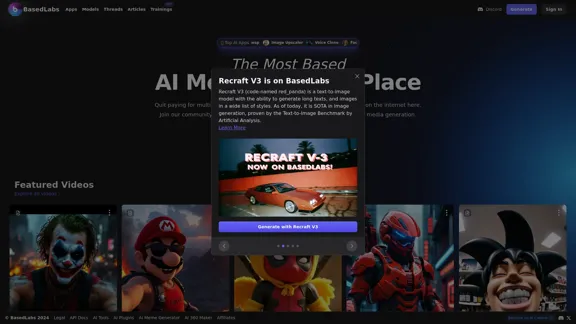
Red Panda AI | A New Future of AI Image Generation

Red Panda AI | A New Future of AI Image Generation

Transform your designs with our professional AI red panda image generator. Create stunning artwork with perfect text placement, vector support, and consistent style. Start creating for free.

688
Krea
View Detail

Krea

Krea

Krea makes generative AI intuitive. Generate, edit, and enhance images and videos using powerful AI for free.

5.34 M