Open-source RightAI Tools Directory
  • Discover AI
  • Submit
  • Startup
  • Blog
Open-source RightAI Tools Directory
Discover the best AI tools of 2025 with the RightAI Tools Directory!

Friend Links

AI Anime GeneratorToolsApp AI

Support

Tap4
Privacy policyTerms & ConditionsContact Us
Loading...
loading...

Lookie: YouTube AI - Make YouTube your brain 🧠

Lookie is the Global standard YouTube AI. Boost your learning with Lookie, the ultimate YouTube summarizer! Instantly transform long videos into concise, easy-to-digest summaries. Make YouTube your personal knowledge space with Lookie's AI-driven insights, available in 200 languages.
Visit Website
Lookie: YouTube AI - Make YouTube your brain 🧠
Visit Website

Introduction

Lookie is an innovative tool designed to enhance the way users interact with YouTube videos. It allows users to summarize content quickly, absorb key points, and share insights efficiently. With a focus on speed and intelligence, Lookie aims to make video consumption smarter and faster.

Feature

  1. One-Click Summarization

    Users can summarize YouTube videos with a single click, making it easy to grasp essential information without watching the entire video.

  2. Highlight Key Points

    Lookie enables users to highlight and save only the most important segments of a video, streamlining the learning process.

  3. Fast Sharing

    The tool facilitates quick sharing of summarized content, allowing users to disseminate information effortlessly.

  4. User-Friendly Interface

    Lookie's design is intuitive, making it accessible for users of all skill levels.

  5. Privacy Protection

    Lookie prioritizes user privacy and ensures that all data is handled securely.

  6. Compatibility with YouTube

    The tool is specifically designed to work seamlessly with YouTube, enhancing the overall user experience.

How to Use?

  1. Download Lookie from the official website.
  2. Install the application and log in to your account.
  3. Navigate to a YouTube video you wish to summarize.
  4. Click on the Lookie extension to activate the summarization feature.
  5. Review the highlighted key points and save them for future reference.
  6. Share the summarized content with friends or colleagues directly from the app.

FAQ

What is Lookie?

Lookie is an AI-powered tool that allows users to summarize YouTube videos quickly and efficiently, focusing on key points for easier understanding.

How does Lookie work?

By integrating with YouTube, Lookie uses advanced algorithms to analyze video content and extract essential information, providing users with concise summaries.

Can I share the summaries created by Lookie?

Yes, Lookie allows users to share summarized content easily, making it convenient to distribute information.

Is Lookie free to use?

The website does not specify pricing details, but users can download Lookie and explore its features.

How is Lookie different from other summarization tools?

Lookie is specifically designed for YouTube videos, optimizing the summarization process for video content rather than text.

Price

  • Free plan: $0/month
  • Basic plan: Pricing not specified
  • Premium plan: Pricing not specified
The price is for reference only, please refer to the latest official data for actual information.

Evaluation

  1. Lookie effectively simplifies the process of summarizing YouTube videos, making it a valuable tool for users who want to save time and focus on key information.

  2. The one-click summarization feature is particularly useful, allowing for quick access to essential content.

  3. However, the tool may benefit from more detailed pricing information and additional features to enhance user experience.

  4. Overall, Lookie is a promising tool for anyone looking to optimize their YouTube viewing experience, though it may require further development to fully meet user needs.

Related Websites

Receipt OCR API: Precise Data Extraction Tool | ReceiptUp
View Detail

Receipt OCR API: Precise Data Extraction Tool | ReceiptUp

Receipt OCR API: Precise Data Extraction Tool | ReceiptUp

Transform your receipt management with our advanced OCR API. Experience fast, accurate data extraction for streamlined workflow and improved efficiency.

0
Snapdeck
View Detail

Snapdeck

Snapdeck

Build a winning deck in a snap. Create professional presentations effortlessly with AI-powered slide generation.

7.96 K
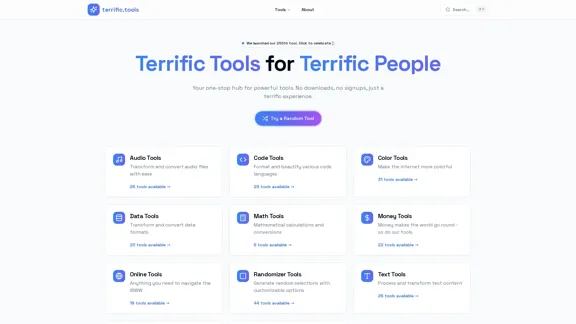
Discover and Learn AI Tools with AiToolGo | Your AI Learning Platform
View Detail

Discover and Learn AI Tools with AiToolGo | Your AI Learning Platform

Discover and Learn AI Tools with AiToolGo | Your AI Learning Platform

Find the best AI tools and learning resources tailored to your needs at AiToolGo. Empower your AI journey with solutions for everyone, regardless of background or expertise. Join our community today!

65.31 K
Transcription Software | AI Transcription & Content Editor | Trint
View Detail

Transcription Software | AI Transcription & Content Editor | Trint

Transcription Software | AI Transcription & Content Editor | Trint

Trint's AI-powered software swiftly converts video and audio files into text. Transcribe, edit, share, and collaborate to boost your team's productivity.

399.58 K
Everlaw Cloud-Native Ediscovery Software | Electronic Discovery | Cloud-Native Ediscovery Software | Everlaw
View Detail

Everlaw Cloud-Native Ediscovery Software | Electronic Discovery | Cloud-Native Ediscovery Software | Everlaw

Everlaw Cloud-Native Ediscovery Software | Electronic Discovery | Cloud-Native Ediscovery Software | Everlaw

Transform your approach to litigation and investigations with the world's most advanced e-discovery software.

139.03 K
QuickMail AI - Your Personal Email Assistant
View Detail

QuickMail AI - Your Personal Email Assistant

QuickMail AI - Your Personal Email Assistant

QuickMail AI is a personal email assistant that leverages AI-powered technology to help users craft professional emails in seconds.

0
UCG - Chrome Web Store
View Detail

UCG - Chrome Web Store

UCG - Chrome Web Store

ChatGPT without leaving the tab or visible chat!

193.90 M
Copilot for Microsoft 365 – Microsoft Adoption

Copilot for Microsoft 365 is a powerful AI assistant that helps you work smarter and faster across Microsoft 365 apps and services. It combines the power of large language models (LLMs) with your organization's data in the Microsoft Graph and Microsoft 365 apps to turn your words into the most powerful productivity tool on the planet.

Copilot is designed to help you:

• Unleash creativity
• Unlock productivity
• Uplevel skills

Copilot is built on Microsoft's comprehensive approach to security, compliance, and privacy. Copilot in Microsoft 365 apps and services:

• Does not use your data to train the underlying LLM
• Does not replace human ingenuity and judgment
• Is designed to keep humans in the loop

Copilot is currently available in Word, Excel, PowerPoint, Outlook, Teams, and more.

Getting Started with Copilot

To get started with Copilot, follow these steps:

1. Check availability: Ensure your organization has access to Copilot.
2. Learn the basics: Familiarize yourself with Copilot's capabilities and how to use it effectively.
3. Explore use cases: Discover how Copilot can help you in your specific role and tasks.
4. Practice and refine: Use Copilot regularly and refine your prompts for better results.
5. Share and collaborate: Collaborate with colleagues using Copilot and share best practices.

Best Practices for Using Copilot

1. Be specific in your prompts
2. Provide context for better results
3. Review and edit Copilot's output
4. Use Copilot as a starting point, not a final product
5. Experiment with different approaches
6. Stay informed about new features and updates

Copilot in Different Microsoft 365 Apps

• Word: Draft, edit, summarize, and rewrite content
• Excel: Analyze data, create formulas, and generate insights
• PowerPoint: Create presentations, design slides, and generate content
• Outlook: Compose emails, summarize threads, and manage your inbox
• Teams: Summarize meetings, generate action items, and create meeting notes

Responsible AI and Copilot

Microsoft is committed to developing AI systems responsibly. When using Copilot, keep in mind:

• AI-generated content may contain biases or inaccuracies
• Always review and verify Copilot's output
• Use your judgment and expertise alongside Copilot's suggestions
• Be aware of your organization's policies regarding AI use

Conclusion

Copilot for Microsoft 365 is a powerful tool that can significantly enhance your productivity and creativity. By understanding its capabilities, following best practices, and using it responsibly, you can make the most of this AI assistant in your daily work.
View Detail

Copilot for Microsoft 365 – Microsoft Adoption Copilot for Microsoft 365 is a powerful AI assistant that helps you work smarter and faster across Microsoft 365 apps and services. It combines the power of large language models (LLMs) with your organization's data in the Microsoft Graph and Microsoft 365 apps to turn your words into the most powerful productivity tool on the planet. Copilot is designed to help you: • Unleash creativity • Unlock productivity • Uplevel skills Copilot is built on Microsoft's comprehensive approach to security, compliance, and privacy. Copilot in Microsoft 365 apps and services: • Does not use your data to train the underlying LLM • Does not replace human ingenuity and judgment • Is designed to keep humans in the loop Copilot is currently available in Word, Excel, PowerPoint, Outlook, Teams, and more. Getting Started with Copilot To get started with Copilot, follow these steps: 1. Check availability: Ensure your organization has access to Copilot. 2. Learn the basics: Familiarize yourself with Copilot's capabilities and how to use it effectively. 3. Explore use cases: Discover how Copilot can help you in your specific role and tasks. 4. Practice and refine: Use Copilot regularly and refine your prompts for better results. 5. Share and collaborate: Collaborate with colleagues using Copilot and share best practices. Best Practices for Using Copilot 1. Be specific in your prompts 2. Provide context for better results 3. Review and edit Copilot's output 4. Use Copilot as a starting point, not a final product 5. Experiment with different approaches 6. Stay informed about new features and updates Copilot in Different Microsoft 365 Apps • Word: Draft, edit, summarize, and rewrite content • Excel: Analyze data, create formulas, and generate insights • PowerPoint: Create presentations, design slides, and generate content • Outlook: Compose emails, summarize threads, and manage your inbox • Teams: Summarize meetings, generate action items, and create meeting notes Responsible AI and Copilot Microsoft is committed to developing AI systems responsibly. When using Copilot, keep in mind: • AI-generated content may contain biases or inaccuracies • Always review and verify Copilot's output • Use your judgment and expertise alongside Copilot's suggestions • Be aware of your organization's policies regarding AI use Conclusion Copilot for Microsoft 365 is a powerful tool that can significantly enhance your productivity and creativity. By understanding its capabilities, following best practices, and using it responsibly, you can make the most of this AI assistant in your daily work.

Copilot for Microsoft 365 – Microsoft Adoption Copilot for Microsoft 365 is a powerful AI assistant that helps you work smarter and faster across Microsoft 365 apps and services. It combines the power of large language models (LLMs) with your organization's data in the Microsoft Graph and Microsoft 365 apps to turn your words into the most powerful productivity tool on the planet. Copilot is designed to help you: • Unleash creativity • Unlock productivity • Uplevel skills Copilot is built on Microsoft's comprehensive approach to security, compliance, and privacy. Copilot in Microsoft 365 apps and services: • Does not use your data to train the underlying LLM • Does not replace human ingenuity and judgment • Is designed to keep humans in the loop Copilot is currently available in Word, Excel, PowerPoint, Outlook, Teams, and more. Getting Started with Copilot To get started with Copilot, follow these steps: 1. Check availability: Ensure your organization has access to Copilot. 2. Learn the basics: Familiarize yourself with Copilot's capabilities and how to use it effectively. 3. Explore use cases: Discover how Copilot can help you in your specific role and tasks. 4. Practice and refine: Use Copilot regularly and refine your prompts for better results. 5. Share and collaborate: Collaborate with colleagues using Copilot and share best practices. Best Practices for Using Copilot 1. Be specific in your prompts 2. Provide context for better results 3. Review and edit Copilot's output 4. Use Copilot as a starting point, not a final product 5. Experiment with different approaches 6. Stay informed about new features and updates Copilot in Different Microsoft 365 Apps • Word: Draft, edit, summarize, and rewrite content • Excel: Analyze data, create formulas, and generate insights • PowerPoint: Create presentations, design slides, and generate content • Outlook: Compose emails, summarize threads, and manage your inbox • Teams: Summarize meetings, generate action items, and create meeting notes Responsible AI and Copilot Microsoft is committed to developing AI systems responsibly. When using Copilot, keep in mind: • AI-generated content may contain biases or inaccuracies • Always review and verify Copilot's output • Use your judgment and expertise alongside Copilot's suggestions • Be aware of your organization's policies regarding AI use Conclusion Copilot for Microsoft 365 is a powerful tool that can significantly enhance your productivity and creativity. By understanding its capabilities, following best practices, and using it responsibly, you can make the most of this AI assistant in your daily work.

Microsoft Copilot combines the power of large language models (LLMs) with your organization's data to turn your words into one of the most powerful productivity tools on the planet.

608.60 K