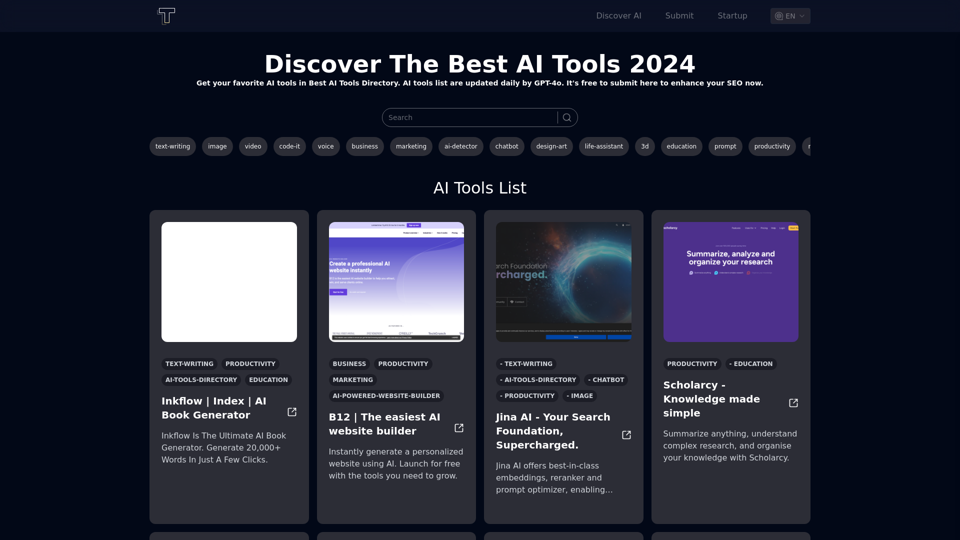
Open-source RightAI Tools Directory
  • Discover AI
  • Submit
  • Startup
  • Blog
Open-source RightAI Tools Directory
Discover the best AI tools of 2025 with the RightAI Tools Directory!

Friend Links

AI Anime GeneratorToolsApp AI

Support

Tap4
Privacy policyTerms & ConditionsContact Us
Loading...
loading...

Luma Dream Machine

Dream Machine is an AI model that generates high-quality, realistic videos quickly from text and images using Luma AI.
Visit Website
Luma Dream Machine
Visit Website

Introduction

Luma Dream Machine is an advanced AI model designed for creating high-quality, realistic videos from text and images. This innovative transformer model is trained directly on videos, enabling it to generate physically accurate, consistent, and eventful shots. With its impressive speed and ability to produce smooth motion and cinematography, Luma Dream Machine offers users a powerful tool for turning static images into dynamic stories and bringing lifeless scenes to life.

Feature

High-Speed Video Generation

Luma Dream Machine generates 120 frames in just 120 seconds, allowing users to iterate quickly, explore more ideas, and dream bigger. This remarkable speed enhances productivity and creativity in video production.

Realistic Motion and Cinematography

The model creates 5-second shots with smooth, realistic motion and cinematic quality. It transforms static snapshots into dynamic stories, adding life and drama to otherwise lifeless scenes.

Physical Accuracy and Consistency

Luma Dream Machine demonstrates a deep understanding of how people, animals, and objects interact with the physical world. This knowledge enables the creation of videos with excellent character consistency and accurate physics.

Fluid Camera Movements

Users can experiment with a wide array of fluid, cinematic, and naturalistic camera motions. These movements are tailored to match the emotion and content of each scene, enhancing the overall visual impact.

Text and Image Input

The model accepts both text descriptions and images as input, providing flexibility in the video creation process. This feature allows users to start with either a written concept or a visual reference.

Accessibility

Luma Dream Machine is available to all users for generating high-quality videos. Subscribers gain additional benefits and extended access beyond the free usage limits.

FAQ

What are the main features of Luma Dream Machine?

Luma Dream Machine offers several key features:

  1. High-speed video generation (120 frames in 120 seconds)
  2. Realistic motion and cinematography in 5-second shots
  3. Physical accuracy and consistency in character and object interactions
  4. Fluid and cinematic camera movements
  5. Ability to generate videos from both text and image inputs

How fast is Luma Dream Machine?

Luma Dream Machine is incredibly fast, capable of generating 120 frames in just 120 seconds. This speed allows for rapid iteration and exploration of ideas.

Can Luma Dream Machine create videos with realistic characters and physics?

Yes, the model understands how people, animals, and objects interact with the physical world. This enables users to create videos with great character consistency and accurate physics.

Is user data used for training the model?

No, Luma Dream Machine values user privacy and does not use user data for training purposes.

What types of camera movements can be created with Luma Dream Machine?

The model allows users to experiment with a wide range of fluid, cinematic, and naturalistic camera motions. These movements are designed to match the emotion and content of each scene.

Related Websites
ChatTTS - Natural, Expressive Text-to-Speech
View Detail

ChatTTS - Natural, Expressive Text-to-Speech

ChatTTS - Natural, Expressive Text-to-Speech

Discover the power of ChatTTS for your creative projects with natural and expressive text-to-speech capabilities.

0
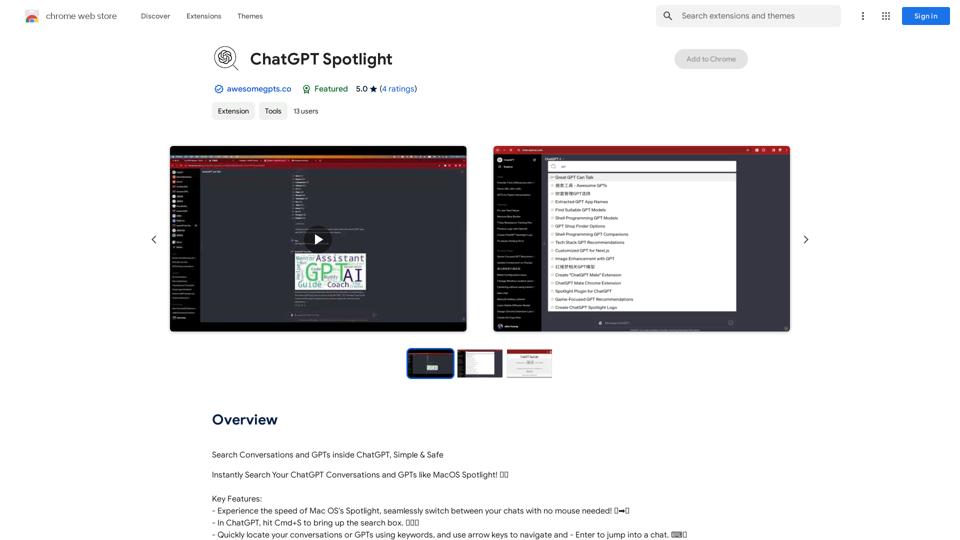
Awesome GPTs
View Detail

Awesome GPTs

Awesome GPTs

Power Your Workflow with Custom GPTs

193.90 M
Grimo - Cursor for Writing
View Detail

Grimo - Cursor for Writing

Grimo - Cursor for Writing

The most powerful AI text editor. Coherent editing. Customized styling. Collaborate seamlessly.

1.36 K
SF Explorer
View Detail

SF Explorer

SF Explorer

Productivity tool for Salesforce admins and developers

193.90 M
Transcript Helper for Chorus.ai 

This is a tool designed to help you work with transcripts generated by Chorus.ai. 


Let me know what you need help with! For example, you can ask me to:

* Summarize a transcript: Give me a transcript and I'll provide a concise summary of the main points.
* Find specific information: Tell me what you're looking for (e.g., "find all mentions of product X") and I'll search the transcript for relevant text.
* Identify key speakers: I can analyze the transcript and tell you who the main speakers are.
* Generate action items: Based on the transcript, I can help you identify tasks that need to be completed.
* Translate the transcript: I can translate the transcript into another language.


What can I do for you today?
View Detail

Transcript Helper for Chorus.ai This is a tool designed to help you work with transcripts generated by Chorus.ai. Let me know what you need help with! For example, you can ask me to: * Summarize a transcript: Give me a transcript and I'll provide a concise summary of the main points. * Find specific information: Tell me what you're looking for (e.g., "find all mentions of product X") and I'll search the transcript for relevant text. * Identify key speakers: I can analyze the transcript and tell you who the main speakers are. * Generate action items: Based on the transcript, I can help you identify tasks that need to be completed. * Translate the transcript: I can translate the transcript into another language. What can I do for you today?

Transcript Helper for Chorus.ai This is a tool designed to help you work with transcripts generated by Chorus.ai. Let me know what you need help with! For example, you can ask me to: * Summarize a transcript: Give me a transcript and I'll provide a concise summary of the main points. * Find specific information: Tell me what you're looking for (e.g., "find all mentions of product X") and I'll search the transcript for relevant text. * Identify key speakers: I can analyze the transcript and tell you who the main speakers are. * Generate action items: Based on the transcript, I can help you identify tasks that need to be completed. * Translate the transcript: I can translate the transcript into another language. What can I do for you today?

This extension finds chorus.ai transcripts and lets you copy them to your clipboard.

193.90 M
1PX.AI
View Detail

1PX.AI

1PX.AI

Here is the translation: AI Photo, Photo AI, AI Photo Editing, AI Generated Photos, Free AI Photo Editor, AI Photo Generator, AI Avatar Generator

105
Pluto.AI on the App Store
View Detail

Pluto.AI on the App Store

Pluto.AI on the App Store

Pluto.AI is your ultimate AI teacher, offering a unique blend of knowledge and assistance. With its cutting-edge technology, Pluto.AI stands out as your go-to assistant for learning and growth.

124.77 M
Converting JPG Images to Text

Converting a JPG image to text is a process known as Optical Character Recognition (OCR). This technology enables you to extract text from images, scanned documents, and photos. Here's how to do it:

Method 1: Online OCR Tools

You can use online OCR tools to convert JPG images to text. Here are the steps:

1. Upload your JPG image: Go to an online OCR tool website, such as Online OCR Tools or OCR.space, and upload your JPG image.
2. Select the language: Choose the language of the text in your image.
3. Click on "Convert": The tool will convert the image to text.
4. Download the text: You can download the extracted text as a Word document, PDF, or plain text file.

Method 2: Google Drive

You can also use Google Drive to convert JPG images to text. Here's how:

1. Upload your JPG image: Upload your JPG image to Google Drive.
2. Right-click on the image: Right-click on the uploaded image and select "Open with" > "Google Docs".
3. The image will be converted: Google Docs will automatically convert the image to text.
4. Edit and download: You can edit the extracted text and download it as a Word document or PDF.

Method 3: Adobe Acrobat

If you have Adobe Acrobat installed on your computer, you can use it to convert JPG images to text. Here's how:

1. Open Adobe Acrobat: Open Adobe Acrobat on your computer.
2. Create a new document: Create a new document and click on "Tools" > "Recognize Text".
3. Select the image: Select the JPG image you want to convert.
4. Click on "Recognize": Adobe Acrobat will convert the image to text.
5. Edit and save: You can edit the extracted text and save it as a Word document or PDF.

These are the three methods to convert JPG images to text. Choose the method that works best for you!
View Detail

Converting JPG Images to Text Converting a JPG image to text is a process known as Optical Character Recognition (OCR). This technology enables you to extract text from images, scanned documents, and photos. Here's how to do it: Method 1: Online OCR Tools You can use online OCR tools to convert JPG images to text. Here are the steps: 1. Upload your JPG image: Go to an online OCR tool website, such as Online OCR Tools or OCR.space, and upload your JPG image. 2. Select the language: Choose the language of the text in your image. 3. Click on "Convert": The tool will convert the image to text. 4. Download the text: You can download the extracted text as a Word document, PDF, or plain text file. Method 2: Google Drive You can also use Google Drive to convert JPG images to text. Here's how: 1. Upload your JPG image: Upload your JPG image to Google Drive. 2. Right-click on the image: Right-click on the uploaded image and select "Open with" > "Google Docs". 3. The image will be converted: Google Docs will automatically convert the image to text. 4. Edit and download: You can edit the extracted text and download it as a Word document or PDF. Method 3: Adobe Acrobat If you have Adobe Acrobat installed on your computer, you can use it to convert JPG images to text. Here's how: 1. Open Adobe Acrobat: Open Adobe Acrobat on your computer. 2. Create a new document: Create a new document and click on "Tools" > "Recognize Text". 3. Select the image: Select the JPG image you want to convert. 4. Click on "Recognize": Adobe Acrobat will convert the image to text. 5. Edit and save: You can edit the extracted text and save it as a Word document or PDF. These are the three methods to convert JPG images to text. Choose the method that works best for you!

Converting JPG Images to Text Converting a JPG image to text is a process known as Optical Character Recognition (OCR). This technology enables you to extract text from images, scanned documents, and photos. Here's how to do it: Method 1: Online OCR Tools You can use online OCR tools to convert JPG images to text. Here are the steps: 1. Upload your JPG image: Go to an online OCR tool website, such as Online OCR Tools or OCR.space, and upload your JPG image. 2. Select the language: Choose the language of the text in your image. 3. Click on "Convert": The tool will convert the image to text. 4. Download the text: You can download the extracted text as a Word document, PDF, or plain text file. Method 2: Google Drive You can also use Google Drive to convert JPG images to text. Here's how: 1. Upload your JPG image: Upload your JPG image to Google Drive. 2. Right-click on the image: Right-click on the uploaded image and select "Open with" > "Google Docs". 3. The image will be converted: Google Docs will automatically convert the image to text. 4. Edit and download: You can edit the extracted text and download it as a Word document or PDF. Method 3: Adobe Acrobat If you have Adobe Acrobat installed on your computer, you can use it to convert JPG images to text. Here's how: 1. Open Adobe Acrobat: Open Adobe Acrobat on your computer. 2. Create a new document: Create a new document and click on "Tools" > "Recognize Text". 3. Select the image: Select the JPG image you want to convert. 4. Click on "Recognize": Adobe Acrobat will convert the image to text. 5. Edit and save: You can edit the extracted text and save it as a Word document or PDF. These are the three methods to convert JPG images to text. Choose the method that works best for you!

It is an online tool that uses Optical Character Recognition (OCR) to make it possible to extract text from images in JPG format.

193.90 M