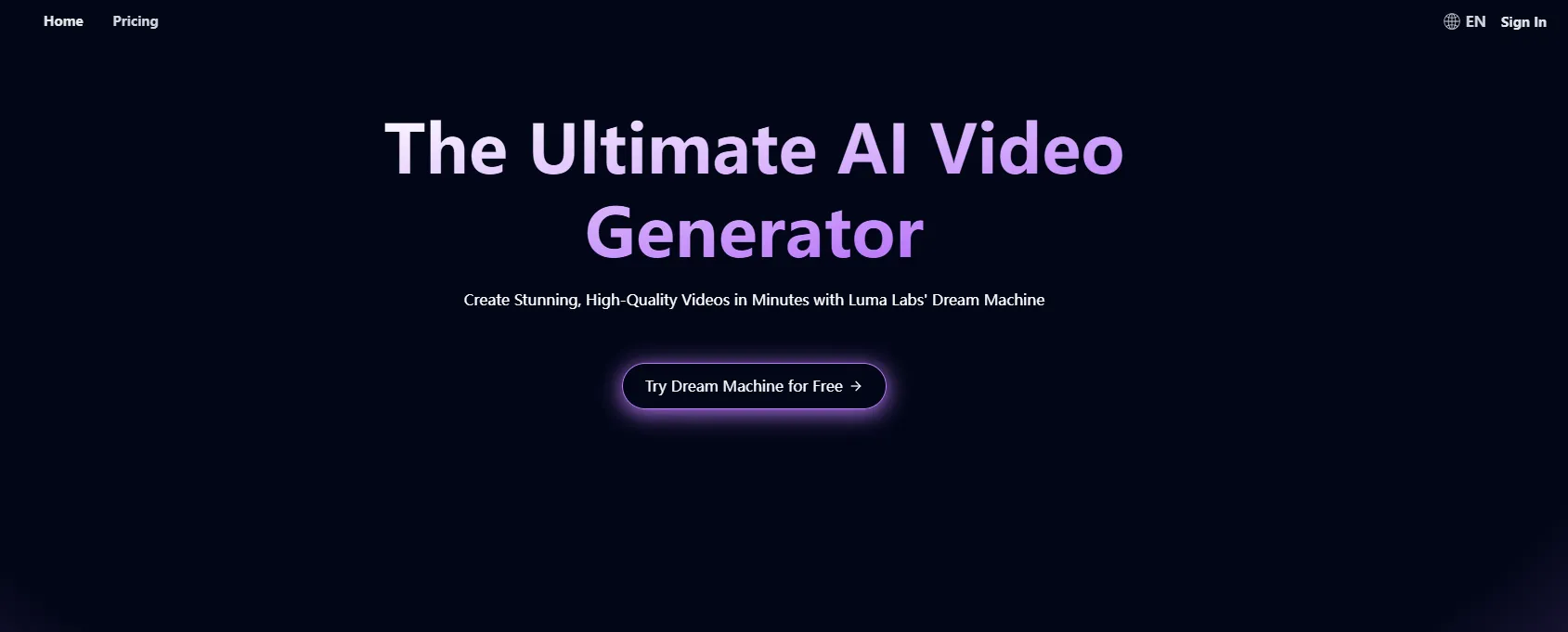
LunaAI's Dream Machine by Luma Labs is an AI-powered video generator that transforms creative ideas into high-quality videos efficiently. Whether starting from text or image inputs, it provides users with a versatile and scalable tool for producing realistic videos.
Luma AI Video Generator: LunaAI's Dream Machine
LunaAI’s Dream Machine is an advanced AI-powered video generator by Luma Labs that creates high-quality, realistic videos quickly.
Introduction
Feature
- High-Quality Video Generation: Produces lifelike visuals and smooth motion, ensuring professional-grade content.
- Versatile Inputs: Accepts text descriptions or images, allowing diverse creative possibilities.
- Scalability: Uses more GPUs to enhance video quality, scaling with user needs.
- Efficiency: Utilizes a Transformer model trained on videos for fast and precise generation.
- Real-Time Access: Offers instant video generation and user-friendly interface for quick creative iteration.
- Continuous Improvement: Regular updates ensure access to cutting-edge video generation technology.
How to Use?
- Visit LunaAI.video and sign up for a free account.
- Explore the Dream Machine's interface and input a text description or upload an image.
- Use the "Generate" feature to create your video.
- Experiment with different inputs to find the best output.
- Take advantage of free trials before choosing a subscription plan for more features.
FAQ
What is LunaAI's Dream Machine?
LunaAI's Dream Machine is an AI video generator that creates high-quality, realistic videos using text descriptions or images as inputs.
How does Dream Machine work?
The Dream Machine leverages advanced AI technology, including a Transformer model trained on videos, to generate videos quickly and efficiently from various inputs.
Can I use Dream Machine for free?
Yes, LunaAI offers a free plan with 30 video generations per month. Subscription plans are also available for more extensive use.
What types of inputs does Dream Machine accept?
It accepts both text descriptions and images, providing flexibility for users to explore different creative formats.
Price
- Free Plan: 30 generations per month.
- Subscription Plans: Various plans available with additional features and more generations.
The price is for reference only, please refer to the latest official data for actual information.
Evaluation
- Strengths: LunaAI’s Dream Machine offers high-quality, realistic video output with efficient, real-time generation and versatile input options.
- Areas for Improvement: Could benefit from more customization options and additional input formats.
- Overall: A strong tool for both professionals and hobbyists looking to quickly produce high-quality videos. However, advanced users may require more control over video parameters.
Related Websites

Quickly search the entire Internet, including websites, search engines, AI chatbots, videos, photos, social media, radio, PDFs, images, online shopping platforms, and AI-powered search chatbots.
193.90 M
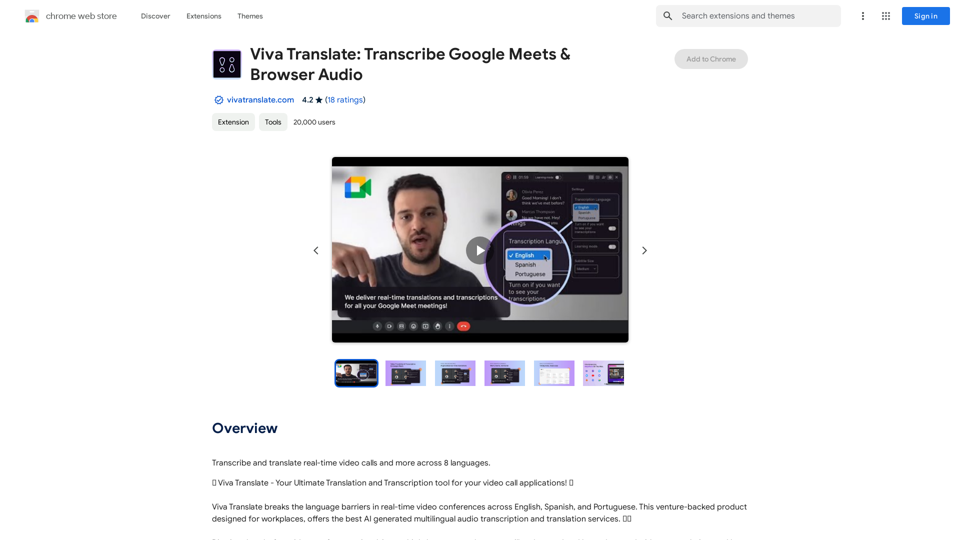
Viva Translate: Transcribe Google Meets & Browser Audio
Viva Translate: Transcribe Google Meets & Browser AudioTranscribe and translate real-time video calls and more across 8 languages.
193.90 M
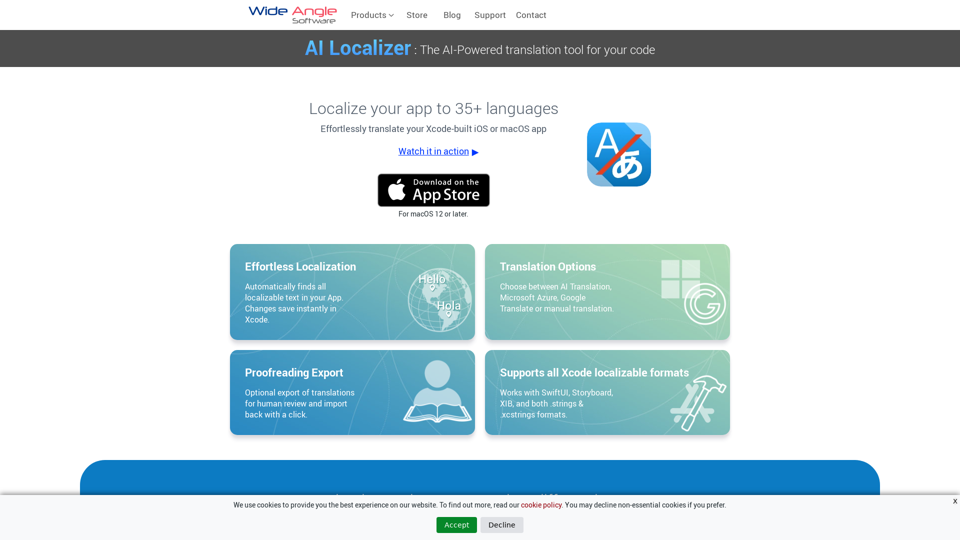
Seamlessly add localized translations to your Xcode projects. Add up to 37 languages to your app automatically, using the power of AI.
210.21 K

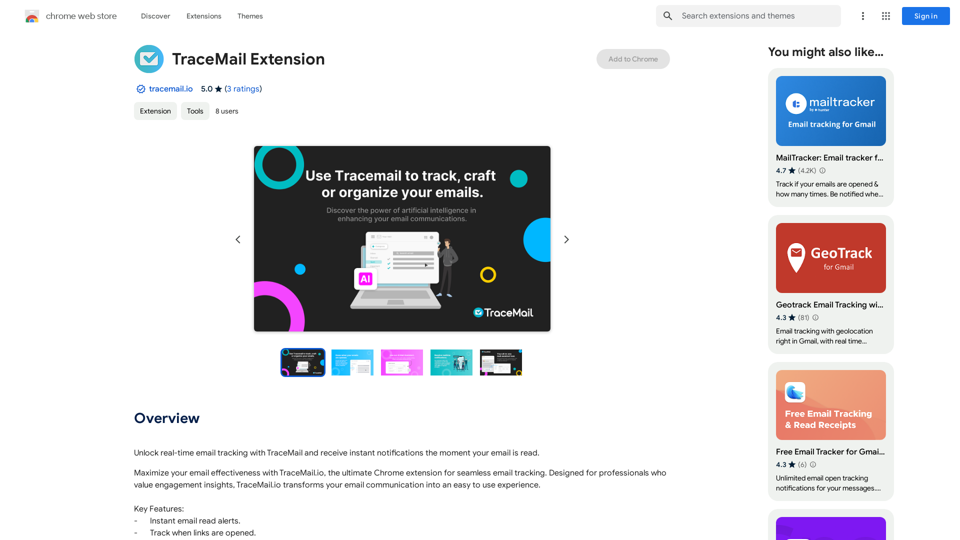
Track your emails in real-time with TraceMail and get instant notifications when someone opens them.
193.90 M

Ai5 is your go-to twice-weekly email outlining the most important events happening in generative AI. Stay informed, get smarter, and be entertained with Ai5.
0