Open-source RightAI Tools Directory
  • Discover AI
  • Submit
  • Startup
  • Blog
Open-source RightAI Tools Directory
Discover the best AI tools of 2025 with the RightAI Tools Directory!

Friend Links

AI Anime GeneratorToolsApp AI

Support

Tap4
Privacy policyTerms & ConditionsContact Us
Loading...
loading...

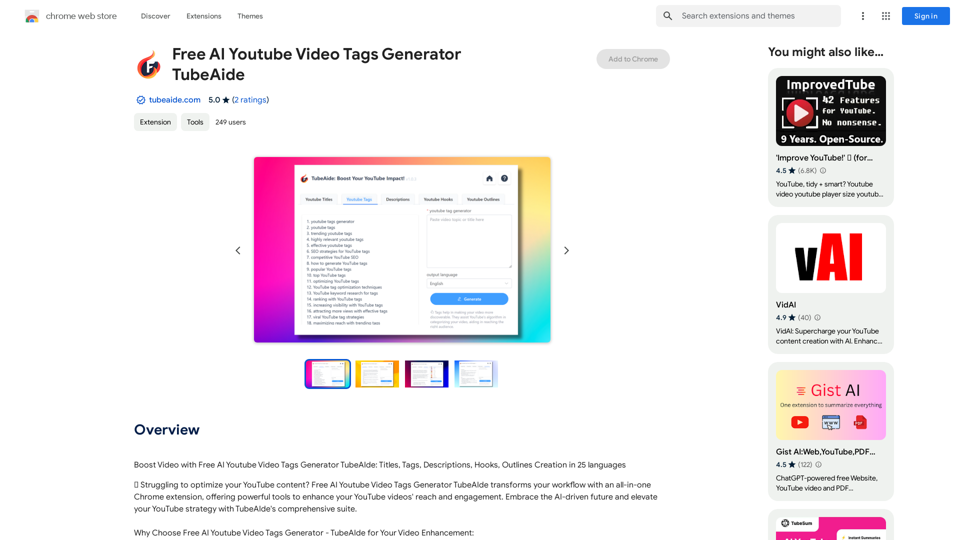
Free AI YouTube Video Tags Generator TubeAide

Boost Your Video with Free AI YouTube Video Tag Generator TubeAIde: Titles, Tags, Descriptions, Hooks, and Outlines in 25 Languages
Visit Website
Free AI YouTube Video Tags Generator TubeAide
Visit Website

Introduction

TubeAide is a free AI-powered Chrome extension designed to help content creators optimize their YouTube videos. It offers a comprehensive suite of tools for generating titles, tags, descriptions, hooks, and outlines in 25 languages. This all-in-one solution for YouTube SEO aims to improve video reach and engagement, making it easier for creators to focus on producing quality content while enhancing their visibility on the platform.

Feature

Comprehensive YouTube SEO Suite

TubeAide provides a range of tools to enhance your YouTube videos' visibility and engagement, covering all aspects of video optimization.

AI-Powered Generation

Utilizing cutting-edge AI technology, TubeAide generates optimized content tailored to your specific content and audience needs.

Multilingual Support

With support for 25 languages, TubeAide ensures your content is globally accessible and optimized for international audiences.

SEO-Enhanced Elements

Increase your visibility on YouTube with SEO-optimized tags, titles, and descriptions generated by TubeAide.

Streamlined Content Creation

TubeAide simplifies the content creation process, allowing you to focus more on producing quality videos.

Detailed Analytics

Gain in-depth insights into the performance of your generated tags and descriptions to understand what works best for your audience.

Privacy and Security

TubeAide prioritizes user privacy and adheres strictly to Chrome's security standards, ensuring your data and creative content are protected.

FAQ

How does TubeAide improve YouTube SEO for creators?

TubeAide enhances SEO by providing optimized tags, titles, and descriptions, ensuring your videos are discovered by the right audience.

Can TubeAide help non-English speakers optimize their content?

Certainly! TubeAide supports 25 languages, enabling content optimization for a diverse global audience.

Is TubeAide user-friendly for those new to SEO?

Yes, TubeAide is designed to be intuitive, guiding users through generating and applying optimized content easily.

Are my video ideas and content secure with TubeAide?

Absolutely. TubeAide operates with full compliance to Chrome's privacy policies, safeguarding your creative content.

What sets TubeAide apart from other YouTube optimization tools?

TubeAide distinguishes itself with AI precision, multilingual support, and a commitment to user experience and data security.

Related Websites

Batch Save ChatGPT to Notion

This is a guide on how to save multiple ChatGPT responses to Notion in a batch. 

Tools You'll Need:

* ChatGPT: An AI chatbot that can generate text.
* Notion: A note-taking and project management tool.
* Python: A programming language.
* Requests Library: A Python library for making HTTP requests.

Steps:

1. Get Your Notion API Token:
   - Go to your Notion workspace settings.
   - Navigate to the "Integrations" tab.
   - Click "Create new integration" and choose "API Token".
   - Copy your API token.

2. Install Python Libraries:
   - Open your terminal or command prompt.
   - Type `pip install requests` and press Enter.

3. Write Python Script:
   - Create a new Python file (e.g., `save_chatgpt_to_notion.py`).
   - Paste the following code into the file, replacing `YOUR_NOTION_API_TOKEN` with your actual token:

```python
import requests

def save_chatgpt_response_to_notion(response, page_id, token):
  """Saves a ChatGPT response to a Notion page."""
  url = f"https://api.notion.com/v1/pages/{page_id}/children"
  headers = {"Authorization": f"Bearer {token}"}
  data = {
    "parent": {
      "page_id": page_id
    },
    "properties": {
      "title": {
        "title": [
          {
            "text": {
              "content": "ChatGPT Response"
            }
          }
        ]
      },
      "content": {
        "rich_text": [
          {
            "text": {
              "content": response
            }
          }
        ]
      }
    }
  }
  response = requests.post(url, headers=headers, json=data)
  print(response.status_code)

Example usage
page_id = "YOUR_NOTION_PAGE_ID"
token = "YOUR_NOTION_API_TOKEN"

Get ChatGPT responses (replace with your actual ChatGPT interaction)
chatgpt_responses = [
  "This is the first ChatGPT response.",
  "This is the second ChatGPT response.",
  "This is the third ChatGPT response."
]

Save each response to Notion
for response in chatgpt_responses:
  save_chatgpt_response_to_notion(response, page_id, token)
```

4. Run the Script:
   - In your terminal, navigate to the directory where you saved the Python file.
   - Type `python save_chatgpt_to_notion.py` and press Enter.

5. Check Notion:
   - Open your Notion workspace and go to the page specified by `page_id`.
   - You should see your ChatGPT responses saved as separate blocks.
View Detail

Batch Save ChatGPT to Notion This is a guide on how to save multiple ChatGPT responses to Notion in a batch. Tools You'll Need: * ChatGPT: An AI chatbot that can generate text. * Notion: A note-taking and project management tool. * Python: A programming language. * Requests Library: A Python library for making HTTP requests. Steps: 1. Get Your Notion API Token: - Go to your Notion workspace settings. - Navigate to the "Integrations" tab. - Click "Create new integration" and choose "API Token". - Copy your API token. 2. Install Python Libraries: - Open your terminal or command prompt. - Type `pip install requests` and press Enter. 3. Write Python Script: - Create a new Python file (e.g., `save_chatgpt_to_notion.py`). - Paste the following code into the file, replacing `YOUR_NOTION_API_TOKEN` with your actual token: ```python import requests def save_chatgpt_response_to_notion(response, page_id, token): """Saves a ChatGPT response to a Notion page.""" url = f"https://api.notion.com/v1/pages/{page_id}/children" headers = {"Authorization": f"Bearer {token}"} data = { "parent": { "page_id": page_id }, "properties": { "title": { "title": [ { "text": { "content": "ChatGPT Response" } } ] }, "content": { "rich_text": [ { "text": { "content": response } } ] } } } response = requests.post(url, headers=headers, json=data) print(response.status_code) Example usage page_id = "YOUR_NOTION_PAGE_ID" token = "YOUR_NOTION_API_TOKEN" Get ChatGPT responses (replace with your actual ChatGPT interaction) chatgpt_responses = [ "This is the first ChatGPT response.", "This is the second ChatGPT response.", "This is the third ChatGPT response." ] Save each response to Notion for response in chatgpt_responses: save_chatgpt_response_to_notion(response, page_id, token) ``` 4. Run the Script: - In your terminal, navigate to the directory where you saved the Python file. - Type `python save_chatgpt_to_notion.py` and press Enter. 5. Check Notion: - Open your Notion workspace and go to the page specified by `page_id`. - You should see your ChatGPT responses saved as separate blocks.

Batch Save ChatGPT to Notion This is a guide on how to save multiple ChatGPT responses to Notion in a batch. Tools You'll Need: * ChatGPT: An AI chatbot that can generate text. * Notion: A note-taking and project management tool. * Python: A programming language. * Requests Library: A Python library for making HTTP requests. Steps: 1. Get Your Notion API Token: - Go to your Notion workspace settings. - Navigate to the "Integrations" tab. - Click "Create new integration" and choose "API Token". - Copy your API token. 2. Install Python Libraries: - Open your terminal or command prompt. - Type `pip install requests` and press Enter. 3. Write Python Script: - Create a new Python file (e.g., `save_chatgpt_to_notion.py`). - Paste the following code into the file, replacing `YOUR_NOTION_API_TOKEN` with your actual token: ```python import requests def save_chatgpt_response_to_notion(response, page_id, token): """Saves a ChatGPT response to a Notion page.""" url = f"https://api.notion.com/v1/pages/{page_id}/children" headers = {"Authorization": f"Bearer {token}"} data = { "parent": { "page_id": page_id }, "properties": { "title": { "title": [ { "text": { "content": "ChatGPT Response" } } ] }, "content": { "rich_text": [ { "text": { "content": response } } ] } } } response = requests.post(url, headers=headers, json=data) print(response.status_code) Example usage page_id = "YOUR_NOTION_PAGE_ID" token = "YOUR_NOTION_API_TOKEN" Get ChatGPT responses (replace with your actual ChatGPT interaction) chatgpt_responses = [ "This is the first ChatGPT response.", "This is the second ChatGPT response.", "This is the third ChatGPT response." ] Save each response to Notion for response in chatgpt_responses: save_chatgpt_response_to_notion(response, page_id, token) ``` 4. Run the Script: - In your terminal, navigate to the directory where you saved the Python file. - Type `python save_chatgpt_to_notion.py` and press Enter. 5. Check Notion: - Open your Notion workspace and go to the page specified by `page_id`. - You should see your ChatGPT responses saved as separate blocks.

Save ChatGPT Conversations to Notion with One Click Export your ChatGPT conversations directly to Notion with a single click.

193.90 M
Text Generation for X (formerly Twitter)
View Detail

Text Generation for X (formerly Twitter)

Text Generation for X (formerly Twitter)

This is a Chrome extension that analyzes images you want to post to X (formerly Twitter) and automatically generates alternative text for them.

193.90 M
Grok AI Image Generator
View Detail

Grok AI Image Generator

Grok AI Image Generator

Generate Grok AI Images Free Online with Flux. Free Online | No Credit Card or Login Required

1.92 K
Amote Extension
View Detail

Amote Extension

Amote Extension

Note: Improve the cart and checkout pages with effective upsell features to boost sales.

193.90 M
AI Powered Image Generator for Unique and Custom Images
View Detail

AI Powered Image Generator for Unique and Custom Images

AI Powered Image Generator for Unique and Custom Images

Create unique and custom images effortlessly with iPic.Ai - the AI-powered image generator.

68.28 K
AI-Mask - In-browser inference
View Detail

AI-Mask - In-browser inference

AI-Mask - In-browser inference

Bring local inference to web apps!

193.90 M
Luma AI Video Generator Free Online - Convert Text and Photos to Video at VideoMaker.me
View Detail

Luma AI Video Generator Free Online - Convert Text and Photos to Video at VideoMaker.me

Luma AI Video Generator Free Online - Convert Text and Photos to Video at VideoMaker.me

Discover the power of Luma AI's Dream Machine, an advanced video generator that transforms text and images into high-quality, dynamic videos. Ideal for creators, marketers, and innovators, videomaker.me brings your visual ideas to life with stunning realism and versatility.

397.91 K
Prisma Labs
View Detail

Prisma Labs

Prisma Labs

Shaping the future of photo and video editing.

74.21 K