Open-source RightAI Tools Directory
  • Discover AI
  • Submit
  • Startup
  • Blog
Open-source RightAI Tools Directory
Discover the best AI tools of 2025 with the RightAI Tools Directory!

Friend Links

AI Anime GeneratorToolsApp AI

Support

Tap4
Privacy policyTerms & ConditionsContact Us
Loading...
loading...

VibeTrack - Scheduling for Podcasters

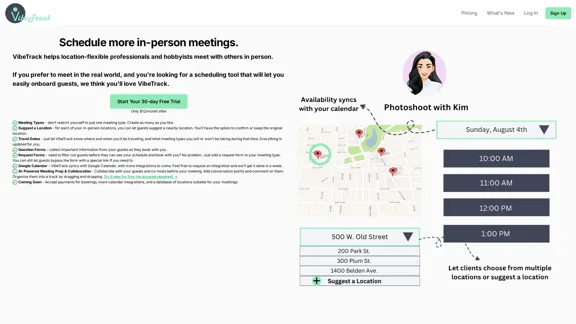
VibeTrack is a scheduling tool designed for location-flexible professionals and hobbyists who prefer in-person meetings.
Visit Website
VibeTrack - Scheduling for Podcasters
Visit Website

Introduction

VibeTrack is a scheduling tool designed for location-flexible professionals and hobbyists who prefer in-person meetings. It offers a unique focus on facilitating real-world interactions while also supporting audio and video calls. VibeTrack aims to simplify the process of scheduling and preparing for meetings, especially for those who value face-to-face connections.

Feature

Flexible Meeting Types

Create unlimited meeting types to suit your various scheduling needs.

Location Suggestions

Allow guests to suggest nearby meeting locations, with the option to confirm or keep the original venue.

Travel Date Management

Easily update your availability and meeting types when traveling to different locations.

Customizable Question Forms

Collect essential information from guests during the booking process.

Request Forms with Bypass Option

Filter potential guests with request forms, while maintaining the flexibility to provide direct booking links when needed.

Google Calendar Integration

Seamlessly sync your VibeTrack schedule with Google Calendar, with more integrations planned.

AI-Powered Meeting Prep & Collaboration

Enhance meeting quality with AI-assisted preparation tools:

  • Add and comment on conversation points
  • Organize topics by drag-and-drop
  • Collaborate with guests and co-hosts pre-meeting

Upcoming Features

  • Payment acceptance for bookings
  • Additional calendar integrations
  • Database of suitable meeting locations

FAQ

What sets VibeTrack apart from other scheduling apps?

VibeTrack specializes in facilitating in-person meetings while still offering audio and video call options. It's designed for those who prefer face-to-face interactions but struggle with scheduling logistics.

Is there a free trial available?

Yes, VibeTrack offers a 30-day free trial. After the trial period, the service costs $12/month.

Can I try VibeTrack's features without creating an account?

Yes, you can try the AI-powered meeting prep and collaboration features without creating an account.

Does VibeTrack integrate with other calendar services besides Google Calendar?

Currently, VibeTrack syncs with Google Calendar, but more integrations are planned. Users can request specific integrations, which the team aims to implement within a week.

How does VibeTrack handle travel schedules?

VibeTrack allows users to input their travel dates and locations, automatically updating availability and meeting types for those periods.

Latest Traffic Insights

  • Monthly Visits

    0

  • Bounce Rate

    0.00%

  • Pages Per Visit

    0.00

  • Time on Site(s)

    0.00

  • Global Rank

    -

  • Country Rank

    -

Recent Visits

Traffic Sources

  • Social Media:
    0.00%
  • Paid Referrals:
    0.00%
  • Email:
    0.00%
  • Referrals:
    0.00%
  • Search Engines:
    0.00%
  • Direct:
    0.00%
More Data

Related Websites

AI-Powered Contract Management for Legal Teams | LinkSquares
View Detail

AI-Powered Contract Management for Legal Teams | LinkSquares

AI-Powered Contract Management for Legal Teams | LinkSquares

Legal teams depend on LinkSquares for effortless agreement drafting, reviewing, and execution using AI-powered contract lifecycle management and project management software.

81.95 K
Resumeguru.pro
View Detail

Resumeguru.pro

Resumeguru.pro

Resumeguru.pro is an advanced AI-powered resume optimization tool designed to transform and enhance job seekers' resumes. By leveraging cutting-edge artificial intelligence technology, it automates the entire process of creating a highly effective and hirable resume, including editing, formatting, and optimization. This innovative platform aims to help users stand out in the competitive job market by tailoring their resumes to perfection.

0
Jestor - Build apps for operations without code
View Detail

Jestor - Build apps for operations without code

Jestor - Build apps for operations without code

Build scalable Apps, automations, and workflows for your entire company without any coding required. Do it yourself.

36.60 K
Tila: Multi-Agent AI Platform for Automating Workflows and Creating Content
View Detail

Tila: Multi-Agent AI Platform for Automating Workflows and Creating Content

Tila: Multi-Agent AI Platform for Automating Workflows and Creating Content

Boost productivity with Tila, an AI canvas for workflow automation and multimodal content creation using generative AI across text, images, and video.

2.35 K
Tech Tool Decode - New Age Content Services LLP
View Detail

Tech Tool Decode - New Age Content Services LLP

Tech Tool Decode - New Age Content Services LLP

Our "Tech Tool Decode" consultancy service offers specialized evaluation services for artificial intelligence (AI) tools, apps, services, and everything in between.* If the tool is not AI, don't worry, we'll still evaluate it for you. We provide the human in the loop to test AI tools, products, services, etc. No automation or algorithms here. This

0
Copilot for Microsoft 365 – Microsoft Adoption

Copilot for Microsoft 365 is a powerful AI assistant that helps you work smarter and faster across Microsoft 365 apps and services. It combines the power of large language models (LLMs) with your organization's data in the Microsoft Graph and Microsoft 365 apps to turn your words into the most powerful productivity tool on the planet.

Copilot is designed to help you:

• Unleash creativity
• Unlock productivity
• Uplevel skills

Copilot is built on Microsoft's comprehensive approach to security, compliance, and privacy. Copilot in Microsoft 365 apps and services:

• Does not use your data to train the underlying LLM
• Does not replace human ingenuity and judgment
• Is designed to keep humans in the loop

Copilot is currently available in Word, Excel, PowerPoint, Outlook, Teams, and more.

Getting Started with Copilot

To get started with Copilot, follow these steps:

1. Check availability: Ensure your organization has access to Copilot.
2. Learn the basics: Familiarize yourself with Copilot's capabilities and how to use it effectively.
3. Explore use cases: Discover how Copilot can help you in your specific role and tasks.
4. Practice and refine: Use Copilot regularly and refine your prompts for better results.
5. Share and collaborate: Collaborate with colleagues using Copilot and share best practices.

Best Practices for Using Copilot

1. Be specific in your prompts
2. Provide context for better results
3. Review and edit Copilot's output
4. Use Copilot as a starting point, not a final product
5. Experiment with different approaches
6. Stay informed about new features and updates

Copilot in Different Microsoft 365 Apps

• Word: Draft, edit, summarize, and rewrite content
• Excel: Analyze data, create formulas, and generate insights
• PowerPoint: Create presentations, design slides, and generate content
• Outlook: Compose emails, summarize threads, and manage your inbox
• Teams: Summarize meetings, generate action items, and create meeting notes

Responsible AI and Copilot

Microsoft is committed to developing AI systems responsibly. When using Copilot, keep in mind:

• AI-generated content may contain biases or inaccuracies
• Always review and verify Copilot's output
• Use your judgment and expertise alongside Copilot's suggestions
• Be aware of your organization's policies regarding AI use

Conclusion

Copilot for Microsoft 365 is a powerful tool that can significantly enhance your productivity and creativity. By understanding its capabilities, following best practices, and using it responsibly, you can make the most of this AI assistant in your daily work.
View Detail

Copilot for Microsoft 365 – Microsoft Adoption Copilot for Microsoft 365 is a powerful AI assistant that helps you work smarter and faster across Microsoft 365 apps and services. It combines the power of large language models (LLMs) with your organization's data in the Microsoft Graph and Microsoft 365 apps to turn your words into the most powerful productivity tool on the planet. Copilot is designed to help you: • Unleash creativity • Unlock productivity • Uplevel skills Copilot is built on Microsoft's comprehensive approach to security, compliance, and privacy. Copilot in Microsoft 365 apps and services: • Does not use your data to train the underlying LLM • Does not replace human ingenuity and judgment • Is designed to keep humans in the loop Copilot is currently available in Word, Excel, PowerPoint, Outlook, Teams, and more. Getting Started with Copilot To get started with Copilot, follow these steps: 1. Check availability: Ensure your organization has access to Copilot. 2. Learn the basics: Familiarize yourself with Copilot's capabilities and how to use it effectively. 3. Explore use cases: Discover how Copilot can help you in your specific role and tasks. 4. Practice and refine: Use Copilot regularly and refine your prompts for better results. 5. Share and collaborate: Collaborate with colleagues using Copilot and share best practices. Best Practices for Using Copilot 1. Be specific in your prompts 2. Provide context for better results 3. Review and edit Copilot's output 4. Use Copilot as a starting point, not a final product 5. Experiment with different approaches 6. Stay informed about new features and updates Copilot in Different Microsoft 365 Apps • Word: Draft, edit, summarize, and rewrite content • Excel: Analyze data, create formulas, and generate insights • PowerPoint: Create presentations, design slides, and generate content • Outlook: Compose emails, summarize threads, and manage your inbox • Teams: Summarize meetings, generate action items, and create meeting notes Responsible AI and Copilot Microsoft is committed to developing AI systems responsibly. When using Copilot, keep in mind: • AI-generated content may contain biases or inaccuracies • Always review and verify Copilot's output • Use your judgment and expertise alongside Copilot's suggestions • Be aware of your organization's policies regarding AI use Conclusion Copilot for Microsoft 365 is a powerful tool that can significantly enhance your productivity and creativity. By understanding its capabilities, following best practices, and using it responsibly, you can make the most of this AI assistant in your daily work.

Copilot for Microsoft 365 – Microsoft Adoption Copilot for Microsoft 365 is a powerful AI assistant that helps you work smarter and faster across Microsoft 365 apps and services. It combines the power of large language models (LLMs) with your organization's data in the Microsoft Graph and Microsoft 365 apps to turn your words into the most powerful productivity tool on the planet. Copilot is designed to help you: • Unleash creativity • Unlock productivity • Uplevel skills Copilot is built on Microsoft's comprehensive approach to security, compliance, and privacy. Copilot in Microsoft 365 apps and services: • Does not use your data to train the underlying LLM • Does not replace human ingenuity and judgment • Is designed to keep humans in the loop Copilot is currently available in Word, Excel, PowerPoint, Outlook, Teams, and more. Getting Started with Copilot To get started with Copilot, follow these steps: 1. Check availability: Ensure your organization has access to Copilot. 2. Learn the basics: Familiarize yourself with Copilot's capabilities and how to use it effectively. 3. Explore use cases: Discover how Copilot can help you in your specific role and tasks. 4. Practice and refine: Use Copilot regularly and refine your prompts for better results. 5. Share and collaborate: Collaborate with colleagues using Copilot and share best practices. Best Practices for Using Copilot 1. Be specific in your prompts 2. Provide context for better results 3. Review and edit Copilot's output 4. Use Copilot as a starting point, not a final product 5. Experiment with different approaches 6. Stay informed about new features and updates Copilot in Different Microsoft 365 Apps • Word: Draft, edit, summarize, and rewrite content • Excel: Analyze data, create formulas, and generate insights • PowerPoint: Create presentations, design slides, and generate content • Outlook: Compose emails, summarize threads, and manage your inbox • Teams: Summarize meetings, generate action items, and create meeting notes Responsible AI and Copilot Microsoft is committed to developing AI systems responsibly. When using Copilot, keep in mind: • AI-generated content may contain biases or inaccuracies • Always review and verify Copilot's output • Use your judgment and expertise alongside Copilot's suggestions • Be aware of your organization's policies regarding AI use Conclusion Copilot for Microsoft 365 is a powerful tool that can significantly enhance your productivity and creativity. By understanding its capabilities, following best practices, and using it responsibly, you can make the most of this AI assistant in your daily work.

Microsoft Copilot combines the power of large language models (LLMs) with your organization's data to turn your words into one of the most powerful productivity tools on the planet.

608.60 K
UPDF AI: The GPT-4 Powered AI for PDF Questions and More
View Detail

UPDF AI: The GPT-4 Powered AI for PDF Questions and More

UPDF AI: The GPT-4 Powered AI for PDF Questions and More

UPDF AI with GPT-4 integrated to enhance productivity by summarizing, translating, explaining, rewriting, etc., for PDFs or anything!

1.61 M
QuickSearchPlus
View Detail

QuickSearchPlus

QuickSearchPlus

Browse effortlessly

287