Text&Writing
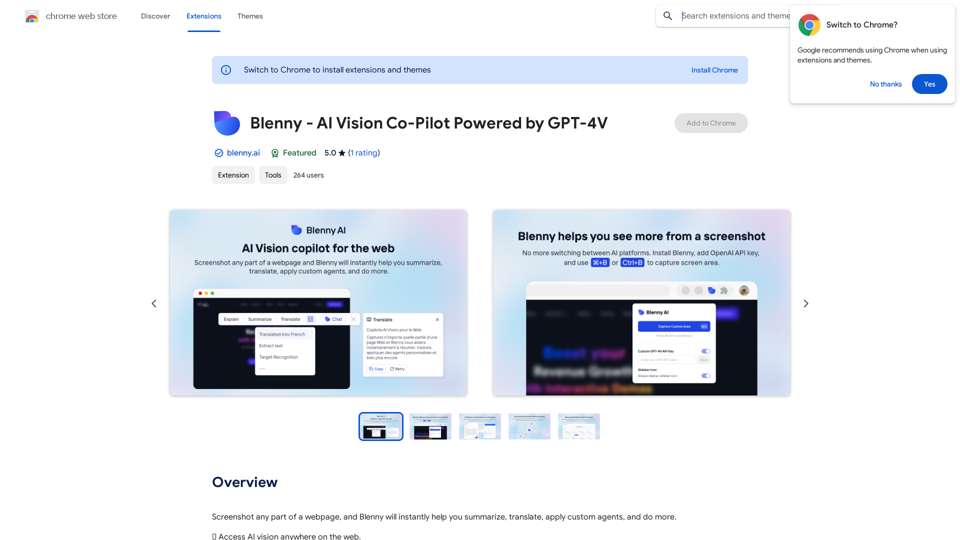
Screenshot any part of a webpage, and Blenny will instantly help you summarize, translate, apply custom agents, and do more.
193.90 M

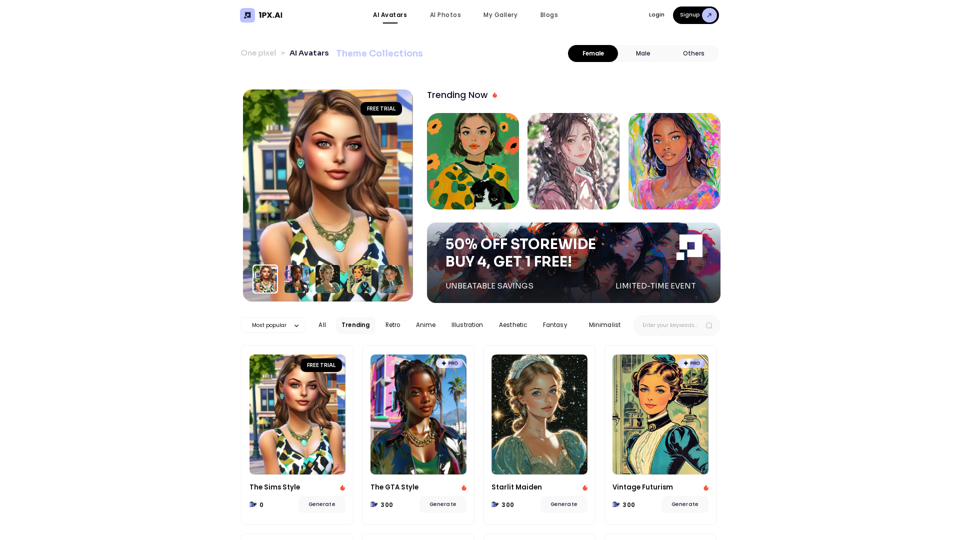
Here is the translation: AI Photo, Photo AI, AI Photo Editing, AI Generated Photos, Free AI Photo Editor, AI Photo Generator, AI Avatar Generator
105
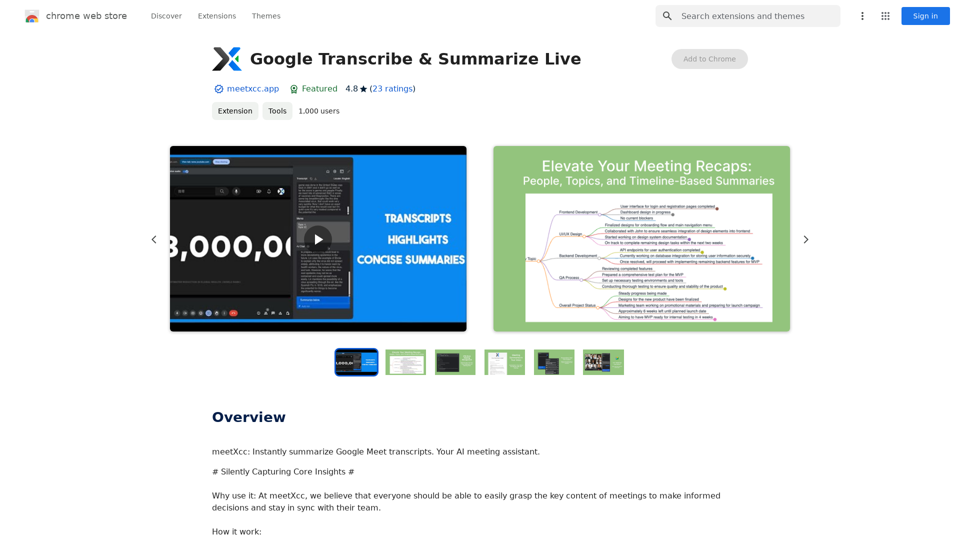
Google Transcribe & Summarize Live Automatically transcribe and summarize live audio and video streams in real-time using Google's AI technology.
Google Transcribe & Summarize Live Automatically transcribe and summarize live audio and video streams in real-time using Google's AI technology.meetXcc: Instantly summarize Google Meet transcripts. Your AI meeting assistant.
193.90 M

Hocoos AI Website Builder - Create Your Website in 5 Minutes
Hocoos AI Website Builder - Create Your Website in 5 MinutesCreate professional websites in seconds with Hocoos AI website builder. Get all the sales and marketing tools to start & grow your online business now.
111.35 K
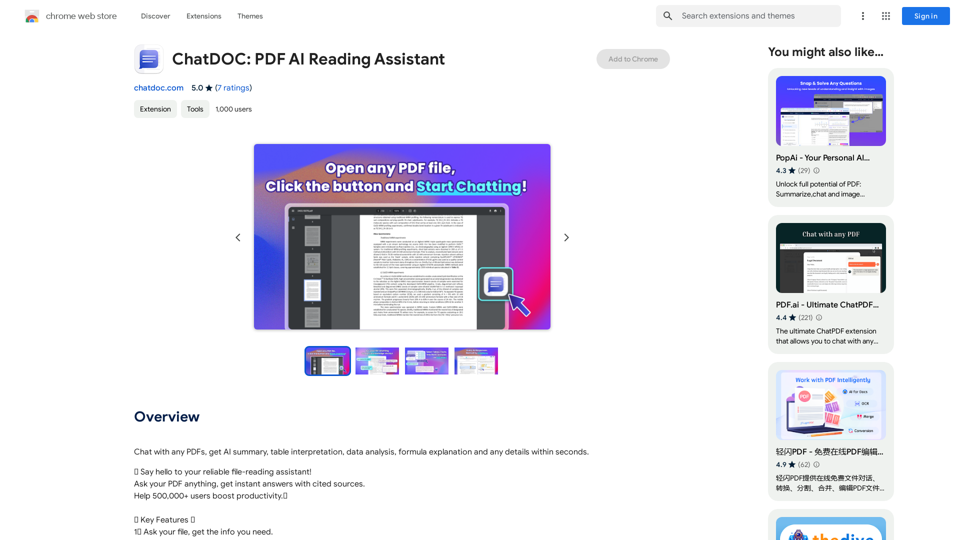
Chat with any PDFs, get an AI-generated summary, table interpretation, data analysis, formula explanation, and any details within seconds.
193.90 M
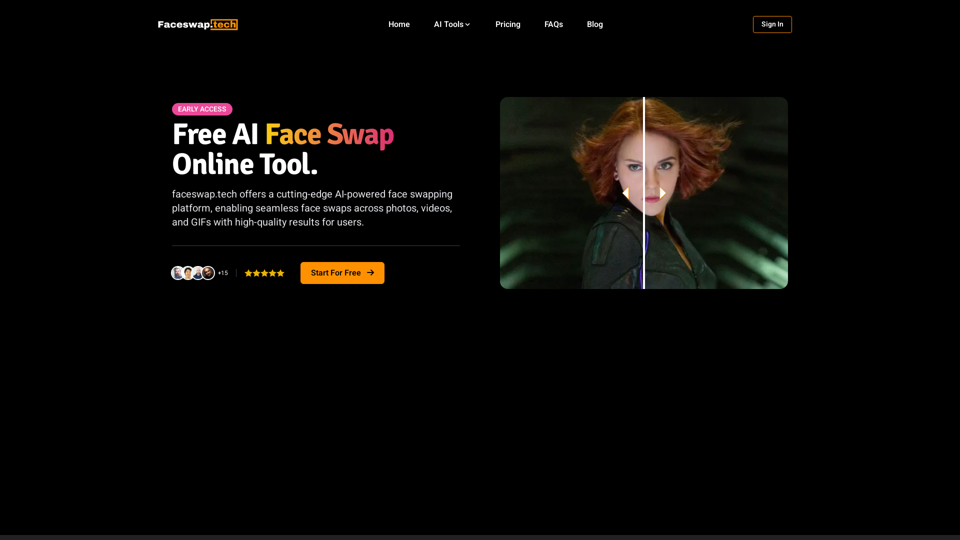
Free AI Face Swap Online Tool for Videos, GIFs and Photos | Faceswap.tech
Free AI Face Swap Online Tool for Videos, GIFs and Photos | Faceswap.techTry our free online face swap tool to swap faces in photos, videos, and GIFs. Easy, fast, and powered by AI for amazing results. Swap faces now!
1.81 K
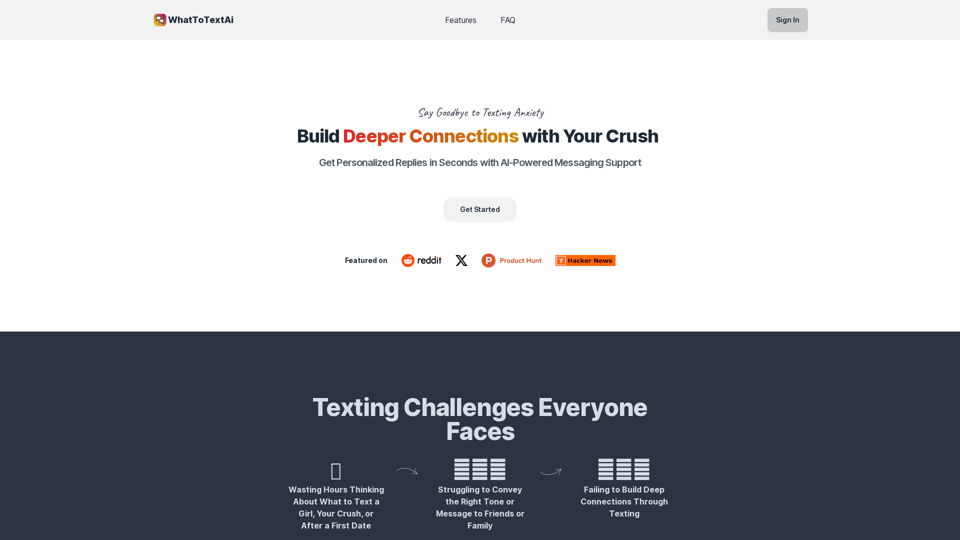
WhatToTextAi =============== WhatToTextAi is an AI-powered texting assistant that helps you come up with the perfect response to any situation.
WhatToTextAi =============== WhatToTextAi is an AI-powered texting assistant that helps you come up with the perfect response to any situation.Overcome texting anxiety with WhatToText AI. Get personalized, human-like replies for any situation in seconds. Improve your English texting skills and build deeper connections. Perfect for non-native speakers and anyone looking to enhance their messaging game.
0
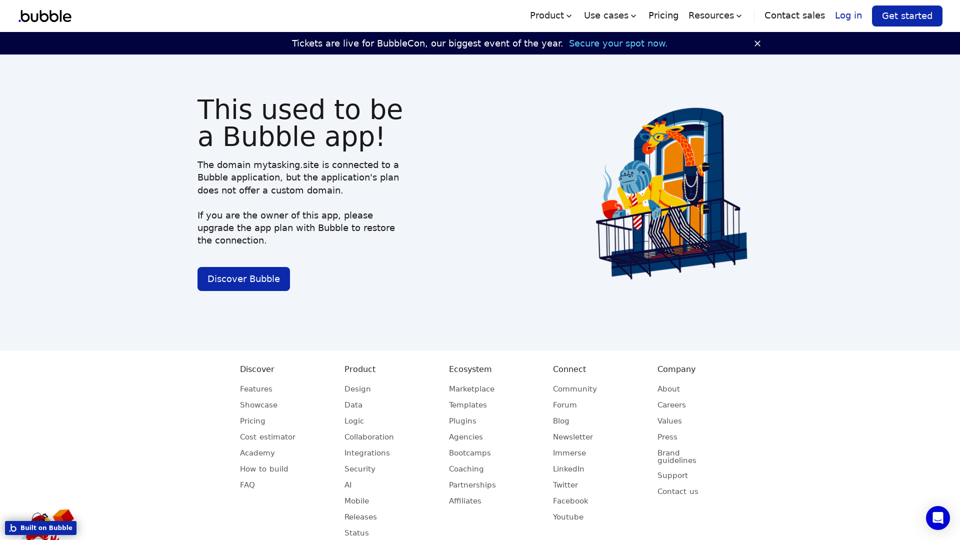
Visual Programming | Bubble Bubble is a web development platform that allows users to build web applications without coding. It uses a visual programming language that is based on dragging and dropping elements to create the application's logic.
Visual Programming | Bubble Bubble is a web development platform that allows users to build web applications without coding. It uses a visual programming language that is based on dragging and dropping elements to create the application's logic.From first-time founders to experienced engineers, Bubble allows users to build, design, and launch apps in record speed – no code required.
0