Open-source RightAI Tools Directory
  • Discover AI
  • Submit
  • Startup
  • Blog
Open-source RightAI Tools Directory
Discover the best AI tools of 2025 with the RightAI Tools Directory!

Friend Links

AI Anime GeneratorToolsApp AI

Support

Tap4
Privacy policyTerms & ConditionsContact Us
Loading...
loading...

Image translation

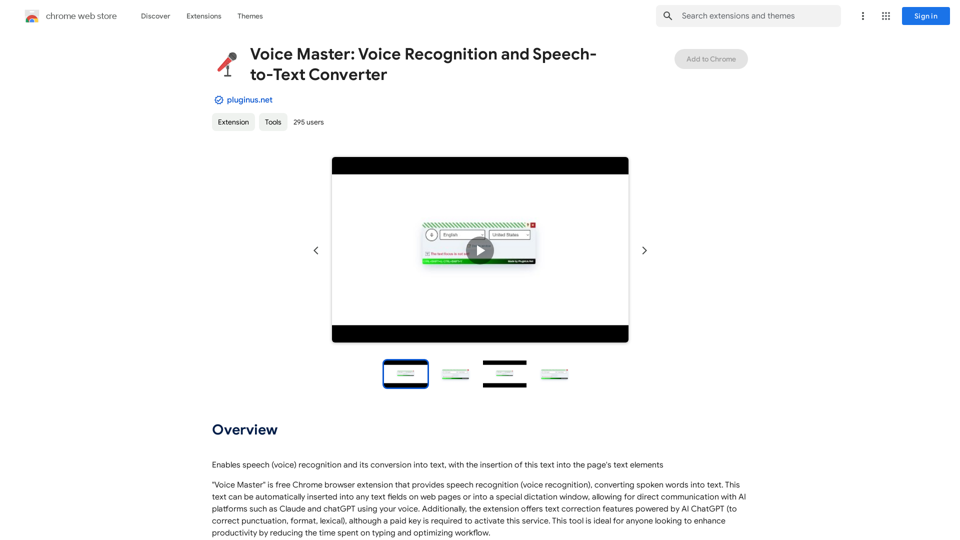
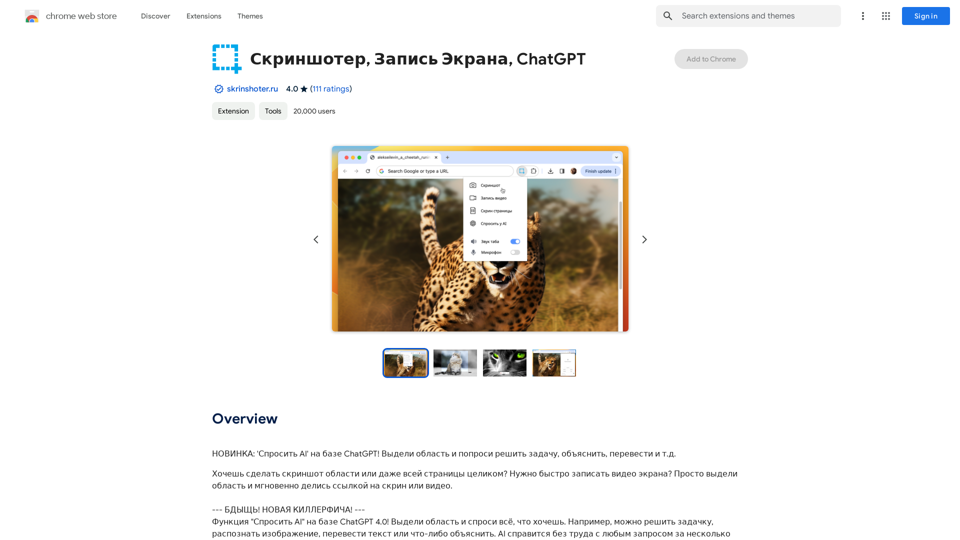
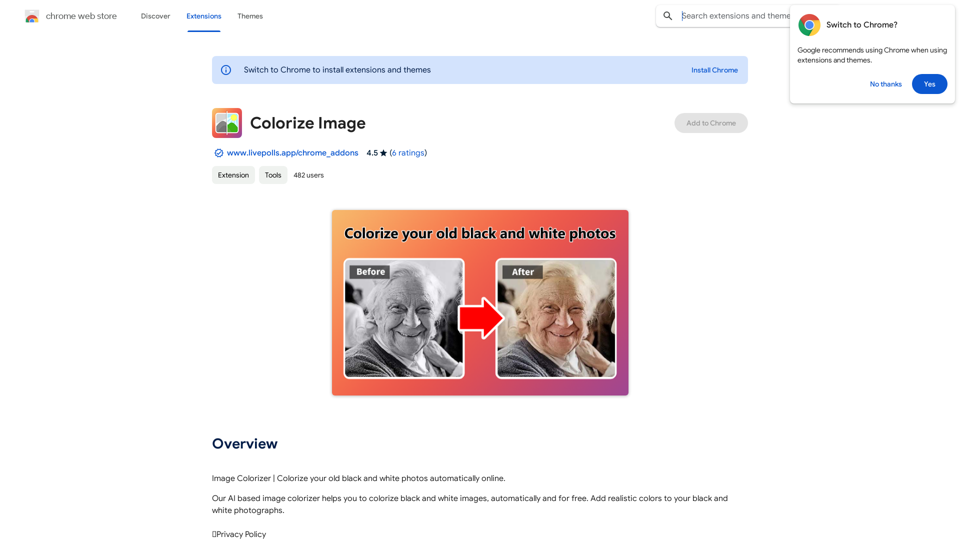
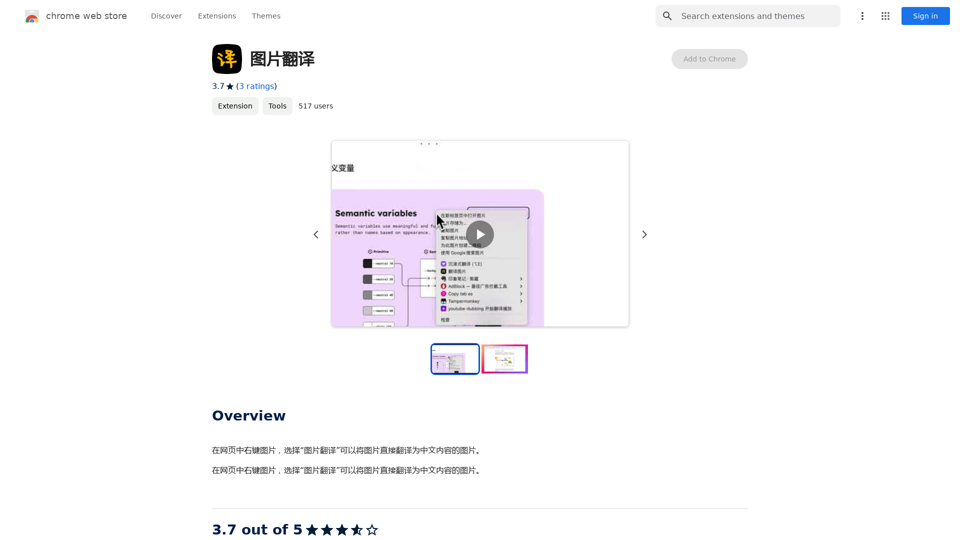
Right-click on an image on a webpage and select "Image Translation" to translate the image directly into Chinese content.
Visit Website
Image translation
Visit Website

Introduction

Image Translator is an AI-powered platform that offers image translation capabilities across more than 30 languages. This tool enables quick and easy communication across different cultures by translating images into various languages. It supports multiple file formats and provides fast, accurate translations, making it an invaluable resource for cross-cultural communication and understanding.

Feature

AI-Powered Image Translation

Image Translator utilizes advanced AI technology to translate images into over 30 languages, facilitating easy communication and understanding across diverse cultures.

Multiple File Format Support

The platform supports a wide range of file formats including JPEG, PNG, and GIF, allowing users to translate images from various sources effortlessly.

Rapid and Precise Translation

Image Translator delivers quick and accurate translations, ensuring efficient and effective cross-cultural communication.

Chrome Extension Availability

Users can easily access Image Translator by installing its extension from the Chrome Web Store, making it readily available for use while browsing.

User-Friendly Interface

The translation process is simple: right-click on an image, select "Translate Image", choose the desired language, and wait for the translated result.

Free Basic Service

Image Translator offers its basic services free of charge, with an option to subscribe to a premium plan for advanced features.

FAQ

What languages does Image Translator support?

Image Translator supports over 30 languages, including English, Spanish, French, German, Chinese, Japanese, and many more.

How do I use Image Translator?

To use Image Translator:

  1. Download and install the extension from the Chrome Web Store
  2. Right-click on the image you want to translate
  3. Select "Translate Image"
  4. Choose your desired language from the dropdown menu
  5. Wait for the translation to complete

Is Image Translator free?

Yes, Image Translator is free to use. However, a premium subscription is available for those who want access to advanced features.

Latest Traffic Insights

  • Monthly Visits

    193.90 M

  • Bounce Rate

    56.27%

  • Pages Per Visit

    2.71

  • Time on Site(s)

    115.91

  • Global Rank

    -

  • Country Rank

    -

Recent Visits

Traffic Sources

  • Social Media:
    0.48%
  • Paid Referrals:
    0.55%
  • Email:
    0.15%
  • Referrals:
    12.81%
  • Search Engines:
    16.21%
  • Direct:
    69.81%
More Data

Related Websites

Image Splitter: Free Online Instagram Grid Maker
View Detail

Image Splitter: Free Online Instagram Grid Maker

Image Splitter: Free Online Instagram Grid Maker

Create stunning Instagram grids with our free online image splitter. Easily divide your images into multiple squares to enhance your feed. Perfect for creating eye-catching layouts and boosting your social media presence!

0
IC-Light V2 - Advanced AI Image Processing Tool
View Detail

IC-Light V2 - Advanced AI Image Processing Tool

IC-Light V2 - Advanced AI Image Processing Tool

IC-Light V2: AI image enhancement tool with Flux models and VAE technology. Transform lighting and enhance image quality. Try our free demo today.

1.60 K
Grok AI Image Generator
View Detail

Grok AI Image Generator

Grok AI Image Generator

Generate Grok AI Images Free Online with Flux. Free Online | No Credit Card or Login Required

1.92 K
Topaz Labs | Professional-level photo and video editing powered by AI.
View Detail

Topaz Labs | Professional-level photo and video editing powered by AI.

Topaz Labs | Professional-level photo and video editing powered by AI.

Deep learning-powered photo and video enhancement software delivers the highest image quality available for noise reduction, sharpening, upscaling, and additional improvements.

3.12 M
Spaces Downloader and AI-Powered Summary Generator |  xspacehub.com
View Detail

Spaces Downloader and AI-Powered Summary Generator | xspacehub.com

Spaces Downloader and AI-Powered Summary Generator | xspacehub.com

XSPaceHub is your ultimate tool to download, convert, summarize, and navigate Twitter Spaces. Access a rich library, enjoy AI-driven summaries, interactive mind maps, and detailed outlines with clickable audio timestamps. Join now for a seamless audio experience!

0
Batch Save ChatGPT to Notion

This is a guide on how to save multiple ChatGPT responses to Notion in a batch. 

Tools You'll Need:

* ChatGPT: An AI chatbot that can generate text.
* Notion: A note-taking and project management tool.
* Python: A programming language.
* Requests Library: A Python library for making HTTP requests.

Steps:

1. Get Your Notion API Token:
   - Go to your Notion workspace settings.
   - Navigate to the "Integrations" tab.
   - Click "Create new integration" and choose "API Token".
   - Copy your API token.

2. Install Python Libraries:
   - Open your terminal or command prompt.
   - Type `pip install requests` and press Enter.

3. Write Python Script:
   - Create a new Python file (e.g., `save_chatgpt_to_notion.py`).
   - Paste the following code into the file, replacing `YOUR_NOTION_API_TOKEN` with your actual token:

```python
import requests

def save_chatgpt_response_to_notion(response, page_id, token):
  """Saves a ChatGPT response to a Notion page."""
  url = f"https://api.notion.com/v1/pages/{page_id}/children"
  headers = {"Authorization": f"Bearer {token}"}
  data = {
    "parent": {
      "page_id": page_id
    },
    "properties": {
      "title": {
        "title": [
          {
            "text": {
              "content": "ChatGPT Response"
            }
          }
        ]
      },
      "content": {
        "rich_text": [
          {
            "text": {
              "content": response
            }
          }
        ]
      }
    }
  }
  response = requests.post(url, headers=headers, json=data)
  print(response.status_code)

Example usage
page_id = "YOUR_NOTION_PAGE_ID"
token = "YOUR_NOTION_API_TOKEN"

Get ChatGPT responses (replace with your actual ChatGPT interaction)
chatgpt_responses = [
  "This is the first ChatGPT response.",
  "This is the second ChatGPT response.",
  "This is the third ChatGPT response."
]

Save each response to Notion
for response in chatgpt_responses:
  save_chatgpt_response_to_notion(response, page_id, token)
```

4. Run the Script:
   - In your terminal, navigate to the directory where you saved the Python file.
   - Type `python save_chatgpt_to_notion.py` and press Enter.

5. Check Notion:
   - Open your Notion workspace and go to the page specified by `page_id`.
   - You should see your ChatGPT responses saved as separate blocks.
View Detail

Batch Save ChatGPT to Notion This is a guide on how to save multiple ChatGPT responses to Notion in a batch. Tools You'll Need: * ChatGPT: An AI chatbot that can generate text. * Notion: A note-taking and project management tool. * Python: A programming language. * Requests Library: A Python library for making HTTP requests. Steps: 1. Get Your Notion API Token: - Go to your Notion workspace settings. - Navigate to the "Integrations" tab. - Click "Create new integration" and choose "API Token". - Copy your API token. 2. Install Python Libraries: - Open your terminal or command prompt. - Type `pip install requests` and press Enter. 3. Write Python Script: - Create a new Python file (e.g., `save_chatgpt_to_notion.py`). - Paste the following code into the file, replacing `YOUR_NOTION_API_TOKEN` with your actual token: ```python import requests def save_chatgpt_response_to_notion(response, page_id, token): """Saves a ChatGPT response to a Notion page.""" url = f"https://api.notion.com/v1/pages/{page_id}/children" headers = {"Authorization": f"Bearer {token}"} data = { "parent": { "page_id": page_id }, "properties": { "title": { "title": [ { "text": { "content": "ChatGPT Response" } } ] }, "content": { "rich_text": [ { "text": { "content": response } } ] } } } response = requests.post(url, headers=headers, json=data) print(response.status_code) Example usage page_id = "YOUR_NOTION_PAGE_ID" token = "YOUR_NOTION_API_TOKEN" Get ChatGPT responses (replace with your actual ChatGPT interaction) chatgpt_responses = [ "This is the first ChatGPT response.", "This is the second ChatGPT response.", "This is the third ChatGPT response." ] Save each response to Notion for response in chatgpt_responses: save_chatgpt_response_to_notion(response, page_id, token) ``` 4. Run the Script: - In your terminal, navigate to the directory where you saved the Python file. - Type `python save_chatgpt_to_notion.py` and press Enter. 5. Check Notion: - Open your Notion workspace and go to the page specified by `page_id`. - You should see your ChatGPT responses saved as separate blocks.

Batch Save ChatGPT to Notion This is a guide on how to save multiple ChatGPT responses to Notion in a batch. Tools You'll Need: * ChatGPT: An AI chatbot that can generate text. * Notion: A note-taking and project management tool. * Python: A programming language. * Requests Library: A Python library for making HTTP requests. Steps: 1. Get Your Notion API Token: - Go to your Notion workspace settings. - Navigate to the "Integrations" tab. - Click "Create new integration" and choose "API Token". - Copy your API token. 2. Install Python Libraries: - Open your terminal or command prompt. - Type `pip install requests` and press Enter. 3. Write Python Script: - Create a new Python file (e.g., `save_chatgpt_to_notion.py`). - Paste the following code into the file, replacing `YOUR_NOTION_API_TOKEN` with your actual token: ```python import requests def save_chatgpt_response_to_notion(response, page_id, token): """Saves a ChatGPT response to a Notion page.""" url = f"https://api.notion.com/v1/pages/{page_id}/children" headers = {"Authorization": f"Bearer {token}"} data = { "parent": { "page_id": page_id }, "properties": { "title": { "title": [ { "text": { "content": "ChatGPT Response" } } ] }, "content": { "rich_text": [ { "text": { "content": response } } ] } } } response = requests.post(url, headers=headers, json=data) print(response.status_code) Example usage page_id = "YOUR_NOTION_PAGE_ID" token = "YOUR_NOTION_API_TOKEN" Get ChatGPT responses (replace with your actual ChatGPT interaction) chatgpt_responses = [ "This is the first ChatGPT response.", "This is the second ChatGPT response.", "This is the third ChatGPT response." ] Save each response to Notion for response in chatgpt_responses: save_chatgpt_response_to_notion(response, page_id, token) ``` 4. Run the Script: - In your terminal, navigate to the directory where you saved the Python file. - Type `python save_chatgpt_to_notion.py` and press Enter. 5. Check Notion: - Open your Notion workspace and go to the page specified by `page_id`. - You should see your ChatGPT responses saved as separate blocks.

Save ChatGPT Conversations to Notion with One Click Export your ChatGPT conversations directly to Notion with a single click.

193.90 M
Effortless Image Splitting Tool for Creative Projects
View Detail

Effortless Image Splitting Tool for Creative Projects

Effortless Image Splitting Tool for Creative Projects

Easily split large images online into smaller parts for social media, web design, and creative projects with our intuitive Image Splitter tool.

9.99 K
Socratic Lab
View Detail

Socratic Lab

Socratic Lab

Socratic Lab is your AI-powered community for learning and sharing knowledge. Ask anything you're curious about, connect with like-minded individuals, and join in-depth discussions.

2.71 K