Open-source RightAI Tools Directory
  • Discover AI
  • Submit
  • Startup
  • Blog
Open-source RightAI Tools Directory
Discover the best AI tools of 2025 with the RightAI Tools Directory!

Friend Links

AI Anime GeneratorToolsApp AI

Support

Tap4
Privacy policyTerms & ConditionsContact Us
Loading...
loading...

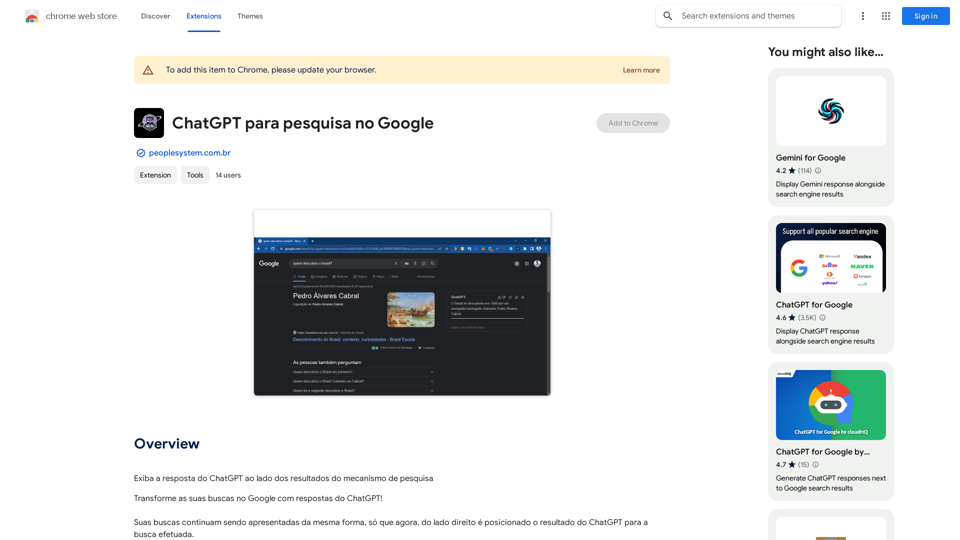
ChatGPT for Google Search

Show the ChatGPT response next to the search engine results.
Visit Website
ChatGPT for Google Search
Visit Website

Introduction

ChatGPT for Google search is a browser extension that integrates ChatGPT responses with Google search results. Developed by People System, this tool enhances the search experience by providing AI-generated answers alongside traditional search engine results. It's designed to offer users a more comprehensive and efficient way to find information online.

Feature

Display ChatGPT Responses with Search Results

The extension seamlessly integrates ChatGPT's responses next to Google search results, allowing users to compare and verify information from multiple sources quickly.

Intelligent Search Enhancement

Leveraging OpenAI's technology, the extension provides more accurate and relevant search results, improving the overall search experience.

User-Friendly Interface

With a simple installation process and intuitive functionality, the extension is accessible to users of all technical levels.

Free to Use

ChatGPT for Google search is available at no cost, with no subscription or payment required.

Multi-Device Compatibility

Users can install and use the extension on multiple devices, though separate installations are necessary for each device.

Privacy-Focused

The extension prioritizes user privacy and does not collect or use personal data.

FAQ

Is ChatGPT for Google search safe to use?

Yes, the extension is designed with safety in mind and does not collect or use your personal data.

How do I start using the extension?

Simply install the extension in your browser and begin searching on Google. The ChatGPT responses will automatically appear alongside the search results.

Can I uninstall the extension if I no longer need it?

Yes, you can easily uninstall the extension at any time through your browser's extension management settings.

Are there any tips for getting the most out of this extension?

  • Utilize the extension to obtain more precise and relevant search results
  • Always verify the information provided by ChatGPT for accuracy
  • Use the tool to gain a more comprehensive understanding of your search topics

Latest Traffic Insights

  • Monthly Visits

    193.90 M

  • Bounce Rate

    56.27%

  • Pages Per Visit

    2.71

  • Time on Site(s)

    115.91

  • Global Rank

    -

  • Country Rank

    -

Recent Visits

Traffic Sources

  • Social Media:
    0.48%
  • Paid Referrals:
    0.55%
  • Email:
    0.15%
  • Referrals:
    12.81%
  • Search Engines:
    16.21%
  • Direct:
    69.81%
More Data

Related Websites

GPTBLOX - Save ChatGPT Conversations & Hunt GPTs
View Detail

GPTBLOX - Save ChatGPT Conversations & Hunt GPTs

GPTBLOX - Save ChatGPT Conversations & Hunt GPTs

Discover the Power of GPT Store: Explore, Save, and Organize Conversations and Articles Explore the vast collection of GPTs released by the GPT Store, featuring conversations and articles from popular AI models like ChatGPT, Bard, Claude, and HuggingChat. This innovative platform allows you to: * Save conversations: Preserve valuable interactions with AI models for future reference or sharing. * Organize content: Categorize and group conversations and articles by topic, theme, or project, making it easy to access and review relevant information. Unlock the full potential of the GPT Store and streamline your workflow with its intuitive conversation and article management system.

193.90 M
Leadeasy - Company Research
View Detail

Leadeasy - Company Research

Leadeasy - Company Research

Search for companies and contacts in the best online sources.

193.90 M
Converting JPG Images to Text

Converting a JPG image to text is a process known as Optical Character Recognition (OCR). This technology enables you to extract text from images, scanned documents, and photos. Here's how to do it:

Method 1: Online OCR Tools

You can use online OCR tools to convert JPG images to text. Here are the steps:

1. Upload your JPG image: Go to an online OCR tool website, such as Online OCR Tools or OCR.space, and upload your JPG image.
2. Select the language: Choose the language of the text in your image.
3. Click on "Convert": The tool will convert the image to text.
4. Download the text: You can download the extracted text as a Word document, PDF, or plain text file.

Method 2: Google Drive

You can also use Google Drive to convert JPG images to text. Here's how:

1. Upload your JPG image: Upload your JPG image to Google Drive.
2. Right-click on the image: Right-click on the uploaded image and select "Open with" > "Google Docs".
3. The image will be converted: Google Docs will automatically convert the image to text.
4. Edit and download: You can edit the extracted text and download it as a Word document or PDF.

Method 3: Adobe Acrobat

If you have Adobe Acrobat installed on your computer, you can use it to convert JPG images to text. Here's how:

1. Open Adobe Acrobat: Open Adobe Acrobat on your computer.
2. Create a new document: Create a new document and click on "Tools" > "Recognize Text".
3. Select the image: Select the JPG image you want to convert.
4. Click on "Recognize": Adobe Acrobat will convert the image to text.
5. Edit and save: You can edit the extracted text and save it as a Word document or PDF.

These are the three methods to convert JPG images to text. Choose the method that works best for you!
View Detail

Converting JPG Images to Text Converting a JPG image to text is a process known as Optical Character Recognition (OCR). This technology enables you to extract text from images, scanned documents, and photos. Here's how to do it: Method 1: Online OCR Tools You can use online OCR tools to convert JPG images to text. Here are the steps: 1. Upload your JPG image: Go to an online OCR tool website, such as Online OCR Tools or OCR.space, and upload your JPG image. 2. Select the language: Choose the language of the text in your image. 3. Click on "Convert": The tool will convert the image to text. 4. Download the text: You can download the extracted text as a Word document, PDF, or plain text file. Method 2: Google Drive You can also use Google Drive to convert JPG images to text. Here's how: 1. Upload your JPG image: Upload your JPG image to Google Drive. 2. Right-click on the image: Right-click on the uploaded image and select "Open with" > "Google Docs". 3. The image will be converted: Google Docs will automatically convert the image to text. 4. Edit and download: You can edit the extracted text and download it as a Word document or PDF. Method 3: Adobe Acrobat If you have Adobe Acrobat installed on your computer, you can use it to convert JPG images to text. Here's how: 1. Open Adobe Acrobat: Open Adobe Acrobat on your computer. 2. Create a new document: Create a new document and click on "Tools" > "Recognize Text". 3. Select the image: Select the JPG image you want to convert. 4. Click on "Recognize": Adobe Acrobat will convert the image to text. 5. Edit and save: You can edit the extracted text and save it as a Word document or PDF. These are the three methods to convert JPG images to text. Choose the method that works best for you!

Converting JPG Images to Text Converting a JPG image to text is a process known as Optical Character Recognition (OCR). This technology enables you to extract text from images, scanned documents, and photos. Here's how to do it: Method 1: Online OCR Tools You can use online OCR tools to convert JPG images to text. Here are the steps: 1. Upload your JPG image: Go to an online OCR tool website, such as Online OCR Tools or OCR.space, and upload your JPG image. 2. Select the language: Choose the language of the text in your image. 3. Click on "Convert": The tool will convert the image to text. 4. Download the text: You can download the extracted text as a Word document, PDF, or plain text file. Method 2: Google Drive You can also use Google Drive to convert JPG images to text. Here's how: 1. Upload your JPG image: Upload your JPG image to Google Drive. 2. Right-click on the image: Right-click on the uploaded image and select "Open with" > "Google Docs". 3. The image will be converted: Google Docs will automatically convert the image to text. 4. Edit and download: You can edit the extracted text and download it as a Word document or PDF. Method 3: Adobe Acrobat If you have Adobe Acrobat installed on your computer, you can use it to convert JPG images to text. Here's how: 1. Open Adobe Acrobat: Open Adobe Acrobat on your computer. 2. Create a new document: Create a new document and click on "Tools" > "Recognize Text". 3. Select the image: Select the JPG image you want to convert. 4. Click on "Recognize": Adobe Acrobat will convert the image to text. 5. Edit and save: You can edit the extracted text and save it as a Word document or PDF. These are the three methods to convert JPG images to text. Choose the method that works best for you!

It is an online tool that uses Optical Character Recognition (OCR) to make it possible to extract text from images in JPG format.

193.90 M
Hashtag Guru: AI Assistant for Instagram on the App Store
View Detail

Hashtag Guru: AI Assistant for Instagram on the App Store

Hashtag Guru: AI Assistant for Instagram on the App Store

Your Ultimate AI-Powered Hashtag and Caption Generator! Unlock the secret to social media success with Hashtag Guru, the ultimate AI-driven hashtag generator and caption creator that helps you increase your online visibility, boost engagement, and grow your followers!

124.77 M
PrepBuddy
View Detail

PrepBuddy

PrepBuddy

PrepBuddy offers AI-powered practice for consulting case interviews. Learn with materials from former McKinsey consultants and get instant feedback. Start your free trial today!

2.63 K
Kaspian
View Detail

Kaspian

Kaspian

Kaspian searches through all your apps to help you find exactly what you need and discover things you should know.

193.90 M
Find Now
View Detail

Find Now

Find Now

Find inspiration online and buy the look. Choose any picture while you're browsing and search for similar styles from Fynd's entire catalog.

193.90 M
Verify
View Detail

Verify

Verify

Verify is a tool that uses artificial intelligence to determine the trustworthiness of articles on Czech news websites.

193.90 M