Open-source RightAI Tools Directory
  • Discover AI
  • Submit
  • Startup
  • Blog
Open-source RightAI Tools Directory
Discover the best AI tools of 2025 with the RightAI Tools Directory!

Friend Links

AI Anime GeneratorToolsApp AI

Support

Tap4
Privacy policyTerms & ConditionsContact Us
Loading...
loading...

NinjaChat - All-in-One AI Assistant

Here is the translation in English: Access GPT-4, Claude, Gemini, and more. Chat, analyze PDFs, generate images - all in one platform.
Visit Website
NinjaChat - All-in-One AI Assistant
Visit Website

Introduction

NinjaChat is an all-in-one AI assistant platform that provides access to multiple AI models and tools in a single interface. It offers a comprehensive suite of AI-powered writing tools, image generation capabilities, and the ability to interact with various file types, making it a versatile solution for users seeking to enhance their productivity and creativity.

Feature

  1. Multiple AI Models

    • Access to popular AI models like ChatGPT, Claude, Perplexity, and Stable Diffusion
    • Ability to compare responses from different AI models
  2. AI Writing Tools

    • Text Naturalizer: Enhances machine-generated text
    • Conclusion Writer: Creates impactful essay conclusions
    • Professional Email Drafter: Composes effective business emails
    • Attention Grabber: Generates engaging hooks
    • Essay Outliner: Structures essay outlines
    • Context-Aware Thesaurus: Provides contextual synonyms and antonyms
    • Argument Mapper: Visualizes complex arguments
    • Cultural Sensitivity Checker: Ensures inclusive writing
    • Interactive Story Plotter: Develops branching narratives
    • Academic Simplifier: Translates academic jargon
    • Rhetorical Device Applier: Enhances persuasive writing
    • Interdisciplinary Idea Generator: Connects concepts across disciplines
    • Character Arc Designer: Crafts character emotional journeys
    • Socratic Dialogue Generator: Creates thought-provoking dialogues
    • Story Structure Adapter: Adapts stories to popular structures
  3. File Interaction

    • Chat with PDFs: Extract insights from documents quickly
    • Support for various file types (PDF, XLSX, SVG, GPG, TXT)
  4. AI Music Generation

    • Compose unique tracks without musical experience
  5. AI Image Generation

    • Create visuals using Stable Diffusion 3
  6. User-Friendly Interface

    • Single platform for accessing multiple AI tools
    • Sync chats toggle switch for convenient use

FAQ

What is NinjaChat?

NinjaChat is an all-in-one AI assistant platform that provides access to multiple AI models and tools, including ChatGPT, Claude, Perplexity, and Stable Diffusion, all in one place.

What are the main features of NinjaChat?

NinjaChat offers a wide range of features, including access to multiple AI models, AI-powered writing tools, PDF chat functionality, AI music generation, image generation, and the ability to interact with various file types.

How does NinjaChat compare to other AI platforms in terms of pricing?

According to user testimonials, NinjaChat is described as being "3X Cheaper than Everyone" for access to top AI models like GPT-4, Claude, Mistral, and Stable Diffusion 3.

Can I use NinjaChat for free?

Yes, NinjaChat offers a "Get Started for Free" option, allowing users to try out the platform before committing to a paid plan.

Evaluation

  1. NinjaChat's all-in-one approach is innovative, offering a comprehensive suite of AI tools that cater to various needs. This consolidation of multiple AI models and functionalities into a single platform is a significant advantage for users looking to streamline their AI-assisted workflows.

  2. The diverse range of AI writing tools is particularly impressive, covering many aspects of the writing process from ideation to refinement. This breadth of features could be especially valuable for content creators, students, and professionals who regularly engage in writing tasks.

  3. The inclusion of PDF chat, AI music generation, and image creation capabilities alongside text-based AI models makes NinjaChat a versatile tool that can address a wide array of creative and analytical tasks.

  4. User testimonials suggest that NinjaChat offers good value for money, which could be a strong selling point in the competitive AI tool market. However, a more detailed pricing breakdown would be necessary to fully evaluate this claim.

  5. While the platform offers many features, there's a potential risk of overwhelming users with too many options. A well-designed user interface and clear documentation will be crucial to ensure users can navigate and utilize all the available tools effectively.

  6. The ability to compare responses from different AI models is a unique and valuable feature, especially for users who need to evaluate the performance of various AI systems for their specific use cases.

  7. Areas for improvement might include expanding the range of supported file types for interaction, enhancing the AI music generation capabilities, and potentially offering more specialized tools for specific industries or use cases.

Latest Traffic Insights

  • Monthly Visits

    88.60 K

  • Bounce Rate

    36.17%

  • Pages Per Visit

    2.47

  • Time on Site(s)

    24.27

  • Global Rank

    375999

  • Country Rank

    United States 510385

Recent Visits

Traffic Sources

  • Social Media:
    7.38%
  • Paid Referrals:
    0.81%
  • Email:
    0.10%
  • Referrals:
    6.98%
  • Search Engines:
    46.17%
  • Direct:
    38.49%
More Data

Related Websites

BeforeSunset AI - Home
View Detail

BeforeSunset AI - Home

BeforeSunset AI - Home

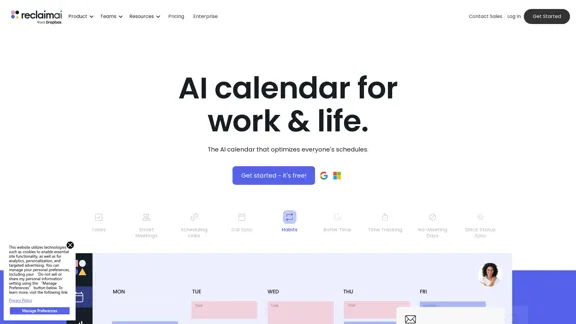
Focus on completing your tasks while BeforeSunset AI plans the ideal schedule for you. Daily planning has never been simpler.

76.01 K
Playground AI - Find The Best AI Tools On The Web.
View Detail

Playground AI - Find The Best AI Tools On The Web.

Playground AI - Find The Best AI Tools On The Web.

Discover Playground AI, your online hub for top AI tools and a vibrant community. Start exploring over 5000+ curated AI websites today at playgroundai.net.

2.31 K
Briefy - Your AI Knowledge Assistant
View Detail

Briefy - Your AI Knowledge Assistant

Briefy - Your AI Knowledge Assistant

Briefy turns all kinds of lengthy content into structured summaries and saves them to your knowledge base for later review.

67.70 K
Otto
View Detail

Otto

Otto

OttoTemplates is designed to automate manual research tasks, enabling users to leverage AI agents for enriching lists, researching companies, and processing documents efficiently

10.30 K
Tomat.AI - Data Analysis with AI
View Detail

Tomat.AI - Data Analysis with AI

Tomat.AI - Data Analysis with AI

Load CSV and analyze it in a visual step-by-step interface. Cleanup, extract, summarize, or make sentiment analysis with your personal AI agent.

5.64 K
PCSports – Sports for everyone
View Detail

PCSports – Sports for everyone

PCSports – Sports for everyone

0
Copilot for Microsoft 365 – Microsoft Adoption

Copilot for Microsoft 365 is a powerful AI assistant that helps you work smarter and faster across Microsoft 365 apps and services. It combines the power of large language models (LLMs) with your organization's data in the Microsoft Graph and Microsoft 365 apps to turn your words into the most powerful productivity tool on the planet.

Copilot is designed to help you:

β€’ Unleash creativity
β€’ Unlock productivity
β€’ Uplevel skills

Copilot is built on Microsoft's comprehensive approach to security, compliance, and privacy. Copilot in Microsoft 365 apps and services:

β€’ Does not use your data to train the underlying LLM
β€’ Does not replace human ingenuity and judgment
β€’ Is designed to keep humans in the loop

Copilot is currently available in Word, Excel, PowerPoint, Outlook, Teams, and more.

Getting Started with Copilot

To get started with Copilot, follow these steps:

1. Check availability: Ensure your organization has access to Copilot.
2. Learn the basics: Familiarize yourself with Copilot's capabilities and how to use it effectively.
3. Explore use cases: Discover how Copilot can help you in your specific role and tasks.
4. Practice and refine: Use Copilot regularly and refine your prompts for better results.
5. Share and collaborate: Collaborate with colleagues using Copilot and share best practices.

Best Practices for Using Copilot

1. Be specific in your prompts
2. Provide context for better results
3. Review and edit Copilot's output
4. Use Copilot as a starting point, not a final product
5. Experiment with different approaches
6. Stay informed about new features and updates

Copilot in Different Microsoft 365 Apps

β€’ Word: Draft, edit, summarize, and rewrite content
β€’ Excel: Analyze data, create formulas, and generate insights
β€’ PowerPoint: Create presentations, design slides, and generate content
β€’ Outlook: Compose emails, summarize threads, and manage your inbox
β€’ Teams: Summarize meetings, generate action items, and create meeting notes

Responsible AI and Copilot

Microsoft is committed to developing AI systems responsibly. When using Copilot, keep in mind:

β€’ AI-generated content may contain biases or inaccuracies
β€’ Always review and verify Copilot's output
β€’ Use your judgment and expertise alongside Copilot's suggestions
β€’ Be aware of your organization's policies regarding AI use

Conclusion

Copilot for Microsoft 365 is a powerful tool that can significantly enhance your productivity and creativity. By understanding its capabilities, following best practices, and using it responsibly, you can make the most of this AI assistant in your daily work.
View Detail

Copilot for Microsoft 365 – Microsoft Adoption Copilot for Microsoft 365 is a powerful AI assistant that helps you work smarter and faster across Microsoft 365 apps and services. It combines the power of large language models (LLMs) with your organization's data in the Microsoft Graph and Microsoft 365 apps to turn your words into the most powerful productivity tool on the planet. Copilot is designed to help you: β€’ Unleash creativity β€’ Unlock productivity β€’ Uplevel skills Copilot is built on Microsoft's comprehensive approach to security, compliance, and privacy. Copilot in Microsoft 365 apps and services: β€’ Does not use your data to train the underlying LLM β€’ Does not replace human ingenuity and judgment β€’ Is designed to keep humans in the loop Copilot is currently available in Word, Excel, PowerPoint, Outlook, Teams, and more. Getting Started with Copilot To get started with Copilot, follow these steps: 1. Check availability: Ensure your organization has access to Copilot. 2. Learn the basics: Familiarize yourself with Copilot's capabilities and how to use it effectively. 3. Explore use cases: Discover how Copilot can help you in your specific role and tasks. 4. Practice and refine: Use Copilot regularly and refine your prompts for better results. 5. Share and collaborate: Collaborate with colleagues using Copilot and share best practices. Best Practices for Using Copilot 1. Be specific in your prompts 2. Provide context for better results 3. Review and edit Copilot's output 4. Use Copilot as a starting point, not a final product 5. Experiment with different approaches 6. Stay informed about new features and updates Copilot in Different Microsoft 365 Apps β€’ Word: Draft, edit, summarize, and rewrite content β€’ Excel: Analyze data, create formulas, and generate insights β€’ PowerPoint: Create presentations, design slides, and generate content β€’ Outlook: Compose emails, summarize threads, and manage your inbox β€’ Teams: Summarize meetings, generate action items, and create meeting notes Responsible AI and Copilot Microsoft is committed to developing AI systems responsibly. When using Copilot, keep in mind: β€’ AI-generated content may contain biases or inaccuracies β€’ Always review and verify Copilot's output β€’ Use your judgment and expertise alongside Copilot's suggestions β€’ Be aware of your organization's policies regarding AI use Conclusion Copilot for Microsoft 365 is a powerful tool that can significantly enhance your productivity and creativity. By understanding its capabilities, following best practices, and using it responsibly, you can make the most of this AI assistant in your daily work.

Copilot for Microsoft 365 – Microsoft Adoption Copilot for Microsoft 365 is a powerful AI assistant that helps you work smarter and faster across Microsoft 365 apps and services. It combines the power of large language models (LLMs) with your organization's data in the Microsoft Graph and Microsoft 365 apps to turn your words into the most powerful productivity tool on the planet. Copilot is designed to help you: β€’ Unleash creativity β€’ Unlock productivity β€’ Uplevel skills Copilot is built on Microsoft's comprehensive approach to security, compliance, and privacy. Copilot in Microsoft 365 apps and services: β€’ Does not use your data to train the underlying LLM β€’ Does not replace human ingenuity and judgment β€’ Is designed to keep humans in the loop Copilot is currently available in Word, Excel, PowerPoint, Outlook, Teams, and more. Getting Started with Copilot To get started with Copilot, follow these steps: 1. Check availability: Ensure your organization has access to Copilot. 2. Learn the basics: Familiarize yourself with Copilot's capabilities and how to use it effectively. 3. Explore use cases: Discover how Copilot can help you in your specific role and tasks. 4. Practice and refine: Use Copilot regularly and refine your prompts for better results. 5. Share and collaborate: Collaborate with colleagues using Copilot and share best practices. Best Practices for Using Copilot 1. Be specific in your prompts 2. Provide context for better results 3. Review and edit Copilot's output 4. Use Copilot as a starting point, not a final product 5. Experiment with different approaches 6. Stay informed about new features and updates Copilot in Different Microsoft 365 Apps β€’ Word: Draft, edit, summarize, and rewrite content β€’ Excel: Analyze data, create formulas, and generate insights β€’ PowerPoint: Create presentations, design slides, and generate content β€’ Outlook: Compose emails, summarize threads, and manage your inbox β€’ Teams: Summarize meetings, generate action items, and create meeting notes Responsible AI and Copilot Microsoft is committed to developing AI systems responsibly. When using Copilot, keep in mind: β€’ AI-generated content may contain biases or inaccuracies β€’ Always review and verify Copilot's output β€’ Use your judgment and expertise alongside Copilot's suggestions β€’ Be aware of your organization's policies regarding AI use Conclusion Copilot for Microsoft 365 is a powerful tool that can significantly enhance your productivity and creativity. By understanding its capabilities, following best practices, and using it responsibly, you can make the most of this AI assistant in your daily work.

Microsoft Copilot combines the power of large language models (LLMs) with your organization's data to turn your words into one of the most powerful productivity tools on the planet.

608.60 K
Gamma
View Detail

Gamma

Gamma

Made with Gamma. A new medium for presenting ideas, powered by AI.

28.16 M