Open-source RightAI Tools Directory
  • Discover AI
  • Submit
  • Startup
  • Blog
Open-source RightAI Tools Directory
Discover the best AI tools of 2025 with the RightAI Tools Directory!

Friend Links

AI Anime GeneratorToolsApp AI

Support

Tap4
Privacy policyTerms & ConditionsContact Us
Loading...
loading...

Resumeguru.pro

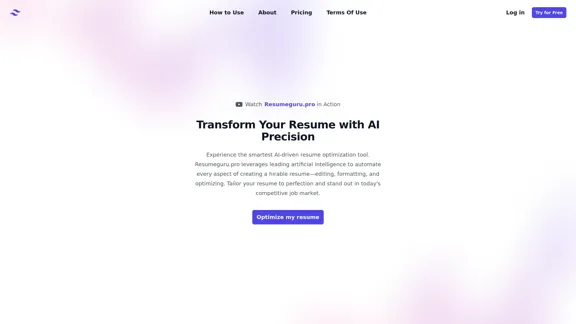
Resumeguru.pro is an advanced AI-powered resume optimization tool designed to transform and enhance job seekers' resumes. By leveraging cutting-edge artificial intelligence technology, it automates the entire process of creating a highly effective and hirable resume, including editing, formatting, and optimization. This innovative platform aims to help users stand out in the competitive job market by tailoring their resumes to perfection.
Visit Website
Resumeguru.pro
Visit Website

Introduction

Resumeguru.pro is an advanced AI-powered resume optimization tool designed to transform and enhance job seekers' resumes. By leveraging cutting-edge artificial intelligence technology, it automates the entire process of creating a highly effective and hirable resume, including editing, formatting, and optimization. This innovative platform aims to help users stand out in the competitive job market by tailoring their resumes to perfection.

Feature

AI-Driven Resume Optimization

Resumeguru.pro utilizes advanced artificial intelligence to analyze and optimize resumes, ensuring they meet industry standards and employer expectations.

Automated Editing and Formatting

The platform automates the tedious tasks of editing and formatting, saving users time and ensuring a professional appearance for their resumes.

Tailored Resume Customization

Users can tailor their resumes to specific job requirements, increasing their chances of standing out to potential employers.

User-Friendly Interface

With a simple "Optimize my resume" button, Resumeguru.pro offers an intuitive and easy-to-use experience for job seekers of all levels.

Comprehensive Resume Transformation

The tool provides a complete resume makeover, addressing all aspects of creating a compelling and effective job application document.

Video Demonstration

Resumeguru.pro offers a "Watch Resumeguru.pro in Action" feature, allowing potential users to see the tool's capabilities before trying it themselves.

FAQ

What is Resumeguru.pro?

Resumeguru.pro is an AI-powered resume optimization tool that automates the process of creating, editing, formatting, and optimizing resumes to help job seekers stand out in the competitive job market.

How does Resumeguru.pro work?

Resumeguru.pro uses advanced artificial intelligence to analyze and enhance resumes. Users can simply upload their existing resume or create a new one, and the AI will optimize it for better chances of success in job applications.

Is there a free trial available for Resumeguru.pro?

Yes, Resumeguru.pro offers a "Try for Free" option, allowing users to test the platform's capabilities before committing to a paid plan.

Can I see how Resumeguru.pro works before using it?

Absolutely. The platform provides a "Watch Resumeguru.pro in Action" feature, which allows potential users to see a demonstration of the tool's functionality.

Is Resumeguru.pro suitable for all types of job seekers?

Yes, Resumeguru.pro is designed to help job seekers at all levels, from entry-level positions to executive roles, across various industries and job types.

Related Websites

YouTube Transcript Generator
View Detail

YouTube Transcript Generator

YouTube Transcript Generator

Extract transcripts from any YouTube video instantly. Just paste the video URL to get accurate subtitles without having to watch the entire video.

7.45 K
QuickMagic
View Detail

QuickMagic

QuickMagic

Product Introduction: Quick Magic Mocap is an innovative AI-powered mocap tool that rivals the quality of optical mocap systems. There's no need for specialized cameras or to be in a specific studio. Simply import your video and quickly receive high-quality motion data. Quick Magic Mocap is widely used in fields such as film, games, and virtual reality, helping users to create high-quality animations more quickly and accurately.

114.94 K
HireVue Hiring Platform: Video Interviews, Assessments, AI, and More
View Detail

HireVue Hiring Platform: Video Interviews, Assessments, AI, and More

HireVue Hiring Platform: Video Interviews, Assessments, AI, and More

HireVue's enterprise-level hiring platform is a comprehensive recruitment solution that includes video interviewing, hiring assessments, AI automation, and additional features.

1.69 M
Auto Generate Clicker - Chrome Web Store
View Detail

Auto Generate Clicker - Chrome Web Store

Auto Generate Clicker - Chrome Web Store

Automatically clicks the 'Continue Generation' and 'Regenerate' buttons on ChatGPT.

193.90 M
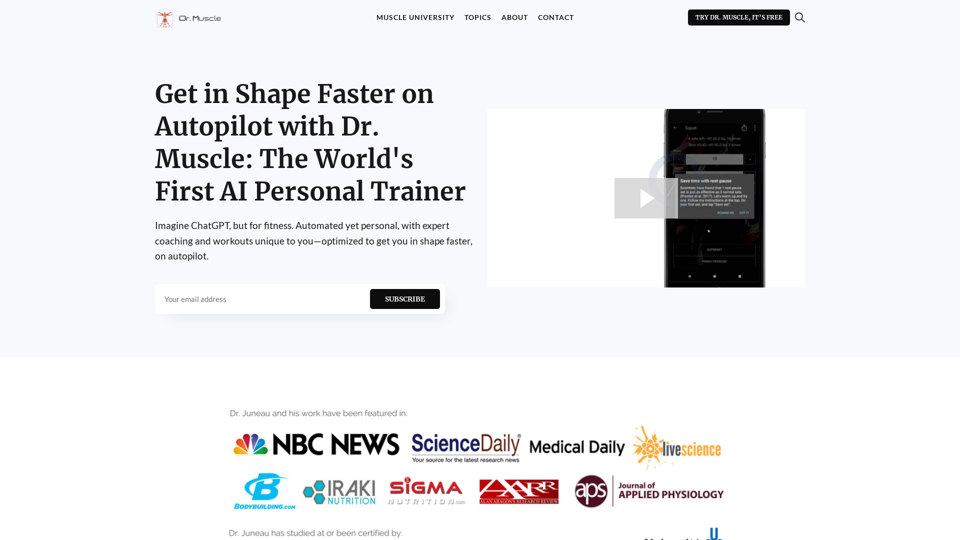
Dr. Muscle
View Detail

Dr. Muscle

Dr. Muscle

Imagine ChatGPT, but for fitness. Automated yet personal, with expert coaching and workouts tailored specifically to you—optimized to get you in shape faster, on autopilot.

385

Interview Intelligence Platform for Streamlined Hiring | BrightHire
View Detail

Interview Intelligence Platform for Streamlined Hiring | BrightHire

Interview Intelligence Platform for Streamlined Hiring | BrightHire

An Interview Intelligence platform that creates recruitment strategies, produces interview summaries and key points, provides candidate insights, and offers additional features.

40.01 K
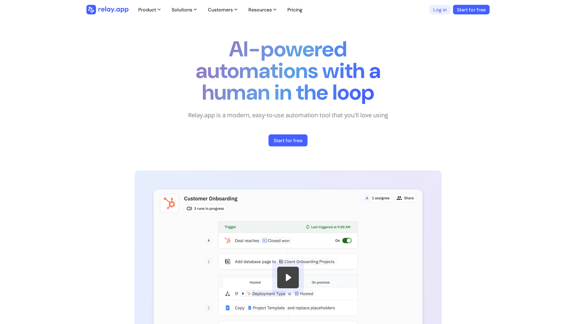
Relay.app: AI-powered automations with a human in the loop
View Detail

Relay.app: AI-powered automations with a human in the loop

Relay.app: AI-powered automations with a human in the loop

An automation platform you'll love. Relay.app provides deep integrations, AI-powered automations, and human-in-the-loop control.

257.86 K
Copilot for Microsoft 365 – Microsoft Adoption

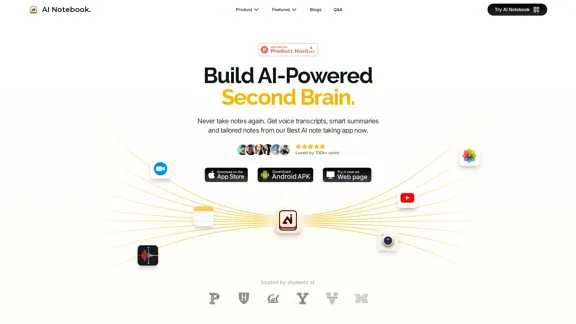
Copilot for Microsoft 365 is a powerful AI assistant that helps you work smarter and faster across Microsoft 365 apps and services. It combines the power of large language models (LLMs) with your organization's data in the Microsoft Graph and Microsoft 365 apps to turn your words into the most powerful productivity tool on the planet.

Copilot is designed to help you:

• Unleash creativity
• Unlock productivity
• Uplevel skills

Copilot is built on Microsoft's comprehensive approach to security, compliance, and privacy. Copilot in Microsoft 365 apps and services:

• Does not use your data to train the underlying LLM
• Does not replace human ingenuity and judgment
• Is designed to keep humans in the loop

Copilot is currently available in Word, Excel, PowerPoint, Outlook, Teams, and more.

Getting Started with Copilot

To get started with Copilot, follow these steps:

1. Check availability: Ensure your organization has access to Copilot.
2. Learn the basics: Familiarize yourself with Copilot's capabilities and how to use it effectively.
3. Explore use cases: Discover how Copilot can help you in your specific role and tasks.
4. Practice and refine: Use Copilot regularly and refine your prompts for better results.
5. Share and collaborate: Collaborate with colleagues using Copilot and share best practices.

Best Practices for Using Copilot

1. Be specific in your prompts
2. Provide context for better results
3. Review and edit Copilot's output
4. Use Copilot as a starting point, not a final product
5. Experiment with different approaches
6. Stay informed about new features and updates

Copilot in Different Microsoft 365 Apps

• Word: Draft, edit, summarize, and rewrite content
• Excel: Analyze data, create formulas, and generate insights
• PowerPoint: Create presentations, design slides, and generate content
• Outlook: Compose emails, summarize threads, and manage your inbox
• Teams: Summarize meetings, generate action items, and create meeting notes

Responsible AI and Copilot

Microsoft is committed to developing AI systems responsibly. When using Copilot, keep in mind:

• AI-generated content may contain biases or inaccuracies
• Always review and verify Copilot's output
• Use your judgment and expertise alongside Copilot's suggestions
• Be aware of your organization's policies regarding AI use

Conclusion

Copilot for Microsoft 365 is a powerful tool that can significantly enhance your productivity and creativity. By understanding its capabilities, following best practices, and using it responsibly, you can make the most of this AI assistant in your daily work.
View Detail

Copilot for Microsoft 365 – Microsoft Adoption Copilot for Microsoft 365 is a powerful AI assistant that helps you work smarter and faster across Microsoft 365 apps and services. It combines the power of large language models (LLMs) with your organization's data in the Microsoft Graph and Microsoft 365 apps to turn your words into the most powerful productivity tool on the planet. Copilot is designed to help you: • Unleash creativity • Unlock productivity • Uplevel skills Copilot is built on Microsoft's comprehensive approach to security, compliance, and privacy. Copilot in Microsoft 365 apps and services: • Does not use your data to train the underlying LLM • Does not replace human ingenuity and judgment • Is designed to keep humans in the loop Copilot is currently available in Word, Excel, PowerPoint, Outlook, Teams, and more. Getting Started with Copilot To get started with Copilot, follow these steps: 1. Check availability: Ensure your organization has access to Copilot. 2. Learn the basics: Familiarize yourself with Copilot's capabilities and how to use it effectively. 3. Explore use cases: Discover how Copilot can help you in your specific role and tasks. 4. Practice and refine: Use Copilot regularly and refine your prompts for better results. 5. Share and collaborate: Collaborate with colleagues using Copilot and share best practices. Best Practices for Using Copilot 1. Be specific in your prompts 2. Provide context for better results 3. Review and edit Copilot's output 4. Use Copilot as a starting point, not a final product 5. Experiment with different approaches 6. Stay informed about new features and updates Copilot in Different Microsoft 365 Apps • Word: Draft, edit, summarize, and rewrite content • Excel: Analyze data, create formulas, and generate insights • PowerPoint: Create presentations, design slides, and generate content • Outlook: Compose emails, summarize threads, and manage your inbox • Teams: Summarize meetings, generate action items, and create meeting notes Responsible AI and Copilot Microsoft is committed to developing AI systems responsibly. When using Copilot, keep in mind: • AI-generated content may contain biases or inaccuracies • Always review and verify Copilot's output • Use your judgment and expertise alongside Copilot's suggestions • Be aware of your organization's policies regarding AI use Conclusion Copilot for Microsoft 365 is a powerful tool that can significantly enhance your productivity and creativity. By understanding its capabilities, following best practices, and using it responsibly, you can make the most of this AI assistant in your daily work.

Copilot for Microsoft 365 – Microsoft Adoption Copilot for Microsoft 365 is a powerful AI assistant that helps you work smarter and faster across Microsoft 365 apps and services. It combines the power of large language models (LLMs) with your organization's data in the Microsoft Graph and Microsoft 365 apps to turn your words into the most powerful productivity tool on the planet. Copilot is designed to help you: • Unleash creativity • Unlock productivity • Uplevel skills Copilot is built on Microsoft's comprehensive approach to security, compliance, and privacy. Copilot in Microsoft 365 apps and services: • Does not use your data to train the underlying LLM • Does not replace human ingenuity and judgment • Is designed to keep humans in the loop Copilot is currently available in Word, Excel, PowerPoint, Outlook, Teams, and more. Getting Started with Copilot To get started with Copilot, follow these steps: 1. Check availability: Ensure your organization has access to Copilot. 2. Learn the basics: Familiarize yourself with Copilot's capabilities and how to use it effectively. 3. Explore use cases: Discover how Copilot can help you in your specific role and tasks. 4. Practice and refine: Use Copilot regularly and refine your prompts for better results. 5. Share and collaborate: Collaborate with colleagues using Copilot and share best practices. Best Practices for Using Copilot 1. Be specific in your prompts 2. Provide context for better results 3. Review and edit Copilot's output 4. Use Copilot as a starting point, not a final product 5. Experiment with different approaches 6. Stay informed about new features and updates Copilot in Different Microsoft 365 Apps • Word: Draft, edit, summarize, and rewrite content • Excel: Analyze data, create formulas, and generate insights • PowerPoint: Create presentations, design slides, and generate content • Outlook: Compose emails, summarize threads, and manage your inbox • Teams: Summarize meetings, generate action items, and create meeting notes Responsible AI and Copilot Microsoft is committed to developing AI systems responsibly. When using Copilot, keep in mind: • AI-generated content may contain biases or inaccuracies • Always review and verify Copilot's output • Use your judgment and expertise alongside Copilot's suggestions • Be aware of your organization's policies regarding AI use Conclusion Copilot for Microsoft 365 is a powerful tool that can significantly enhance your productivity and creativity. By understanding its capabilities, following best practices, and using it responsibly, you can make the most of this AI assistant in your daily work.

Microsoft Copilot combines the power of large language models (LLMs) with your organization's data to turn your words into one of the most powerful productivity tools on the planet.

608.60 K