Open-source RightAI Tools Directory
  • Discover AI
  • Submit
  • Startup
  • Blog
Open-source RightAI Tools Directory
Discover the best AI tools of 2025 with the RightAI Tools Directory!

Friend Links

AI Anime GeneratorToolsApp AI

Support

Tap4
Privacy policyTerms & ConditionsContact Us
Loading...
loading...

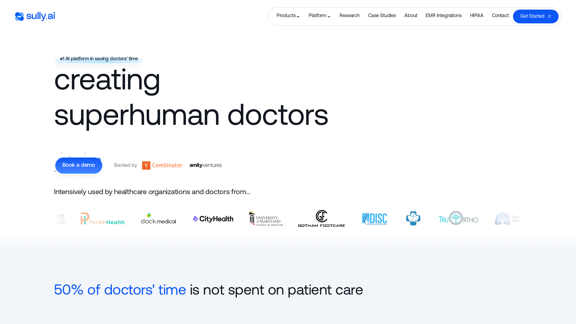
Sully.ai - The #1 all-in-one AI solution for saving doctors' time

Sully.ai is an all-in-one AI Medical Assistant designed to save doctors' time by helping them with time-consuming tasks performed before, during, and after patient visits.
Visit Website
Sully.ai - The #1 all-in-one AI solution for saving doctors' time
Visit Website

Introduction

Sully.ai is an advanced AI solution designed to revolutionize healthcare by saving doctors' time and enhancing their capabilities. It aims to eliminate distractions, improve patient care, and make quality healthcare more accessible. Sully.ai offers a comprehensive automation platform that integrates with existing EMR systems, providing features such as pre-visit screening, AI-powered scribing, diagnosis support, and custom automations.

Feature

All-in-One Automation Platform

  • Pre-visit screening
  • During-visit suggestions
  • AI-powered scribe for medical notes
  • Potential diagnosis support
  • Clinical plan drafting
  • Custom post-visit automations

Task Automation and Rule-Based Actions

  • Automate tasks through voice commands
  • Set custom rules for Sully to perform tasks

Time-Saving and Efficiency

  • Save an average of 1.5 hours daily on administrative tasks
  • 50% increase in efficiency and patients served
  • 2.8 hours saved daily on average after one week of use

Personalization and Multilingual Support

  • Doctor-LM tailored for each physician
  • Supports 19 languages for diverse patient communication

HIPAA Compliant Infrastructure

  • 100% HIPAA compliant
  • Industry-standard data encryption and secure storage

Innovative AI Technology

  • World's first voice-to-action AI model for doctors
  • Proprietary large language model
  • Trained on thousands of real-life doctor encounters

Multi-Platform Availability

  • Chrome, Edge, Safari
  • iOS and Android (Coming Soon)

FAQ

What problem does Sully.ai solve?

Sully.ai addresses the challenges faced by healthcare professionals, including:

  • 50% of doctors' time not spent on patient care
  • Over 40 hours monthly spent on non-patient care tasks
  • An average of $66,000 lost annually due to repetitive tasks
  • $35,000 spent yearly on multiple tools while still losing time daily

How does Sully.ai improve healthcare delivery?

Sully.ai has demonstrated significant improvements:

  • 330,000 minutes moderated by Sully
  • 1,339,000 unique data points processed
  • 0.5 hours decrease in daily admin time
  • 80% decrease in burnout among healthcare professionals

Is Sully.ai secure and compliant?

Yes, Sully.ai prioritizes data security and compliance:

  • 100% HIPAA compliant
  • Uses industry-standard data encryption and secure storage
  • Building a compliant AI infrastructure for the future of healthcare

Who supports Sully.ai?

Sully.ai is backed by top accelerators and venture capital firms:

  • Y-Combinator
  • 500Startups
  • PlugANDPlay
  • Sequoia Scout Fund

How can I get started with Sully.ai?

To get started with Sully.ai, you can:

  • Book a demo
  • Contact support at [email protected]
  • Visit their website at Sully.ai

Related Websites

Your AI Meeting Assistant in Multiple Languages
View Detail

Your AI Meeting Assistant in Multiple Languages

Your AI Meeting Assistant in Multiple Languages

JotMe transcribes and translates your meetings, generating meeting notes, documents, emails, task tickets, and more, all based on the context that is important to you.

129.69 K
Zero
View Detail

Zero

Zero

Experience email the way you want with 0 - the first open-source email app that prioritizes your privacy and safety.

49.87 K
OneTask | AI to-do app designed for ADHD
View Detail

OneTask | AI to-do app designed for ADHD

OneTask | AI to-do app designed for ADHD

OneTask is an AI to-do app that assists you in organizing and prioritizing your tasks, allowing you to concentrate on what really matters.

13.99 K
ClearAI
View Detail

ClearAI

ClearAI

Explore PDFs with AI-Powered chat

0
ChatPDFGPT: Free AI Chat for Any PDF Document
View Detail

ChatPDFGPT: Free AI Chat for Any PDF Document

ChatPDFGPT: Free AI Chat for Any PDF Document

Here is the English translation: Engage PDFs. Read, analyze, summarize, translate. Chat to PDF, ask. Chat with PDF, gain insights. For students, professionals, researchers - on any device.

341
MyLens
View Detail

MyLens

MyLens

Discover the intersections of history with our AI-powered timelines. Dive deep into the narratives of the past and see where two unique histories meet. Create, explore, and connect stories seamlessly.

193.06 K
Augurisk: Explore Disaster and Crime risk in the US
View Detail

Augurisk: Explore Disaster and Crime risk in the US

Augurisk: Explore Disaster and Crime risk in the US

Here is the translation: Discover Natural Disaster and Crime risk for cities and counties in your state, including Flood, Hurricanes, Tornadoes, Wildfires, Drought and Earthquakes.

22.03 K
Copilot for Microsoft 365 – Microsoft Adoption

Copilot for Microsoft 365 is a powerful AI assistant that helps you work smarter and faster across Microsoft 365 apps and services. It combines the power of large language models (LLMs) with your organization's data in the Microsoft Graph and Microsoft 365 apps to turn your words into the most powerful productivity tool on the planet.

Copilot is designed to help you:

• Unleash creativity
• Unlock productivity
• Uplevel skills

Copilot is built on Microsoft's comprehensive approach to security, compliance, and privacy. Copilot in Microsoft 365 apps and services:

• Does not use your data to train the underlying LLM
• Does not replace human ingenuity and judgment
• Is designed to keep humans in the loop

Copilot is currently available in Word, Excel, PowerPoint, Outlook, Teams, and more.

Getting Started with Copilot

To get started with Copilot, follow these steps:

1. Check availability: Ensure your organization has access to Copilot.
2. Learn the basics: Familiarize yourself with Copilot's capabilities and how to use it effectively.
3. Explore use cases: Discover how Copilot can help you in your specific role and tasks.
4. Practice and refine: Use Copilot regularly and refine your prompts for better results.
5. Share and collaborate: Collaborate with colleagues using Copilot and share best practices.

Best Practices for Using Copilot

1. Be specific in your prompts
2. Provide context for better results
3. Review and edit Copilot's output
4. Use Copilot as a starting point, not a final product
5. Experiment with different approaches
6. Stay informed about new features and updates

Copilot in Different Microsoft 365 Apps

• Word: Draft, edit, summarize, and rewrite content
• Excel: Analyze data, create formulas, and generate insights
• PowerPoint: Create presentations, design slides, and generate content
• Outlook: Compose emails, summarize threads, and manage your inbox
• Teams: Summarize meetings, generate action items, and create meeting notes

Responsible AI and Copilot

Microsoft is committed to developing AI systems responsibly. When using Copilot, keep in mind:

• AI-generated content may contain biases or inaccuracies
• Always review and verify Copilot's output
• Use your judgment and expertise alongside Copilot's suggestions
• Be aware of your organization's policies regarding AI use

Conclusion

Copilot for Microsoft 365 is a powerful tool that can significantly enhance your productivity and creativity. By understanding its capabilities, following best practices, and using it responsibly, you can make the most of this AI assistant in your daily work.
View Detail

Copilot for Microsoft 365 – Microsoft Adoption Copilot for Microsoft 365 is a powerful AI assistant that helps you work smarter and faster across Microsoft 365 apps and services. It combines the power of large language models (LLMs) with your organization's data in the Microsoft Graph and Microsoft 365 apps to turn your words into the most powerful productivity tool on the planet. Copilot is designed to help you: • Unleash creativity • Unlock productivity • Uplevel skills Copilot is built on Microsoft's comprehensive approach to security, compliance, and privacy. Copilot in Microsoft 365 apps and services: • Does not use your data to train the underlying LLM • Does not replace human ingenuity and judgment • Is designed to keep humans in the loop Copilot is currently available in Word, Excel, PowerPoint, Outlook, Teams, and more. Getting Started with Copilot To get started with Copilot, follow these steps: 1. Check availability: Ensure your organization has access to Copilot. 2. Learn the basics: Familiarize yourself with Copilot's capabilities and how to use it effectively. 3. Explore use cases: Discover how Copilot can help you in your specific role and tasks. 4. Practice and refine: Use Copilot regularly and refine your prompts for better results. 5. Share and collaborate: Collaborate with colleagues using Copilot and share best practices. Best Practices for Using Copilot 1. Be specific in your prompts 2. Provide context for better results 3. Review and edit Copilot's output 4. Use Copilot as a starting point, not a final product 5. Experiment with different approaches 6. Stay informed about new features and updates Copilot in Different Microsoft 365 Apps • Word: Draft, edit, summarize, and rewrite content • Excel: Analyze data, create formulas, and generate insights • PowerPoint: Create presentations, design slides, and generate content • Outlook: Compose emails, summarize threads, and manage your inbox • Teams: Summarize meetings, generate action items, and create meeting notes Responsible AI and Copilot Microsoft is committed to developing AI systems responsibly. When using Copilot, keep in mind: • AI-generated content may contain biases or inaccuracies • Always review and verify Copilot's output • Use your judgment and expertise alongside Copilot's suggestions • Be aware of your organization's policies regarding AI use Conclusion Copilot for Microsoft 365 is a powerful tool that can significantly enhance your productivity and creativity. By understanding its capabilities, following best practices, and using it responsibly, you can make the most of this AI assistant in your daily work.

Copilot for Microsoft 365 – Microsoft Adoption Copilot for Microsoft 365 is a powerful AI assistant that helps you work smarter and faster across Microsoft 365 apps and services. It combines the power of large language models (LLMs) with your organization's data in the Microsoft Graph and Microsoft 365 apps to turn your words into the most powerful productivity tool on the planet. Copilot is designed to help you: • Unleash creativity • Unlock productivity • Uplevel skills Copilot is built on Microsoft's comprehensive approach to security, compliance, and privacy. Copilot in Microsoft 365 apps and services: • Does not use your data to train the underlying LLM • Does not replace human ingenuity and judgment • Is designed to keep humans in the loop Copilot is currently available in Word, Excel, PowerPoint, Outlook, Teams, and more. Getting Started with Copilot To get started with Copilot, follow these steps: 1. Check availability: Ensure your organization has access to Copilot. 2. Learn the basics: Familiarize yourself with Copilot's capabilities and how to use it effectively. 3. Explore use cases: Discover how Copilot can help you in your specific role and tasks. 4. Practice and refine: Use Copilot regularly and refine your prompts for better results. 5. Share and collaborate: Collaborate with colleagues using Copilot and share best practices. Best Practices for Using Copilot 1. Be specific in your prompts 2. Provide context for better results 3. Review and edit Copilot's output 4. Use Copilot as a starting point, not a final product 5. Experiment with different approaches 6. Stay informed about new features and updates Copilot in Different Microsoft 365 Apps • Word: Draft, edit, summarize, and rewrite content • Excel: Analyze data, create formulas, and generate insights • PowerPoint: Create presentations, design slides, and generate content • Outlook: Compose emails, summarize threads, and manage your inbox • Teams: Summarize meetings, generate action items, and create meeting notes Responsible AI and Copilot Microsoft is committed to developing AI systems responsibly. When using Copilot, keep in mind: • AI-generated content may contain biases or inaccuracies • Always review and verify Copilot's output • Use your judgment and expertise alongside Copilot's suggestions • Be aware of your organization's policies regarding AI use Conclusion Copilot for Microsoft 365 is a powerful tool that can significantly enhance your productivity and creativity. By understanding its capabilities, following best practices, and using it responsibly, you can make the most of this AI assistant in your daily work.

Microsoft Copilot combines the power of large language models (LLMs) with your organization's data to turn your words into one of the most powerful productivity tools on the planet.

608.60 K