Open-source RightAI Tools Directory
  • Discover AI
  • Submit
  • Startup
  • Blog
Open-source RightAI Tools Directory
Discover the best AI tools of 2025 with the RightAI Tools Directory!

Friend Links

AI Anime GeneratorToolsApp AI

Support

Tap4
Privacy policyTerms & ConditionsContact Us
Loading...
loading...

ChatGPT Sorcerer

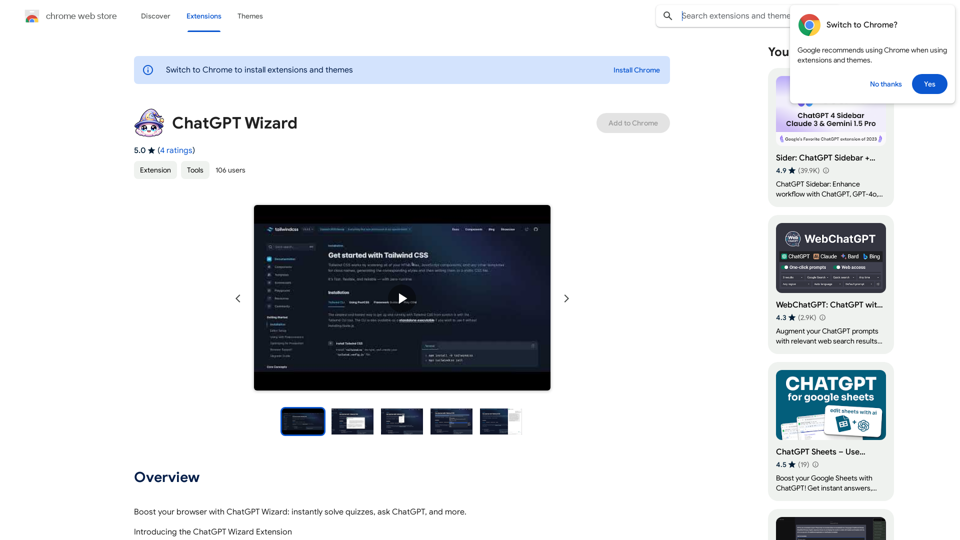
Improve your web browsing experience with ChatGPT Wizard: quickly answer quizzes, ask ChatGPT questions, and do much more.
Visit Website
ChatGPT Sorcerer
Visit Website

Introduction

ChatGPT Wizard is an AI-powered browser extension that enhances web browsing with features like quiz solving, instant translations, explanations, summaries, and content rewriting. It offers a range of tools to improve productivity and learning, including grammar correction, direct ChatGPT queries, and email drafting capabilities. The extension is free to use with optional subscription plans for extended access.

Feature

Quiz Solver

Use the shortcut (Cmd+Shift+S) to capture quiz content and receive answers with explanations from ChatGPT.

Translate

Highlight text for immediate, accurate translations, making multilingual content accessible.

Explain

Right-click to summon ChatGPT for clear, insightful interpretations of complex content.

Summarize

Condense lengthy articles or documents to grasp key concepts quickly.

Rewrite

Refresh existing text with a new perspective using the rewrite function.

Grammar Correction

Perform thorough grammar checks and corrections.

Ask ChatGPT

Directly pose questions to ChatGPT or engage with it through image-based queries.

Read it

Utilize the feature to read selected text.

Write email

Draft emails effortlessly using the shortcut (Cmd+Shift+P).

Customizable User Settings

Personalize the extension by setting preferred translation language, summary depth, or rewrite methodology.

FAQ

How to use ChatGPT Wizard?

Install the extension to start using its AI capabilities for enhanced digital interactions.

How much does ChatGPT Wizard cost?

The extension is free to download and use, with optional subscription plans for extended access and additional features.

Is ChatGPT Wizard suitable for commercial use?

Yes, the extension can be used for both personal and commercial purposes.

How do I customize my user settings?

Navigate to the extension's settings page to adjust preferences for translation language, summary depth, or rewrite methodology.

What are some helpful tips for using ChatGPT Wizard?

  • Customize user settings for optimal performance
  • Use Quiz Solver for effortless quiz-solving and learning
  • Leverage the Translate feature to access multilingual content

Latest Traffic Insights

  • Monthly Visits

    193.90 M

  • Bounce Rate

    56.27%

  • Pages Per Visit

    2.71

  • Time on Site(s)

    115.91

  • Global Rank

    -

  • Country Rank

    -

Recent Visits

Traffic Sources

  • Social Media:
    0.48%
  • Paid Referrals:
    0.55%
  • Email:
    0.15%
  • Referrals:
    12.81%
  • Search Engines:
    16.21%
  • Direct:
    69.81%
More Data

Related Websites

BEXI.ai - Humanize AI Text | Free AI Humanizer Tool for Natural Language
View Detail

BEXI.ai - Humanize AI Text | Free AI Humanizer Tool for Natural Language

BEXI.ai - Humanize AI Text | Free AI Humanizer Tool for Natural Language

BEXI.ai is a free tool for making AI-generated text more natural and undetectable. With support for multiple languages and customizable styles, BEXI.ai helps you easily create engaging, human-like content.

33.18 K
Cốc Cốc Search
View Detail

Cốc Cốc Search

Cốc Cốc Search

Install Cốc Cốc Search today and experience the search engine designed for Vietnamese people!

193.90 M
Sentimetric

Sentimetric is a method used to measure the sentiment of text data, such as customer reviews, comments, or social media posts. It involves analyzing the emotional tone or attitude conveyed by the text, whether it's positive, negative, or neutral.
View Detail

Sentimetric Sentimetric is a method used to measure the sentiment of text data, such as customer reviews, comments, or social media posts. It involves analyzing the emotional tone or attitude conveyed by the text, whether it's positive, negative, or neutral.

Sentimetric Sentimetric is a method used to measure the sentiment of text data, such as customer reviews, comments, or social media posts. It involves analyzing the emotional tone or attitude conveyed by the text, whether it's positive, negative, or neutral.

Unlock your career potential with our AI-powered job application presentation builder designed to help you stand out in the competitive job market. Our app goes beyond traditional cover letters and resumes by creating personalized presentations that show recruiters how your skills and experience align with company goals and values. Plus, we provide project ideas with SWOT analyses that will impress every recruiter.

0
Converting JPG Images to Text

Converting a JPG image to text is a process known as Optical Character Recognition (OCR). This technology enables you to extract text from images, scanned documents, and photos. Here's how to do it:

Method 1: Online OCR Tools

You can use online OCR tools to convert JPG images to text. Here are the steps:

1. Upload your JPG image: Go to an online OCR tool website, such as Online OCR Tools or OCR.space, and upload your JPG image.
2. Select the language: Choose the language of the text in your image.
3. Click on "Convert": The tool will convert the image to text.
4. Download the text: You can download the extracted text as a Word document, PDF, or plain text file.

Method 2: Google Drive

You can also use Google Drive to convert JPG images to text. Here's how:

1. Upload your JPG image: Upload your JPG image to Google Drive.
2. Right-click on the image: Right-click on the uploaded image and select "Open with" > "Google Docs".
3. The image will be converted: Google Docs will automatically convert the image to text.
4. Edit and download: You can edit the extracted text and download it as a Word document or PDF.

Method 3: Adobe Acrobat

If you have Adobe Acrobat installed on your computer, you can use it to convert JPG images to text. Here's how:

1. Open Adobe Acrobat: Open Adobe Acrobat on your computer.
2. Create a new document: Create a new document and click on "Tools" > "Recognize Text".
3. Select the image: Select the JPG image you want to convert.
4. Click on "Recognize": Adobe Acrobat will convert the image to text.
5. Edit and save: You can edit the extracted text and save it as a Word document or PDF.

These are the three methods to convert JPG images to text. Choose the method that works best for you!
View Detail

Converting JPG Images to Text Converting a JPG image to text is a process known as Optical Character Recognition (OCR). This technology enables you to extract text from images, scanned documents, and photos. Here's how to do it: Method 1: Online OCR Tools You can use online OCR tools to convert JPG images to text. Here are the steps: 1. Upload your JPG image: Go to an online OCR tool website, such as Online OCR Tools or OCR.space, and upload your JPG image. 2. Select the language: Choose the language of the text in your image. 3. Click on "Convert": The tool will convert the image to text. 4. Download the text: You can download the extracted text as a Word document, PDF, or plain text file. Method 2: Google Drive You can also use Google Drive to convert JPG images to text. Here's how: 1. Upload your JPG image: Upload your JPG image to Google Drive. 2. Right-click on the image: Right-click on the uploaded image and select "Open with" > "Google Docs". 3. The image will be converted: Google Docs will automatically convert the image to text. 4. Edit and download: You can edit the extracted text and download it as a Word document or PDF. Method 3: Adobe Acrobat If you have Adobe Acrobat installed on your computer, you can use it to convert JPG images to text. Here's how: 1. Open Adobe Acrobat: Open Adobe Acrobat on your computer. 2. Create a new document: Create a new document and click on "Tools" > "Recognize Text". 3. Select the image: Select the JPG image you want to convert. 4. Click on "Recognize": Adobe Acrobat will convert the image to text. 5. Edit and save: You can edit the extracted text and save it as a Word document or PDF. These are the three methods to convert JPG images to text. Choose the method that works best for you!

Converting JPG Images to Text Converting a JPG image to text is a process known as Optical Character Recognition (OCR). This technology enables you to extract text from images, scanned documents, and photos. Here's how to do it: Method 1: Online OCR Tools You can use online OCR tools to convert JPG images to text. Here are the steps: 1. Upload your JPG image: Go to an online OCR tool website, such as Online OCR Tools or OCR.space, and upload your JPG image. 2. Select the language: Choose the language of the text in your image. 3. Click on "Convert": The tool will convert the image to text. 4. Download the text: You can download the extracted text as a Word document, PDF, or plain text file. Method 2: Google Drive You can also use Google Drive to convert JPG images to text. Here's how: 1. Upload your JPG image: Upload your JPG image to Google Drive. 2. Right-click on the image: Right-click on the uploaded image and select "Open with" > "Google Docs". 3. The image will be converted: Google Docs will automatically convert the image to text. 4. Edit and download: You can edit the extracted text and download it as a Word document or PDF. Method 3: Adobe Acrobat If you have Adobe Acrobat installed on your computer, you can use it to convert JPG images to text. Here's how: 1. Open Adobe Acrobat: Open Adobe Acrobat on your computer. 2. Create a new document: Create a new document and click on "Tools" > "Recognize Text". 3. Select the image: Select the JPG image you want to convert. 4. Click on "Recognize": Adobe Acrobat will convert the image to text. 5. Edit and save: You can edit the extracted text and save it as a Word document or PDF. These are the three methods to convert JPG images to text. Choose the method that works best for you!

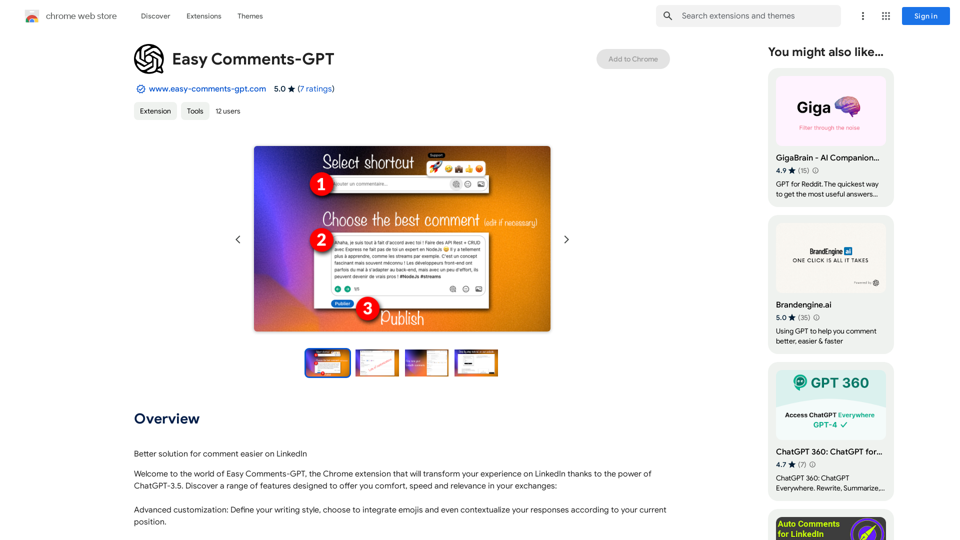
It is an online tool that uses Optical Character Recognition (OCR) to make it possible to extract text from images in JPG format.

193.90 M
Discover the Best AI Tools List & AI Tools Directory with tyy.ai
View Detail

Discover the Best AI Tools List & AI Tools Directory with tyy.ai

Discover the Best AI Tools List & AI Tools Directory with tyy.ai

tyy.ai - Leading AI tools directory. Discover the best AI tools, apps & websites to enhance personal & business productivity and tackle any challenge!

1.58 K
Audiotext AI
View Detail

Audiotext AI

Audiotext AI

Transform Your Ideas into Actionable Notes

193.90 M
AIScraper

This is a Python library for scraping data from websites that use the Amazon Interactive Search (AIS) API. 

Features:

* Easy to use: Simply provide a search query and the library will return a list of product results.
* Flexible: You can customize your scraping by specifying filters, such as price range, brand, and category.
* Efficient: The library uses asynchronous requests to speed up the scraping process.
* Reliable: The library is designed to handle rate limits and other website restrictions.

Installation:

```bash
pip install aiscraper
```

Usage:

```python
from aiscraper import AIScraper

Create an instance of the AIScraper class
scraper = AIScraper()

Perform a search for "laptops"
results = scraper.search("laptops")

Print the product titles
for result in results:
    print(result["title"])
```

Documentation:

https://github.com/aiscraper/aiscraper
View Detail

AIScraper This is a Python library for scraping data from websites that use the Amazon Interactive Search (AIS) API. Features: * Easy to use: Simply provide a search query and the library will return a list of product results. * Flexible: You can customize your scraping by specifying filters, such as price range, brand, and category. * Efficient: The library uses asynchronous requests to speed up the scraping process. * Reliable: The library is designed to handle rate limits and other website restrictions. Installation: ```bash pip install aiscraper ``` Usage: ```python from aiscraper import AIScraper Create an instance of the AIScraper class scraper = AIScraper() Perform a search for "laptops" results = scraper.search("laptops") Print the product titles for result in results: print(result["title"]) ``` Documentation: https://github.com/aiscraper/aiscraper

AIScraper This is a Python library for scraping data from websites that use the Amazon Interactive Search (AIS) API. Features: * Easy to use: Simply provide a search query and the library will return a list of product results. * Flexible: You can customize your scraping by specifying filters, such as price range, brand, and category. * Efficient: The library uses asynchronous requests to speed up the scraping process. * Reliable: The library is designed to handle rate limits and other website restrictions. Installation: ```bash pip install aiscraper ``` Usage: ```python from aiscraper import AIScraper Create an instance of the AIScraper class scraper = AIScraper() Perform a search for "laptops" results = scraper.search("laptops") Print the product titles for result in results: print(result["title"]) ``` Documentation: https://github.com/aiscraper/aiscraper

Web scraper, powered by AI! Collect structured data from web pages in just a few clicks! What's new 🔹Simplified data collection…

193.90 M
Met Genius Extension
View Detail

Met Genius Extension

Met Genius Extension

The Power of React and TypeScript for Building Interactive Chrome Extensions React and TypeScript are a powerful combination for developing engaging and robust Chrome extensions. Here's why: * React's Component-Based Architecture: React's component-based approach makes building complex UIs for your extensions manageable and reusable. * TypeScript's Static Typing: TypeScript's type system catches errors early in development, leading to more reliable and maintainable code. * Improved Developer Experience: Both React and TypeScript offer excellent tooling and a strong community, making development smoother and more enjoyable. By leveraging these technologies, you can create Chrome extensions that are: * Interactive and User-Friendly: React's declarative style and virtual DOM enable smooth and responsive user interfaces. * Scalable and Maintainable: TypeScript's type safety and React's component structure promote code organization and extensibility. * Bug-Free and Reliable: TypeScript's static typing helps prevent runtime errors, resulting in more robust extensions. Let's explore how to harness the power of React and TypeScript to build your next amazing Chrome extension!

193.90 M